

The Parker app runs on iPhone and iPad with iOS 18 or iPadOS 18 or later. It’s in early access, so you install it from an invitation. An Android app is planned. Until then, on Android, use the Parker web app in your browser.
Get the app
1
Connect your Salesforce login on the web
Parker works as you, so it needs your own Salesforce login. You connect it once in the Parker web app, under Settings > Connections. See the Quickstart. In the app, Settings > Connections > Manage Salesforce on the web takes you to the same page.
2
Open your invitation
Parker support sends you an invitation to install Parker through TestFlight, Apple’s app for early-access apps. Open the invitation on your iPhone or iPad and follow it to install TestFlight, then Parker. If you don’t have an invitation, ask your Parker admin.
3
Sign in
Open Parker. The first time, select Other ways to sign in. Enter your work email and select Continue, then enter the code Parker emails you. You can also select Continue with Apple, Continue with Google, or Continue with Microsoft, if that’s how you sign in to the web app.
4
Check it worked
Parker opens on your chats. Select New chat and ask about a record you can open in Salesforce, such as “What are my open cases?”
Sign in with your mobile number
After your first sign-in, you can add your mobile number and sign in with a texted code from then on.- In the app, open Settings from your picture on the chat list, and select your name to open Account.
- Select Phone number, enter your Mobile number, and select Text me a code.
- Enter the 6-digit code. The row shows Verified.
What can I do in the Parker app?
Most of what people do fits one of eight jobs. See What teams do with Parker for examples of each.Send a voice note
Say it. Parker tells you what it heard, then does the work.
Log visits and calls
Check in at a site and log what happened.
Log a job from a photo
Snap, tap, confirm. The photo is attached to the case.
Close a job with evidence
Readings, notes, and photos onto the job.
Check a status
Where a job, claim, or proposal is up to. Nothing is written.
Report and escalate
Your Salesforce rules decide who’s told.
Record a compliance check
Temperatures, tests, and certificates, under your name.
Orders, bookings, and approvals
Your limits and approval steps still apply.
Update a record in a sentence
Parker shows the change before it saves.
Business cards and contacts
Turn a card or shared contact into a lead or contact.
Briefs and updates
Your day, before you start it.
Confirm, edit, and correct
Fix anything Parker got wrong with a reply.
How do messages look?
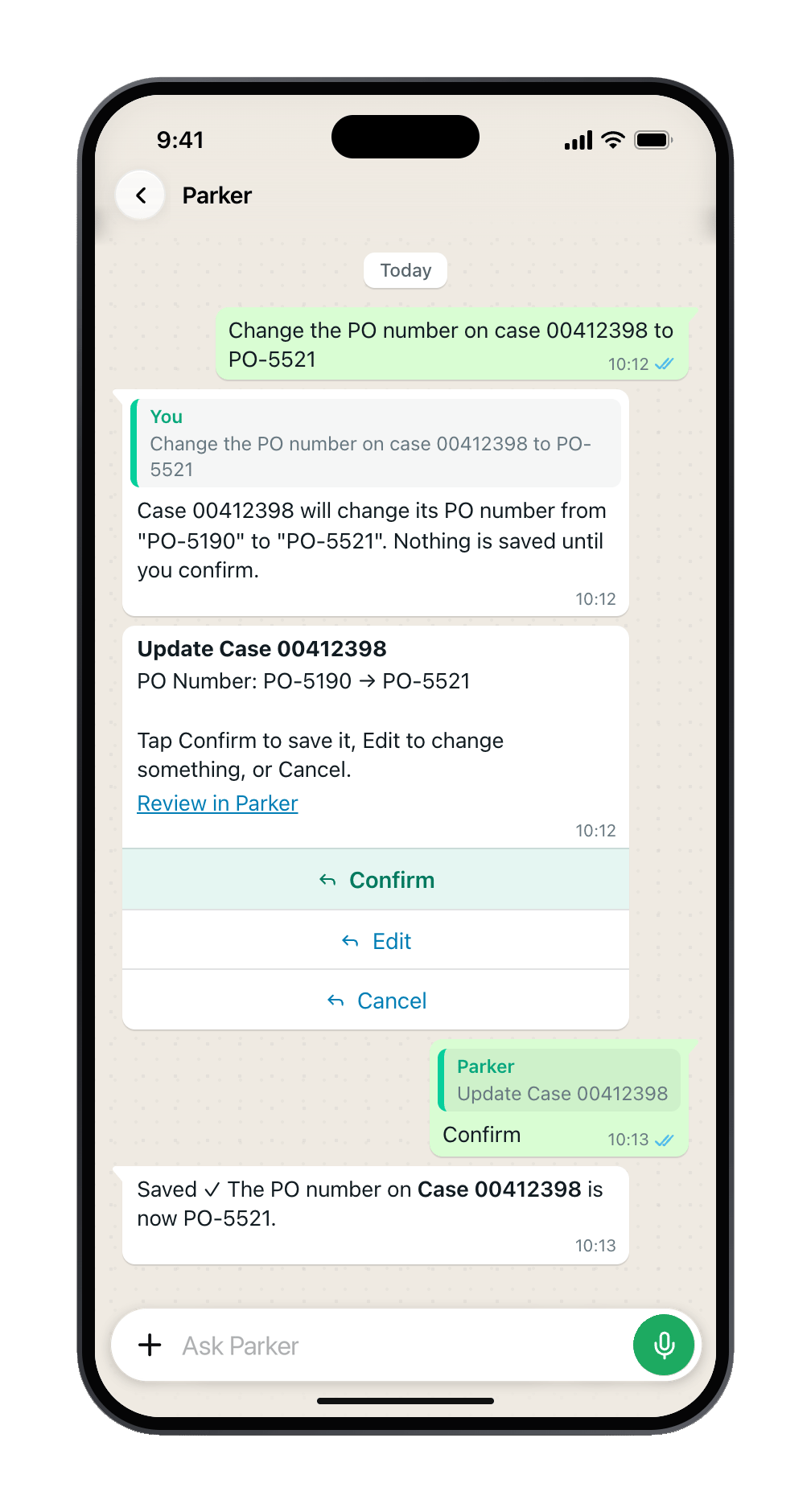
Every change arrives as a card. Nothing saves until you tap Confirm.
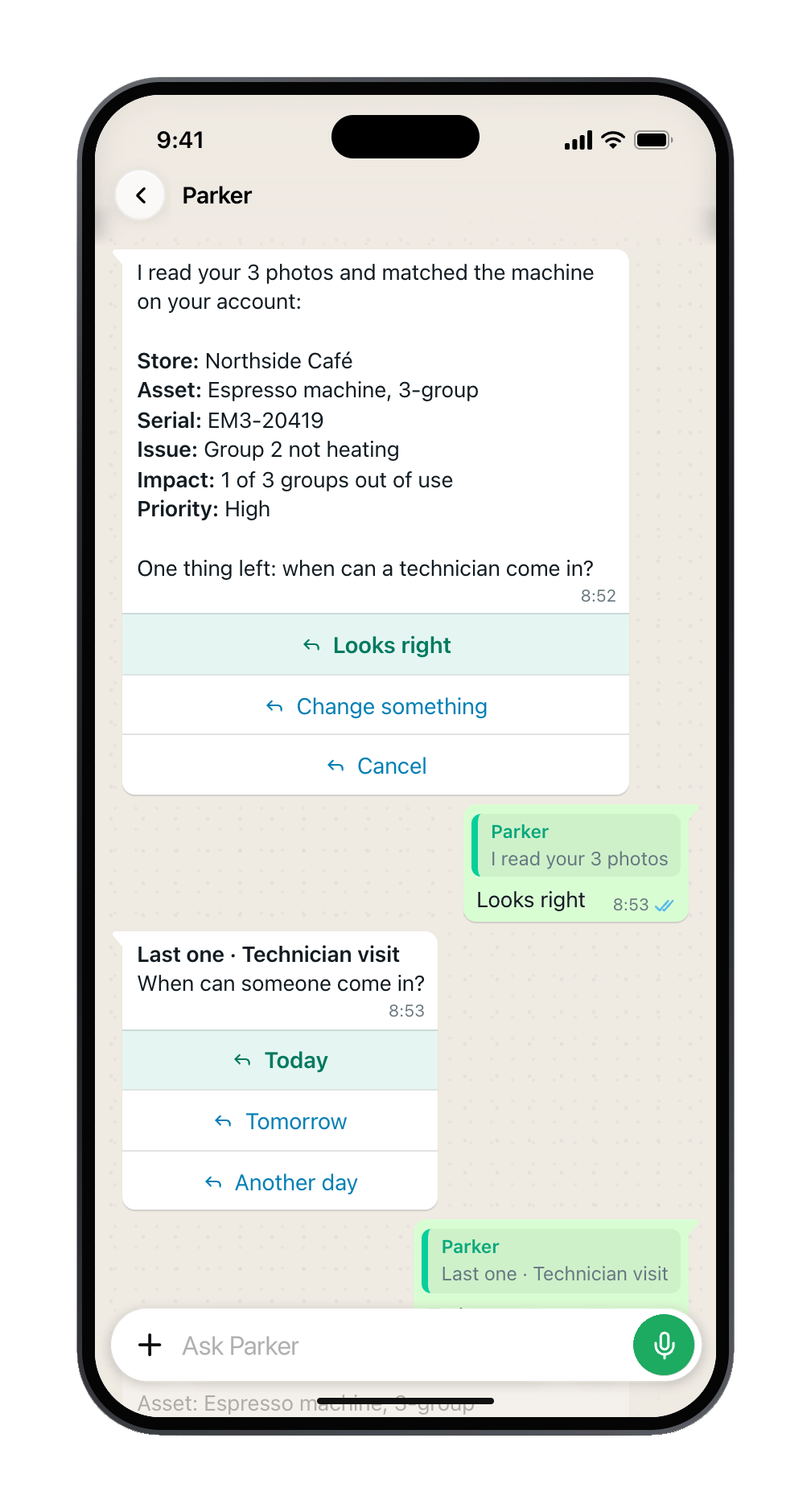
Choices arrive as buttons you tap.
- Answers as they’re written. Parker’s reply appears as it’s written, with the records it used.
- Buttons. When there are a few choices, Parker shows numbered buttons. You can also type the number of an option.
- Tables, charts, and maps. Tap a column heading to sort a table. Its Table actions menu has Copy table, Export CSV, and Share as image. CSV is short for comma-separated values, a file a spreadsheet can open.
- Sources. Tap a numbered source to open the Salesforce record behind an answer. It’s read live, with your access.
- Files. Exports and documents arrive as cards. Tap Open to view, save, or share the file.
What can I send Parker?
Select the add button next to the message box to add Photos, a File, a Camera shot, or to Scan a document or card.
You can add up to 10 files to one message, each under 10 MB, 30 MB in all. See Limits and supported files.
Photos, voice notes, and documents can suggest a change, but they can’t approve one. Only your tap on Confirm saves.
Is it the same Parker as the web app?
Yes. A chat you start in the app is a normal Parker conversation. It appears in the web app sidebar, so you can pick it up on a bigger screen, and chats you start on the web appear in the app. Parker uses the same Salesforce login, knowledge, memories, and rules everywhere.Work without a connection
- Read. Recent chats, and the photos and records you’ve opened, are kept on your phone. With no connection, Parker shows Offline. Showing what is saved on this phone.
- Write. A text message you write offline is kept, with a clock beside it, and the chat list shows how many messages are waiting to send. Open the chat when you’re back online and it sends. Photos and files aren’t kept for later, so add them again once you’re connected.
- Follow a message. A clock means waiting to send. One tick means sent. Two blue ticks mean Parker has started on it. If a message shows Not sent., select Try again.
Give feedback on an answer
Press and hold any of Parker’s answers and select Helpful or Not helpful. If an answer was off, say what was wrong in your next message, and Parker takes it from there. The same menu has Star, to keep an answer under Starred answers, plus Copy and Share.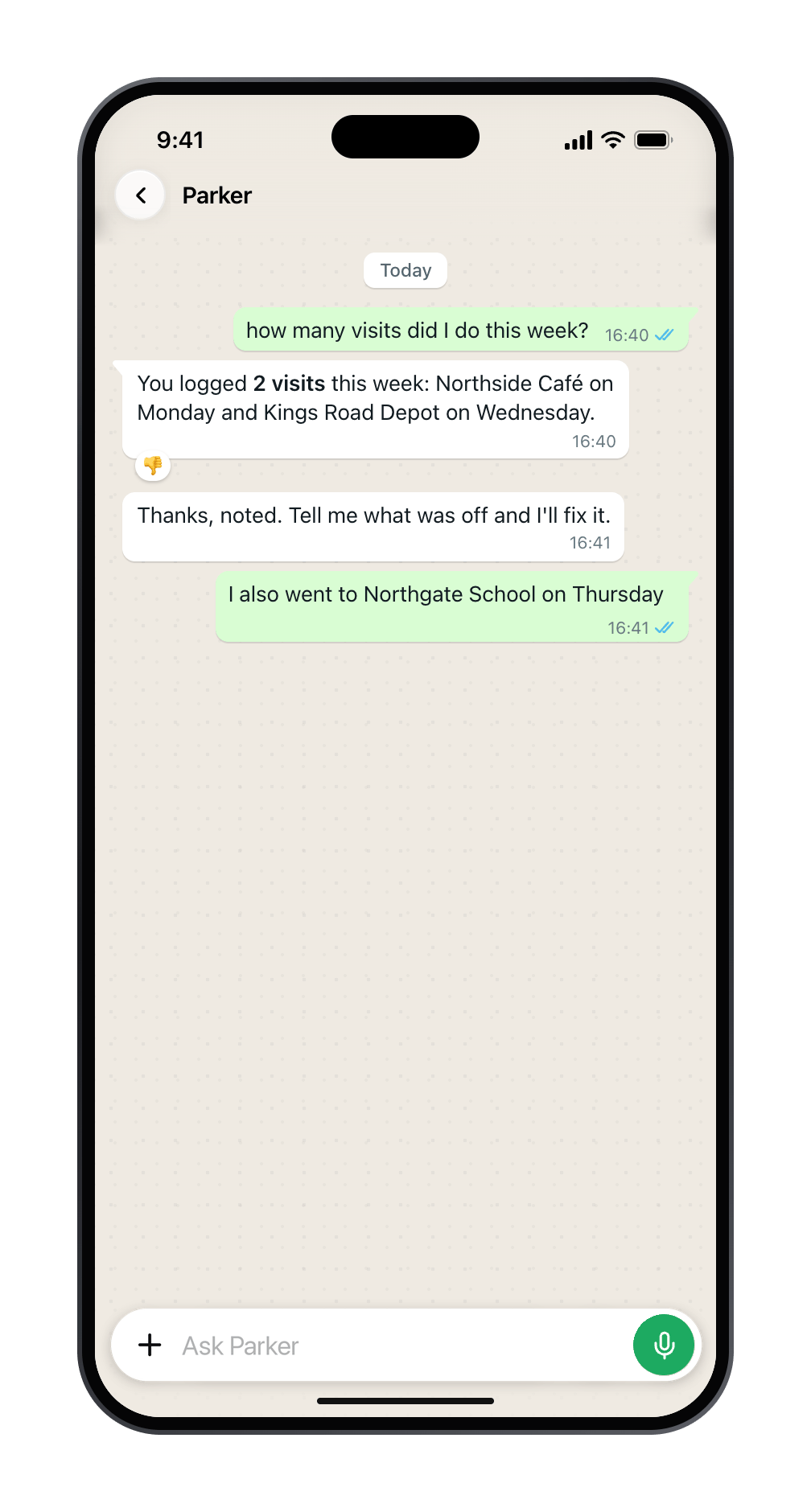
Example: tell Parker when it's off, then the correction.
What can’t Parker do in the app?
- Read videos. Send a photo if you want Parker to read a label or fault.
- Listen to a long voice note, or to voice notes in a workspace where they’re turned off. See Send a voice note.
- Connect Salesforce. You connect your own Salesforce login in the web app.
- Work without an account. Someone who isn’t in your Parker workspace can’t sign in.
Lock the app, a new phone, or a second workspace
- Lock Parker. On the chat list, open Starred answers and settings and turn on Lock Parker when it has been closed. Parker then asks for Face ID or your passcode when you come back to it.
- New phone. Install Parker from your invitation and sign in again. Your chats are on your account, not the phone.
- Lost phone. Tell your Parker admin straight away. Change the password for the email or account you sign in with.
- Two workspaces. In Settings, open Account, then Organisation, and choose the one to work in. Parker reopens in the organisation you used last.
- Sign out. In Settings, open Account and select Sign out. Messages still waiting to send are deleted.
Troubleshooting
We don't know that number yet
We don't know that number yet
Your mobile number isn’t on your Parker account. Select Sign in another way and sign in with your work email. Then add the number under Settings > Account > Phone number.
That code isn't right. Check the text and try again.
That code isn't right. Check the text and try again.
Enter the newest code. If it has expired, select Send a new code.
I can't install the app
I can't install the app
Check that your iPhone or iPad runs iOS 18 or iPadOS 18 or later, and that you opened the invitation on that device. If the invitation has expired, ask your Parker admin for a new one.
Parker says it can't reach my Salesforce
Parker says it can't reach my Salesforce
Your own Salesforce login isn’t connected, or the connection has expired. In Settings > Connections, select Manage Salesforce on the web and connect again.
This chat isn't saved on this phone
This chat isn't saved on this phone
You’re offline, and this chat wasn’t opened recently on this phone. It loads when you’re back online.
A message I wrote offline hasn't sent
A message I wrote offline hasn't sent
A waiting message sends when its chat is open and you’re connected. Open the chat.
Still need help?
Check Troubleshooting for the exact message you see. If a setting is admin-only, ask your Parker admin. For anything else, contact support.Related
Quickstart
Set up and send your first message.
How Parker acts on your behalf
What Parker confirms before it saves.
Other channels
Messages and Microsoft Teams.
Troubleshooting
Fixes for common problems.