

Before you begin
- Get the Parker app.
- Your own Salesforce login is connected. Parker can only see what you can.
Ask
Just message Parker. By text, voice note, or a photo with a line of text:
Ask a follow-up in the same chat, such as “and the one before that?”
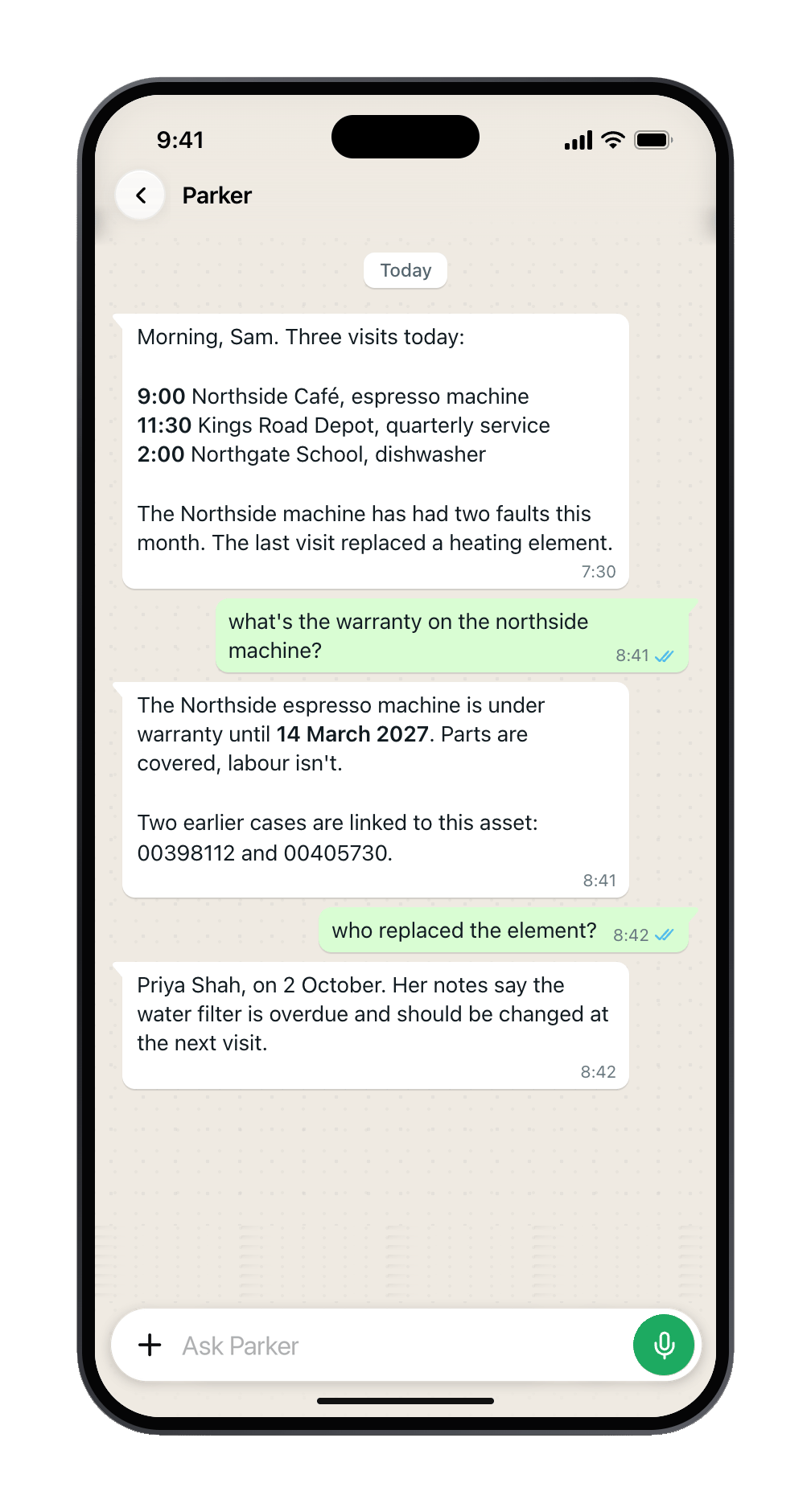
Parker answers from live Salesforce data.
What Parker reads, and what it writes
If your message also asks for a change, such as “Where’s the valve job? Mark it started,” Parker answers the question, then shows the change as a card for you to confirm. See Confirm, edit, and correct.
Can I see records I don’t own?
Only if you can in Salesforce. Parker runs as you, so your sharing rules, profile, and field-level security decide what it can read. Two people can ask the same question and get different answers. If something is missing, check whether you can open it in Salesforce.When Parker can’t find it
Parker says so rather than guessing. Try the record’s number or exact name, or ask your Salesforce admin about your access.Tables, charts, and files
A list arrives as a table picture. Reply CSV to get its data as a file. Ask for a chart and it arrives as a picture. For the records behind an answer, open the same chat in the web app and use the source markers. See Ask about your Salesforce data.Still need help?
Check Troubleshooting for the exact message you see. If a setting is admin-only, ask your Parker admin. For anything else, contact support.Related
Briefs and updates
Have the answer waiting before you start.
Ask about your Salesforce data
Counts, comparisons, and sources in the web app.