

What is a routine?
A routine is a saved prompt with a schedule. Each time it runs, Parker answers the prompt and delivers the result, called a brief. Tools stay read-only when a routine runs. A routine is different from an automation. An automation reacts to new email. A routine runs at set times and reports back.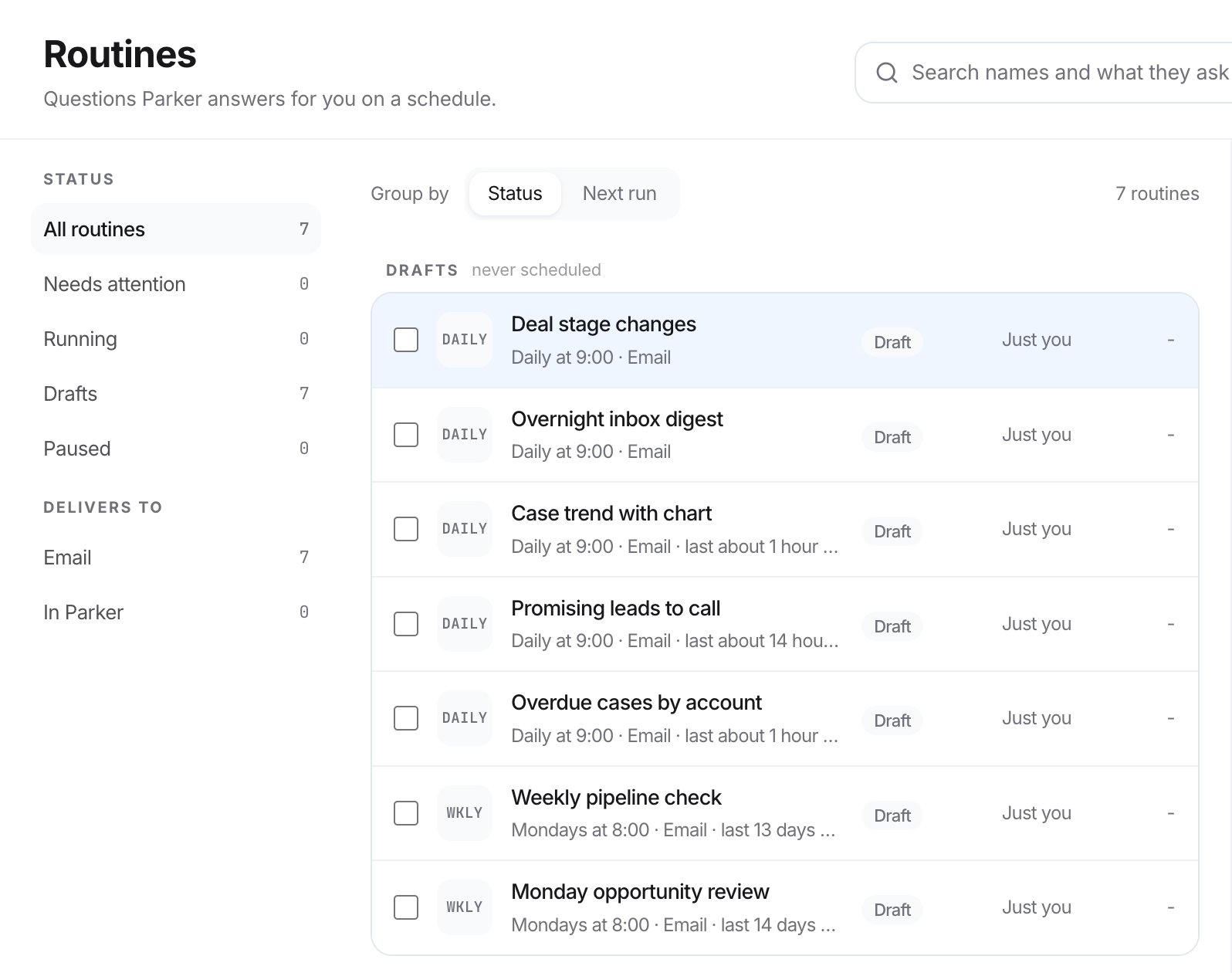
The Routines page lists your routines by status.
Create a routine
1
Start a new routine
Go to Routines in the sidebar and select New routine.
2
Write the prompt
Under Prompt, describe what Parker should do every run, or pick one of the Suggested for you prompts. Parker names the routine from your prompt.
3
Set the schedule
Under Schedule, choose a Frequency: Every hour, Daily, Weekdays (Mon–Fri), Weekends (Sat + Sun), Weekly, or Monthly. Set the Time and Timezone.
4
Choose delivery
Under Delivery, select Email (full brief to recipients), In Parker (shows in notifications), or both. A routine has to deliver somewhere, so the last channel stays on.
5
Add recipients
Under Recipients, select Add teammate. Recipients get the brief, and each run’s conversation opens for them in Parker.
6
Try it once
Select Try it once. Parker runs the routine now and shows What it would send. Nobody is emailed by a test run. Change the prompt and select Run it again until you’re happy.
7
Schedule it
Select Schedule it, or Create routine if you didn’t try it first. Enabled on create is on by default.
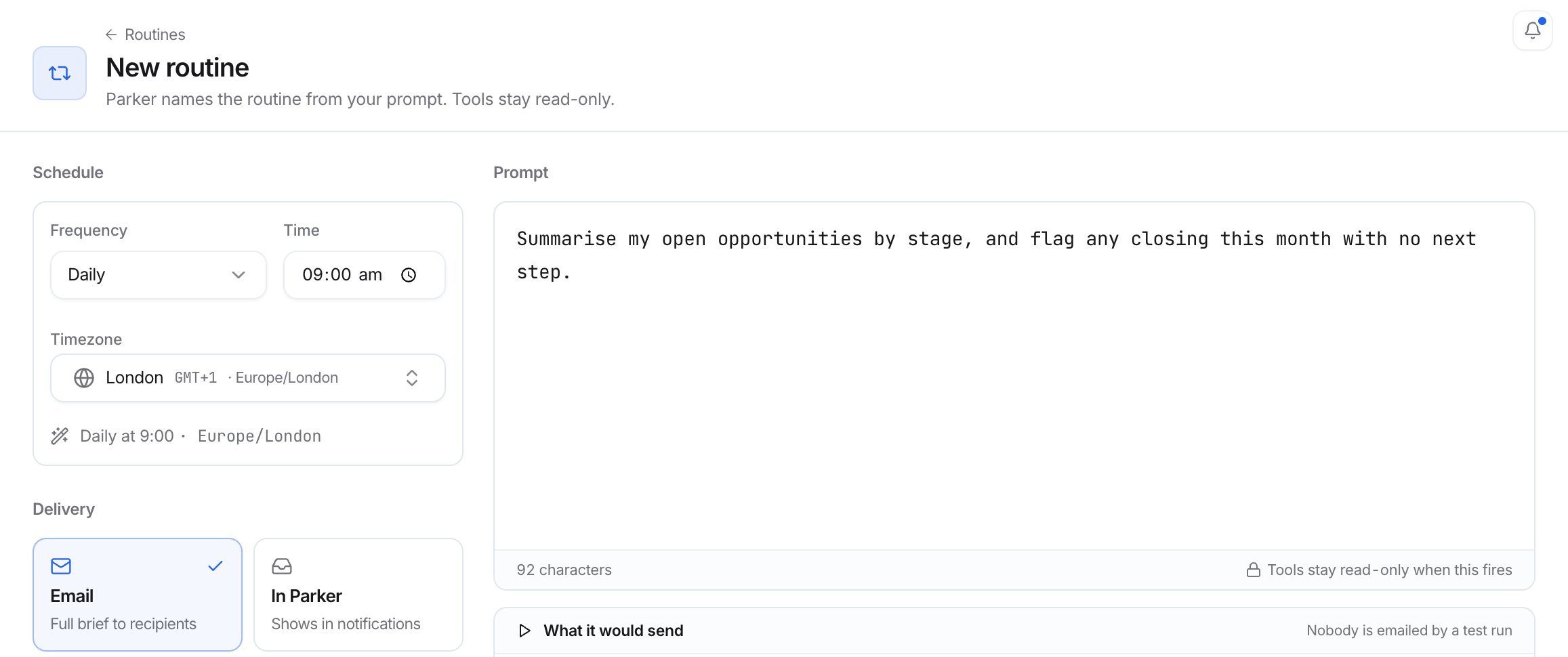
A new routine: schedule, delivery, and prompt.

After you try a routine, choose to discard it, run it again, or schedule it.
A pipeline check
Check it worked
- The routine’s page shows its schedule and timezone.
- After it runs, the Runs tab lists each run with its Status, Trigger, Started, Duration, and Delivered. Select View thread to open that run’s conversation.
Edit a routine
Open the routine from the Routines page, then select Open full view. You can change the prompt, Schedule, Delivery, and Recipients. To rename it, select Rename routine next to its name. The Prompt tab shows the current version of the prompt, such as v1 Current.Pause, run, copy, or delete a routine
- To turn it on or pause it, use the Enabled switch on the routine’s page. When it’s off, the header says “Paused, so it won’t fire on schedule.” On the Routines page, you can also select Turn on.
- To run it now, select Run now. It shows in Runs as a Manual run.
- To copy it, select it on the Routines page and select Duplicate.
- To delete it, select Delete (the bin) on the routine’s page.
Related
Automations
Have Parker draft replies to new email.
Pages
Find designed reports Parker saved for you.
Asking Parker
Write prompts that get good answers.