

Beta. This feature is being rolled out gradually, so it may not be turned on for your workspace yet, and details may change. To request access, ask your Parker admin or contact support.
What can I open in the Work panel?
- Sources: the list of everything Parker cited in the chat.
- A single record: one Salesforce record that an answer cites.
- Tables: a table from an answer, with room to read every column.
- Charts: a chart from an answer.
- Designs: a designed page Parker made for you.
Open something in the panel
1
Choose what to open
Do one of these:
- On a table or chart, select Open in panel. Tables also have Open in panel in their Table actions (…) menu.
- In an answer, select a numbered source marker to open that record.
- Select Sources in the chat header to see every source.
- On a design, select Open canvas.
2
Read and keep asking
The panel opens beside the chat. The message box shows what you’re working on, such as Working on followed by the table’s title, or Asking about followed by a record’s name. Your next question is about that item.
3
Ask for changes (tables and designs)
For a table or design, select Request edits in the panel header, and describe the change.
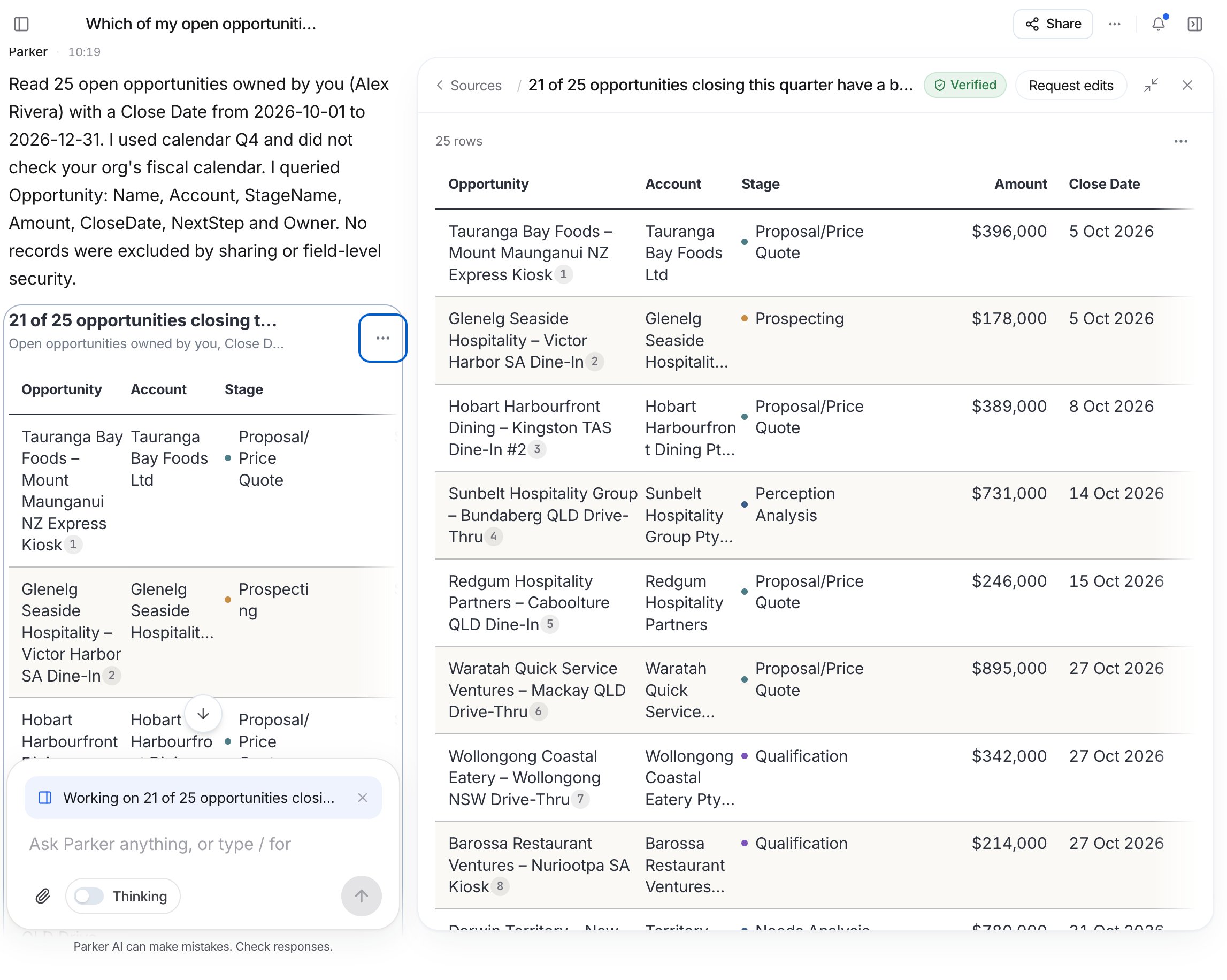
A table open in the Work panel beside the chat.
Check it worked
The panel shows the item’s title in its header. To go back to the list of sources, select Sources in the panel header.Arrange the panel
- Dock or float it: select Dock panel to make the panel sit beside the chat as a column. Select Float panel to make it a card again.
- Close it: select Close panel.
Example prompts
Get a table you can open in the panel
Get a chart to read beside the chat
Change a table you're reading in the panel
Troubleshooting
I don't see Open in panel
I don't see Open in panel
The Work panel isn’t turned on for every workspace yet. Ask your admin.
Related
Chat overview
How answers and sources appear.
Charts and diagrams
Ask for visuals.
Reports and documents
Make designed pages.