

Before you begin
- Get the Parker app.
- Your Salesforce login can create or update the record your org uses for checks, such as a work order, an inspection, or a custom object.
Record a check
1
Say or send the results
By voice: “Six-monthly fire alarm service at Marsh House. Zones one to four tested, 46 devices, replaced one smoke detector in the plant room. All passed.” By photo: the completed certificate or the gauge, with a caption such as “Hot tap, changing rooms, 47.2 after a minute.”
2
Name the site or asset
If Parker can’t tell which property, asset, or appliance you mean, it lists the likely matches for you to pick.
3
Answer anything missing
Parker asks for any field the check needs that you didn’t give, such as the date, a pass or fail, or the certificate number. For a photo of a label or certificate, Parker reads the values and suggests them; you check and accept each one.
4
Confirm
The card lists every reading and result. Tap Confirm. Parker saves it as you and attaches the photos.
Nothing is saved until you confirm.Before Parker creates or changes a Salesforce record, it shows the change field by field. Nothing is written until you select Confirm. In the Parker app the card offers Confirm, Edit, and Cancel. In the web app it offers Confirm and Reject.See How Parker acts on your behalf.
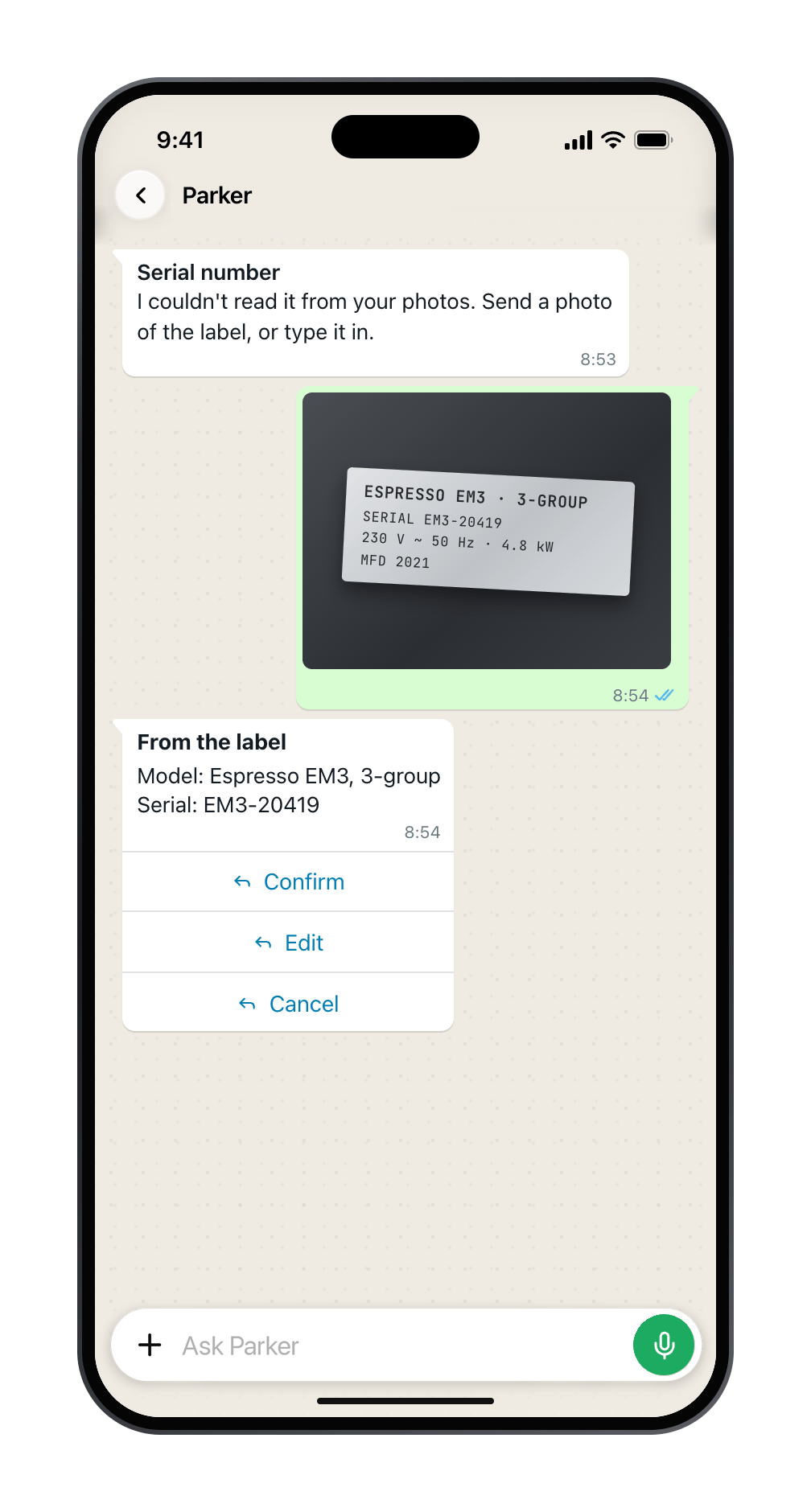
Parker reads a label or certificate and suggests the values. You check and accept them.
What’s recorded
Examples
Ask what’s due
Parker can tell you what’s coming up, from dates already in Salesforce: “Which gas safety checks are due in the next 30 days with no appointment?” or “Any certificates expiring this quarter?” Nothing is written when you ask. To get this without asking, set up a routine and turn on Routine results in Updates from Parker.What Parker doesn’t do
- Sign off a check. You record the result and confirm it. The record shows your name and time, not Parker’s.
- Fill in a reading you didn’t give. If a required field is empty, Parker asks rather than filling it. It can still mishear a voice note or misread a photo, so check each value on the card before you confirm.
- Change what the record needs. Required fields and validation rules are set in Salesforce by your admin. See When Salesforce says no.
Still need help?
Check Troubleshooting for the exact message you see. If a setting is admin-only, ask your Parker admin. For anything else, contact support.Related
Close a job with evidence
Readings, notes, and photos on the job.
Send a voice note
Read the results out loud.