

Before you begin
- Get the Parker app.
- Your Salesforce login can create the record, such as a case.
Report a problem
1
Say what's wrong
A photo with a caption, a voice note, or a line of text. “Chiller 1 tripping on high discharge pressure. Fault code E42 on the controller. Needs a specialist.”
2
Pick the account or site
If your message names it exactly, Parker uses it. Otherwise it lists likely matches for you to pick. Parker asks rather than picking one for you.
3
Classify it yourself
When a field such as priority, severity, or type matters to how the record is routed, Parker asks you to choose it. Choices arrive as buttons.
4
Confirm
Parker shows the record as a card. Tap Confirm. Parker saves it as you, attaches any photos, and replies with the number.
Nothing is saved until you confirm.Before Parker creates or changes a Salesforce record, it shows the change field by field. Nothing is written until you select Confirm. In the Parker app the card offers Confirm, Edit, and Cancel. In the web app it offers Confirm and Reject.See How Parker acts on your behalf.
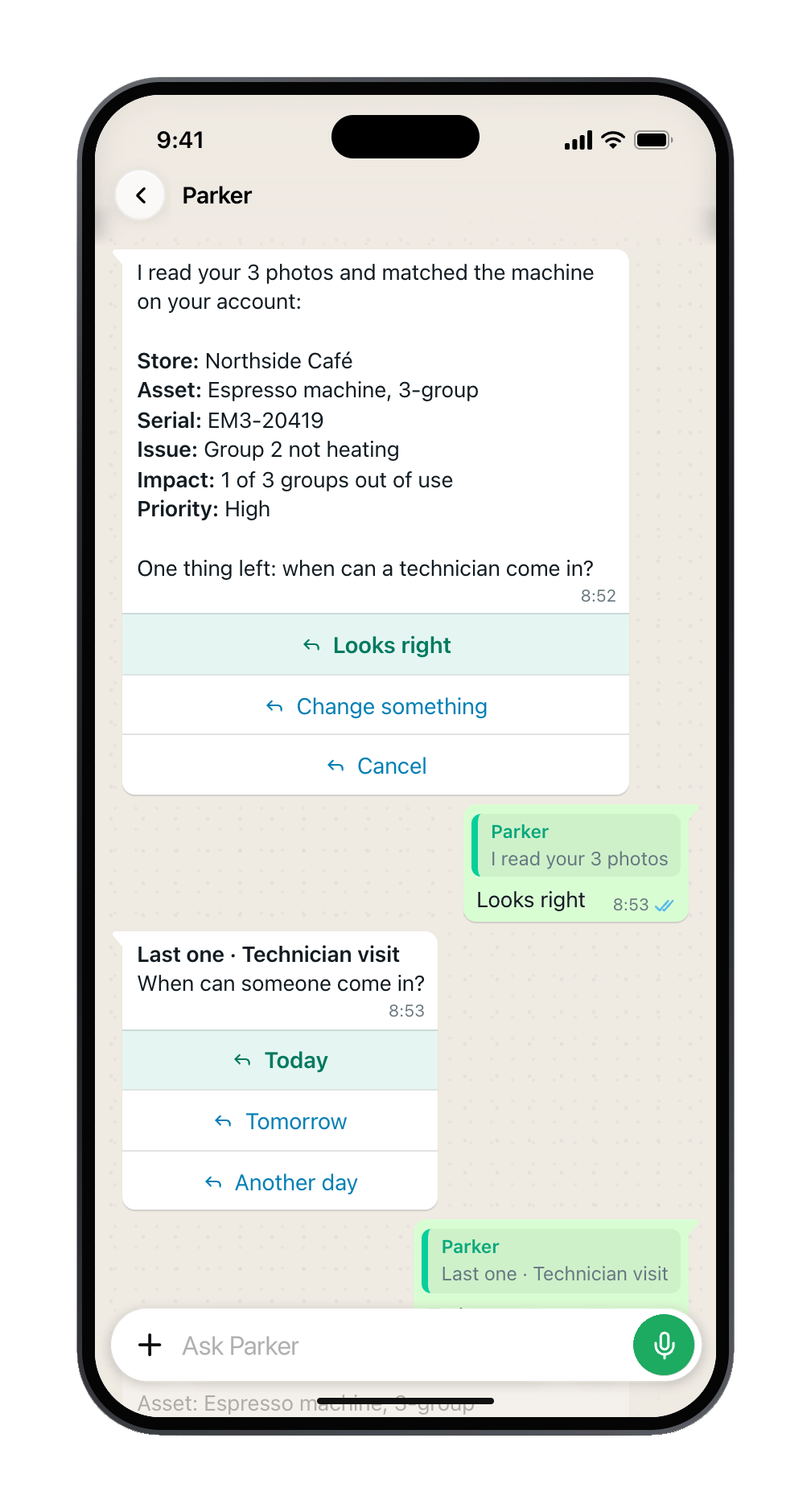
One question at a time, with one-tap answers.
Who gets told?
Whoever your Salesforce setup says. Parker creates the record as you, and for a case from a photo or a captured message asks Salesforce to run your assignment rules. It does nothing else itself. Anything that happens next, such as assignment, a flow, an email, or an escalation timer, comes from your Salesforce configuration, the same as for a record created through Salesforce’s API.
Parker doesn’t notify anyone itself, and doesn’t submit records to a Salesforce approval process. If your team expects a person to be told, check in Salesforce that the owner or queue is right after you confirm, and tell them directly if it isn’t.
Examples
What Parker doesn’t do
- Judge how serious it is. Parker may suggest a priority from what you said, but you set it: change it on the card before you confirm. It doesn’t make a professional judgement about a person or a risk.
- Pick who handles it. Your Salesforce rules decide. Parker doesn’t message the on-call engineer, nurse, or manager on its own.
- Raise anything from a forwarded message alone. A forwarded message or photo can suggest a record, but only your tap on Confirm creates one.
Still need help?
Check Troubleshooting for the exact message you see. If a setting is admin-only, ask your Parker admin. For anything else, contact support.Related
Log a job from a photo
Every step of a case from a photo.
When Salesforce says no
Required fields and validation rules.