

Before you begin
Connect your mailbox. Automations work with Outlook and Gmail.What is an automation?
An automation is a job Parker does when new email arrives. You tell it:- Which emails to look out for, in your own words.
- What to do with them, such as drafting a reply.
- How far it may go, and when to tell you.
With Draft replies, “Drafts land in your Outlook Drafts. Nothing is ever sent on its own.” You send each reply yourself.
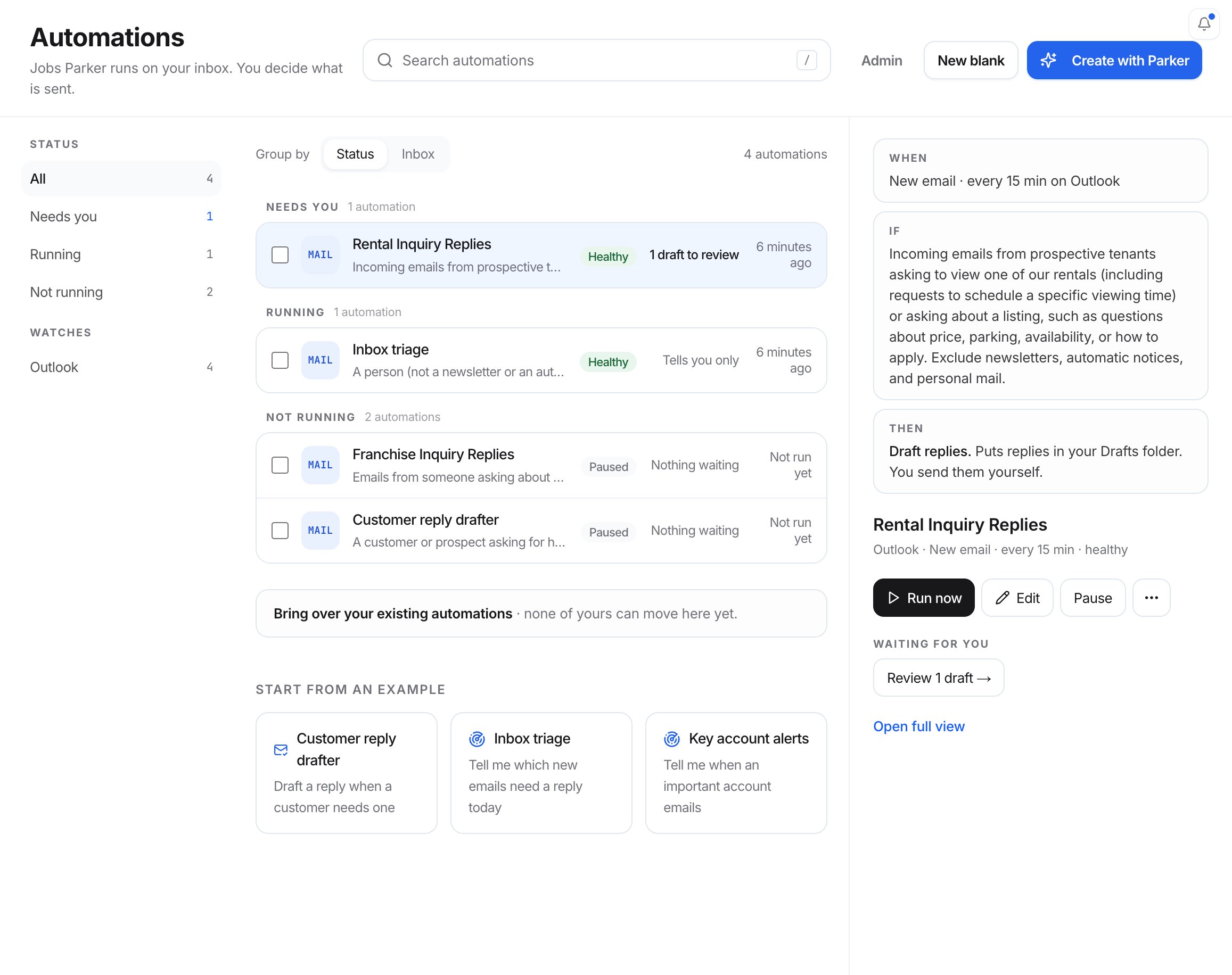
The Automations page groups your automations by status.
Create an automation
1
Start a new automation
Go to Automations in the sidebar and select Create with Parker. You can also select New blank to fill in the form yourself, or pick one of the cards under Start from an example.
2
Describe what you want handled
In What should it do?, describe the job in a sentence or two. Select Fill in the form. Parker names the automation and fills in the form. To try again, change your description and select Ask again.
3
Answer Parker's questions
If Parker needs a decision from you, it shows Worth deciding before you save with a few options. Picking one rewrites the form for you. You can still change every word.
4
Check the form
Read each field and edit anything that isn’t right. The What Parker will and won’t do box sums up what the automation can do. See Form fields.
5
Save and preview
Select Save and preview. Parker saves the automation, paused, and runs a preview on your recent email. To save without a preview, select Save as paused.
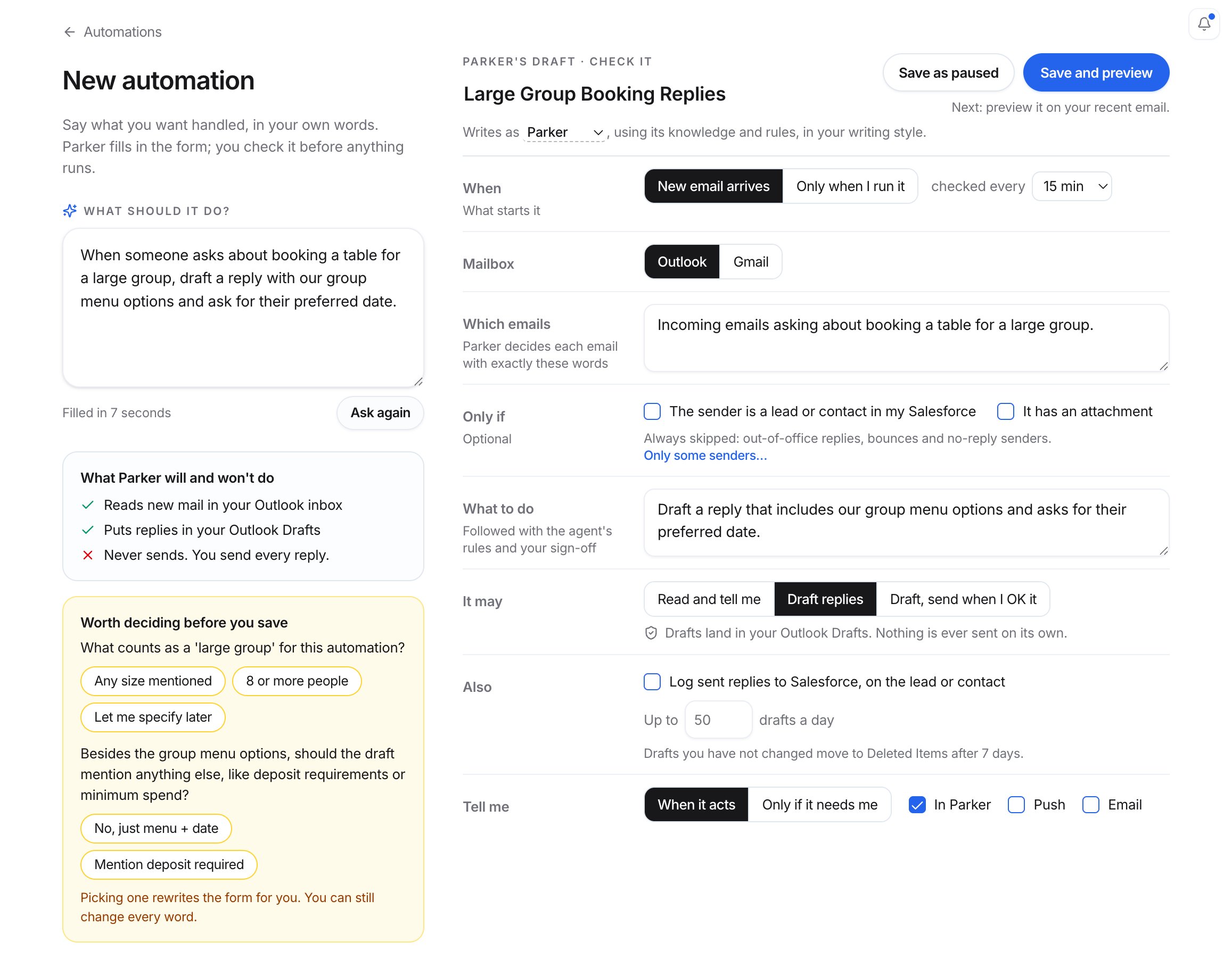
Parker fills in the form from your description. Check it before you save.
Form fields
Writes as shows which Parker agent writes the drafts, “using its knowledge and rules, in your writing style.” See Writing style.
Preview and turn it on
After you save, the automation’s page opens with Preview · nothing is written. It shows what the automation would have done with your recent email: how many it would reply to, how many were already answered by you, and how many it would pass over, with a reason for each email. If the preview looks wrong, select Edit, change the wording, save, and select Run preview again.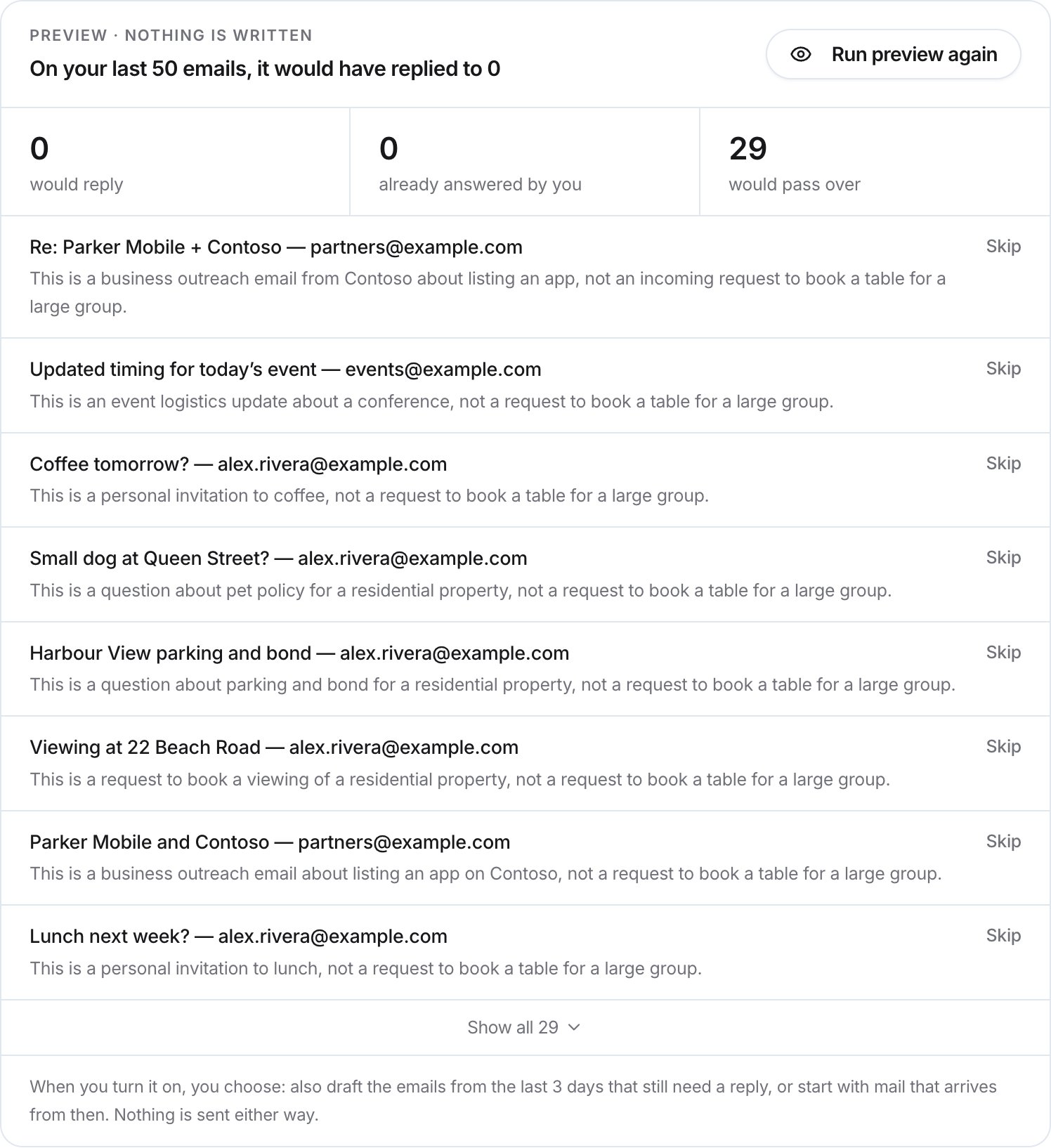
The preview shows what the automation would do. Nothing is written.
Check it worked
- The automation’s badge changes from Paused to Healthy, and the panel shows Working normally and the next check time.
- The Activity tab lists its checks.
- New drafts show up in the Review tab, and the Automations link in the sidebar shows how many are waiting. See Review drafts and runs.
Edit an automation
Open the automation and select Edit. The form is the same one you used to create it. Make your changes and select Save. Saving makes a new version. Drafts already written keep the version that wrote them. The Setup tab lists the automation’s settings and its Versions.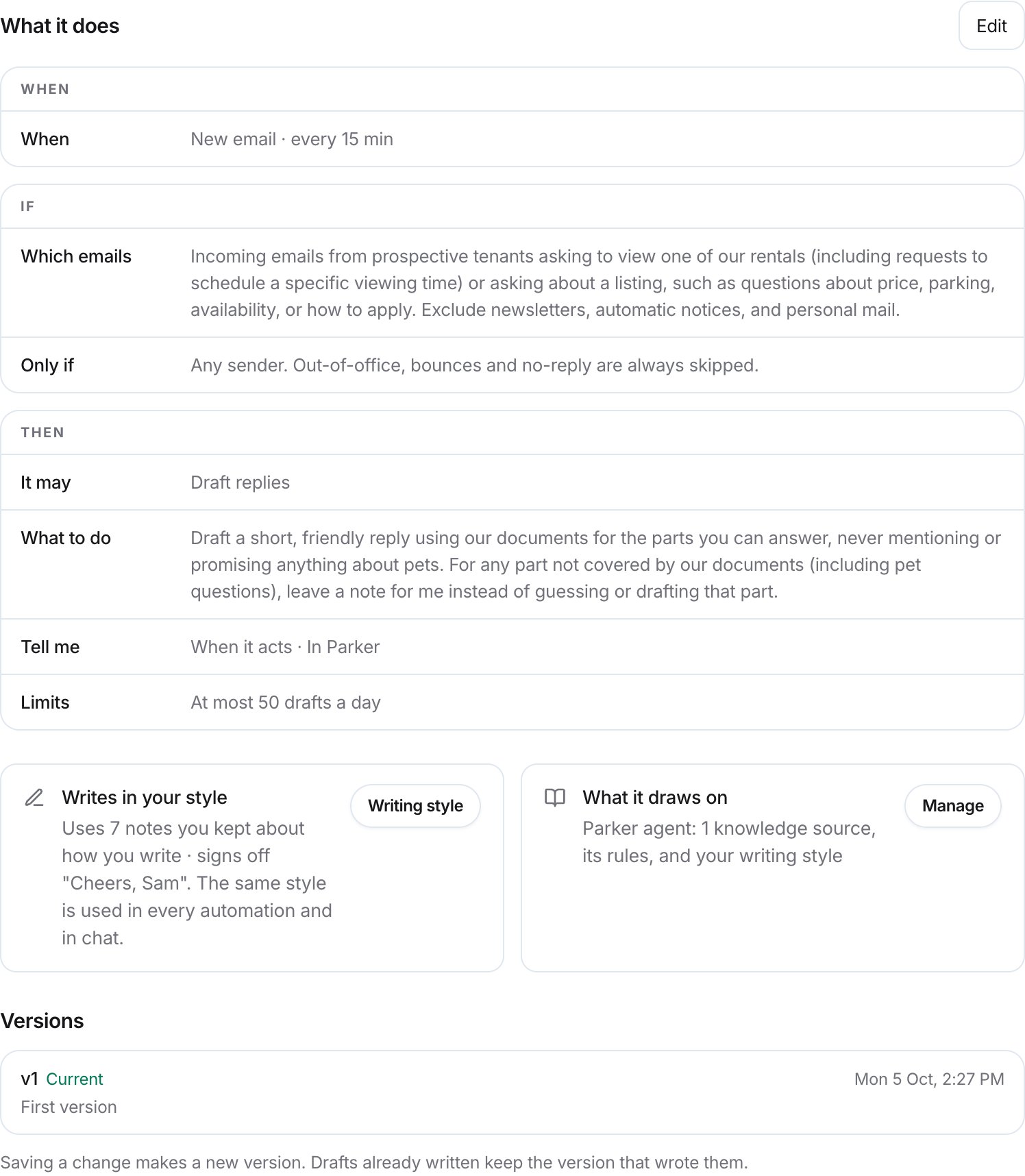
The Setup tab shows what the automation does and its versions.
Pause, duplicate, or delete
- To pause, open the automation and select Pause. To start it again, select Turn on.
- To copy it, open the More (…) menu and select Duplicate.
- To delete it, open the More (…) menu and select Delete. Type the automation’s name to confirm, and select Delete. A deleted automation “stops for good and cannot be restored.” What it did stays in your organization’s activity log.
Example descriptions
Enter one of these in What should it do? and adjust it to your business.Draft replies to group booking enquiries
Flag emails that need you
Troubleshooting
It drafted replies to emails it should have skipped, or skipped ones it should have drafted
It drafted replies to emails it should have skipped, or skipped ones it should have drafted
Make Which emails more specific, including what to skip. You can also teach it from the Review tab: on an email it passed over, select Should have drafted. See Review drafts and runs.
Related
Review drafts and runs
Send, revise, or discard what your automations draft.
Routines
Run a saved prompt on a schedule.
Writing style
Make drafts sound like you.
Connect your mailbox
Link Outlook or Gmail so automations can read your email.