

Before you begin
- Get the Parker app.
- Your Salesforce login can edit the record, such as the case or work order.
- Your Agent mode is Live. In Test mode, Parker only simulates the change. See How Parker acts on your behalf.
Close a job
1
Say which job, and what you did
By voice or text: “Job at 8 Elm Close is done. Replaced the sink trap and tested it, no more leak. Close it.” Name the job by its number, address, or account, and include readings such as hours, temperatures, or test results.If more than one job could match, Parker asks you to pick.
2
Send photos, if you have them
Send the before and after photos in the same chat. Parker reads each one and proposes a title for it, such as “Replaced sink trap, 8 Elm Close”.
3
Answer anything missing
If closing needs a field, such as a resolution code or a completion date, Parker asks for it before it shows the card. Choices arrive as buttons or a list.
4
Confirm
The card shows each field, old value to new, such as Status: In progress → Closed. Tap Confirm. Parker saves the change as you, attaches the photos to the record, and replies with the result.
Nothing is saved until you confirm.Before Parker creates or changes a Salesforce record, it shows the change field by field. Nothing is written until you select Confirm. In the Parker app the card offers Confirm, Edit, and Cancel. In the web app it offers Confirm and Reject.See How Parker acts on your behalf.
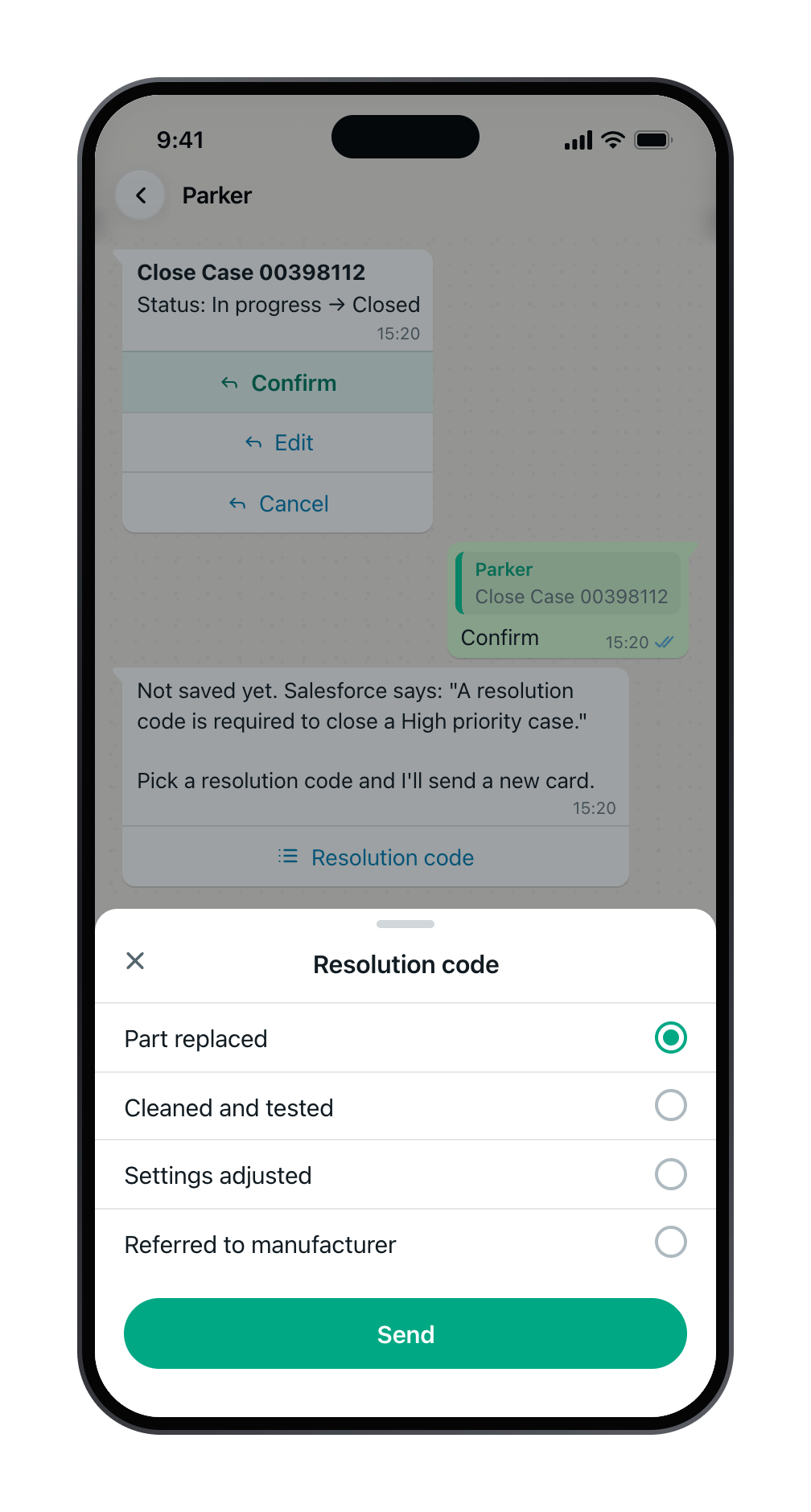
Closing needs a resolution code, so Parker asks for it first.
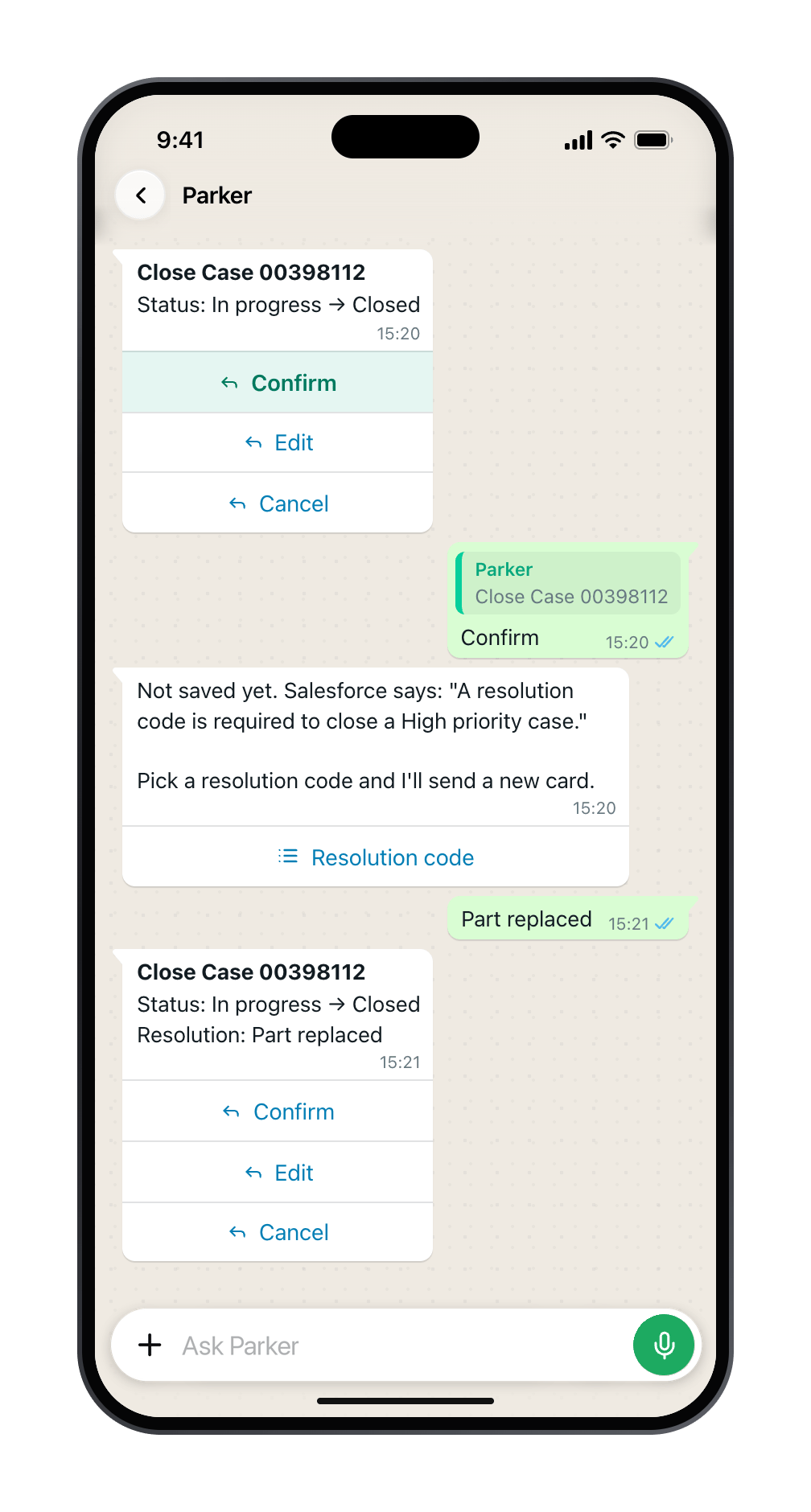
Pick one, and Parker sends the card to confirm.
Attach a photo to a job that’s already open
You can attach a photo to any record you can edit, not just when you close it. Send the photo and say where it goes: “Put this on WO-00422917.” Parker shows a card with the file’s proposed title and description. Tap Confirm to attach it as a Salesforce File on the record. If the same photo is already there, Parker tells you rather than attaching it twice.Readings become fields
Say the readings in your own words. Parker maps them to the fields on the record, such as hours, meter readings, temperatures, or a pass/fail result, and shows each one on the card. Check the numbers before you confirm: a misheard digit is the most common correction.Close several at once
“Close all my open cases at Northside” works too. Parker lists the ones you can change, leaves out any you can’t, and shows one card for the batch. See Governance for how your own permissions decide what’s included.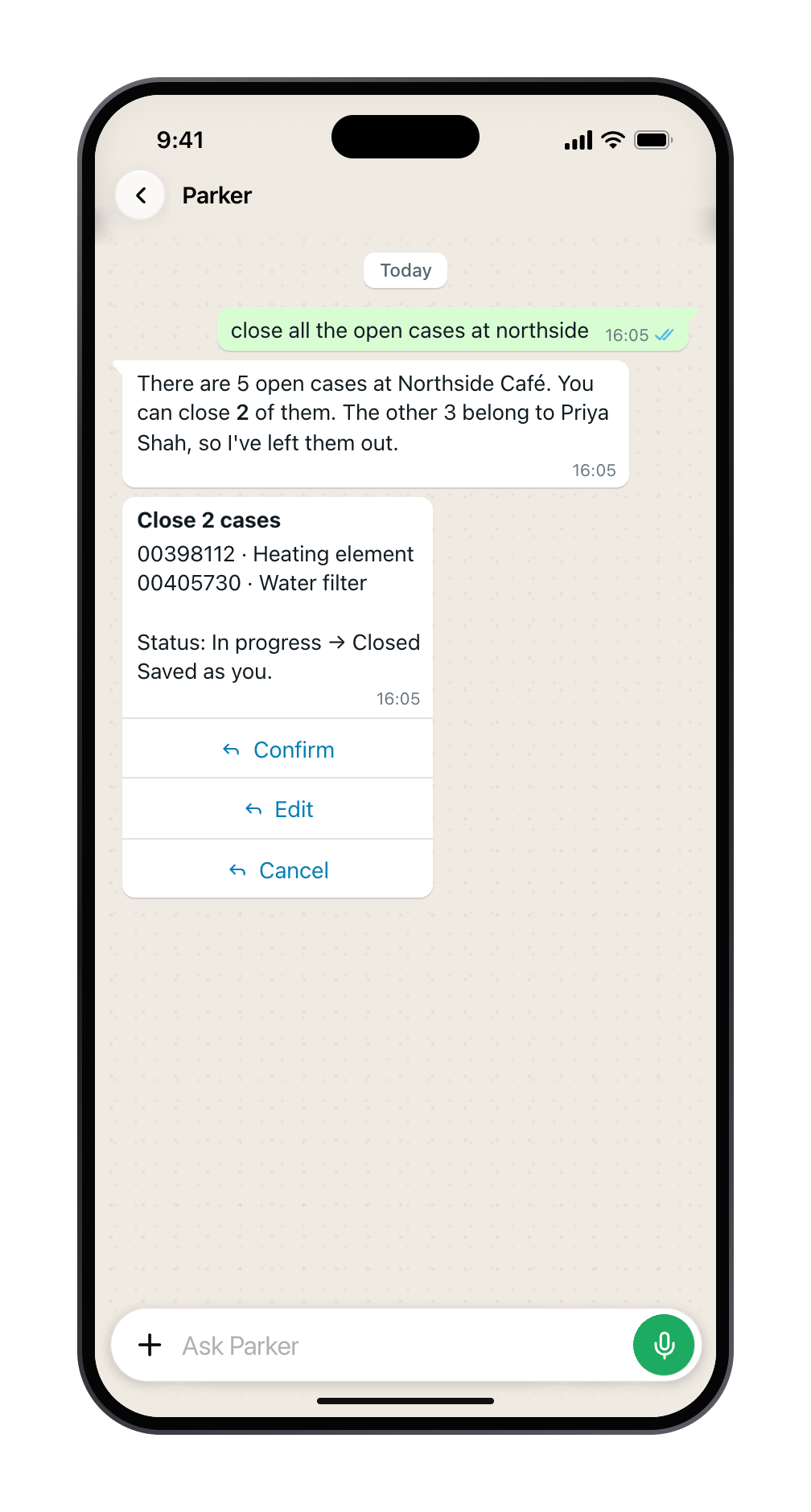
Parker closes only the cases you can change.
What Parker doesn’t do
- Close a job that’s missing evidence your rules require. If a validation rule needs a photo, a reading, or a code, Parker asks for it. It can’t work around the rule. See When Salesforce says no.
- Sign anything off. You record the result and confirm it. Salesforce shows the change under your name, with the time you confirmed.
Troubleshooting
Salesforce refused to close it
Salesforce refused to close it
A validation rule or required field stopped the save. Parker quotes your org’s own message and asks for what’s missing. See When Salesforce says no.
Parker can't find the job
Parker can't find the job
Parker sees only the records your Salesforce login can see. Use the job number, or check your access with your Salesforce admin.
The photo isn't on the record
The photo isn't on the record
Photos attach right after the save, so the result comes first. If a photo fails to attach, Parker says so and offers Retry attach; tapping it once is safe, because Parker checks whether the photo is already on the record. If the retry fails too, add the photo in Salesforce and tell your Parker admin the record number. See If only part of it saved.
Still need help?
Check Troubleshooting for the exact message you see. If a setting is admin-only, ask your Parker admin. For anything else, contact support.Related
Send a voice note
Close it hands-free.
Record a compliance check
Safety checks, temperatures, and certificates.