

Before you begin
- Connect the data you want to show, such as Salesforce.
Charts
Ask for a chart and say what to measure and how to split it, for example “Chart my open pipeline by stage.”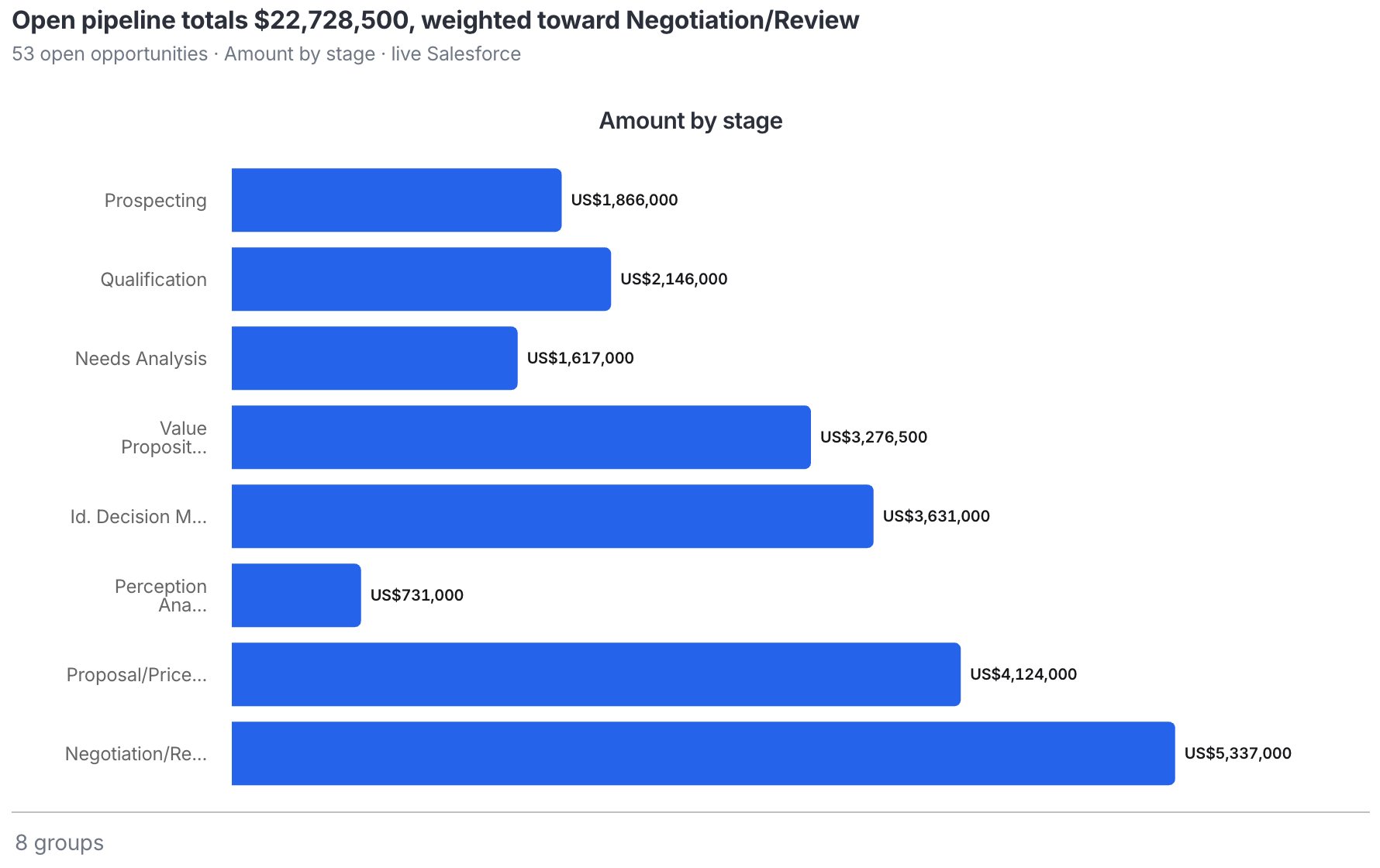
A bar chart of open pipeline by stage.
Work with a chart
- See exact values: select a bar, or use the arrow keys. Press Esc to clear.
- Open it larger: select Open in panel to see the chart beside the chat. See Work panel Beta.
Tables
Parker shows lists of records and figures as tables. Long tables show the first rows, with Show N more rows. Open the table’s Table actions (…) menu to:- Open in panel, to read the table beside the chat.
- Copy table, to paste into an email or spreadsheet.
- Export CSV or Export Excel.
- Download as image.
- Set Row spacing for all tables to Compact or Comfortable.
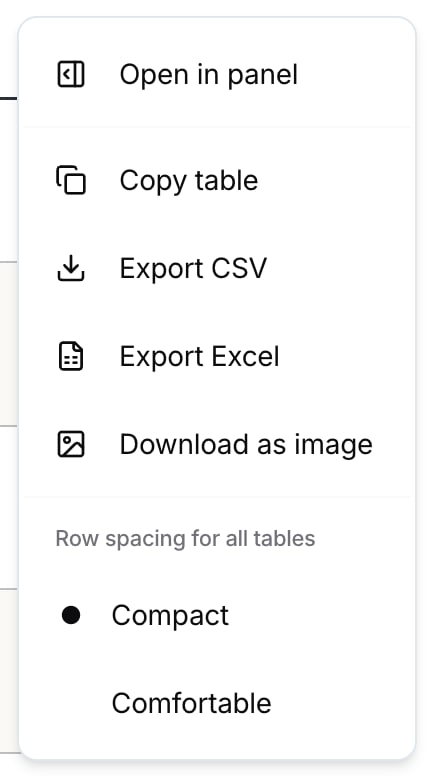
The Table actions menu.
Diagrams
Ask Parker to draw a process or plan, such as a flowchart of how your team qualifies leads. Parker lays out each step, the decisions between steps, and where the process can end. On a diagram, select Full screen to see it larger, Copy SVG to copy it as an image you can resize, or PNG to download it.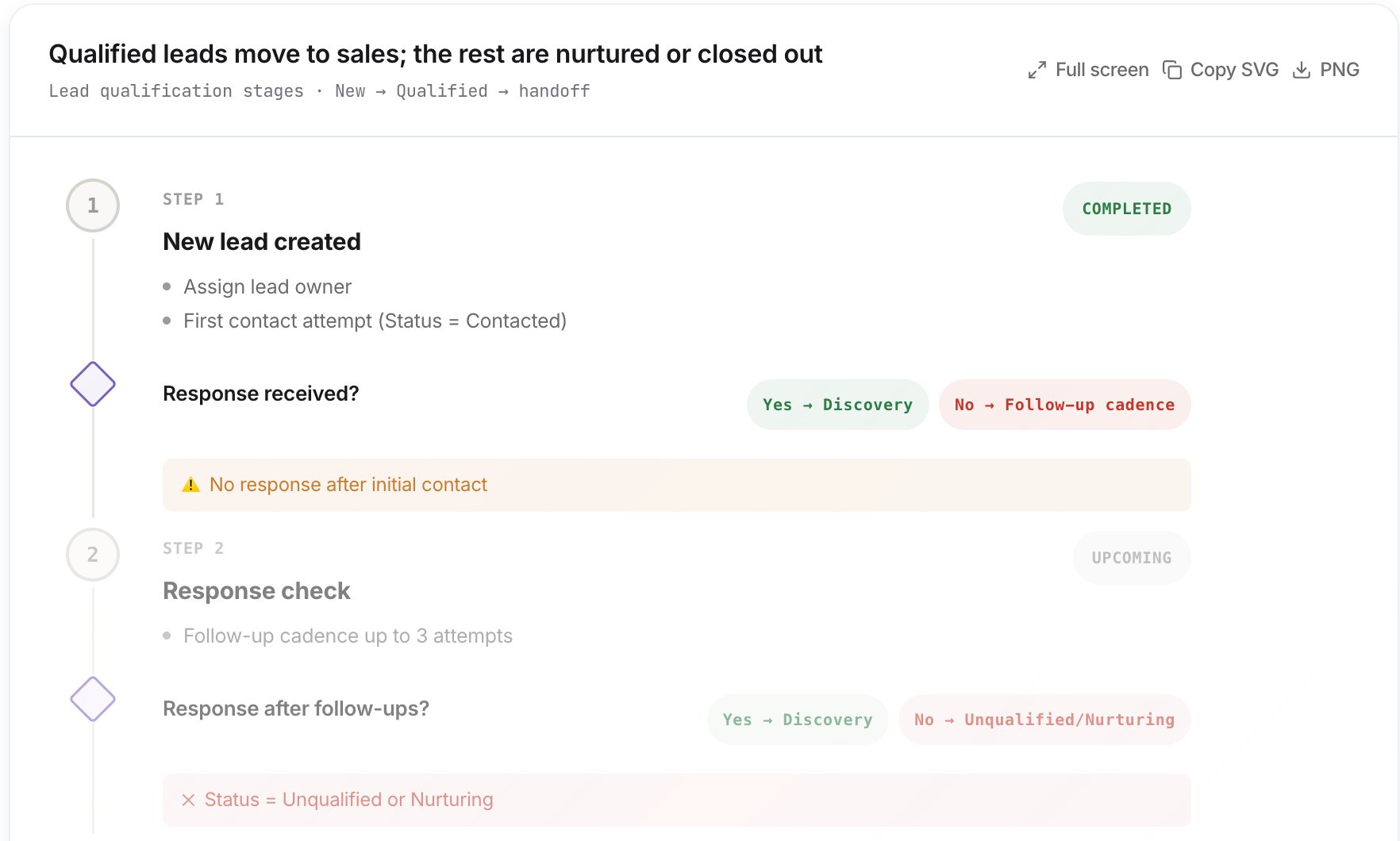
A process diagram with decision points.
Example prompts
Chart your pipeline
Get a table
Draw a process
Troubleshooting
Parker showed a table instead of a chart
Parker showed a table instead of a chart
Ask again and say exactly what to chart, for example “a bar chart of amount by stage”.
Parker can't put my accounts on a map
Parker can't put my accounts on a map
Parker needs an address or coordinates on the record. If those fields are blank, or you can’t see them in Salesforce, Parker shows a table of what it found instead and tells you which fields are missing. For location questions, see Find records near a place.
Related
Ask about your Salesforce data
Get the data behind a chart.
Reports and documents
Export a chat or design a page.
Find records near a place
Ranked tables and maps for location questions.
Work panel
Open charts and tables beside the chat.