

Check in at a site
1
Tell Parker where you are
Send “check in”, or “I’m at Northside Café”. Parker asks you to share your location.
2
Share your location
Tap to share your current location in the Parker app. Parker uses it once to find nearby accounts and doesn’t keep it.
3
Pick the account
Parker lists the accounts you can see within about 3 km, from the addresses it has already placed on the map. Pick the one you’re at.Check-in works where Parker places your records: Australian addresses fully, and United States addresses partly. Elsewhere, Parker says it can’t find nearby accounts yet; name the account instead. See How Parker finds locations.
4
Log the visit
Select Log a visit. Say how it went, add any notes, and a follow-up date if you need one. Parker shows the visit as a card. Select Confirm to save it as an activity on the account.
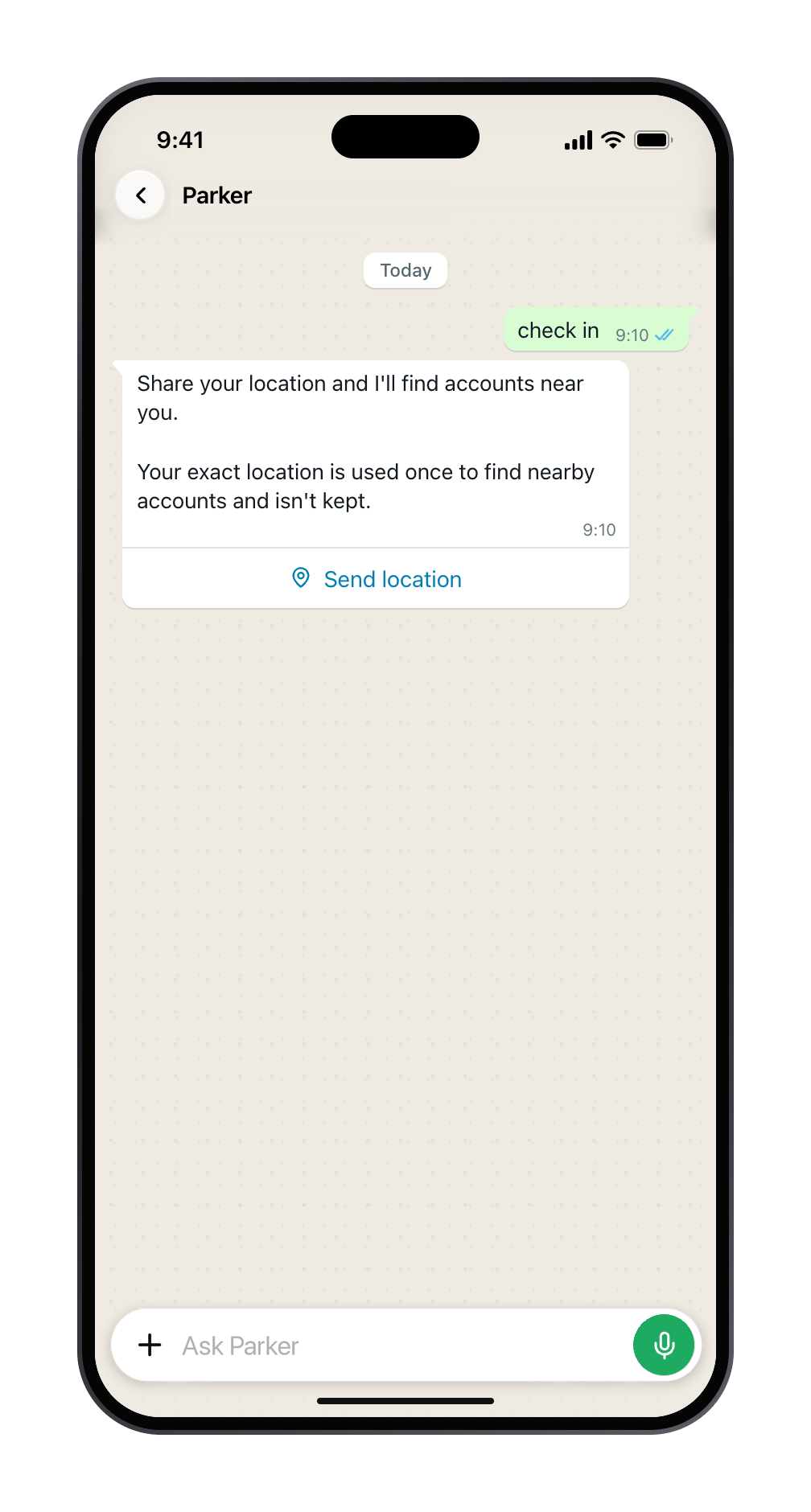
Send check in, then share your location.
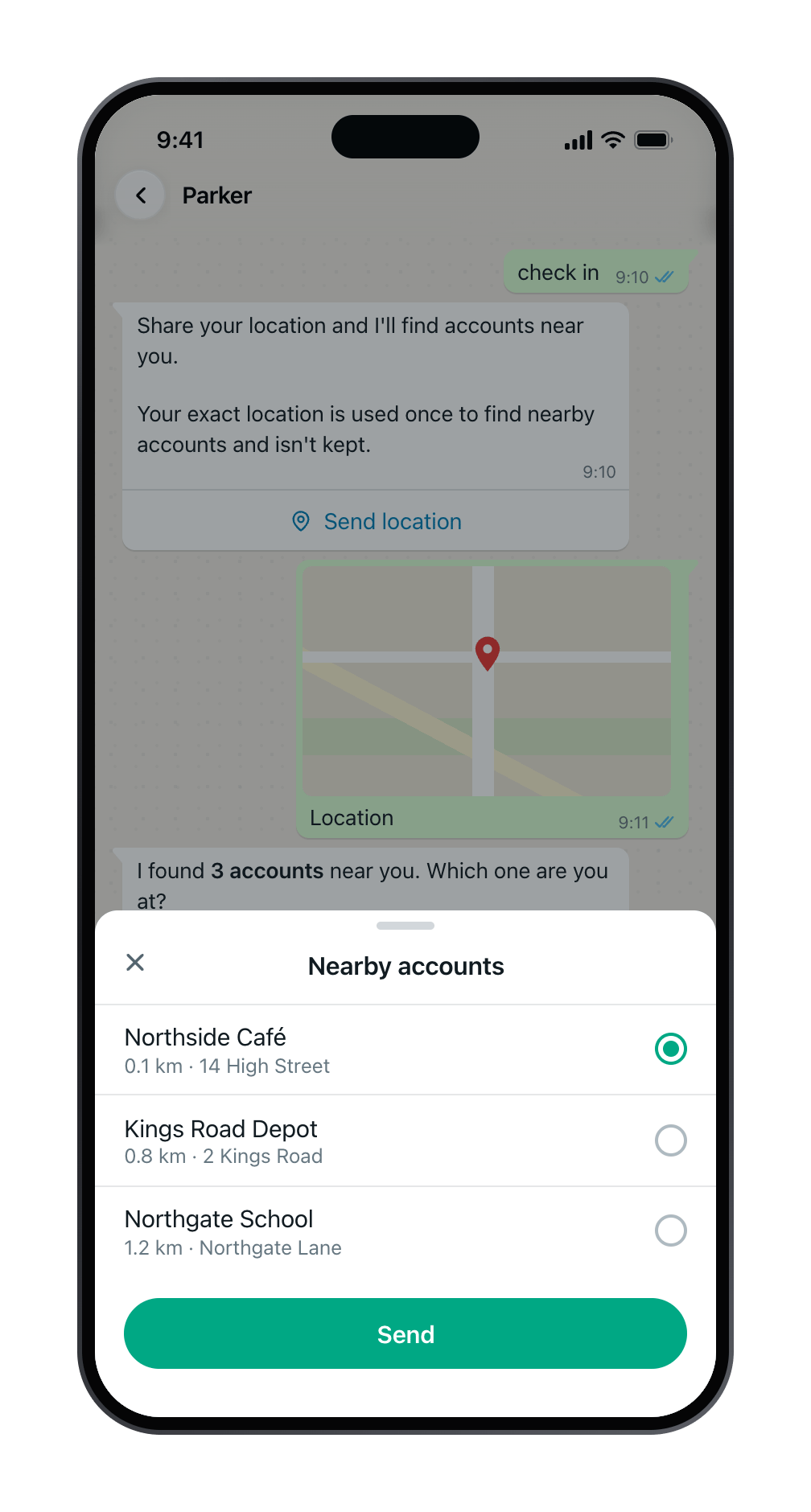
Pick the account you're at.
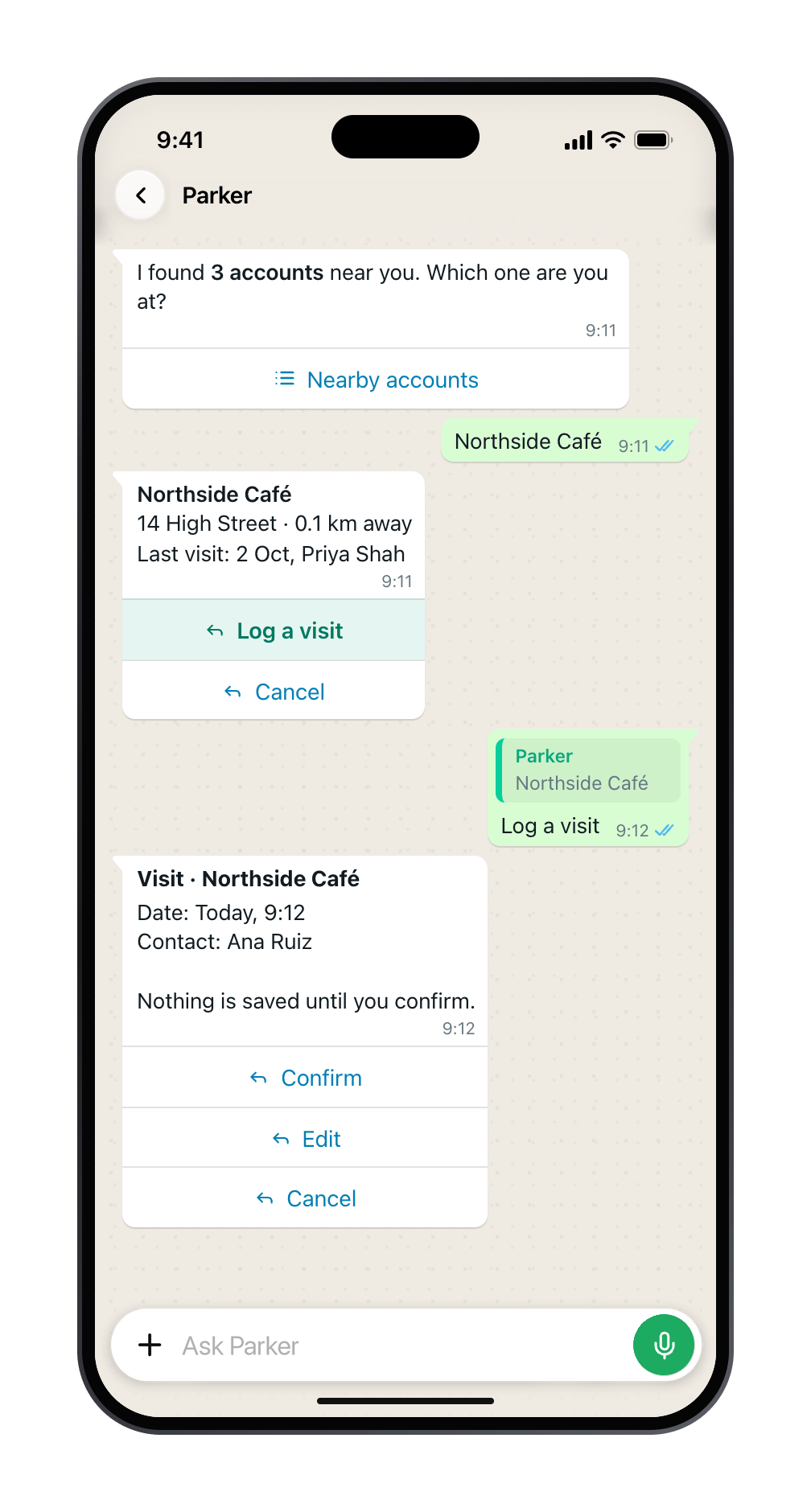
Log the visit, then Confirm.
Log a visit without checking in
Send “log a visit”. Parker asks which account, how it went, any notes, and a follow-up date, then shows the card to confirm. Or say it all at once in a voice note as you leave: “Visit at Northside Café done, machine serviced, they want a quote for a second one, follow up Friday.” Parker picks out the account, outcome, notes, and follow-up, and asks only for what’s missing. See Send a voice note.Log a call
Send “log a call”. Parker asks who you spoke to, how it went, your notes, and whether you need a follow-up. Then it shows the card to confirm.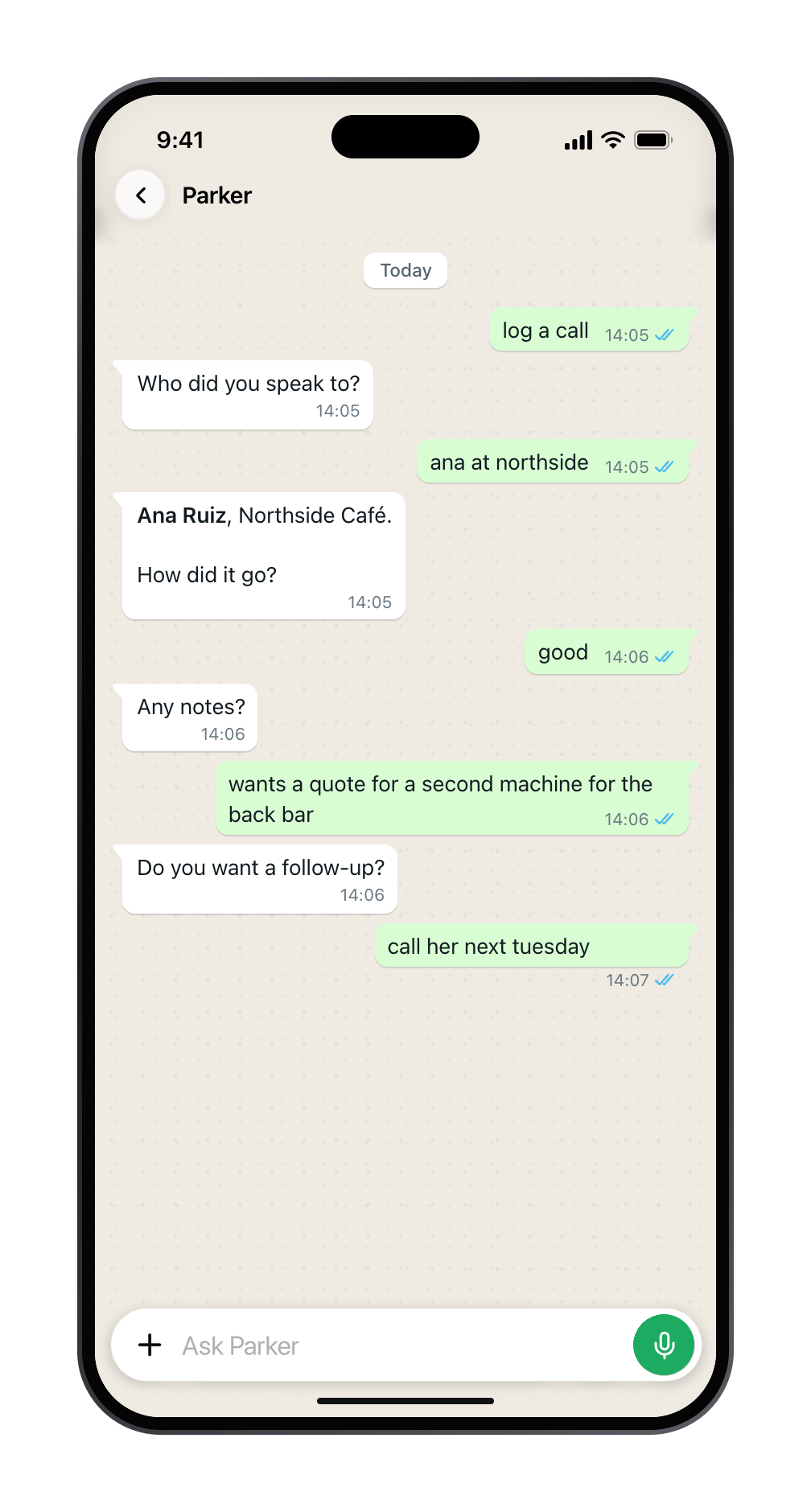
Parker asks one short question at a time.
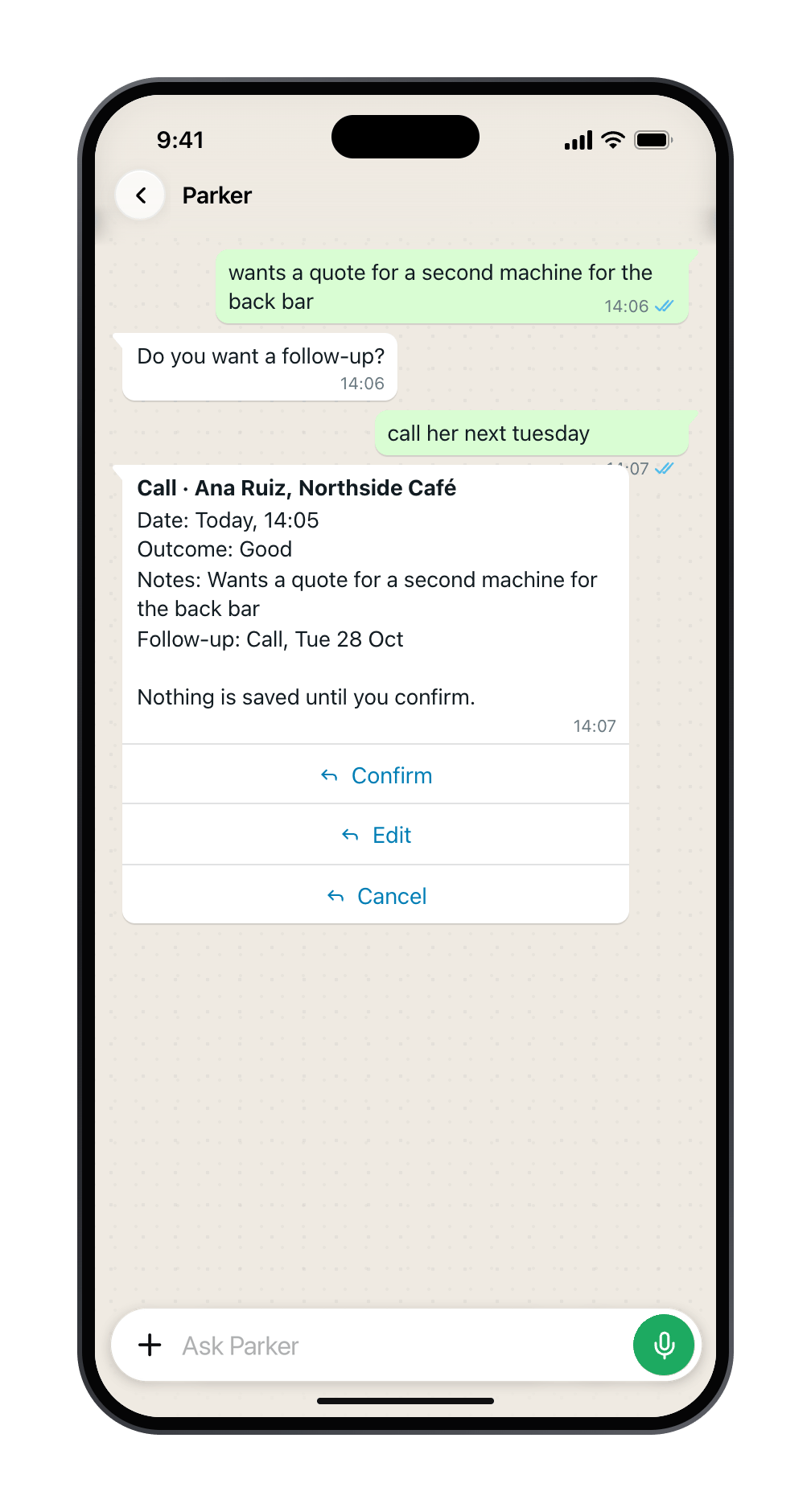
Then it shows the call to confirm.
Log a meeting when Parker nudges you
If you turn it on, Parker can message you 10 to 30 minutes after a meeting on your calendar: “You just met Northside Café. Log it?” Tap to log it in a few answers, or ignore it. Turn this on in the web app, under Settings > Channels > Updates from Parker. See Briefs and updates.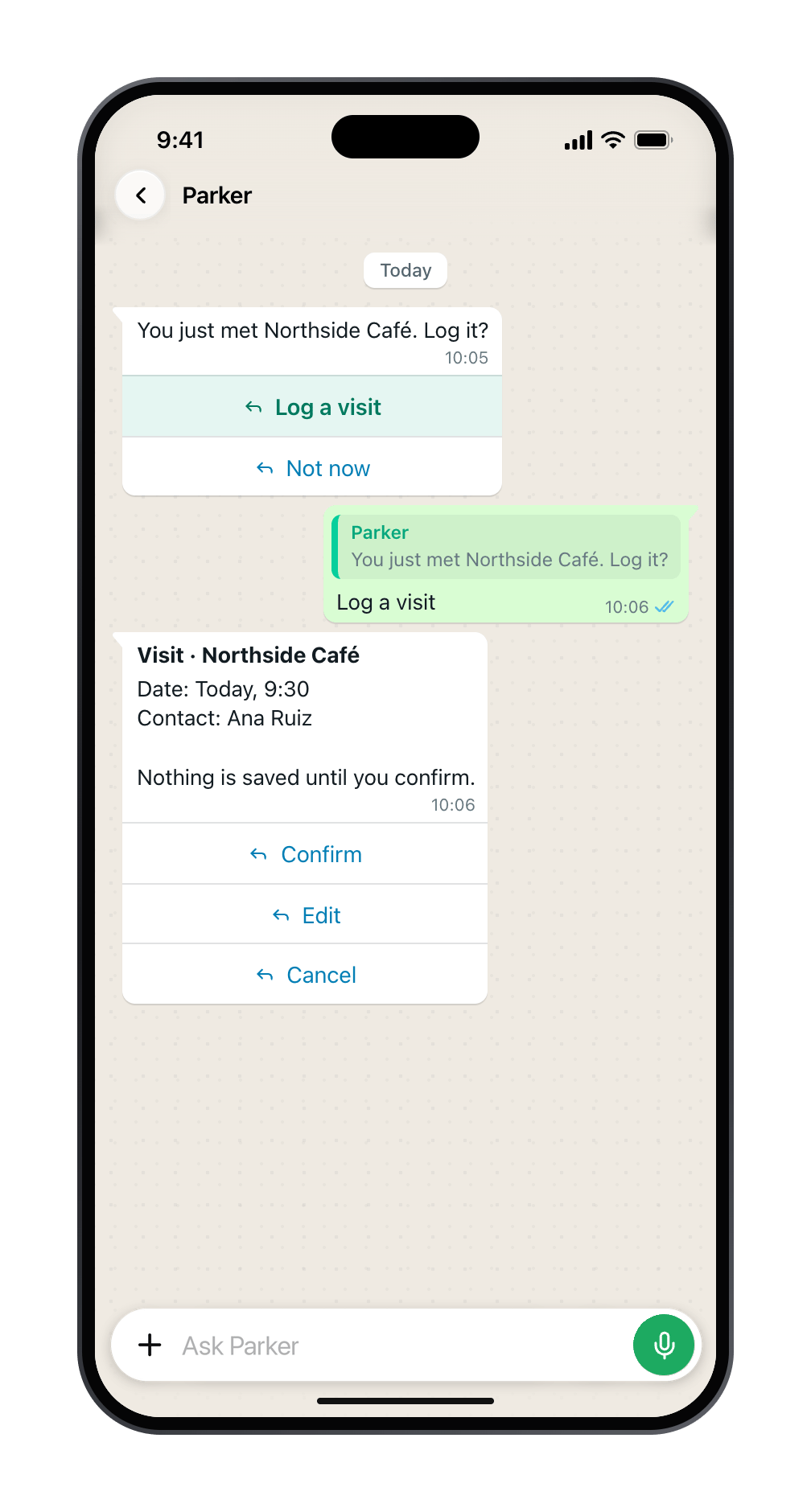
A nudge after a meeting. Log it in a tap, or select Not now.
Nothing is saved until you confirm.Before Parker creates or changes a Salesforce record, it shows the change field by field. Nothing is written until you select Confirm. In the Parker app the card offers Confirm, Edit, and Cancel. In the web app it offers Confirm and Reject.See How Parker acts on your behalf.
About forms
For visits and calls, Parker may send a short form instead of asking one question at a time. Fill it in and submit it. Submitting a form never saves on its own: Parker shows a card for you to confirm. If a form doesn’t open, Parker carries on in the chat instead.Still need help?
Check Troubleshooting for the exact message you see. If a setting is admin-only, ask your Parker admin. For anything else, contact support.Related
Find records near a place
Ask which accounts are nearby.
Briefs and updates
Choose what Parker sends you first.