

Beta. This feature is being rolled out gradually, so it may not be turned on for your workspace yet, and details may change. To request access, ask your Parker admin or contact support.
Before you begin
To attach a file in chat for the first time, see Files and attachments.Find a file
Go to Files in the sidebar.- Search: enter words in Search names and what’s inside.
- Filter by source: under Where from, choose All files, Uploaded by you, or Made by Parker.
- Group: under Group by, choose Date or Chat.
- Change the view: choose List view or Gallery view.
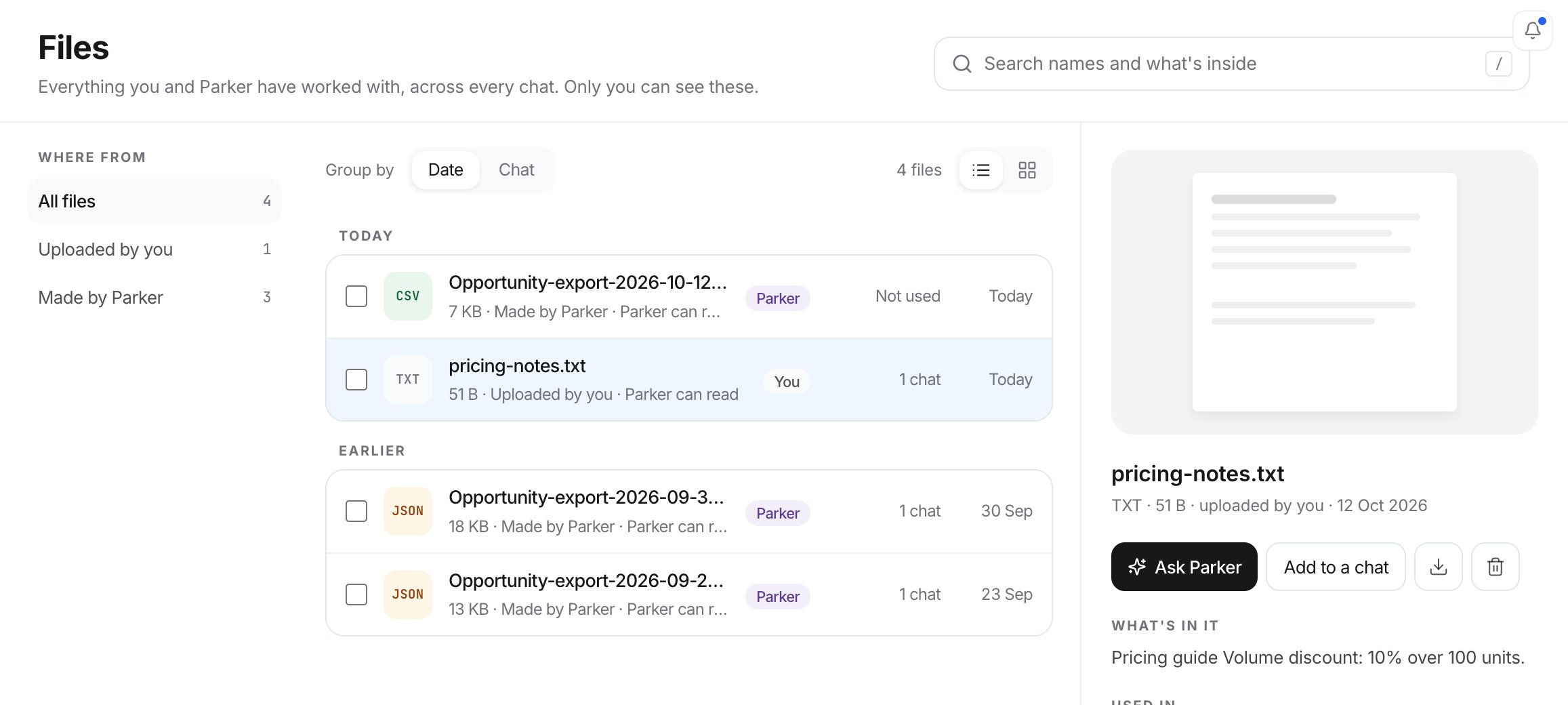
The Files list, with details for the selected file.
Preview a file
Select a file to see its details: What’s in it, and Used in, which lists the chats that used the file. To see the file itself, select Open.Use a file in a chat
You can hand files you already have to Parker without uploading them again.1
Choose the files
Select one file, or tick several in the list.
2
Choose where to use them
- To start a new chat, select Ask Parker (or Ask Parker about these for several files).
- To add them to an existing chat, select Add to a chat, then pick a chat from the list or select Start a new chat.
3
Send your message
As Add to a chat says, the files “wait in that chat’s message box until you send.”
Download a file
Select the file and select Download.Delete a file
Select the file, or tick several, and select Delete.Example prompts
After you hand Parker a file, try:Summarize a file
Related
Files and attachments
Attach files in chat and ask about them.
Pages
Open designed pages Parker saved for you.