

This is an example. The fields Parker asks for and the objects it can change depend on how your admin set up your workspace.
Before you begin
- Get the Parker app.
- Your Salesforce login can read the account and its assets, and can create cases.
1. Ask about the machine before you go
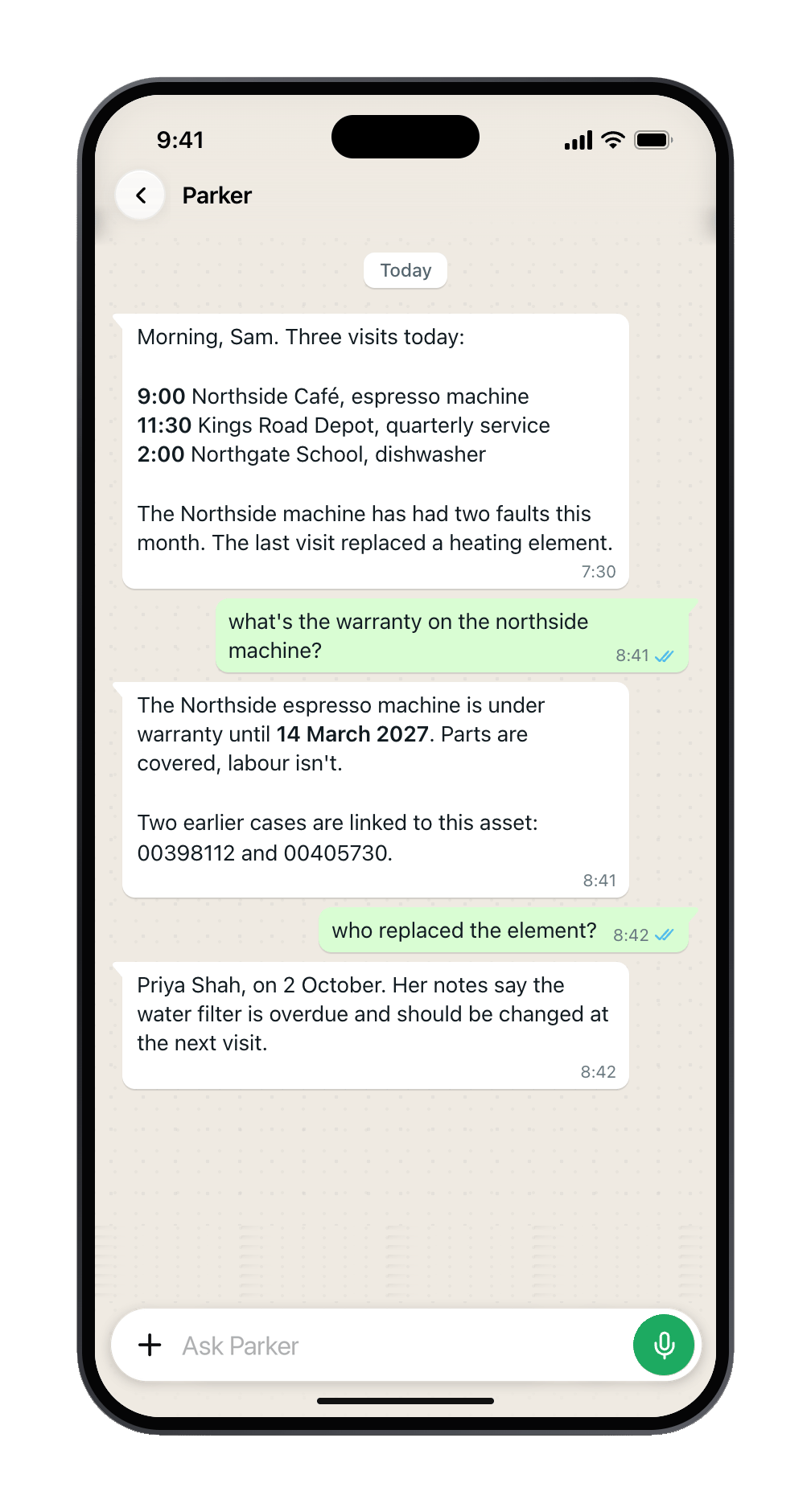
Parker answers from live Salesforce data.
2. Send a photo of the fault
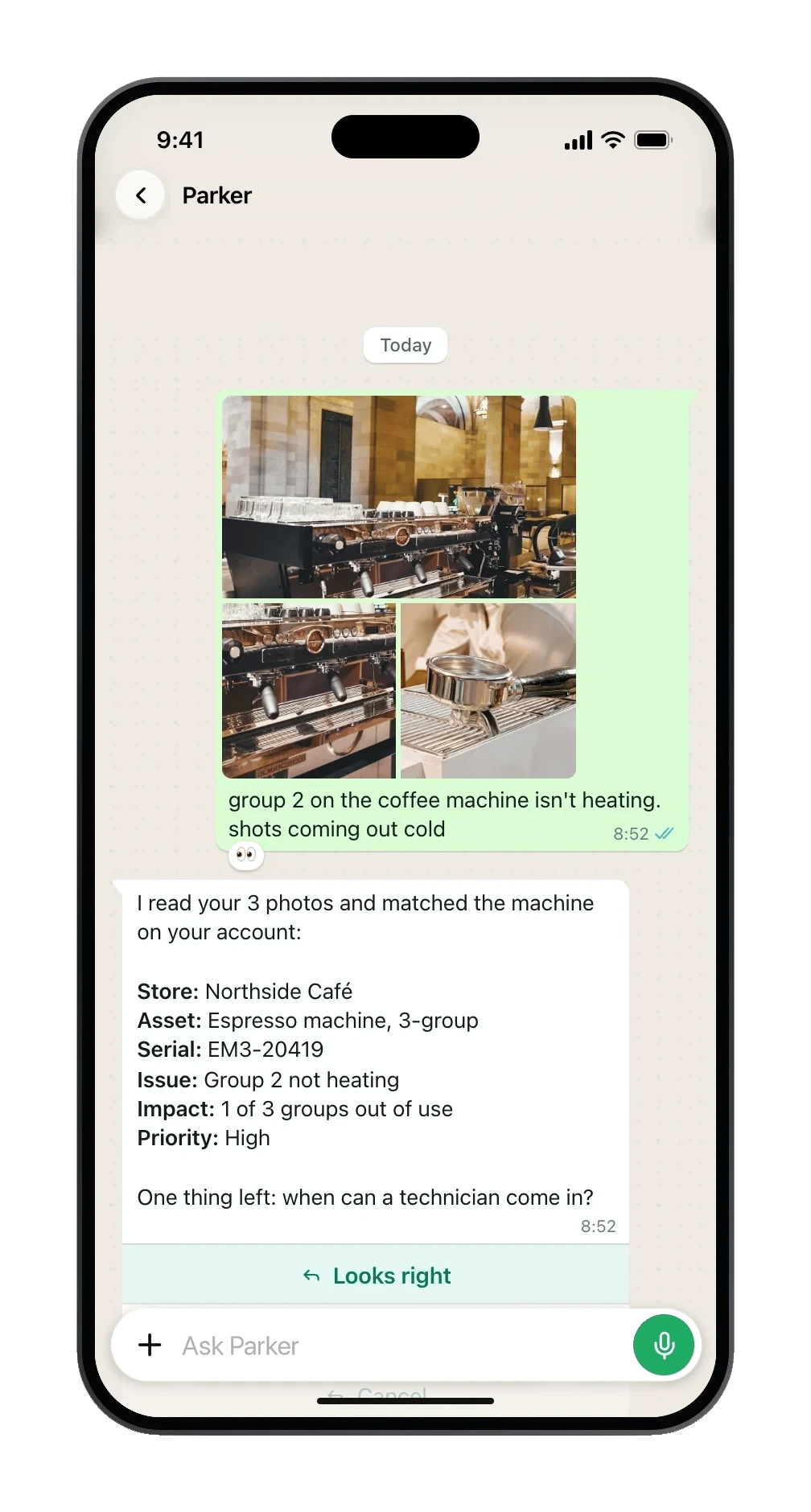
Parker matches the store and the asset from your photos and text.
3. Check the case, then Confirm
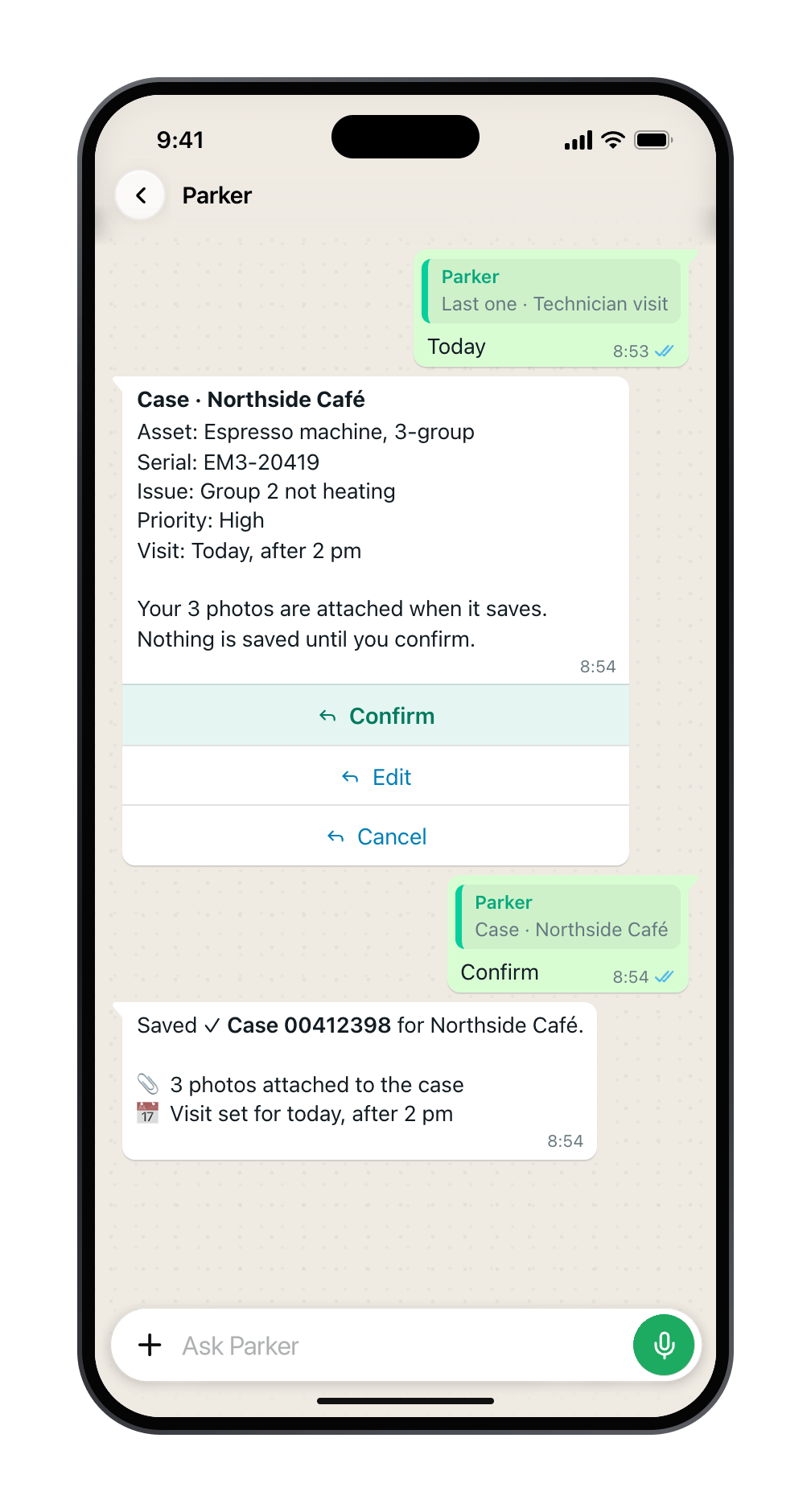
Nothing is saved until you tap Confirm.
4. Update the case later
Later, tell Parker what changed, such as “Set the priority on case 00412398 to High” or “Add a note: parts arriving Thursday.” Parker shows the old and new value and saves only after you confirm. See Create and update Salesforce records.What’s in Salesforce afterwards?
Still need help?
Check Troubleshooting for the exact message you see. If a setting is admin-only, ask your Parker admin. For anything else, contact support.Related
Log a job from a photo
Every step of logging a case in the Parker app.
How Parker acts on your behalf
Confirm, Salesforce rules, and Test and Live mode.