

Before you begin
To let Parker learn from your sent mail, connect your mailbox first.How does Parker learn my style?
When you ask it to, Parker reads about 50 emails you sent over the last 6 months. It reads only your Sent folder, never your drafts or mail sent to you. Parker keeps short notes about how you write, such as “opens with a first name”. It also looks for your usual sign-off. It doesn’t keep your emails: not the text, subjects, recipients, or any names, figures, or links in them. Each note waits for you to keep or remove it.Learn your style from sent mail
1
Start learning
In the What Parker learned card, select Learn again.
2
Read and agree
The Learn how you write? dialog explains what Parker reads and what it keeps. Select Read my sent mail. This takes a minute or so.
3
Check each note
New notes appear under Does this sound like you? Each one says how often Parker saw it, such as “Seen in 9 of 16 emails you sent”. Select Keep or Remove for each.
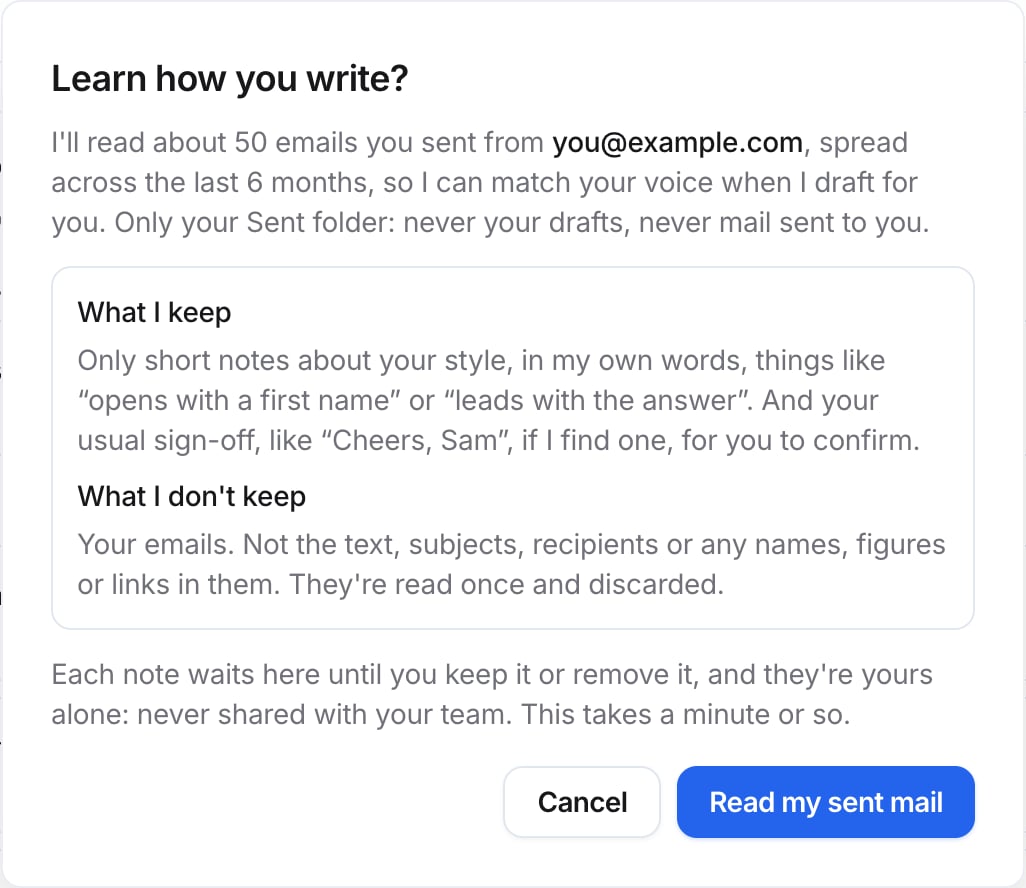
Parker says what it reads and what it keeps before it starts.
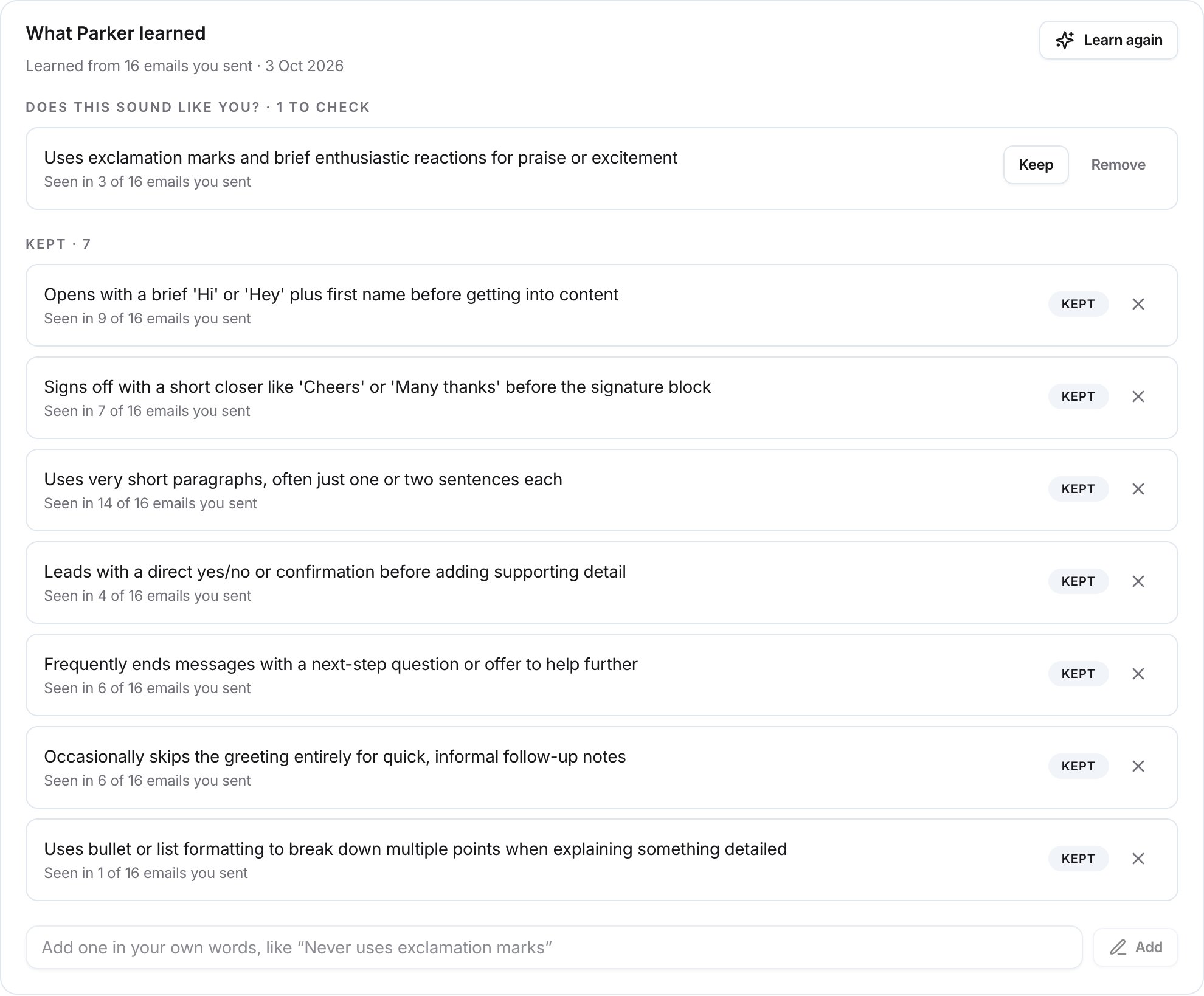
Notes waiting for review sit above the ones you've kept.
Add a note in your own words
In the What Parker learned card, enter a note in the box, such as “Never uses exclamation marks”, and select Add.Set or change your sign-off
The Sign-off card controls how replies Parker drafts for you end. It’s “added exactly as written, never reworded.”- To change it, select Edit.
- To stop using it, select Turn off.
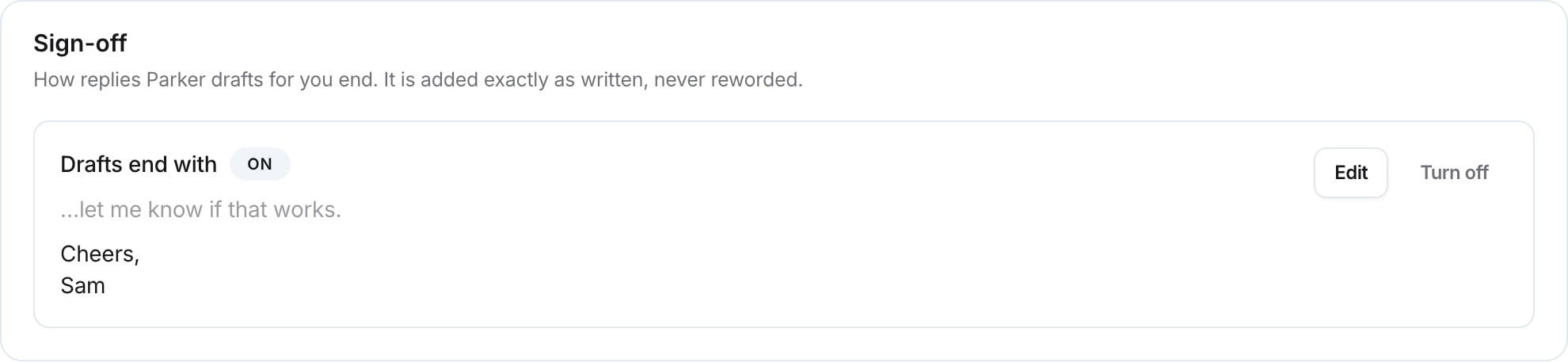
Your sign-off is added to the end of drafts exactly as written.
Check that drafts sound like you
The Does this sound like you? card puts one of your recent replies next to what Parker would write to the same email. Parker writes its version without seeing yours.1
Compare
Select Compare with one of my replies. Parker shows What you sent next to What Parker would write.
2
Give your verdict
Select Sounds like me if it’s right, or Not quite… if it isn’t. Select Try another email to see a different one.
3
Say what's off
After Not quite…, pick what’s wrong, such as Too long, Too formal, or Wrong sign-off, or say it in your words. Then select Suggest a note.
Check it worked
- What Parker learned shows how many emails it learned from, and the date.
- Your notes appear under Kept.
- The Sign-off card shows Drafts end with and On.
- Ask Parker to draft an email and check that it uses your greeting and sign-off.
See your style in action
Delete what Parker learned
To remove all your notes, select Stop using my style and delete these notes at the end of the page.Related
Draft and send email
Write emails and replies in chat.
Connect your mailbox
Link Outlook or Gmail.
Automations
Have Parker draft replies to new email.
Memory and private chats
What else Parker remembers about you.