

Before you begin
Pages are made in chat. To create one, ask Parker for a designed page or report, or select New page with Parker on the Pages list. See Reports and documents.What’s on the Pages list?
Go to Pages in the sidebar. Filter the list under Where from (All pages, Mine, Shared with me) and Stays fresh (Auto-updating, From a routine, From chat). Use Search page titles to find one by name, and Group by Date or Source. Each row shows where the page came from, its version, and when it last changed. Select a row to see a preview, with Open, Share, and More (…).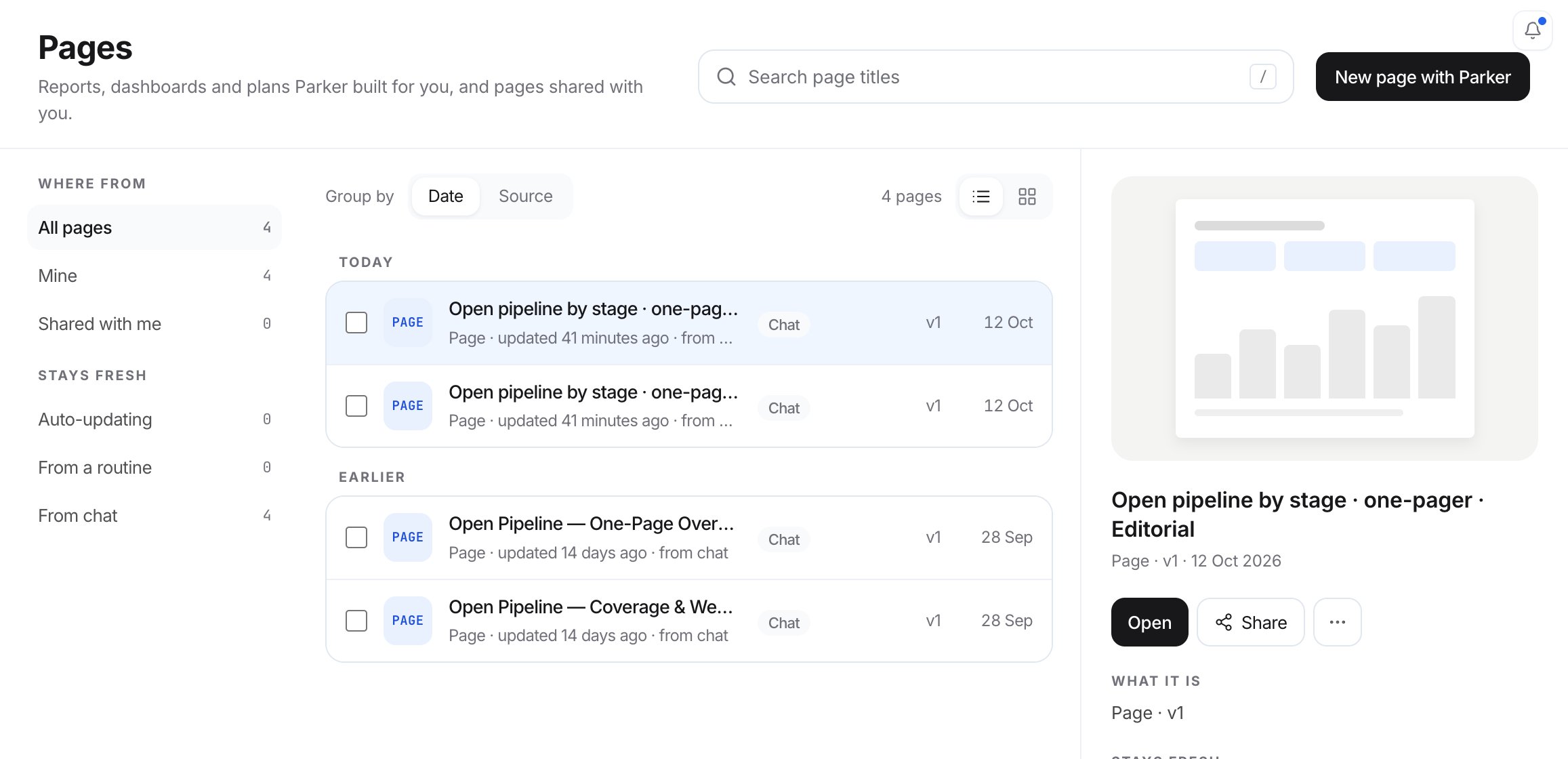
The Pages list, with a preview of the selected page.
Open a page
Select Open. The page opens with its title, who made it, its version, and when it was published. It has three tabs:- Page: the designed page itself.
- Data: connected Salesforce data. Select Connect record to connect a Salesforce record “to review and update it from this Page.”
- Recipe: What this page shows, in words. “Refresh re-runs this on live data, as you, and publishes the result as a new version.” Select Edit to change it.
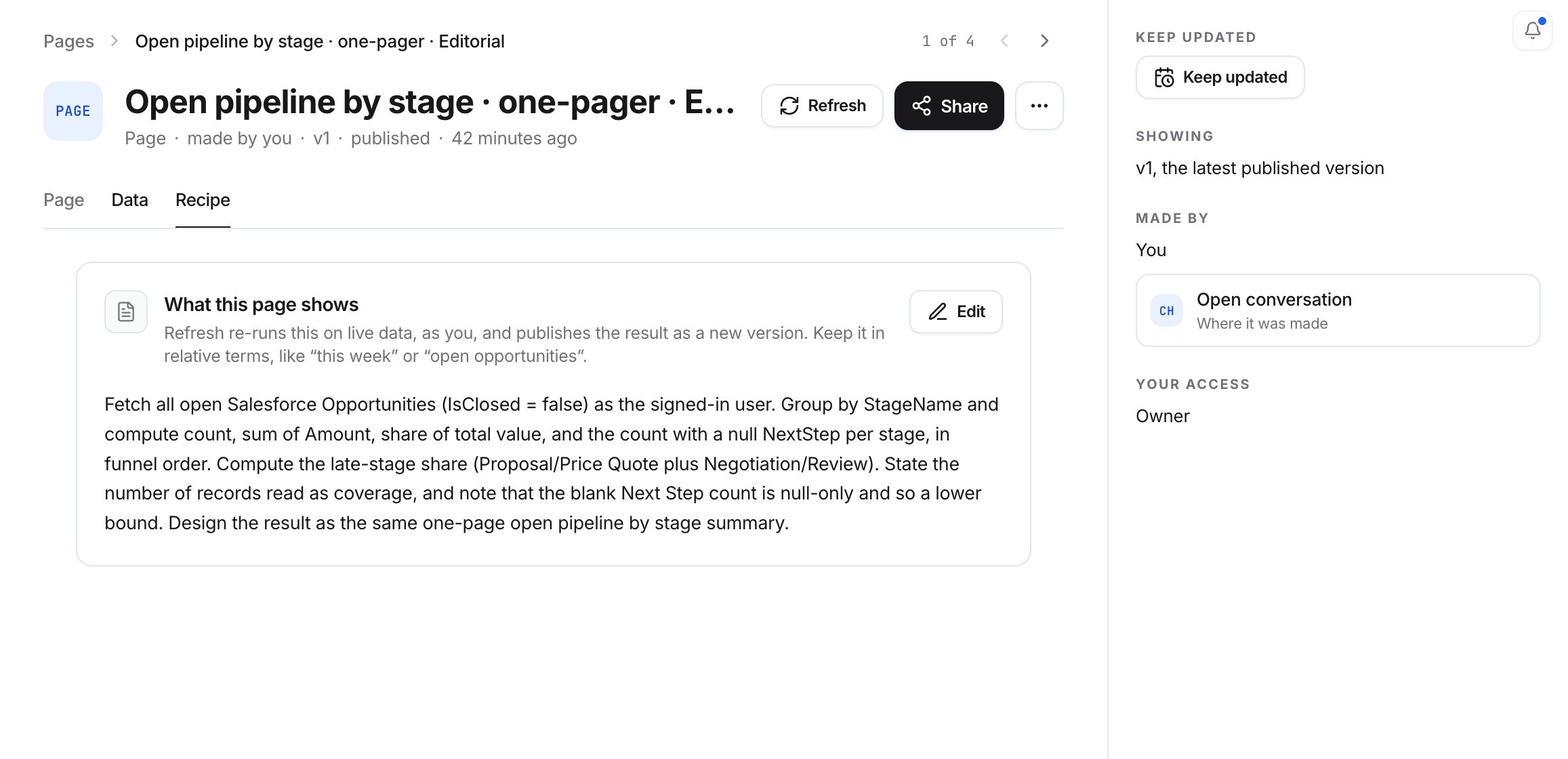
An open page, with Refresh, Share, and Keep updated.
Refresh a page with live data
Each refresh publishes a new version.- To refresh it now, select Refresh.
- To refresh it on a schedule, select Keep updated. Choose Daily or Weekly, set the day and time, and select Save. To stop, choose Off.
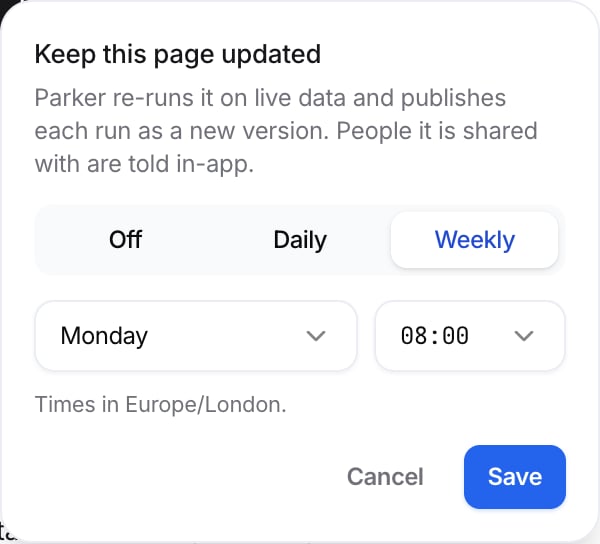
Keep a page updated on a schedule.
Share a page
Open the page and select Share. In Share this Page, search by name or email for teammates. They’ll see every version, including ones you publish later. Nothing runs as you.Download or delete a page
Open the More actions (…) menu:- Download HTML downloads the page as an HTML file.
- Full screen shows the page full screen.
- Delete deletes the page.
Example prompts
A one-page pipeline overview
Related
Reports and documents
Ask Parker for a designed page or report.
Files
Find files you uploaded and exports Parker made.
Routines
Get a fresh report on a schedule.