

Before you begin
- You need the sign-in details for your Microsoft 365 or Google account.
- If your company restricts which apps can connect to Microsoft 365 or Google, your IT team may need to approve Parker first.
Which email and calendar providers work?
Connect Microsoft 365 (Outlook mail and calendar)
As the card explains, “Microsoft grants calendar and mailbox access separately, so Parker asks for each one on its own. Connect both for scheduling and sending.”1
Open your connections
Go to Settings > Connections. If you’re not sure how to open Settings, see Your settings.
2
Open the Microsoft 365 page
Select the Microsoft 365 row. The Email page opens. Its Microsoft 365 card has a Calendar row and a Mail row.
3
Connect your mail
In the Mail row, start the connection. Sign in to Microsoft and approve the request.
4
Connect your calendar
In the Calendar row, select Connect Calendar. Sign in to Microsoft and approve the second request.
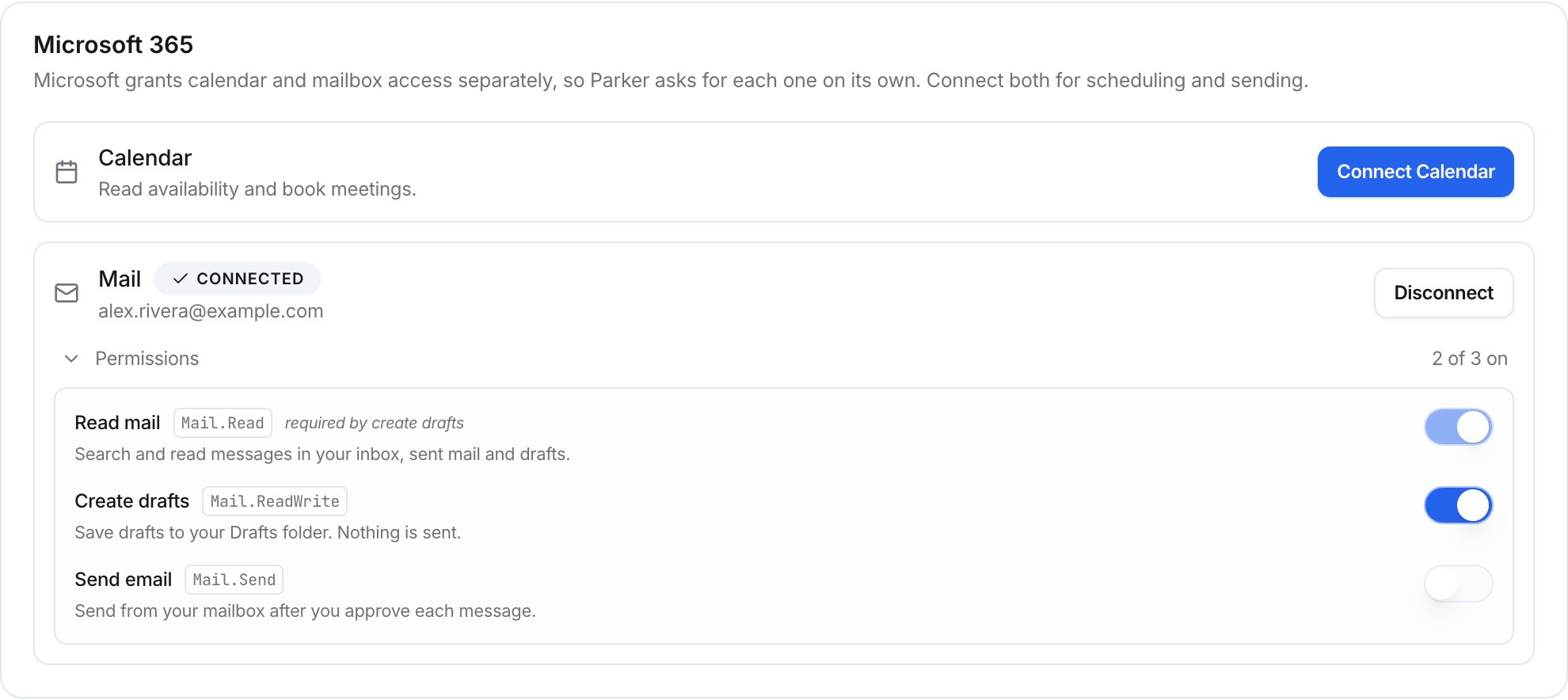
The Microsoft 365 card, with mail connected and calendar not yet connected.
Choose what Parker can do with your mail
Under the connected Mail row, open Permissions to see what Parker can do. Turn each one on or off.
Read mail is required by Create drafts, so it stays on while drafts are on. The Permissions row shows how many are on, such as 2 of 3 on.
Connect Gmail
1
Open the Email page
Go to Settings > Connections and select the Microsoft 365 row. The Email page opens. Its Mailboxes card also holds Gmail.
2
Connect Gmail
In the Mailboxes card, select Connect Gmail. Sign in to Google and approve the request.
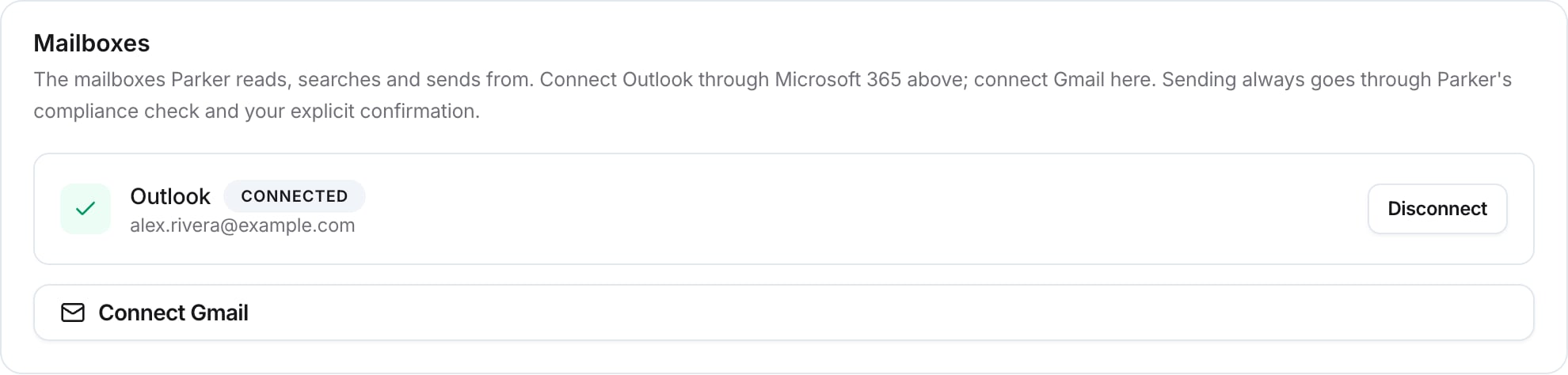
The Mailboxes card lists your connected mailboxes.
Connect a calendar
1
Open the Calendar page
Go to Settings > Connections, select Browse, and select the Google Calendar row. You can also select Add connector > Calendar.
2
Connect your calendar
In the Calendar Connection card, select Connect Google Calendar or Connect Microsoft Outlook. Sign in and approve the request.
Check it worked
- In Settings > Connections, the row for your provider shows Connected.
- In chat, ask Parker something only your mailbox can answer.
Confirms Parker can read your mail
Disconnect
To disconnect, open the Email page and select Disconnect next to the connection.Related
Draft and send email
Search your mail and write emails and replies in chat.
Calendar and meetings
Connect a calendar and set your scheduling defaults.
Writing style
Teach Parker how you write from your sent mail.
Connections and apps (admin)
How admins set up connections for the workspace.