

What can Parker send me?
You can also just ask, at any time: “What’s on for me today?”
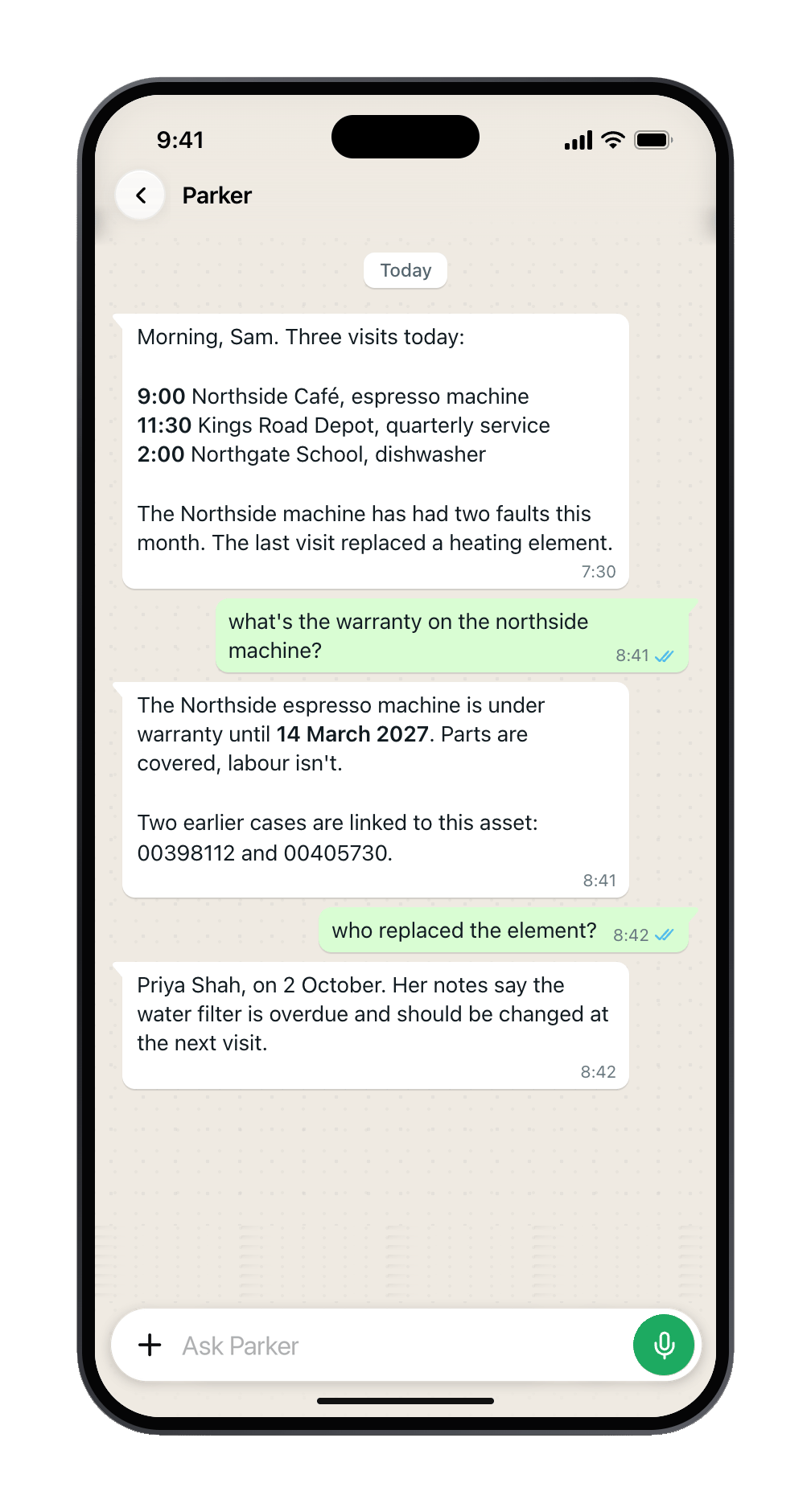
A morning list, then follow-up questions in the same chat.
Turn updates on
1
Open Updates from Parker
In the web app, go to Settings > Channels and find Updates from Parker.
2
Turn on what you want
Each kind starts Off. Turn on the ones you want, such as your morning list. Updates arrive at the right hour for the time zone on your account. In the app, check it under Settings > Account > Timezone.
3
Check where updates go
Each update goes to one place, never to every channel. You can also send send updates here in a chat to move them there.
Quiet hours and limits
- Parker doesn’t message you first during quiet hours, from 8pm to 8am by default.
- Parker sends at most 5 updates a day in the Parker app by default. Change the daily limit on the same card. A reminder over the limit waits for the next morning; anything else stays in the web app.
- Each update has Stop and Snooze 1 day buttons.
- In the app, Settings > Notifications sets your own Quiet hours start and Quiet hours end, and the Minimum priority an update needs before your phone alerts you.
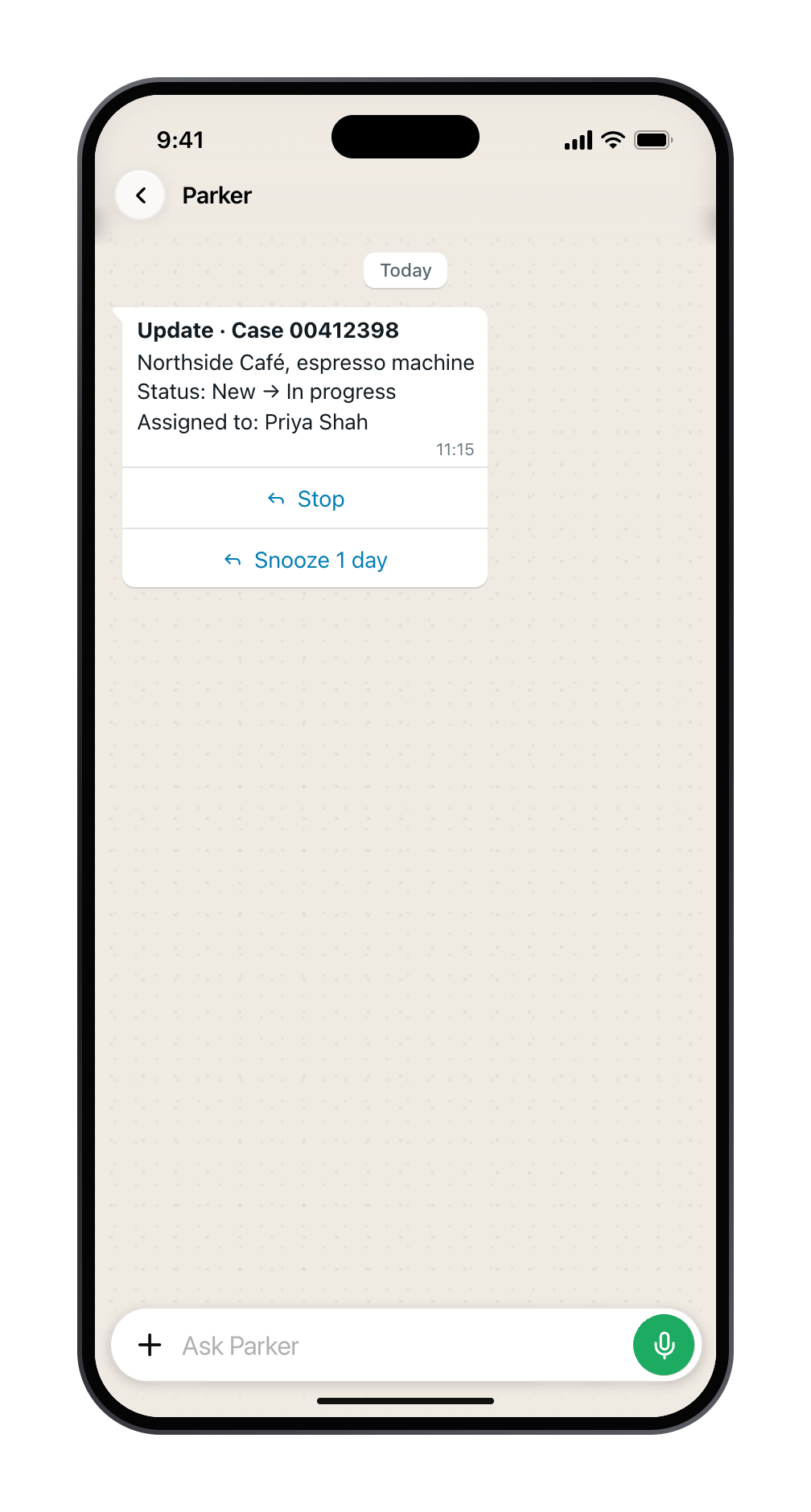
Every update you get first can be stopped or snoozed.
Stop updates with a message
Send any of these as a message:Catch up on what you missed
If you’ve been away, ask “What changed while I was away?” Parker sends a short list of everything that changed on the records you follow, under While you were away.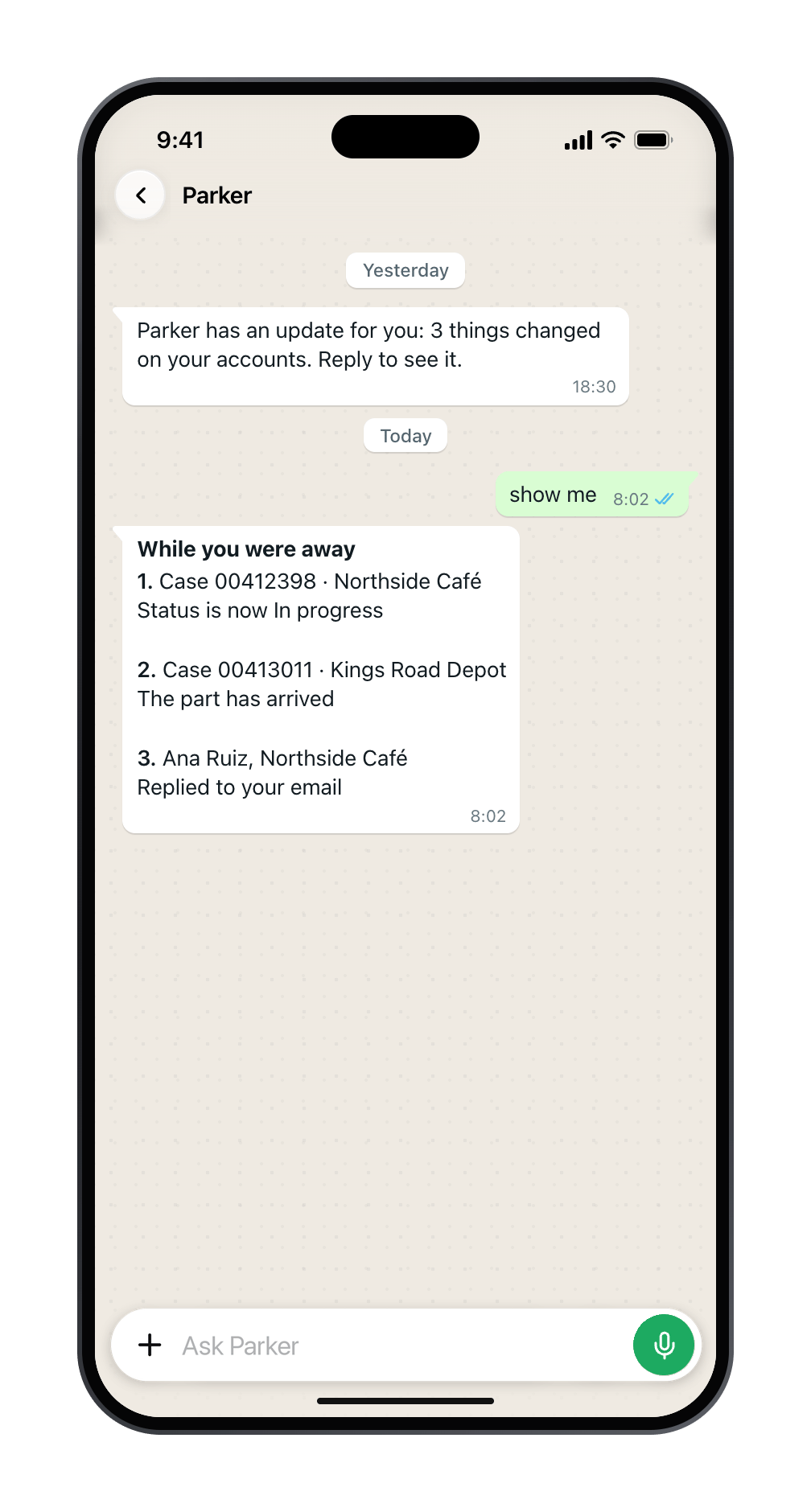
After a quiet day, ask for what you missed.
Open the brief as a form
If your brief has more than a few items, Parker may send it as a form you can open. If it won’t open, reply brief for the list.Still need help?
Check Troubleshooting for the exact message you see. If a setting is admin-only, ask your Parker admin. For anything else, contact support.Related
Routines
Scheduled questions Parker answers for you.
Proactive settings (admin)
What Parker may start for the whole workspace.