

Before you begin
- To search your mail, save drafts, or send from your address, connect your mailbox first.
- For drafts that sound like you, set up your writing style.
Find email
Ask in plain words. Parker searches your connected mailbox and shows what it found, for example as a table of sender, subject, and date.List your latest mail
Draft an email or reply
1
Ask for the email
Say who it’s for and what it should say. For a reply, name the email you’re answering.
2
Review the draft card
Parker shows the draft in a card with To, From, Subject, and the message. You can edit the subject and message in the card.
3
Revise if needed
Select Shorter, Warmer, or Formal to have Parker rewrite the draft. Each rewrite is a new version, such as v2 of 2. Use the arrows to move between versions.
4
Choose what happens next
Save it, send it, or open it in your mail app. See What can I do with a draft?
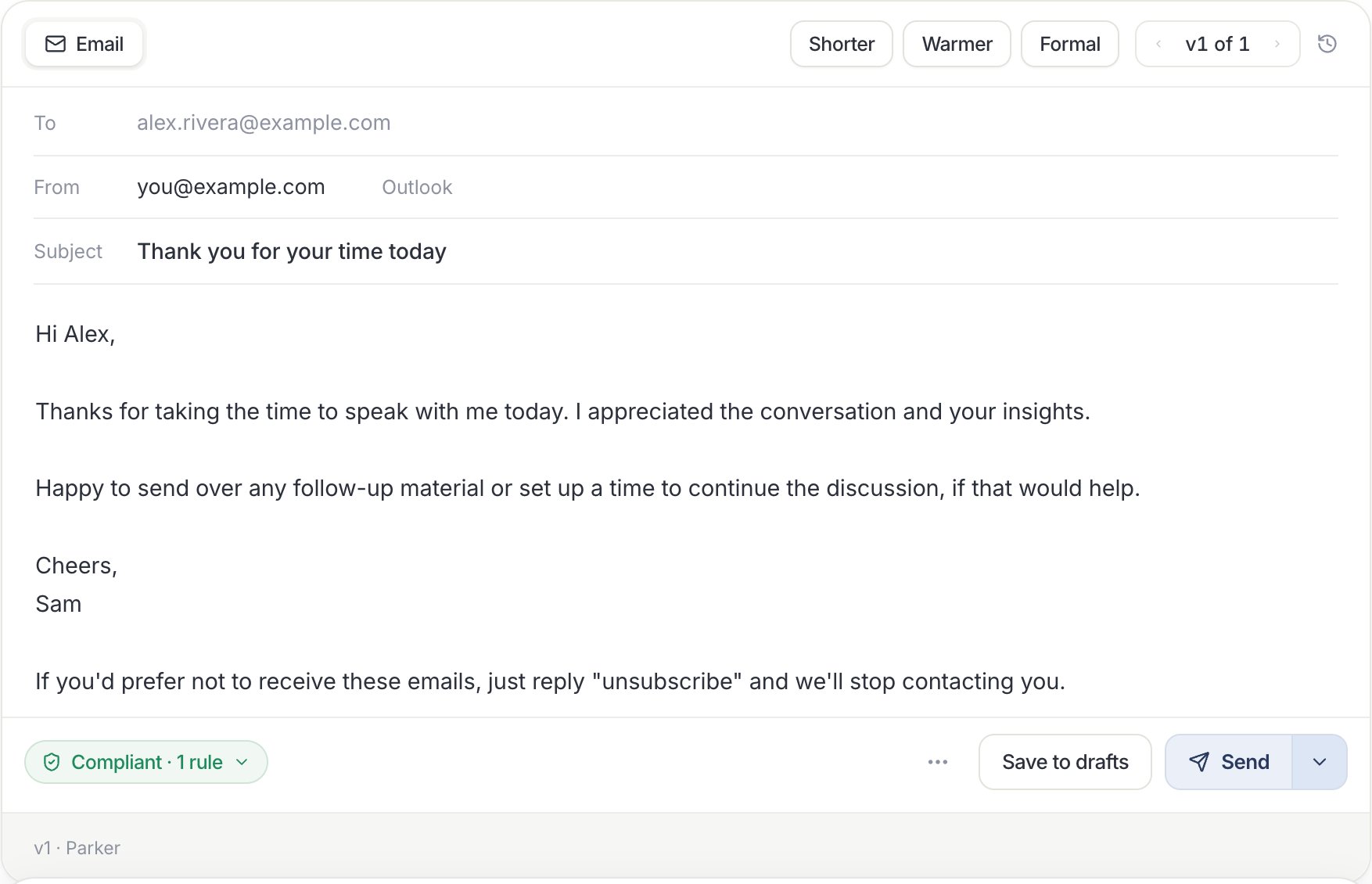
An email draft. Nothing is sent until you choose a send option.
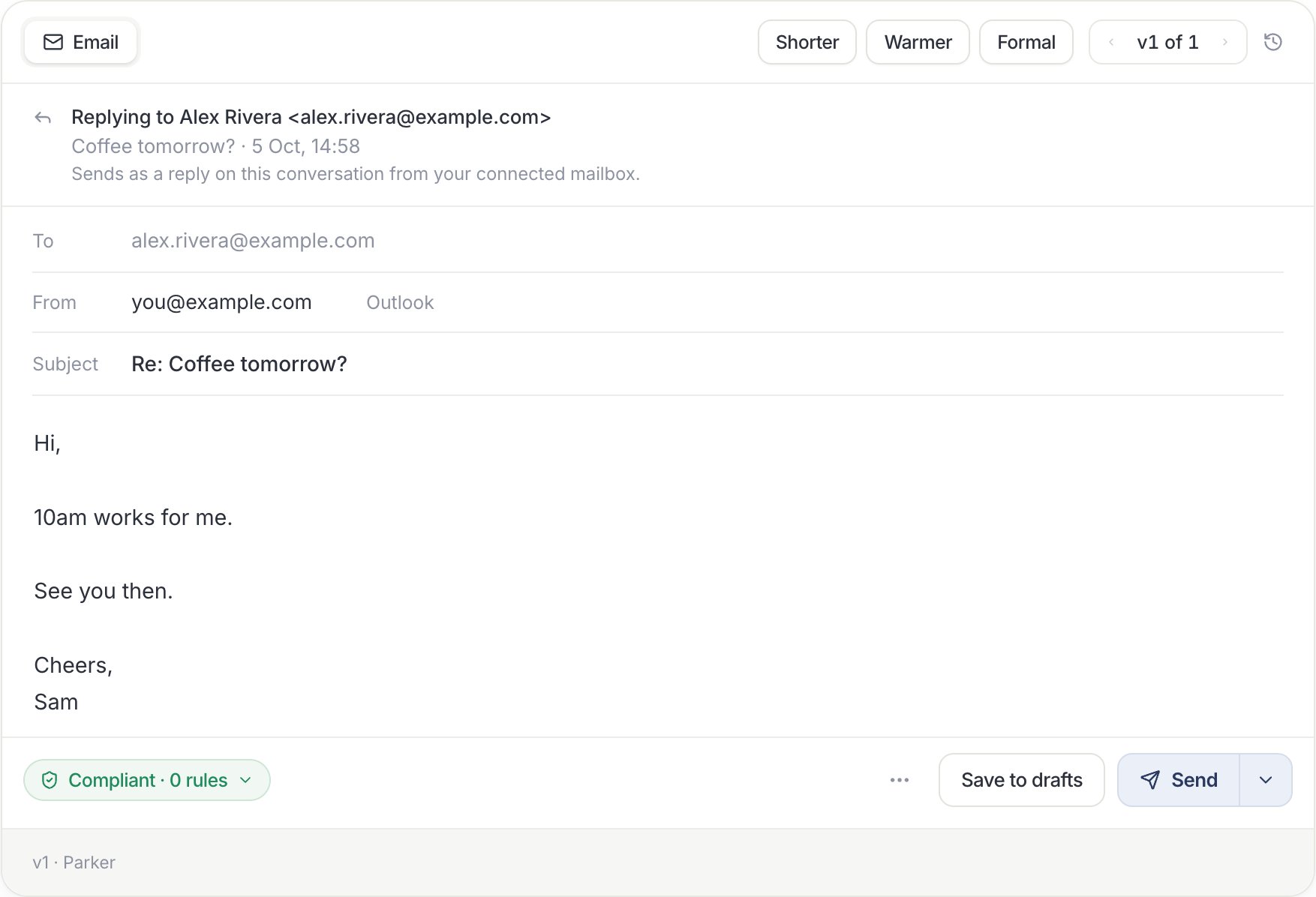
A reply draft shows which email it answers.
Write a new email
Reply to an email in your inbox
What can I do with a draft?
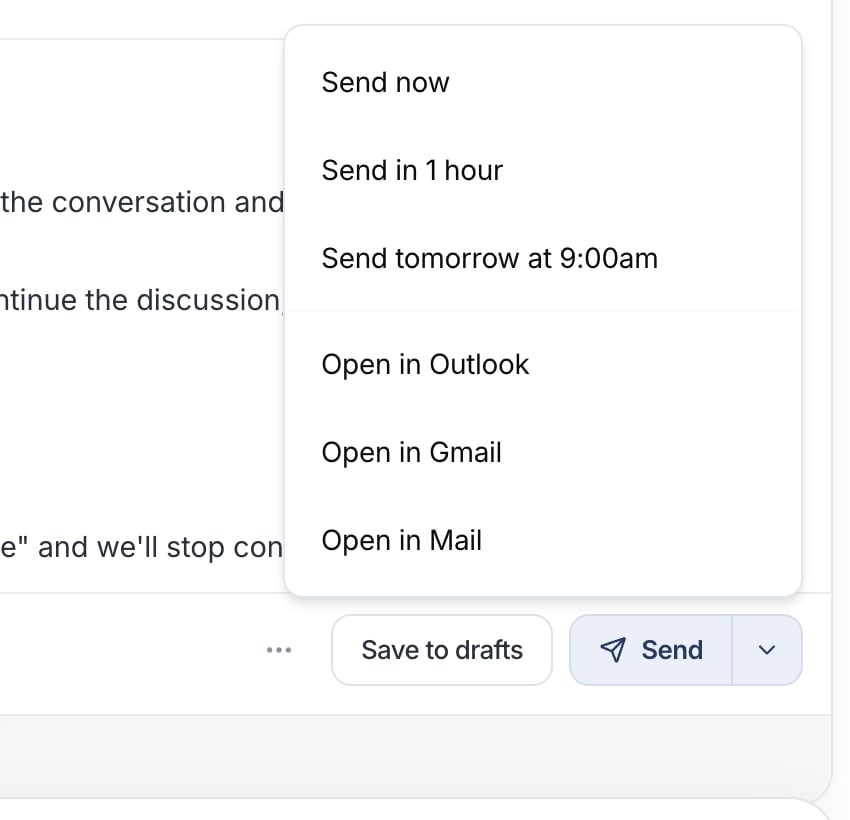
More send options lets you schedule the send or open the draft in your mail app.
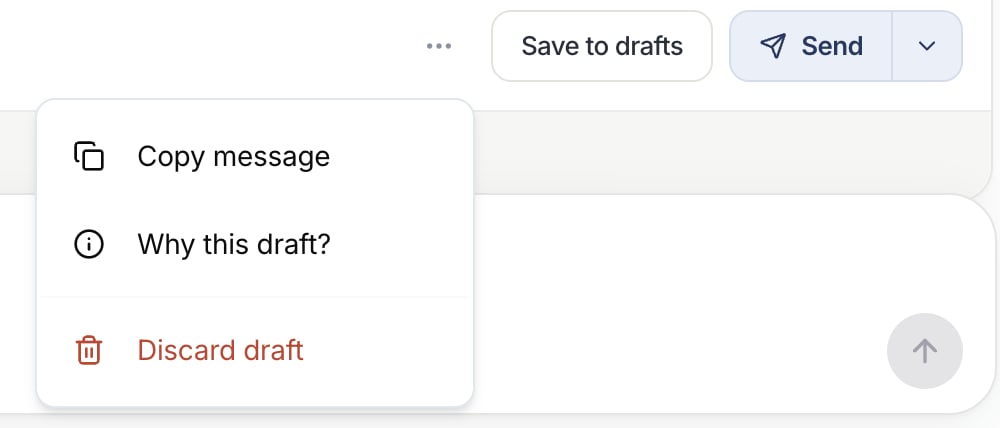
More actions on a draft.
Draft emails for a group of leads
Parker can draft a personal email for each lead in a list. Nothing is sent. You review the drafts one at a time.1
Ask for the drafts
Say which leads and what every email should do. Parker reads the leads from Salesforce and drafts for each one.
2
Check the summary
A strip shows how many leads were in the list, how many got a draft, and how many were excluded, with a reason for each.
3
Review each draft
Each lead can have more than one version, such as Soft check-in and Push forward. Select a version to see it. Use the arrows to move between leads. The card counts how many you’ve sent and skipped.
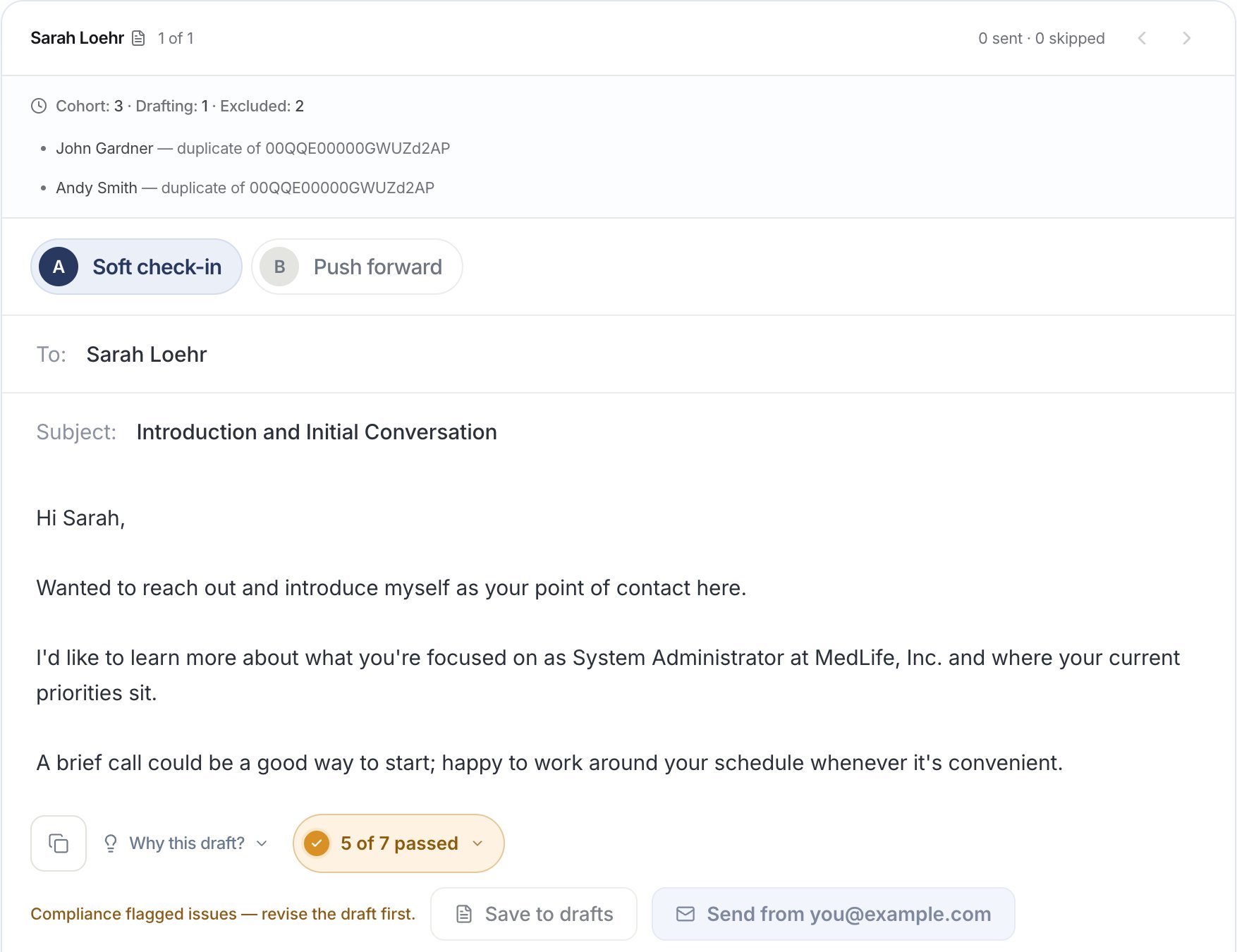
A queue of lead drafts. Leads Parker left out are listed with a reason.
Draft an email for each lead
Troubleshooting
I don't see Save to drafts or Send
I don't see Save to drafts or Send
Your mailbox isn’t connected, or the connection needs attention. See Connect your mailbox.
“Compliance flagged issues — revise the draft first.”
“Compliance flagged issues — revise the draft first.”
The draft broke one of your workspace’s rules, so it can’t be sent yet. Select the compliance result to see which rule, then revise the draft.
Parker left some leads out of a batch
Parker left some leads out of a batch
The summary strip lists each excluded lead with a reason, such as a duplicate email address. Fix the records in Salesforce, then ask again.
Related
Connect your mailbox
Link Outlook or Gmail so Parker can send as you.
Writing style
Make drafts sound like you.
Automations
Have Parker draft replies to new email on its own.
How Parker asks before it acts
What Parker confirms with you first.