Ask Parker to create or update Salesforce records in plain words. Creating asks you to confirm first. Updating a record happens straight away in Live mode.
Tell Parker what to change in Salesforce in plain words. Parker makes the change as you, under your own Salesforce permissions.
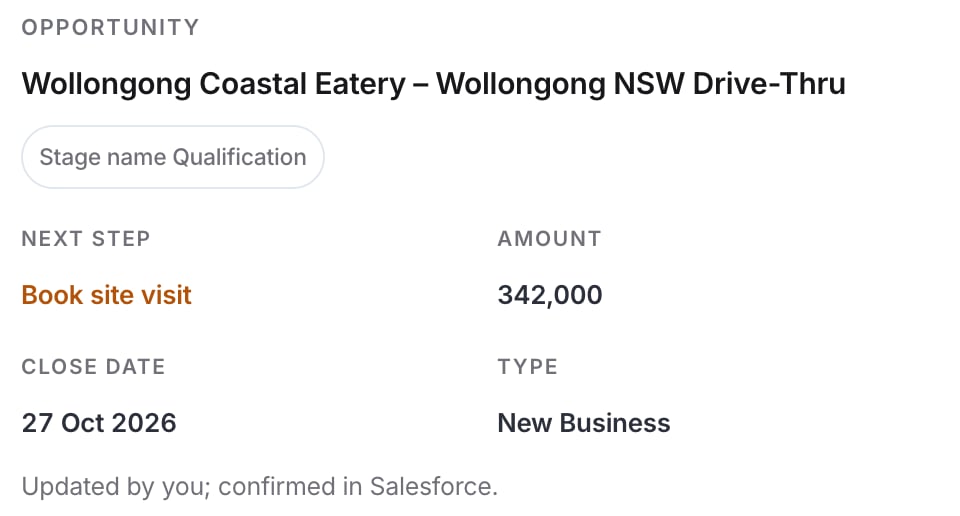
Say what to create and give the details you know. For example, “Create a task on the Wollongong Coastal Eatery opportunity: Call to book site visit, due this Friday.”
2
Check what Parker will do
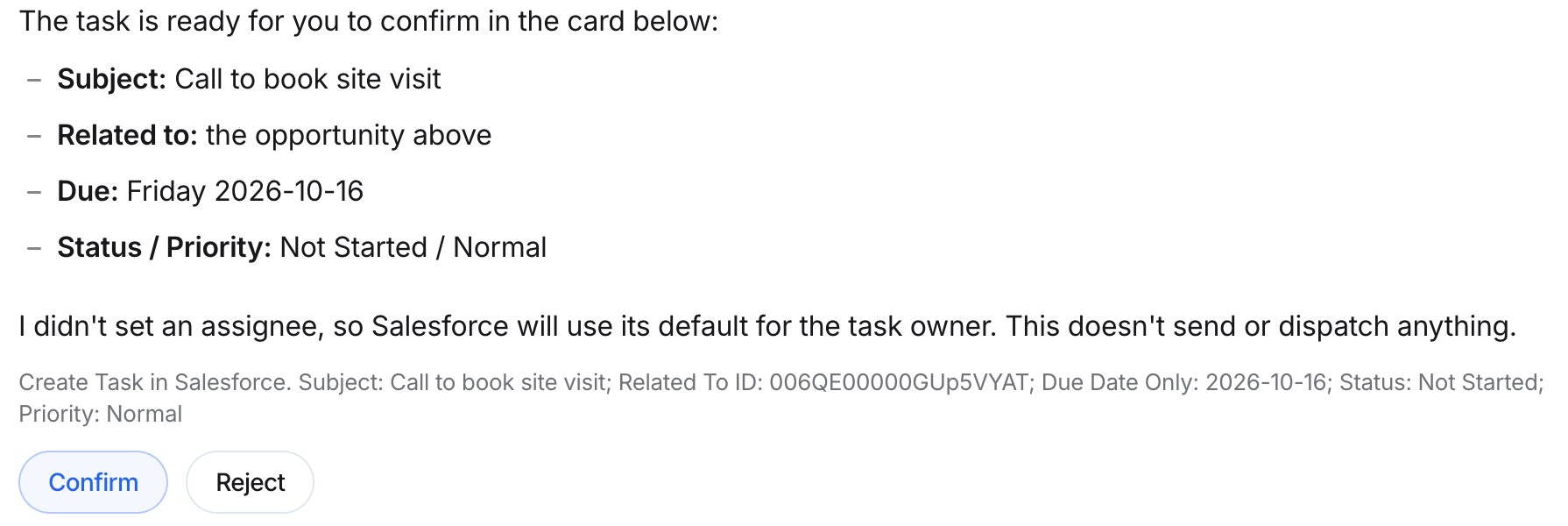
Parker lists the details, and then a line describing the exact change, such as “Create Task in Salesforce”, with the field values. Read it carefully.
A proposed task, waiting for Confirm or Reject.
3
Confirm or reject
Select Confirm to create the record, or Reject to cancel. To change something first, select Reject and tell Parker what to fix.
Go to Settings > Connections, and then select Salesforce.
2
Choose a mode
Under How Parker works in Salesforce, set Agent mode to Test or Live.
In Live mode, write tools commit changes to Salesforce, as you, under your own permissions. Every write is audited. An admin can turn on Org-wide test mode, which forces everyone to Test mode. See How Parker acts on your behalf.
Field updates go straight through in Live mode. Ask Parker to set the field back to its old value, which it shows on the receipt, or fix it in Salesforce. Next time, name the record and field exactly.
Parker says my Salesforce user doesn't have access
Parker makes changes as you, so Salesforce applies your own permissions. Ask your Salesforce admin for access to that object, field, or record.
The change isn't in Salesforce
Check Agent mode in Settings > Connections > Salesforce. In Test mode, changes are only simulated.
What Parker confirms with you, and what it doesn’t.
Ask about Salesforce data
Find records before you change them.
Connect Salesforce
How admins set up Salesforce.
Troubleshooting
Fixes for common problems.
Last modified on October 12, 2026
⌘I
{"docsConfig":{"theme":"maple","$schema":"https://mintlify.com/docs.json","name":"Parker","description":"Parker is an AI sales assistant that works across your Salesforce, email, and calendar. This guide shows sales reps and workspace admins how to use and set up Parker.","colors":{"primary":"#2563EB","light":"#60A5FA","dark":"#3B82F6"},"logo":{"light":"https://mintcdn.com/fieldko/TQb5sudGzkhO7GE1/logo/parker-wordmark-light.svg?fit=max\u0026auto=format\u0026n=TQb5sudGzkhO7GE1\u0026q=85\u0026s=483e1a0914fb77bf37704aaad719f68c","dark":"https://mintcdn.com/fieldko/TQb5sudGzkhO7GE1/logo/parker-wordmark-dark.svg?fit=max\u0026auto=format\u0026n=TQb5sudGzkhO7GE1\u0026q=85\u0026s=1370a880031b02ff6586088c8d384718","href":"/introduction"},"favicon":"https://mintcdn.com/fieldko/TQb5sudGzkhO7GE1/logo/parker-favicon.svg?fit=max\u0026auto=format\u0026n=TQb5sudGzkhO7GE1\u0026q=85\u0026s=69258631234fa5f43beebbbfe21d0309","appearance":{"default":"system","strict":true},"background":{"color":{"light":"#FFFFFF","dark":"#09090B"}},"navbar":{"links":[{"href":"/changelog","label":"What's new"}],"primary":{"type":"button","label":"Open Parker","href":"https://app.fieldko.ai"}},"search":{"prompt":"Search the Parker guide…"},"fonts":{"family":"Inter","weight":400},"icons":{"library":"lucide"},"styling":{"eyebrows":"breadcrumbs","codeblocks":"system","latex":false},"contextual":{"options":["copy","chatgpt","claude"],"display":"header"},"metadata":{"timestamp":true},"navigation":{"pages":[]}},"deployment":{"deploymentMetadataValue":{"subdomain":"fieldko","hasAudioNarration":false,"actualSubdomain":"fieldko","customDomains":["support.parker.work"],"gitSource":{"type":"github","owner":"fieldko","repo":"parker-docs","deployBranch":"main","contentDirectory":"","isPrivate":true,"mountPath":"","label":""},"chroma":{"liveDeploymentHistoryId":"6ad789e3448439fa5cb58202","collectionId":"97359534-c69d-4a66-897b-786f455227fc","schemaVersion":"v3","latestBuiltDeploymentHistoryId":"6ad789e3448439fa5cb58202"},"entitlements":{},"buildId":"6ad789e3448439fa5cb58202","clientVersion":"0.0.3894","searchFilterCounts":[{"language":"default","tag":"Using Parker","count":31},{"language":"default","tag":"Admin","count":17},{"language":"default","tag":"Reference","count":11},{"language":"default","tag":"Ask Parker","count":9},{"language":"default","tag":"Configure Parker","count":6},{"language":"default","tag":"Govern \u0026 monitor","count":6},{"language":"default","tag":"Set up your workspace","count":5},{"language":"default","tag":"Get started","count":5},{"language":"default","tag":"Email \u0026 meetings","count":4},{"language":"default","tag":"Parker on your phone","count":4}]},"assistantConfig":{},"hasChatPermissions":false,"hasWebMcpPermissions":false,"toggles":[{"name":"kill-isr","enabled":true,"variant":{"name":"disabled","enabled":false,"feature_enabled":true},"impressionData":false},{"name":"agent-mintlify-slack","enabled":true,"variant":{"name":"disabled","enabled":false,"feature_enabled":true},"impressionData":false},{"name":"editor-v7-file-tree","enabled":true,"variant":{"name":"disabled","enabled":false,"feature_enabled":true},"impressionData":false},{"name":"agent-integrations-settings","enabled":true,"variant":{"name":"disabled","enabled":false,"feature_enabled":true},"impressionData":false},{"name":"automations-pr-grouping","enabled":true,"variant":{"name":"disabled","enabled":false,"feature_enabled":true},"impressionData":false},{"name":"custom-prefix","enabled":true,"variant":{"name":"disabled","enabled":false,"feature_enabled":true},"impressionData":false},{"name":"analytics-v7","enabled":true,"variant":{"name":"disabled","enabled":false,"feature_enabled":true},"impressionData":false},{"name":"user-flows-analytics","enabled":true,"variant":{"name":"disabled","enabled":false,"feature_enabled":true},"impressionData":false},{"name":"no-publish-flow","enabled":true,"variant":{"name":"disabled","enabled":false,"feature_enabled":true},"impressionData":false},{"name":"workos-onboarding","enabled":true,"variant":{"name":"disabled","enabled":false,"feature_enabled":true},"impressionData":false},{"name":"llms-txt-v2","enabled":true,"variant":{"name":"disabled","enabled":false,"feature_enabled":true},"impressionData":false},{"name":"pause-universal-search-reconcile","enabled":true,"variant":{"name":"disabled","enabled":false,"feature_enabled":true},"impressionData":false},{"name":"snapshot-serving-live","enabled":true,"variant":{"name":"disabled","enabled":false,"feature_enabled":true},"impressionData":false},{"name":"stripTemperatureMiddleware","enabled":true,"variant":{"name":"disabled","enabled":false,"feature_enabled":true},"impressionData":false},{"name":"per-site-search-delta","enabled":true,"variant":{"name":"disabled","enabled":false,"feature_enabled":true},"impressionData":false},{"name":"support-platform-pylon-zendesk","enabled":true,"variant":{"name":"disabled","enabled":false,"feature_enabled":true},"impressionData":false},{"name":"editor-branches-v2-autocommit","enabled":true,"variant":{"name":"disabled","enabled":false,"feature_enabled":true},"impressionData":false},{"name":"editor-branches-v2","enabled":true,"variant":{"name":"disabled","enabled":false,"feature_enabled":true},"impressionData":false},{"name":"snapshot-serving","enabled":true,"variant":{"name":"disabled","enabled":false,"feature_enabled":true},"impressionData":false},{"name":"instant-rollback","enabled":true,"variant":{"name":"disabled","enabled":false,"feature_enabled":true},"impressionData":false},{"name":"granular-notifications-server","enabled":true,"variant":{"name":"disabled","enabled":false,"feature_enabled":true},"impressionData":false},{"name":"granular-notifications","enabled":true,"variant":{"name":"disabled","enabled":false,"feature_enabled":true},"impressionData":false},{"name":"editor-private-page-search","enabled":true,"variant":{"name":"disabled","enabled":false,"feature_enabled":true},"impressionData":false},{"name":"automations-fable","enabled":true,"variant":{"name":"disabled","enabled":false,"feature_enabled":true},"impressionData":false},{"name":"fixed-ai-action-pricing","enabled":true,"variant":{"name":"disabled","enabled":false,"feature_enabled":true},"impressionData":false},{"name":"automation-resolve-merge-conflict","enabled":true,"variant":{"name":"disabled","enabled":false,"feature_enabled":true},"impressionData":false},{"name":"scoped-publishing","enabled":true,"variant":{"name":"disabled","enabled":false,"feature_enabled":true},"impressionData":false},{"name":"mintql","enabled":true,"variant":{"name":"disabled","enabled":false,"feature_enabled":true},"impressionData":false},{"name":"page-level-analytics","enabled":true,"variant":{"name":"disabled","enabled":false,"feature_enabled":true},"impressionData":false},{"name":"teamspace","enabled":true,"variant":{"name":"disabled","enabled":false,"feature_enabled":true},"impressionData":false},{"name":"editor-version-history-v2","enabled":true,"variant":{"name":"disabled","enabled":false,"feature_enabled":true},"impressionData":false},{"name":"vite-origin","enabled":true,"variant":{"name":"disabled","enabled":false,"feature_enabled":true},"impressionData":false},{"name":"editor-nav-generations","enabled":true,"variant":{"name":"disabled","enabled":false,"feature_enabled":true},"impressionData":false},{"name":"workspace-projects","enabled":true,"variant":{"name":"disabled","enabled":false,"feature_enabled":true},"impressionData":false},{"name":"assistant-v5","enabled":true,"variant":{"name":"disabled","enabled":false,"feature_enabled":true},"impressionData":false},{"name":"byok-sep-25","enabled":true,"variant":{"name":"disabled","enabled":false,"feature_enabled":true},"impressionData":false},{"name":"revalidation-jwt","enabled":true,"variant":{"name":"disabled","enabled":false,"feature_enabled":true},"impressionData":false},{"name":"editor-agent-model-picker","enabled":true,"variant":{"name":"disabled","enabled":false,"feature_enabled":true},"impressionData":false},{"name":"client-snapshot-docs-config","enabled":true,"variant":{"name":"disabled","enabled":false,"feature_enabled":true},"impressionData":false},{"name":"hobby-abuse-scan","enabled":true,"variant":{"name":"disabled","enabled":false,"feature_enabled":true},"impressionData":false}],"isAtlas":false,"googleFontsInlined":false},"customCss":[{"filePath":"style.css","content":":root{--pk-ink:#09090b;--pk-ink-soft:#52525b;--pk-line:#e4e4e7;--pk-surface:#fafafa;--pk-card:#ffffff;--pk-accent:#2563eb;--pk-accent-soft:#eff6ff;--pk-dot:rgba(9, 9, 11, 0.09);--pk-glow:rgba(37, 99, 235, 0.16);--pk-radius:14px}html.dark{--pk-ink:#fafafa;--pk-ink-soft:#a1a1aa;--pk-line:#27272a;--pk-surface:#111113;--pk-card:#0f0f11;--pk-accent:#60a5fa;--pk-accent-soft:rgba(96, 165, 250, 0.1);--pk-dot:rgba(250, 250, 250, 0.08);--pk-glow:rgba(96, 165, 250, 0.18)}#content-area h1,#header h1{letter-spacing:-.03em}#content-area h2,#content-area h3{letter-spacing:-.02em}#content-area .prose a:not(.card):not([class*=pk-]){text-decoration-thickness:1px;text-underline-offset:3px;text-decoration-color:color-mix(in srgb,var(--pk-accent) 45%,transparent);transition:text-decoration-color 120ms ease}#content-area .prose a:not(.card):not([class*=pk-]):hover{text-decoration-color:var(--pk-accent)}#content-area .card{border-radius:var(--pk-radius);transition:transform 160ms ease,box-shadow 160ms ease,border-color 160ms ease}#content-area a.card:hover{transform:translateY(-2px);box-shadow:0 10px 30px -12px var(--pk-glow)}#content-area .frame,#content-area [data-component-part=frame]{border-radius:var(--pk-radius);background-image:radial-gradient(var(--pk-dot) 1px,transparent 1px);background-size:14px 14px}#content-area .frame img,#content-area [data-component-part=frame] img{border-radius:10px;box-shadow:0 1px 2px rgba(0,0,0,.06),0 12px 32px -16px rgba(9,9,11,.28)}#content-area .prose table th{font-size:.75rem;text-transform:uppercase;letter-spacing:.06em;color:var(--pk-ink-soft)}#pagination{gap:.75rem;padding:0;background:0 0}#pagination a[rel=next]>div,#pagination a[rel=prev]{min-height:4.25rem;border:1px solid var(--pk-line);border-radius:var(--pk-radius);background:var(--pk-card);transition:border-color 140ms ease}#pagination a[rel=next]:hover>div,#pagination a[rel=prev]:hover{border-color:color-mix(in srgb,var(--pk-accent) 50%,var(--pk-line));--tw-ring-shadow:0 0 #0000;box-shadow:none}#pagination a[rel=prev]{padding:0 1.25rem}#pagination [data-component-part=pagination-description],#pagination a[rel=next]>div>.w-px,.pk-note::before{display:none}#pagination a[rel=next]>div{flex-direction:column;align-items:flex-end;justify-content:center;gap:.2rem;height:auto;padding:.75rem 1.25rem}#pagination a[rel=next]>div>div:first-child{order:2;padding:0}#pagination a[rel=next]>div>div:last-child{order:1;padding:0}#pagination [data-component-part=pagination-label]{font-size:.6875rem;font-weight:600;letter-spacing:.06em;text-transform:uppercase;color:var(--pk-ink-soft)}#pagination [data-component-part=pagination-title]{font-size:.9375rem;color:var(--pk-ink)}.pk-hero{--h-bg:#0c0c10;--h-ink:#fafafa;--h-ink-2:#8b8b94;--h-ink-3:#a1a1aa;--h-line:rgba(255, 255, 255, 0.08);--h-window:#1c1c21;--c-amber:#f5b454;--c-violet:#b69cff;--c-blue:#7aa7ff;--c-teal:#5fd4c4;--c-green:#8fd694;position:relative;container-type:inline-size;margin:.5rem 0 2.5rem;padding:3.5rem 1.5rem 2.25rem;border:1px solid var(--h-line);border-radius:22px;overflow:hidden;text-align:center;color:var(--h-ink);background:radial-gradient(70% 55% at 50% 0%,rgba(122,167,255,.12),transparent 70%),radial-gradient(rgba(255,255,255,.05) 1px,transparent 1px) 0 0/18px 18px,var(--h-bg)}.pk-hero-title{margin:0;font-size:clamp(2rem,4.6vw,3.25rem);line-height:1.02;font-weight:600;letter-spacing:-.05em}.pk-hero .pk-hero-title span{display:block;font-weight:650}.pk-hero-title-a{color:var(--h-ink)}.pk-hero-title-b{color:var(--h-ink-2)}.pk-hero-lede{max-width:34rem;margin:1.25rem auto 0;font-size:1rem;line-height:1.6;color:var(--h-ink-3)}.pk-stage{display:grid;grid-template-columns:minmax(0,1fr);gap:1.25rem;margin:2.5rem auto 0;max-width:64rem;text-align:left}.pk-notes{display:grid;grid-template-columns:repeat(2,minmax(0,1fr));gap:1rem 1.25rem;margin:0;padding:0;list-style:none}.pk-notes-left{order:2}.pk-notes-right{order:3}.pk-note{display:flex;flex-direction:column;gap:.3rem;margin:0;padding:0}.pk-note-label{font-family:\"JetBrains Mono\",ui-monospace,SFMono-Regular,Menlo,monospace;font-size:.625rem;font-weight:500;letter-spacing:.16em;text-transform:uppercase;color:var(--tone)}.pk-note-body{font-size:.75rem;line-height:1.5;color:var(--h-ink-3)}@container (min-width: 880px){.pk-stage{grid-template-columns:minmax(0,1fr) minmax(0,26rem) minmax(0,1fr);align-items:center;gap:1.75rem}.pk-notes{grid-template-columns:minmax(0,1fr);gap:2.25rem}.pk-stage>.pk-notes-left,.pk-stage>.pk-notes-right,.pk-stage>.pk-window{order:0}.pk-notes-left{text-align:right}.pk-notes-left .pk-note{align-items:flex-end}}.pk-c-amber{--tone:var(--c-amber)}.pk-c-violet{--tone:var(--c-violet)}.pk-c-blue{--tone:var(--c-blue)}.pk-c-teal{--tone:var(--c-teal)}.pk-c-green{--tone:var(--c-green)}.pk-window{order:1;border:1px solid rgba(255,255,255,.1);border-radius:16px;background:linear-gradient(180deg,#23232a,var(--h-window));box-shadow:0 0 0 1px rgba(0,0,0,.4),0 30px 80px -30px rgba(0,0,0,.8),0 0 60px -20px rgba(122,167,255,.18);overflow:hidden}.pk-window-bar{display:flex;align-items:center;gap:.75rem;padding:.7rem 1rem;border-bottom:1px solid var(--h-line);font-size:.75rem;color:var(--h-ink-2)}.pk-dots{display:inline-flex;gap:5px}.pk-dots span{width:7px;height:7px;border-radius:999px;background:rgba(255,255,255,.14)}.pk-window-body{padding:1.25rem 1.25rem 1rem}.pk-ask{width:fit-content;max-width:85%;margin:0 0 1.25rem auto;padding:.55rem .85rem;border-radius:12px;background:#fafafa;color:#09090b;font-size:.8125rem;line-height:1.4}.pk-reply{margin:0 0 .9rem;font-size:.875rem;line-height:1.75;color:#d4d4d8}.pk-reply mark{padding:.05rem .15rem;border-radius:3px;color:#f4f4f5;background:color-mix(in srgb,var(--tone) 9%,transparent);box-shadow:inset 0 -1px 0 color-mix(in srgb,var(--tone) 70%,transparent);-webkit-box-decoration-break:clone;box-decoration-break:clone}.pk-composer,.pk-send{border-radius:999px;font-size:.75rem}.pk-composer{display:flex;align-items:center;justify-content:space-between;margin-top:1.25rem;padding:.45rem .45rem .45rem .9rem;border:1px solid rgba(255,255,255,.1);background:rgba(255,255,255,.03);color:#71717a}.pk-send{display:inline-grid;place-items:center;width:1.6rem;height:1.6rem;background:rgba(255,255,255,.1);color:#d4d4d8}.pk-hero-actions{display:flex;flex-wrap:wrap;justify-content:center;gap:.625rem;margin-top:2.25rem}.pk-btn{display:inline-flex;align-items:center;height:2.5rem;padding:0 1.15rem;border-radius:999px;font-size:.875rem;font-weight:600;text-decoration:none;transition:background-color 140ms ease,border-color 140ms ease,transform 140ms ease}.pk-btn:active{transform:translateY(1px)}.pk-hero .pk-btn-primary{background:#fafafa;color:#09090b;box-shadow:0 8px 24px -10px rgba(255,255,255,.35)}.pk-hero .pk-btn-primary:hover{background:#e4e4e7}.pk-hero .pk-btn-ghost{border:1px solid rgba(255,255,255,.16);color:#fafafa}.pk-hero .pk-btn-ghost:hover{border-color:rgba(255,255,255,.35)}.pk-hero-footnote{margin:1.25rem 0 0;font-size:.6875rem;color:#71717a}.pk-roles{display:grid;grid-template-columns:minmax(0,1fr);gap:1rem;margin:1.25rem 0 .5rem}@media (min-width:768px){.pk-roles{grid-template-columns:repeat(2,minmax(0,1fr))}}.pk-role{display:flex;flex-direction:column;gap:.375rem;padding:1.5rem;border:1px solid var(--pk-line);border-radius:var(--pk-radius);background:radial-gradient(var(--pk-dot) 1px,transparent 1px) right -4px top -4px/12px 12px no-repeat,var(--pk-card);background-size:12px 12px,auto;text-decoration:none;transition:border-color 160ms ease,transform 160ms ease,box-shadow 160ms ease}.pk-role:hover{border-color:color-mix(in srgb,var(--pk-accent) 55%,var(--pk-line));transform:translateY(-2px);box-shadow:0 12px 32px -16px var(--pk-glow)}.pk-role-tag{align-self:flex-start;padding:.15rem .55rem;border-radius:999px;background:var(--pk-accent-soft);color:var(--pk-accent);font-size:.6875rem;font-weight:600;letter-spacing:.04em;text-transform:uppercase}.pk-role-title{margin-top:.375rem;font-size:1.125rem;font-weight:600;letter-spacing:-.015em;color:var(--pk-ink)}.pk-role-body{font-size:.9375rem;line-height:1.55;color:var(--pk-ink-soft)}.pk-role-link{margin-top:.5rem;font-size:.875rem;font-weight:550;color:var(--pk-accent)}.pk-help{display:grid;grid-template-columns:minmax(0,1fr);margin-top:1.25rem;border:1px solid var(--pk-line);border-radius:var(--pk-radius);overflow:hidden;background:var(--pk-line);gap:1px}@media (min-width:768px){.pk-help{grid-template-columns:repeat(4,minmax(0,1fr))}}.pk-help-item{display:flex;flex-direction:column;gap:.25rem;padding:1.125rem 1.25rem;background:var(--pk-card);text-decoration:none;transition:background-color 140ms ease}.pk-help-item:hover{background:var(--pk-surface)}.pk-help-title{font-size:.9375rem;font-weight:600;color:var(--pk-ink)}.pk-help-body{font-size:.8125rem;line-height:1.5;color:var(--pk-ink-soft)}@media (prefers-reduced-motion:reduce){#content-area .card,.pk-btn,.pk-role{transition:none}#content-area a.card:hover,.pk-role:hover{transform:none}}"}],"page":{"pagePath":"chat/updating-records","slug":"/chat/updating-records","pageMetadata":{"title":"Create and update Salesforce records","sidebarTitle":"Updating records","description":"Ask Parker to create or update Salesforce records in plain words. Creating asks you to confirm first. Updating a record happens straight away in Live mode.","icon":"pencil","href":"/chat/updating-records"},"description":{"compiledSource":"\"use strict\";\nconst {jsx: _jsx} = arguments[0];\nconst {useMDXComponents: _provideComponents} = arguments[0];\nfunction _createMdxContent(props) {\n const _components = {\n p: \"p\",\n ..._provideComponents(),\n ...props.components\n };\n return _jsx(_components.p, {\n children: \"Ask Parker to create or update Salesforce records in plain words. Creating asks you to confirm first. Updating a record happens straight away in Live mode.\"\n });\n}\nfunction MDXContent(props = {}) {\n const {wrapper: MDXLayout} = {\n ..._provideComponents(),\n ...props.components\n };\n return MDXLayout ? _jsx(MDXLayout, {\n ...props,\n children: _jsx(_createMdxContent, {\n ...props\n })\n }) : _createMdxContent(props);\n}\nreturn {\n default: MDXContent\n};\n","frontmatter":{},"scope":{}},"pageType":"default","mdx":{"mdxSource":{"compiledSource":"\"use strict\";const{Fragment:_Fragment,jsx:_jsx,jsxs:_jsxs}=arguments[0];const{useMDXComponents:_provideComponents}=arguments[0];function _createMdxContent(props){const _components={a:`a`,li:`li`,p:`p`,strong:`strong`,tbody:`tbody`,td:`td`,th:`th`,thead:`thead`,tr:`tr`,ul:`ul`,..._provideComponents(),...props.components},{Accordion,AccordionGroup,Card,CardGroup,Frame,Heading,OptimizedImage,Prompt,Step,Steps,Table,Warning}=_components;if(!Accordion)_missingMdxReference(`Accordion`,true);if(!AccordionGroup)_missingMdxReference(`AccordionGroup`,true);if(!Card)_missingMdxReference(`Card`,true);if(!CardGroup)_missingMdxReference(`CardGroup`,true);if(!Frame)_missingMdxReference(`Frame`,true);if(!Heading)_missingMdxReference(`Heading`,true);if(!OptimizedImage)_missingMdxReference(`OptimizedImage`,true);if(!Prompt)_missingMdxReference(`Prompt`,true);if(!Step)_missingMdxReference(`Step`,true);if(!Steps)_missingMdxReference(`Steps`,true);if(!Table)_missingMdxReference(`Table`,true);if(!Warning)_missingMdxReference(`Warning`,true);return _jsxs(_Fragment,{children:[_jsx(_components.p,{children:`Tell Parker what to change in Salesforce in plain words. Parker makes the change as you, under your own Salesforce permissions.`}),`\n`,_jsx(Heading,{level:`2`,id:`before-you-begin`,children:`Before you begin`}),`\n`,_jsxs(_components.ul,{children:[`\n`,_jsxs(_components.li,{children:[`Connect your own Salesforce account in `,_jsx(_components.strong,{children:`Settings`}),` > `,_jsx(_components.strong,{children:`Connections`}),`. See `,_jsx(_components.a,{href:`/quickstart`,children:`Quickstart`}),`.`]}),`\n`,_jsxs(_components.li,{children:[`Check your `,_jsx(_components.strong,{children:`Agent mode`}),`. In `,_jsx(_components.strong,{children:`Test`}),` mode, changes are only simulated. In `,_jsx(_components.strong,{children:`Live`}),` mode, they’re written to Salesforce. See `,_jsx(_components.a,{href:`#choose-test-or-live-mode`,children:`Choose Test or Live mode`}),`.`]}),`\n`,_jsx(_components.li,{children:`Parker can only change what your own Salesforce user can change.`}),`\n`]}),`\n`,_jsxs(Warning,{children:[_jsx(_components.p,{children:_jsx(_components.strong,{children:`Check before Parker changes Salesforce.`})}),_jsxs(_components.ul,{children:[`\n`,_jsxs(_components.li,{children:[_jsx(_components.strong,{children:`Creating`}),` a record shows a card with `,_jsx(_components.strong,{children:`Confirm`}),` and `,_jsx(_components.strong,{children:`Reject`}),`. Nothing is written until you select `,_jsx(_components.strong,{children:`Confirm`}),`.`]}),`\n`,_jsxs(_components.li,{children:[_jsx(_components.strong,{children:`Updating`}),` an existing record has no card. If you’ve told Parker exactly what to change, it makes the change straight away in `,_jsx(_components.strong,{children:`Live`}),` mode.`]}),`\n`]}),_jsxs(_components.p,{children:[`See `,_jsx(_components.a,{href:`/get-started/how-parker-acts`,children:`How Parker acts on your behalf`}),`.`]})]}),`\n`,_jsx(Heading,{level:`2`,id:`what-happens-for-each-kind-of-change`,children:`What happens for each kind of change?`}),`\n`,_jsxs(Table,{children:[_jsx(_components.thead,{children:_jsxs(_components.tr,{children:[_jsx(_components.th,{children:`Ask Parker to…`}),_jsx(_components.th,{children:`What happens`})]})}),_jsxs(_components.tbody,{children:[_jsxs(_components.tr,{children:[_jsx(_components.td,{children:`Create a record, such as a task`}),_jsxs(_components.td,{children:[`Parker shows the change with `,_jsx(_components.strong,{children:`Confirm`}),` and `,_jsx(_components.strong,{children:`Reject`}),`. Nothing is written until you select `,_jsx(_components.strong,{children:`Confirm`}),`.`]})]}),_jsxs(_components.tr,{children:[_jsx(_components.td,{children:`Update fields on an existing record, such as the next step`}),_jsxs(_components.td,{children:[`No card. In `,_jsx(_components.strong,{children:`Live`}),` mode, Parker writes the change straight away and shows a receipt.`]})]})]})]}),`\n`,_jsxs(_components.p,{children:[`To see which Salesforce objects Parker can write to, go to `,_jsx(_components.strong,{children:`Settings`}),` > `,_jsx(_components.strong,{children:`Connections`}),` > `,_jsx(_components.strong,{children:`Salesforce`}),` and check the `,_jsx(_components.strong,{children:`Writes`}),` row.`]}),`\n`,_jsx(Heading,{level:`2`,id:`create-a-record`,children:`Create a record`}),`\n`,_jsxs(Steps,{children:[_jsx(Step,{title:`Ask for the record`,children:_jsx(_components.p,{children:`Say what to create and give the details you know. For example, “Create a task on the Wollongong Coastal Eatery opportunity: Call to book site visit, due this Friday.”`})}),_jsxs(Step,{title:`Check what Parker will do`,children:[_jsx(_components.p,{children:`Parker lists the details, and then a line describing the exact change, such as “Create Task in Salesforce”, with the field values. Read it carefully.`}),_jsx(Frame,{caption:`A proposed task, waiting for Confirm or Reject.`,children:_jsx(OptimizedImage,{src:`https://mintcdn.com/fieldko/KGR1Ih_ky0W1HGS1/images/chat/updating-records-confirm-card.png?fit=max\u0026auto=format\u0026n=KGR1Ih_ky0W1HGS1\u0026q=85\u0026s=ba84ee95f38075f5da69e882ff24e0db`,alt:`Proposed Salesforce task with subject, related opportunity, due date, status and priority, followed by Confirm and Reject buttons.`,\"data-og-width\":`1790`,width:`1790`,\"data-og-height\":`600`,height:`600`,\"data-path\":`images/chat/updating-records-confirm-card.png`,\"data-optimize\":`true`,\"data-opv\":`3`,srcset:`https://mintcdn.com/fieldko/KGR1Ih_ky0W1HGS1/images/chat/updating-records-confirm-card.png?w=280\u0026fit=max\u0026auto=format\u0026n=KGR1Ih_ky0W1HGS1\u0026q=85\u0026s=8b9acf93a1a61d4883e3128d700a1c5b 280w, https://mintcdn.com/fieldko/KGR1Ih_ky0W1HGS1/images/chat/updating-records-confirm-card.png?w=560\u0026fit=max\u0026auto=format\u0026n=KGR1Ih_ky0W1HGS1\u0026q=85\u0026s=a777c82f80484e08e13fa80c869ebce3 560w, https://mintcdn.com/fieldko/KGR1Ih_ky0W1HGS1/images/chat/updating-records-confirm-card.png?w=840\u0026fit=max\u0026auto=format\u0026n=KGR1Ih_ky0W1HGS1\u0026q=85\u0026s=3c1cf6b2b26ebfcdbcf4b7a277a47000 840w, https://mintcdn.com/fieldko/KGR1Ih_ky0W1HGS1/images/chat/updating-records-confirm-card.png?w=1100\u0026fit=max\u0026auto=format\u0026n=KGR1Ih_ky0W1HGS1\u0026q=85\u0026s=e858ef8491adad6e25d9a74e0a9eb7c3 1100w, https://mintcdn.com/fieldko/KGR1Ih_ky0W1HGS1/images/chat/updating-records-confirm-card.png?w=1650\u0026fit=max\u0026auto=format\u0026n=KGR1Ih_ky0W1HGS1\u0026q=85\u0026s=97116e51bd330434ce1a1201ae8c65dd 1650w, https://mintcdn.com/fieldko/KGR1Ih_ky0W1HGS1/images/chat/updating-records-confirm-card.png?w=2500\u0026fit=max\u0026auto=format\u0026n=KGR1Ih_ky0W1HGS1\u0026q=85\u0026s=daf841c9e2a43f050a5c89a9d4666743 2500w`})})]}),_jsx(Step,{title:`Confirm or reject`,children:_jsxs(_components.p,{children:[`Select `,_jsx(_components.strong,{children:`Confirm`}),` to create the record, or `,_jsx(_components.strong,{children:`Reject`}),` to cancel. To change something first, select `,_jsx(_components.strong,{children:`Reject`}),` and tell Parker what to fix.`]})})]}),`\n`,_jsx(Heading,{level:`3`,id:`check-it-worked`,children:`Check it worked`}),`\n`,_jsxs(_components.p,{children:[`The buttons are replaced by a single line that describes the change. If you selected `,_jsx(_components.strong,{children:`Reject`}),`, the line starts with `,_jsx(_components.strong,{children:`Cancelled`}),`, and nothing is written.`]}),`\n`,_jsx(Frame,{caption:`After you reject, the card shows Cancelled.`,children:_jsx(OptimizedImage,{src:`https://mintcdn.com/fieldko/KGR1Ih_ky0W1HGS1/images/chat/updating-records-cancelled.png?fit=max\u0026auto=format\u0026n=KGR1Ih_ky0W1HGS1\u0026q=85\u0026s=5336ad681afdab743533bf528334d4ee`,alt:`A line reading Cancelled followed by the Create Task in Salesforce description.`,\"data-og-width\":`1760`,width:`1760`,\"data-og-height\":`120`,height:`120`,\"data-path\":`images/chat/updating-records-cancelled.png`,\"data-optimize\":`true`,\"data-opv\":`3`,srcset:`https://mintcdn.com/fieldko/KGR1Ih_ky0W1HGS1/images/chat/updating-records-cancelled.png?w=280\u0026fit=max\u0026auto=format\u0026n=KGR1Ih_ky0W1HGS1\u0026q=85\u0026s=d1c5bd739b177e78f25c9eaea74a6fc9 280w, https://mintcdn.com/fieldko/KGR1Ih_ky0W1HGS1/images/chat/updating-records-cancelled.png?w=560\u0026fit=max\u0026auto=format\u0026n=KGR1Ih_ky0W1HGS1\u0026q=85\u0026s=cdf9ab56ab9ff0a3025eff4c3bd82d5a 560w, https://mintcdn.com/fieldko/KGR1Ih_ky0W1HGS1/images/chat/updating-records-cancelled.png?w=840\u0026fit=max\u0026auto=format\u0026n=KGR1Ih_ky0W1HGS1\u0026q=85\u0026s=c457c1e7da75d26a307c5e6f2a434089 840w, https://mintcdn.com/fieldko/KGR1Ih_ky0W1HGS1/images/chat/updating-records-cancelled.png?w=1100\u0026fit=max\u0026auto=format\u0026n=KGR1Ih_ky0W1HGS1\u0026q=85\u0026s=b9f3f216e643558a7e76a7d48cd2aaef 1100w, https://mintcdn.com/fieldko/KGR1Ih_ky0W1HGS1/images/chat/updating-records-cancelled.png?w=1650\u0026fit=max\u0026auto=format\u0026n=KGR1Ih_ky0W1HGS1\u0026q=85\u0026s=93014e5d3facc53fe70bdfb9ef1e618a 1650w, https://mintcdn.com/fieldko/KGR1Ih_ky0W1HGS1/images/chat/updating-records-cancelled.png?w=2500\u0026fit=max\u0026auto=format\u0026n=KGR1Ih_ky0W1HGS1\u0026q=85\u0026s=0a54842afc6dedb9a1a4c3ed5b37d196 2500w`})}),`\n`,_jsx(Heading,{level:`2`,id:`update-a-record`,children:`Update a record`}),`\n`,_jsxs(_components.p,{children:[`Updates to an existing record don’t show a `,_jsx(_components.strong,{children:`Confirm`}),` card. In `,_jsx(_components.strong,{children:`Live`}),` mode, Parker makes the change as soon as you ask.`]}),`\n`,_jsx(Warning,{children:_jsx(_components.p,{children:`Name the record, the field, and the new value in your request. Parker doesn’t ask again before it writes the update.`})}),`\n`,_jsxs(Steps,{children:[_jsx(Step,{title:`Ask for the change`,children:_jsx(_components.p,{children:`Name the record and the change. For example, “Update the Next Step on the Wollongong Coastal Eatery opportunity to ‘Book site visit’.”`})}),_jsx(Step,{title:`Check the receipt`,children:_jsx(_components.p,{children:`Parker shows the record with the changed field highlighted. It tells you what the field held before the change.`})})]}),`\n`,_jsx(Heading,{level:`3`,id:`check-it-worked-2`,children:`Check it worked`}),`\n`,_jsxs(_components.p,{children:[`The record card ends with `,_jsx(_components.strong,{children:`Updated by you; confirmed in Salesforce.`})]}),`\n`,_jsx(Frame,{caption:`The receipt after an update in Live mode.`,children:_jsx(OptimizedImage,{src:`https://mintcdn.com/fieldko/KGR1Ih_ky0W1HGS1/images/chat/updating-records-update-receipt.png?fit=max\u0026auto=format\u0026n=KGR1Ih_ky0W1HGS1\u0026q=85\u0026s=135ac6aff257c3ba293c88af10eb7370`,alt:`Opportunity card with Next Step set to Book site visit, highlighted, and the line Updated by you; confirmed in Salesforce.`,\"data-og-width\":`960`,width:`960`,\"data-og-height\":`516`,height:`516`,\"data-path\":`images/chat/updating-records-update-receipt.png`,\"data-optimize\":`true`,\"data-opv\":`3`,srcset:`https://mintcdn.com/fieldko/KGR1Ih_ky0W1HGS1/images/chat/updating-records-update-receipt.png?w=280\u0026fit=max\u0026auto=format\u0026n=KGR1Ih_ky0W1HGS1\u0026q=85\u0026s=1ee73c57a65d31de233a6cfad1fa436a 280w, https://mintcdn.com/fieldko/KGR1Ih_ky0W1HGS1/images/chat/updating-records-update-receipt.png?w=560\u0026fit=max\u0026auto=format\u0026n=KGR1Ih_ky0W1HGS1\u0026q=85\u0026s=ac822f3ab46de75179dc46c0ee54bddf 560w, https://mintcdn.com/fieldko/KGR1Ih_ky0W1HGS1/images/chat/updating-records-update-receipt.png?w=840\u0026fit=max\u0026auto=format\u0026n=KGR1Ih_ky0W1HGS1\u0026q=85\u0026s=cdf60f56a0013c575e796ca317c35c78 840w, https://mintcdn.com/fieldko/KGR1Ih_ky0W1HGS1/images/chat/updating-records-update-receipt.png?w=1100\u0026fit=max\u0026auto=format\u0026n=KGR1Ih_ky0W1HGS1\u0026q=85\u0026s=079b6ff3378a776f4625f726c7274320 1100w, https://mintcdn.com/fieldko/KGR1Ih_ky0W1HGS1/images/chat/updating-records-update-receipt.png?w=1650\u0026fit=max\u0026auto=format\u0026n=KGR1Ih_ky0W1HGS1\u0026q=85\u0026s=e5438c8f6e244e35e2944beb672cc86a 1650w, https://mintcdn.com/fieldko/KGR1Ih_ky0W1HGS1/images/chat/updating-records-update-receipt.png?w=2500\u0026fit=max\u0026auto=format\u0026n=KGR1Ih_ky0W1HGS1\u0026q=85\u0026s=f3fe5620f5e9e059db942a5c5b838db6 2500w`})}),`\n`,_jsx(_components.p,{children:`If the change was wrong, ask Parker to change the field back, or edit the record in Salesforce.`}),`\n`,_jsx(Heading,{level:`2`,id:`choose-test-or-live-mode`,children:`Choose Test or Live mode`}),`\n`,_jsxs(Steps,{children:[_jsx(Step,{title:`Open Salesforce settings`,children:_jsxs(_components.p,{children:[`Go to `,_jsx(_components.strong,{children:`Settings`}),` > `,_jsx(_components.strong,{children:`Connections`}),`, and then select `,_jsx(_components.strong,{children:`Salesforce`}),`.`]})}),_jsx(Step,{title:`Choose a mode`,children:_jsxs(_components.p,{children:[`Under `,_jsx(_components.strong,{children:`How Parker works in Salesforce`}),`, set `,_jsx(_components.strong,{children:`Agent mode`}),` to `,_jsx(_components.strong,{children:`Test`}),` or `,_jsx(_components.strong,{children:`Live`}),`.`]})})]}),`\n`,_jsxs(_components.p,{children:[`In `,_jsx(_components.strong,{children:`Live`}),` mode, write tools commit changes to Salesforce, as you, under your own permissions. Every write is audited. An admin can turn on `,_jsx(_components.strong,{children:`Org-wide test mode`}),`, which forces everyone to `,_jsx(_components.strong,{children:`Test`}),` mode. See `,_jsx(_components.a,{href:`/get-started/how-parker-acts`,children:`How Parker acts on your behalf`}),`.`]}),`\n`,_jsx(Heading,{level:`2`,id:`example-prompts`,children:`Example prompts`}),`\n`,_jsx(Prompt,{description:`Create a follow-up task`,children:`Create a task on the Northwind Supply opportunity: Call to book a site visit, due this Friday.`}),`\n`,_jsx(Prompt,{description:`Update a field`,children:`Update the Next Step on the Northwind Supply renewal to \"Send revised quote\".`}),`\n`,_jsx(Heading,{level:`2`,id:`troubleshooting`,children:`Troubleshooting`}),`\n`,_jsxs(AccordionGroup,{children:[_jsx(Accordion,{title:`Parker changed a record I didn't mean to change`,id:`parker-changed-a-record-i-didnt-mean-to-change`,children:_jsxs(_components.p,{children:[`Field updates go straight through in `,_jsx(_components.strong,{children:`Live`}),` mode. Ask Parker to set the field back to its old value, which it shows on the receipt, or fix it in Salesforce. Next time, name the record and field exactly.`]})}),_jsx(Accordion,{title:`Parker says my Salesforce user doesn't have access`,id:`parker-says-my-salesforce-user-doesnt-have-access`,children:_jsx(_components.p,{children:`Parker makes changes as you, so Salesforce applies your own permissions. Ask your Salesforce admin for access to that object, field, or record.`})}),_jsx(Accordion,{title:`The change isn't in Salesforce`,id:`the-change-isnt-in-salesforce`,children:_jsxs(_components.p,{children:[`Check `,_jsx(_components.strong,{children:`Agent mode`}),` in `,_jsx(_components.strong,{children:`Settings`}),` > `,_jsx(_components.strong,{children:`Connections`}),` > `,_jsx(_components.strong,{children:`Salesforce`}),`. In `,_jsx(_components.strong,{children:`Test`}),` mode, changes are only simulated.`]})})]}),`\n`,_jsx(Heading,{level:`2`,id:`related`,children:`Related`}),`\n`,_jsxs(CardGroup,{cols:2,children:[_jsx(Card,{title:`How Parker acts on your behalf`,href:`/get-started/how-parker-acts`,icon:`shield-check`,children:_jsx(_components.p,{children:`What Parker confirms with you, and what it doesn’t.`})}),_jsx(Card,{title:`Ask about Salesforce data`,href:`/chat/salesforce-questions`,icon:`search`,children:_jsx(_components.p,{children:`Find records before you change them.`})}),_jsx(Card,{title:`Connect Salesforce`,href:`/admin/connect-salesforce`,icon:`cloud`,children:_jsx(_components.p,{children:`How admins set up Salesforce.`})}),_jsx(Card,{title:`Troubleshooting`,href:`/reference/troubleshooting`,icon:`life-buoy`,children:_jsx(_components.p,{children:`Fixes for common problems.`})})]})]})}function MDXContent(props={}){const{wrapper:MDXLayout}={..._provideComponents(),...props.components};return MDXLayout?_jsx(MDXLayout,{...props,children:_jsx(_createMdxContent,{...props})}):_createMdxContent(props)}return{default:MDXContent};function _missingMdxReference(id,component){throw new Error(`Expected `+(component?`component`:`object`)+\" `\"+id+\"` to be defined: you likely forgot to import, pass, or provide it.\")}","frontmatter":{},"scope":{"codeStyling":"system","config":{},"pageMetadata":{"title":"Create and update Salesforce records","sidebarTitle":"Updating records","description":"Ask Parker to create or update Salesforce records in plain words. Creating asks you to confirm first. Updating a record happens straight away in Live mode.","icon":"pencil","href":"/chat/updating-records"}}},"mdxSourceWithNoJs":null},"mdxExtracts":{"tableOfContents":[{"title":"Before you begin","slug":"before-you-begin","depth":2,"children":[]},{"title":"What happens for each kind of change?","slug":"what-happens-for-each-kind-of-change","depth":2,"children":[]},{"title":"Create a record","slug":"create-a-record","depth":2,"children":[{"title":"Check it worked","slug":"check-it-worked","depth":3,"children":[]}]},{"title":"Update a record","slug":"update-a-record","depth":2,"children":[{"title":"Check it worked","slug":"check-it-worked-2","depth":3,"children":[]}]},{"title":"Choose Test or Live mode","slug":"choose-test-or-live-mode","depth":2,"children":[]},{"title":"Example prompts","slug":"example-prompts","depth":2,"children":[]},{"title":"Troubleshooting","slug":"troubleshooting","depth":2,"children":[]},{"title":"Related","slug":"related","depth":2,"children":[]}],"codeExamples":{}},"jsLinks":[],"subdomain":"fieldko","siteName":"Parker","title":"Create and update Salesforce records - Parker","navMaps":{"firstHrefInVersion":{},"firstHrefInLanguage":{}},"lastModified":"2026-10-12T11:25:40.477Z","gitLastModified":"2026-10-12T11:13:28.000Z","originalFileLocation":"chat/updating-records.mdx"},"headHtml":"\u003cmeta data-mint-head name=\"description\" content=\"Ask Parker to create or update Salesforce records in plain words. Creating asks you to confirm first. Updating a record happens straight away in Live mode.\">\u003cmeta data-mint-head name=\"application-name\" content=\"Parker\">\u003cmeta data-mint-head name=\"generator\" content=\"Mintlify\">\u003clink data-mint-head rel=\"icon\" type=\"image/png\" sizes=\"192x192\" href=\"/mintlify-assets/_mintlify/favicons/fieldko/K_wyXijZEoevBnHb/_generated/favicon/android-chrome-192x192.png\" media=\"(prefers-color-scheme: light)\">\u003clink data-mint-head rel=\"apple-touch-icon\" type=\"image/png\" sizes=\"180x180\" href=\"/mintlify-assets/_mintlify/favicons/fieldko/K_wyXijZEoevBnHb/_generated/favicon/apple-touch-icon.png\">\u003clink data-mint-head rel=\"icon\" type=\"image/png\" sizes=\"16x16\" href=\"/mintlify-assets/_mintlify/favicons/fieldko/K_wyXijZEoevBnHb/_generated/favicon/favicon-16x16.png\" media=\"(prefers-color-scheme: light)\">\u003clink data-mint-head rel=\"icon\" type=\"image/png\" sizes=\"32x32\" href=\"/mintlify-assets/_mintlify/favicons/fieldko/K_wyXijZEoevBnHb/_generated/favicon/favicon-32x32.png\" media=\"(prefers-color-scheme: light)\">\u003clink data-mint-head rel=\"shortcut icon\" type=\"image/x-icon\" href=\"/mintlify-assets/_mintlify/favicons/fieldko/K_wyXijZEoevBnHb/_generated/favicon/favicon.ico\" media=\"(prefers-color-scheme: light)\">\u003clink data-mint-head rel=\"icon\" type=\"image/png\" sizes=\"192x192\" href=\"/mintlify-assets/_mintlify/favicons/fieldko/K_wyXijZEoevBnHb/_generated/favicon-dark/android-chrome-192x192.png\" media=\"(prefers-color-scheme: dark)\">\u003clink data-mint-head rel=\"icon\" type=\"image/png\" sizes=\"16x16\" href=\"/mintlify-assets/_mintlify/favicons/fieldko/K_wyXijZEoevBnHb/_generated/favicon-dark/favicon-16x16.png\" media=\"(prefers-color-scheme: dark)\">\u003clink data-mint-head rel=\"icon\" type=\"image/png\" sizes=\"32x32\" href=\"/mintlify-assets/_mintlify/favicons/fieldko/K_wyXijZEoevBnHb/_generated/favicon-dark/favicon-32x32.png\" media=\"(prefers-color-scheme: dark)\">\u003clink data-mint-head rel=\"shortcut icon\" type=\"image/x-icon\" href=\"/mintlify-assets/_mintlify/favicons/fieldko/K_wyXijZEoevBnHb/_generated/favicon-dark/favicon.ico\" media=\"(prefers-color-scheme: dark)\">\u003cmeta data-mint-head property=\"og:title\" content=\"Create and update Salesforce records - Parker\">\u003cmeta data-mint-head property=\"og:description\" content=\"Ask Parker to create or update Salesforce records in plain words. Creating asks you to confirm first. Updating a record happens straight away in Live mode.\">\u003cmeta data-mint-head property=\"og:site_name\" content=\"Parker\">\u003cmeta data-mint-head property=\"og:url\" content=\"https://support.parker.work/chat/updating-records\">\u003cmeta data-mint-head property=\"og:type\" content=\"website\">\u003cmeta data-mint-head name=\"twitter:card\" content=\"summary_large_image\">\u003cmeta data-mint-head name=\"twitter:title\" content=\"Create and update Salesforce records - Parker\">\u003cmeta data-mint-head name=\"twitter:description\" content=\"Ask Parker to create or update Salesforce records in plain words. Creating asks you to confirm first. Updating a record happens straight away in Live mode.\">\u003cmeta data-mint-head name=\"msapplication-config\" content=\"/mintlify-assets/_mintlify/favicons/fieldko/K_wyXijZEoevBnHb/_generated/favicon/browserconfig.xml\">\u003cmeta data-mint-head name=\"apple-mobile-web-app-title\" content=\"Parker\">\u003cmeta data-mint-head name=\"msapplication-TileColor\" content=\"#2563EB\">\u003clink data-mint-head rel=\"canonical\" href=\"https://support.parker.work/chat/updating-records\">\u003clink data-mint-head rel=\"alternate\" type=\"application/xml\" href=\"/sitemap.xml\">\u003clink data-mint-head rel=\"alternate\" type=\"text/markdown\" href=\"/chat/updating-records.md\">\u003cscript data-mint-head type=\"application/ld+json\">{\"@context\":\"https://schema.org\",\"@graph\":[{\"@type\":\"Organization\",\"@id\":\"https://support.parker.work/#organization\",\"name\":\"Parker\",\"url\":\"https://support.parker.work\",\"logo\":{\"@type\":\"ImageObject\",\"url\":\"https://mintcdn.com/fieldko/TQb5sudGzkhO7GE1/logo/parker-wordmark-light.svg?fit=max\u0026auto=format\u0026n=TQb5sudGzkhO7GE1\u0026q=85\u0026s=483e1a0914fb77bf37704aaad719f68c\"}},{\"@type\":\"WebSite\",\"@id\":\"https://support.parker.work#website\",\"name\":\"Parker\",\"url\":\"https://support.parker.work\",\"publisher\":{\"@id\":\"https://support.parker.work/#organization\"}},{\"@type\":\"WebPage\",\"@id\":\"https://support.parker.work/chat/updating-records#webpage\",\"url\":\"https://support.parker.work/chat/updating-records\",\"name\":\"Create and update Salesforce records\",\"description\":\"Ask Parker to create or update Salesforce records in plain words. Creating asks you to confirm first. Updating a record happens straight away in Live mode.\",\"dateModified\":\"2026-10-12T11:13:28.000Z\",\"isPartOf\":{\"@id\":\"https://support.parker.work#website\"},\"breadcrumb\":{\"@id\":\"https://support.parker.work/chat/updating-records#breadcrumb\"}},{\"@type\":\"BreadcrumbList\",\"@id\":\"https://support.parker.work/chat/updating-records#breadcrumb\",\"itemListElement\":[{\"@type\":\"ListItem\",\"position\":1,\"name\":\"Ask Parker\",\"item\":\"https://support.parker.work/chat/overview\"},{\"@type\":\"ListItem\",\"position\":2,\"name\":\"Create and update Salesforce records\",\"item\":\"https://support.parker.work/chat/updating-records\"}]},{\"@type\":[\"Article\",\"TechArticle\"],\"@id\":\"https://support.parker.work/chat/updating-records#article\",\"headline\":\"Create and update Salesforce records\",\"name\":\"Create and update Salesforce records\",\"description\":\"Ask Parker to create or update Salesforce records in plain words. Creating asks you to confirm first. Updating a record happens straight away in Live mode.\",\"url\":\"https://support.parker.work/chat/updating-records\",\"mainEntityOfPage\":{\"@id\":\"https://support.parker.work/chat/updating-records#webpage\"},\"dateModified\":\"2026-10-12T11:13:28.000Z\",\"publisher\":{\"@id\":\"https://support.parker.work/#organization\"},\"isPartOf\":{\"@id\":\"https://support.parker.work#website\"}}]}\u003c/script>\u003cscript data-mint-head type=\"application/ld+json\">{\"@context\":\"https://schema.org\",\"@type\":\"WebSite\",\"name\":\"Parker\",\"creator\":{\"@type\":\"Organization\",\"name\":\"Mintlify\",\"url\":\"https://mintlify.com\"}}\u003c/script>","siteName":"Parker","nav":{"global":null,"tabs":[{"tab":"Using Parker","groups":[{"group":"Get started","pages":[{"title":"What is Parker?","sidebarTitle":"What is Parker","icon":"sparkles","mode":"wide","href":"/introduction"},{"title":"Get started with Parker","sidebarTitle":"Quickstart","icon":"rocket","href":"/quickstart"},{"title":"What Parker can and can't do","sidebarTitle":"What Parker can do","icon":"scale","href":"/get-started/what-parker-can-do"},{"title":"How Parker acts on your behalf","sidebarTitle":"How Parker acts","icon":"shield-check","href":"/get-started/how-parker-acts"},{"title":"Tips for asking Parker","sidebarTitle":"Asking Parker","icon":"lightbulb","href":"/get-started/asking-parker"}]},{"group":"Ask Parker","pages":[{"title":"How chat works","sidebarTitle":"Chat overview","icon":"message-square","href":"/chat/overview"},{"title":"Ask about your Salesforce data","sidebarTitle":"Salesforce questions","description":"Ask Parker about your Salesforce records in plain words: find records, count and compare them, check where an answer came from, and open a record without leaving the chat.","icon":"search","href":"/chat/salesforce-questions"},{"title":"Create and update Salesforce records","sidebarTitle":"Updating records","icon":"pencil","href":"/chat/updating-records"},{"title":"Create reports and documents","sidebarTitle":"Reports \u0026 documents","description":"Export a chat as a report PDF or chat PDF, get your Salesforce records as a CSV file, and ask Parker to design a one-pager you can download or save to Pages.","icon":"file-text","href":"/chat/reports-and-documents"},{"title":"Get charts, tables, and diagrams","sidebarTitle":"Charts \u0026 diagrams","icon":"chart-bar","href":"/chat/charts-maps-diagrams"},{"title":"Attach files to a chat","sidebarTitle":"Files \u0026 attachments","icon":"paperclip","href":"/chat/files-and-attachments"},{"title":"How memory works","sidebarTitle":"Memory","icon":"brain","href":"/chat/memory-and-private-chats"},{"title":"Find, organise, and share chats","sidebarTitle":"Sharing \u0026 history","icon":"history","href":"/chat/sharing-and-history"},{"title":"Work beside the chat with the Work panel","sidebarTitle":"Work panel","icon":"panel-right-open","tag":"Beta","href":"/chat/work-panel"}]},{"group":"Maps \u0026 locations","pages":[{"title":"Find records near a place","sidebarTitle":"Maps overview","icon":"map-pin","href":"/maps/overview"},{"title":"How Parker finds locations","sidebarTitle":"How locations work","icon":"map","href":"/maps/how-locations-work"}]},{"group":"Email \u0026 meetings","pages":[{"title":"Connect your mailbox and calendar","sidebarTitle":"Connect your mailbox","icon":"mail","href":"/email/connect-mailbox"},{"title":"Search, draft, and send email","sidebarTitle":"Draft and send email","icon":"pen-line","href":"/email/drafting-email"},{"title":"Teach Parker your writing style","sidebarTitle":"Writing style","icon":"pen-line","href":"/email/writing-style"},{"title":"Connect your calendar and set scheduling defaults","sidebarTitle":"Calendar and meetings","icon":"calendar-days","href":"/email/calendar-and-meetings"}]},{"group":"Automate","pages":[{"title":"Set up an automation","sidebarTitle":"Automations","icon":"workflow","href":"/automate/automations"},{"title":"Review drafts and runs","sidebarTitle":"Reviewing drafts and runs","icon":"inbox","href":"/automate/reviewing-drafts-and-runs"},{"title":"Schedule a routine","sidebarTitle":"Routines","icon":"repeat","href":"/automate/routines"}]},{"group":"Your library","pages":[{"title":"Find and share your pages","sidebarTitle":"Pages","icon":"layout-template","href":"/library/pages"},{"title":"Find and reuse your files","sidebarTitle":"Files","icon":"folder","tag":"Beta","href":"/library/files"}]},{"group":"Parker on your phone","pages":[{"title":"Use Parker from your phone","sidebarTitle":"Overview","icon":"smartphone","tag":"Beta","href":"/mobile/overview"},{"title":"Text Parker from Messages","sidebarTitle":"iMessage and SMS","icon":"message-square","tag":"Beta","href":"/mobile/imessage-and-sms"},{"title":"Message Parker on WhatsApp","sidebarTitle":"WhatsApp","icon":"message-circle","tag":"Beta","href":"/mobile/whatsapp"},{"title":"Chat with Parker in Microsoft Teams","sidebarTitle":"Microsoft Teams","icon":"users","tag":"Beta","href":"/mobile/teams"}]},{"group":"Your account","pages":[{"title":"Manage your account settings","sidebarTitle":"Account settings","icon":"user-cog","href":"/account/settings"},{"title":"Keyboard shortcuts","icon":"keyboard","href":"/account/keyboard-shortcuts"}]}]},{"tab":"Admin","pages":[{"title":"Admin","href":"/admin/quickstart"}]},{"tab":"Reference","pages":[{"title":"Reference","href":"/reference/settings"}]}]},"title":"Create and update Salesforce records - Parker","buildId":"dpl_8LJVMfxYNq6LJkohTrn2iyWT8umj","deploymentId":"dpl_8LJVMfxYNq6LJkohTrn2iyWT8umj","dynamics":["07c022d89b","a74be98ba7","869c33ed97"],"chunks":["Frame-DgIorxK1.js","DynamicMarkdown-43fmNsOD.js","zoom-image-lightbox-D9lJgLSo.js","PlusIcon-C1lem43w.js","lightbox-handle-r17bVUz3.js","Prompt-DiW5fYyQ.js","clsx-trXNtT1g.js","lib-B6V4jynN.js","lib-vtHBCq3V.js","html-void-elements-mCSPHezU.js","dist-dK59mPLe.js","katex-Cnv50rb0.js","marked.esm-BKo0Hl1x.js"]}