

- Creating a Salesforce record shows a card with Confirm and Reject. Nothing is written until you select Confirm.
- Updating fields on an existing Salesforce record has no card. In Live mode, Parker makes the change as soon as you ask.
- Email arrives as a draft card. Nothing is sent until you choose a send option.
What does a confirmation look like?
When Parker is ready to create a record, it lists what it will create. A line describes the exact change, such as “Create Task in Salesforce”, followed by the field values. Under it are two options:- Confirm carries out exactly the change described.
- Reject cancels it. Nothing is written.
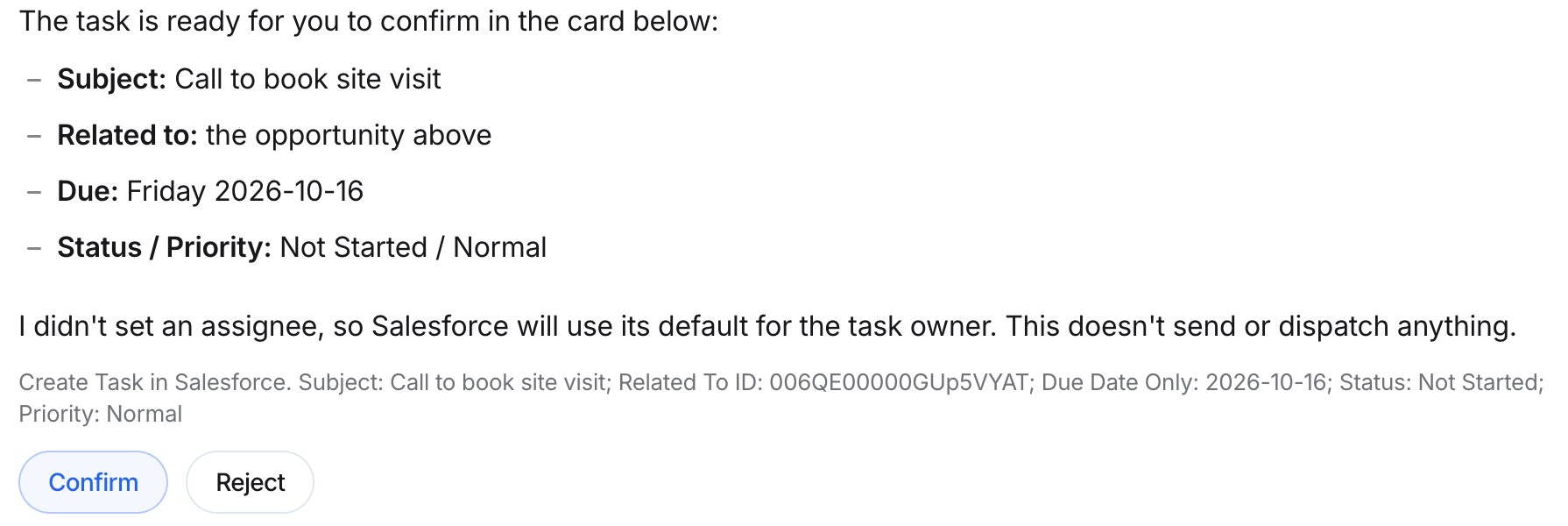
Parker waits for Confirm or Reject before it creates a record.
What happens when I ask Parker to update a record?
Parker makes the change straight away. There’s no Confirm card for a field update on an existing record. In Live mode, the change is written to Salesforce as you. Parker then shows the record, with the changed field highlighted, and the line Updated by you; confirmed in Salesforce.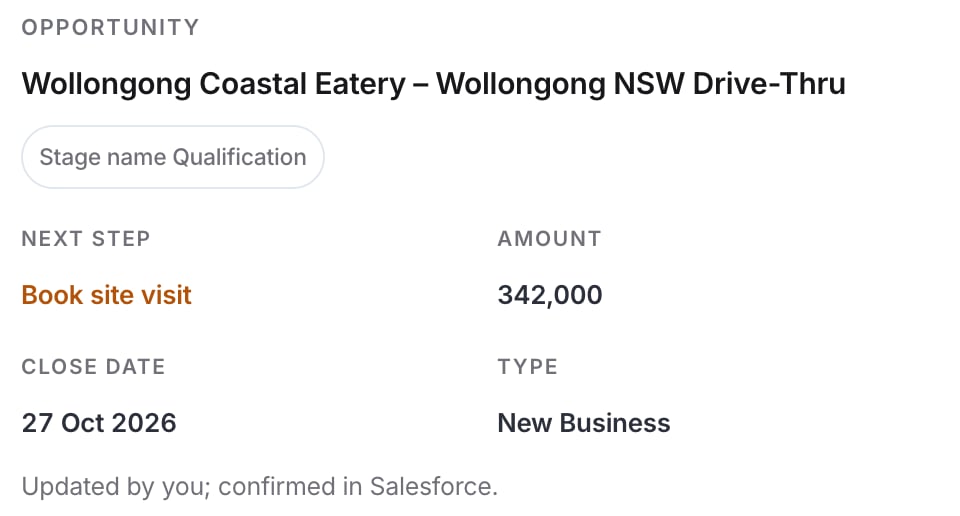
An update goes straight through in Live mode. The receipt shows the record after the change.
How does sending email work?
When you ask for an email, Parker shows a draft card with To, From, Subject, and the message. You can edit the subject and message. Select Shorter, Warmer, or Formal to have Parker rewrite it.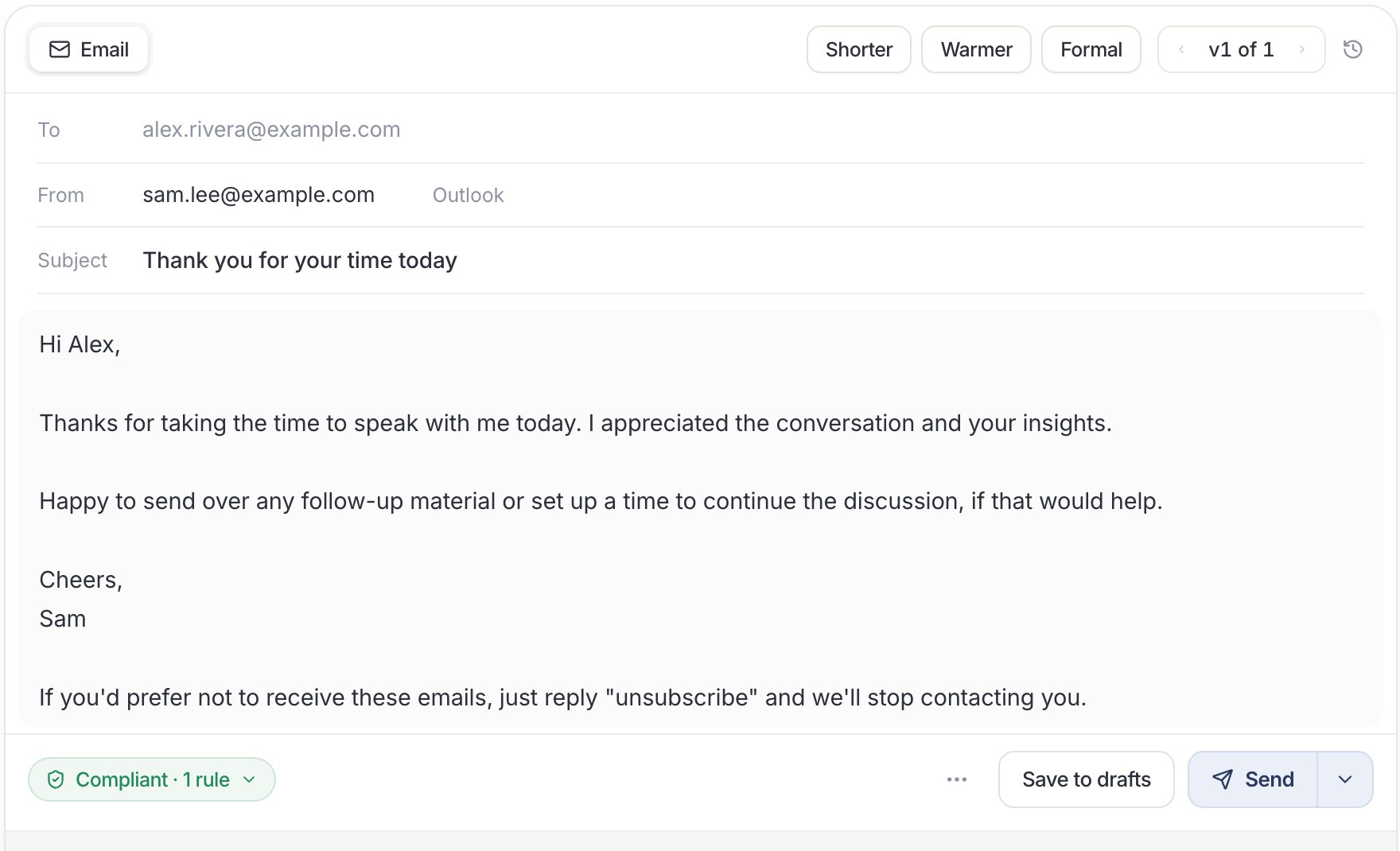
An email draft. Nothing is sent until you choose a send option.
The badge on the card, such as Compliant · 1 rule, shows the result of your workspace’s compliance check. For more, see Draft and send email.
Test mode and Live mode
Each person has their own Salesforce Agent mode, with two settings:- Test: Parker only simulates Salesforce changes. Nothing is sent to Salesforce.
- Live: Parker writes changes to Salesforce, as you, under your own Salesforce permissions. Every write is audited.
1
Open the Salesforce settings
Go to Settings > Connections, and then select the Salesforce row.
2
Choose a mode
Under How Parker works in Salesforce, set Agent mode to Test or Live.
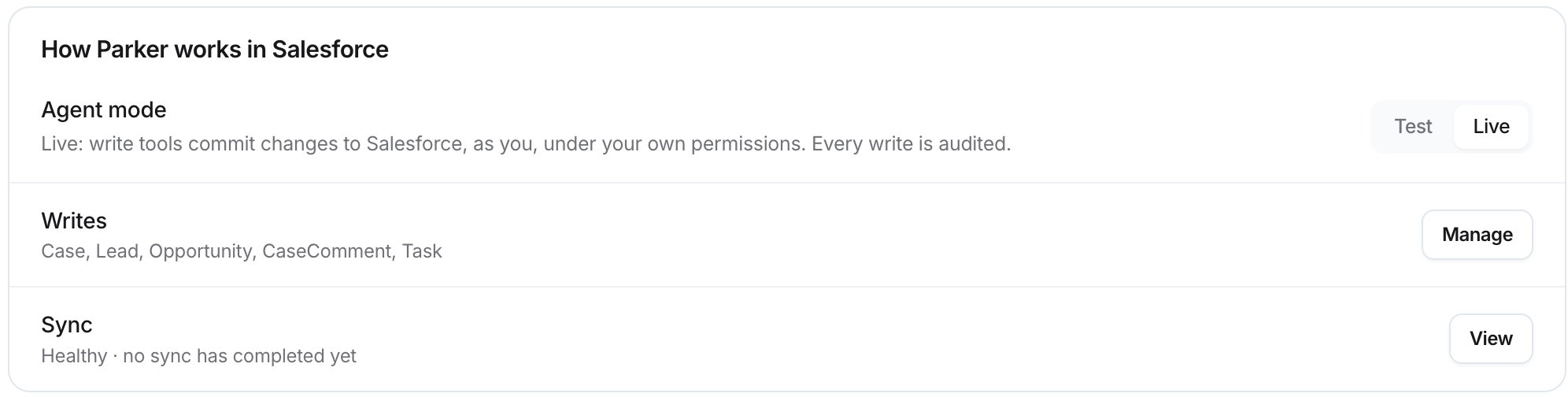
Agent mode, and the Salesforce objects Parker can write to.
Which actions are confirmed, and which aren’t?
What can my admin change?
Admins decide some things for the whole workspace:- Org-wide test mode. In the Salesforce settings, under Admin, this setting forces every user to Test mode, regardless of their own setting.
- Send mode. In Settings > Agent > Autonomy, an admin chooses how far Parker can act without a person checking first. The options are Review, Auto when confident, and Auto all. Each reply is labelled Draft or Auto-sent. See Autonomy.
- Rules and compliance. Admins set the rules Parker follows and the compliance checks emails must pass. See Rules and Compliance.
Related
Update records
Create and change Salesforce records from chat.
Draft and send email
Write, edit, and send email with Parker.
Review drafts and runs
Check what your automations drafted and did.
Autonomy
For admins: set how replies are sent.