

Beta. This feature is being rolled out gradually, so it may not be turned on for your workspace yet, and details may change. To request access, ask your Parker admin or contact support.
Before you begin
An admin must connect your organisation’s Teams tenant to Parker, and install Parker from your Teams admin center. Admins do this in Channels.Check whether Teams is ready
Go to Settings > Channels and find the Microsoft Teams card. If your workspace hasn’t connected Teams yet, the card shows Not linked yet and says “Your workspace has not connected a Teams tenant.” Ask an admin to connect one, then install Parker from your organisation’s Teams app catalog.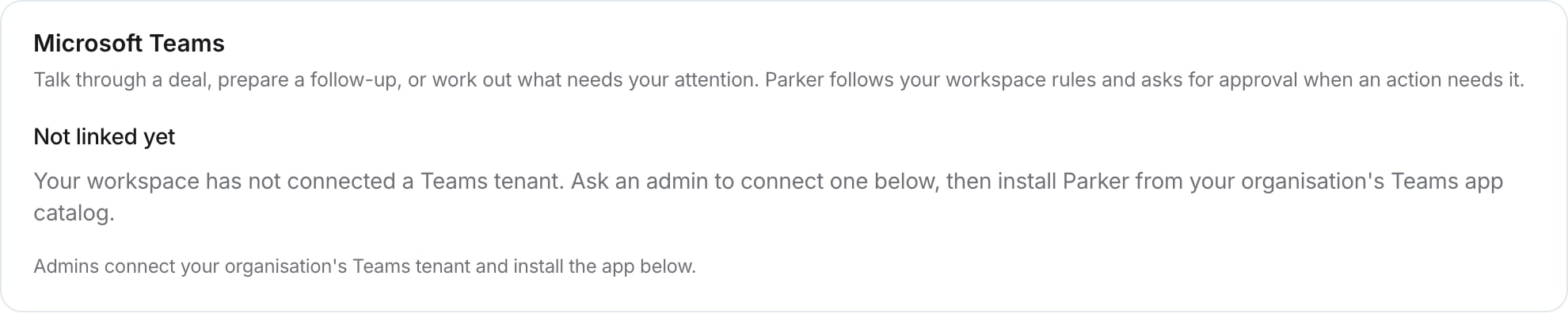
The Microsoft Teams card before your workspace connects Teams.
Connect your Teams tenant (admins)
1
Find your tenant ID
In the Microsoft Entra admin center, find your tenant ID under Overview.
2
Enter it in Parker
In Settings > Channels, in the Teams tenant card, enter it in Microsoft 365 tenant ID and select Connect tenant.
3
Install the app
Install Parker from your Teams admin center. As the card says, “Connecting only tells Parker which tenant to answer.”
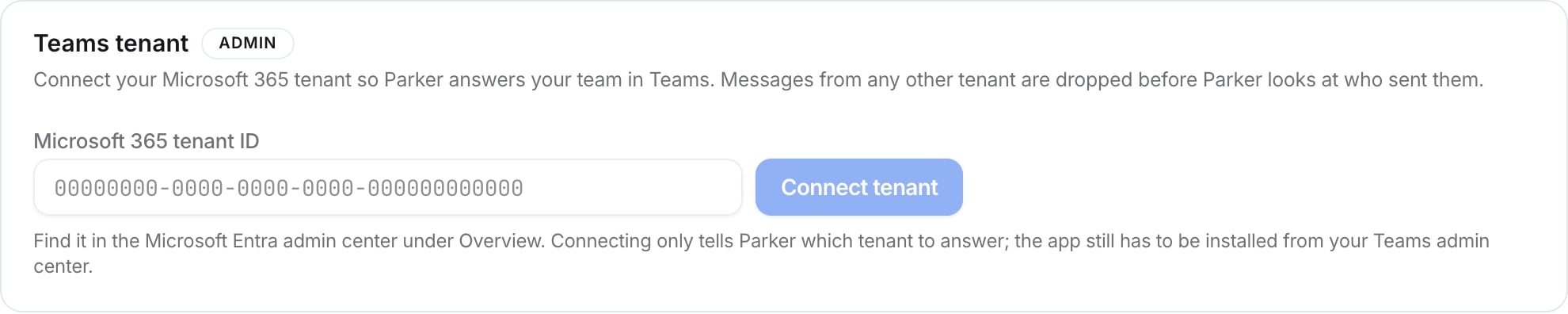
Admins connect the organisation's Teams tenant here.
Related
Use Parker from your phone
How channels work.
Channels (admin)
Connect your organisation’s Teams and install Parker.