

Before you begin
- Get the Parker app.
- Your admin has turned on contact capture for your workspace. If Parker doesn’t offer to add the person, ask your admin.
Add a lead or contact
1
Send the card
Take a photo of the business card, or share the contact from your phone’s contacts.
2
Choose what to do
Parker offers the options that fit, such as Create lead, Add as contact at a matching account, or updating a record that already exists. Select Ignore to do nothing.If the person may already be in Salesforce, Parker shows the possible matches and lets you choose. It never picks a duplicate for you.
3
Answer anything missing
If your org needs a field Parker couldn’t read, it asks you once.
4
Confirm
Parker shows the card. Select Confirm to save it.
Nothing is saved until you confirm.Before Parker creates or changes a Salesforce record, it shows the change field by field. Nothing is written until you select Confirm. In the Parker app the card offers Confirm, Edit, and Cancel. In the web app it offers Confirm and Reject.See How Parker acts on your behalf.
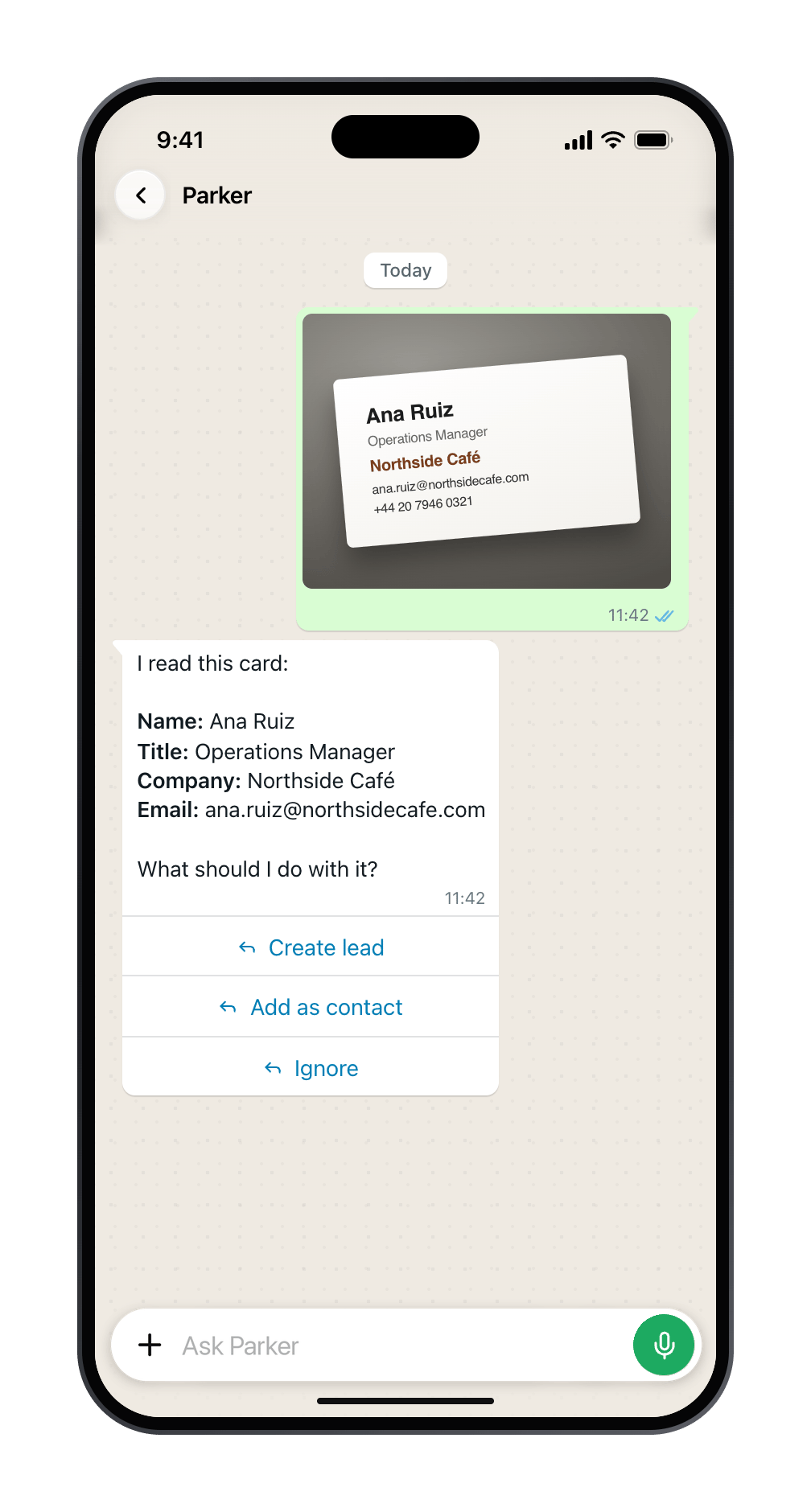
Parker reads the card and asks what to do with it.
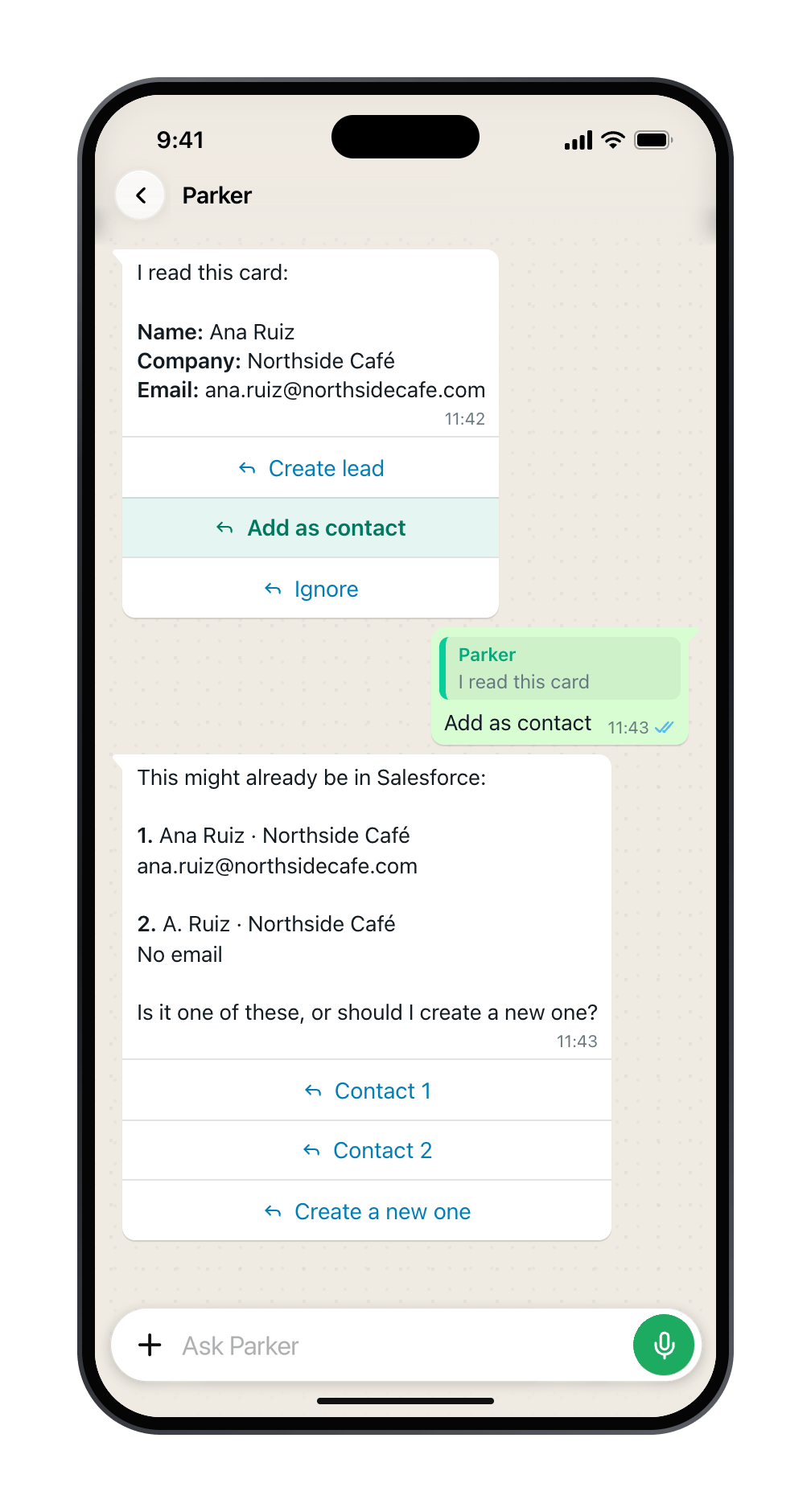
If she may already be in Salesforce, you choose. Parker never picks for you.
Good to know
- Your own card gets “That’s your own card.” Parker doesn’t add you.
- No Lead object? If your org doesn’t use leads, Parker offers to add a contact instead, or asks which account the person belongs to.
- Some fields are left for you. Parker never sets the owner, consent, status, or checkbox fields from a card. Set them in Salesforce if you need to.
- Duplicate rules apply. Your org’s duplicate rules run as you, the same as in Salesforce.
- The photo isn’t kept. Parker reads the card once to get the details, and doesn’t store the photo.
Still need help?
Check Troubleshooting for the exact message you see. If a setting is admin-only, ask your Parker admin. For anything else, contact support.Related
Confirm, edit, and correct
How confirmation cards work.
Visits and calls
Log the meeting too.