

Admins only. Only workspace admins can change these settings. If you’re not an admin, you can still see them, but you can’t edit them.
Parker runs as the person messaging
Parker acts as the person who sent each message, using their own Salesforce login. It sees and changes only what that person can in Salesforce. Their profile, permission sets, field-level security, sharing rules, and record types all apply. Someone who isn’t in your Parker workspace can’t sign in to the app, and a person who hasn’t connected their own Salesforce login gets no answers from Salesforce. See Use the Parker app. Being a Parker admin doesn’t widen anyone’s Salesforce access. To change what someone can reach, change their permissions in Salesforce.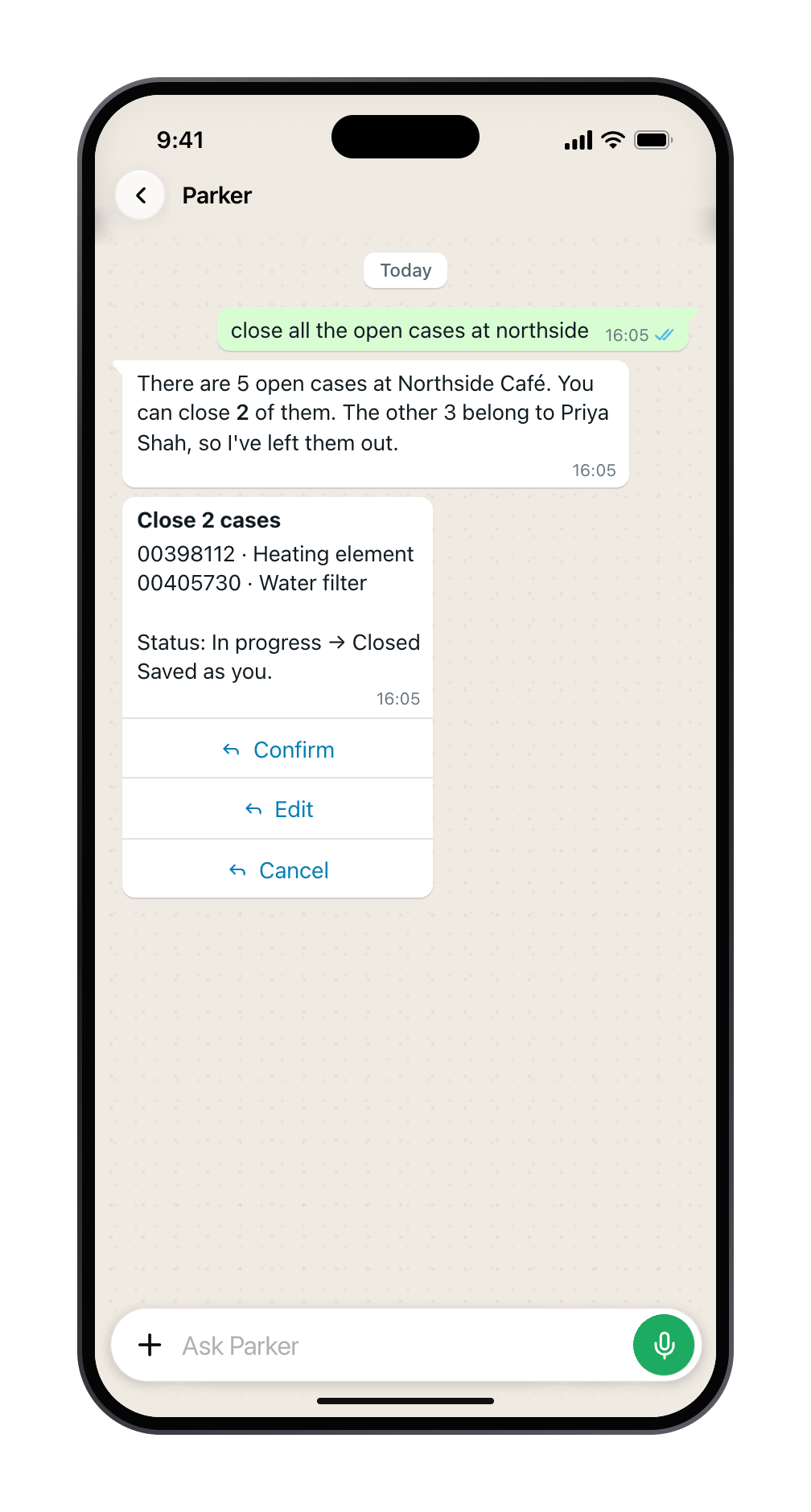
Parker offers to close only the cases this person can change in Salesforce.
Confirm before every write
Parker shows each change field by field before it saves, and nothing is written until the person taps Confirm. There is no background writing and no silent update.- Untrusted inputs can’t approve. Photos, documents, forwarded messages, shared contacts, and locations can suggest a change, but only a tap on Parker’s own Confirm button saves it.
- Forms don’t write. Finishing a form raises a confirmation card. It never saves on its own.
- Stale cards are refused. If the record changed after the card was shown, Confirm refuses rather than overwrite the newer change.
Your Salesforce rules apply
Validation rules, required fields, duplicate rules, and lookup filters work in the Parker app as they do in Salesforce. Parker doesn’t work around them. If a save is refused, it explains why in plain language and asks for what’s missing. See When Salesforce says no.What you control
Which phone features your workspace has, such as photo-to-case, check-in, or voice notes, is set up with Parker during early access. Contact Parker support to change them.
Fields Parker never sets from the Parker app
When Parker adds a lead or contact from a business card, it never sets owner, consent, status, or checkbox fields. Logging a visit or call uses a fixed set of activity fields.Where to see what changed
Every change is saved by the person who confirmed it, so Created By and Last Modified By show their name, and field history shows the change where your org tracks that field. In Parker, go to Settings > Connections > Salesforce > Advanced to see Recent Salesforce writes across your org, from the Parker app and the web app. Field names are recorded; values aren’t.Data in the Parker app
- Salesforce holds the record. Cases, visits, and contacts are saved in Salesforce, and case photos are attached there. Parker keeps the chat itself, and a copy of ordinary photos and documents sent in it, in that person’s Files.
- Case photos are held briefly. A photo sent for a case sits in a separate encrypted store until it’s attached, or for 24 hours, then it’s deleted.
- Locations are used once. When someone checks in, Parker reads the coordinates to find nearby accounts and then redacts them. If check-in is off, a shared pin arrives as an ordinary message with its coordinates.
- Business card photos aren’t stored. Parker reads them once, in memory. From a shared contact it keeps the name, company, title, phones, and emails with the message, and drops the rest.
- Voice recordings aren’t stored. Parker turns a voice note into text through a speech-to-text provider and never stores the audio. The text stays in the chat, marked as a voice note. Voice notes are turned on per workspace, with a 5-minute limit per note and a daily listening limit per person.
Still need help?
Check Troubleshooting for the exact message you see. If a setting is admin-only, ask your Parker admin. For anything else, contact support.Related
Roll out the Parker app
Get your team onto the Parker app.
Connect Salesforce
Agent mode, Writes, and admin controls.