

Admins only. Only workspace admins can change these settings. If you’re not an admin, you can still see them, but you can’t edit them.
Which send mode should I pick?
Change the send mode
1
Open the Autonomy tab
Go to Settings > Agent, then select Autonomy.
2
Pick a mode
In the Send mode group, on the Sends row, select Review, Auto when confident, or Auto all.
3
Optional: set the threshold
With Auto when confident, a Send threshold row appears. Choose Permissive, Balanced, or Cautious. The text under it shows the confidence level, for example “at least 85% confident” for Balanced. It applies once confidence scoring ships.
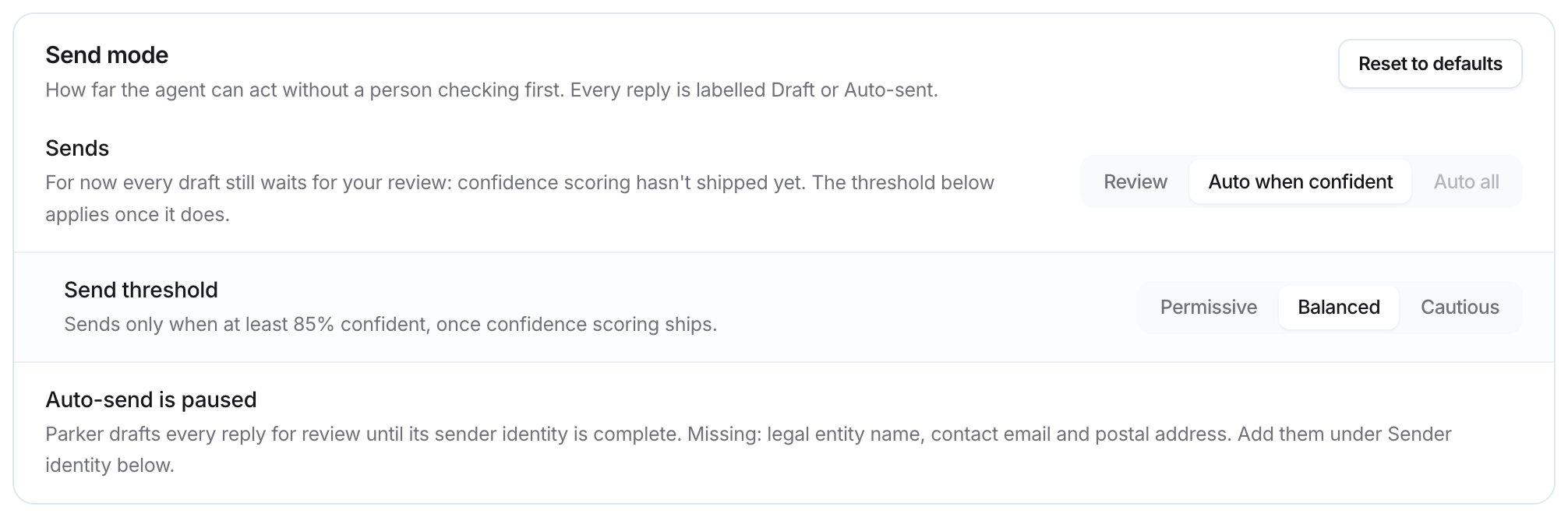
The Send mode group with Auto when confident selected
Add sender details
The Sender identity group holds the legal sender details in outbound email footers. They’re needed only for sending. Until they’re complete, the group shows Incomplete, and Auto-send is paused: Parker drafts every reply for review. Fill in:- Authorized sender name, for example “Northwind Sales”.
- Legal entity, for example “Northwind Supply LLC”.
- Fallback contact email: emails show the sender’s own connected mailbox. This address is used only when a send has none behind it, such as automated replies.
- Postal address.
- Disclaimer (optional): added to the footer of every outbound commercial email, below the unsubscribe line.
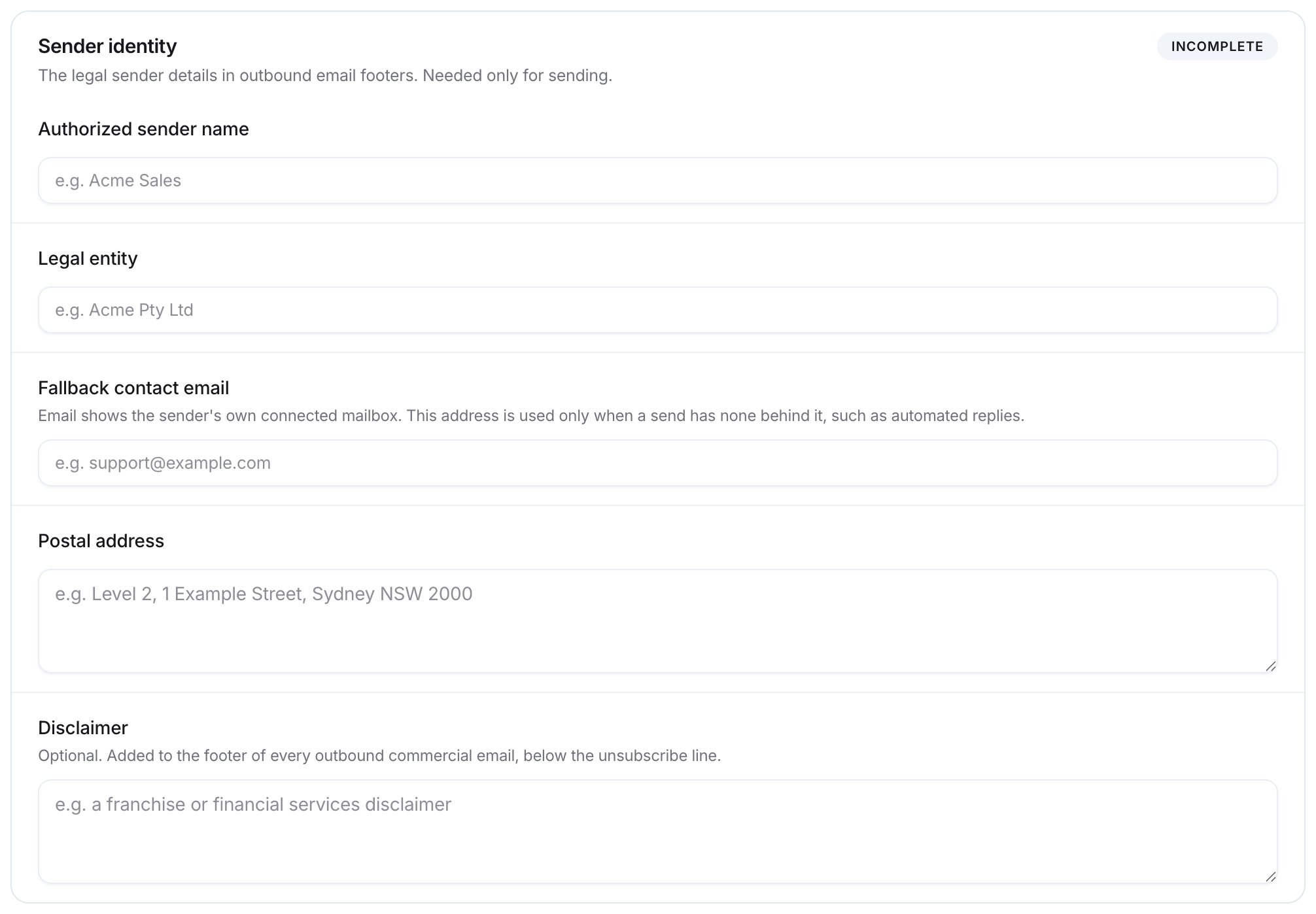
The Sender identity group
Check it worked
The Sends row shows your chosen mode, and the text under it describes what happens. If Auto-send is paused still shows, complete the fields it names.Related
Review drafts and runs
Where drafts wait for review.
Set house rules
Rules every reply is checked against.
Compliance
Regulations and workspace safety checks.
How Parker acts
When Parker asks before it acts.