

Admins only. Only workspace admins can change these settings. If you’re not an admin, you can still see them, but you can’t edit them.
Open Automations admin
Go to Automations and select Admin. The page is titled Automations admin. To learn how people build automations, see Automations.How do I limit what automations can do?
The What automations may do in this organization card sets limits for every automation in your workspace.1
Choose the allowed levels
Under Allowed levels, select each level automations may use:
- Read and tell me: reads matching email and tells the owner. Writes nothing.
- Draft replies: puts replies in the owner’s Drafts folder. The owner sends them.
- Draft, send when I OK it: drafts replies that the owner can send from Parker after reading.
2
Set the limits
Enter Most drafts a day, per automation and Most automations on, per person.
3
Save
Select Save policy.
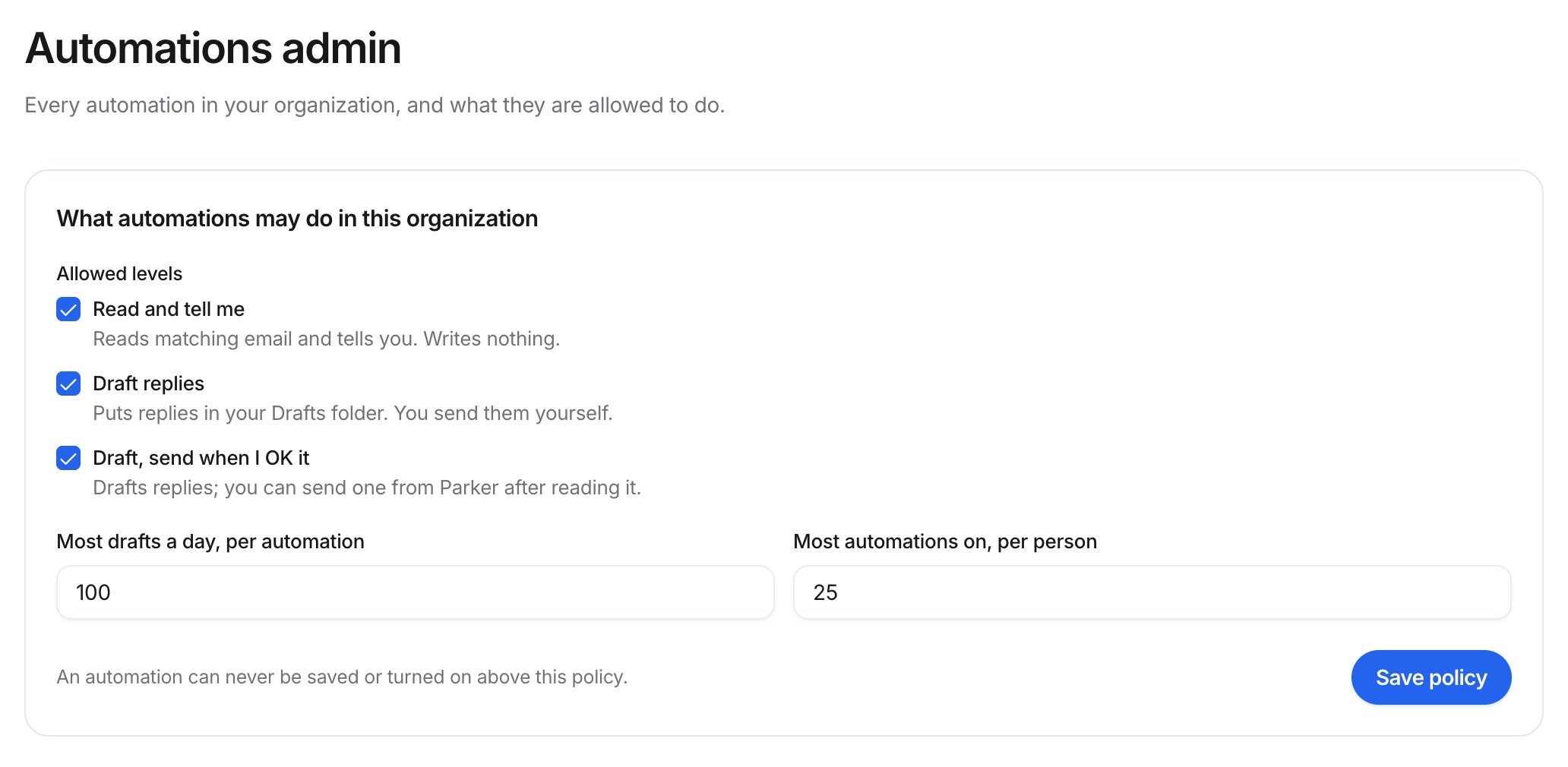
The automations policy
See every automation
All automations lists each automation with its owner and health, such as Healthy or Paused. Under each name, it shows what the automation does and which mailbox it watches.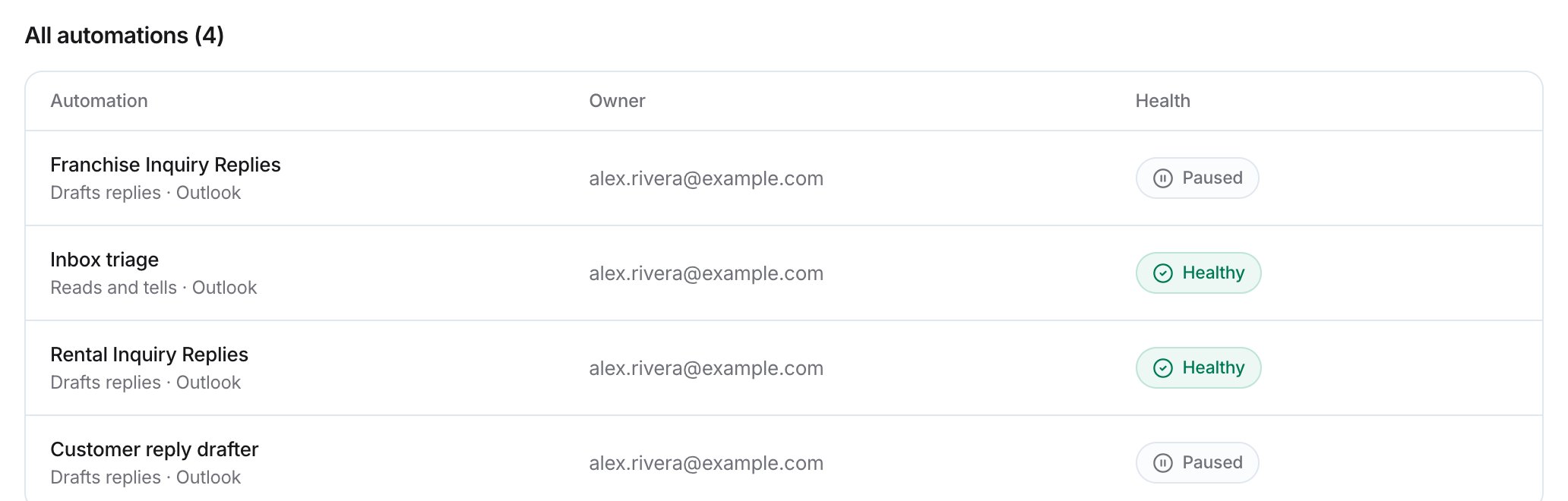
All automations
Related
Automations
How people build automations.
Reviewing drafts and runs
How owners check what automations did.
Members
Manage who’s in your workspace.