

Before you begin
- You need a Salesforce login for your org.
- To use the Admin section, you need the admin role in Parker.
Open the Salesforce page
Go to Settings > Connections, then select the Salesforce row. The page has three cards: Connection, How Parker works in Salesforce, and, for admins, Admin. Advanced sits below them.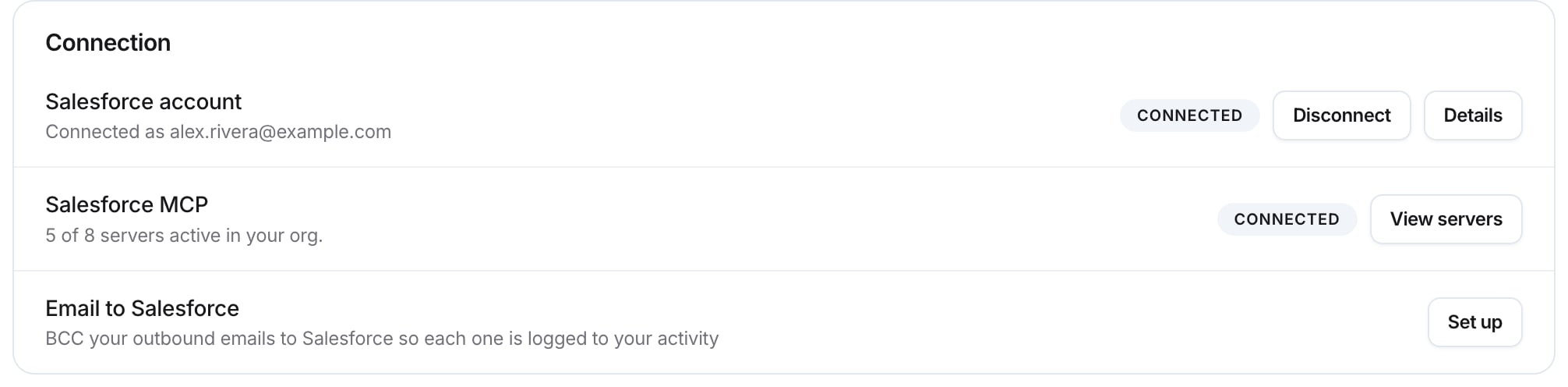
The Connection card on the Salesforce page
What’s in the Connection card?
- Salesforce account: shows Connected and “Connected as” your Salesforce username. Select Details to see more, or Disconnect to remove your login.
- Salesforce MCP: how many Salesforce MCP servers are active in your org. Select View servers to see them.
- Email to Salesforce: BCC your outbound emails to Salesforce so each one is logged to your activity. Select Set up to add your address.
Check it worked
The Salesforce account row shows Connected. On Settings > Connections, the Salesforce row also shows Connected.What can Parker see and change?
Parker works as the person who’s asking, under that person’s own Salesforce permissions. Your Salesforce profiles, field-level security, and sharing rules still apply. So two people asking the same question can get different answers.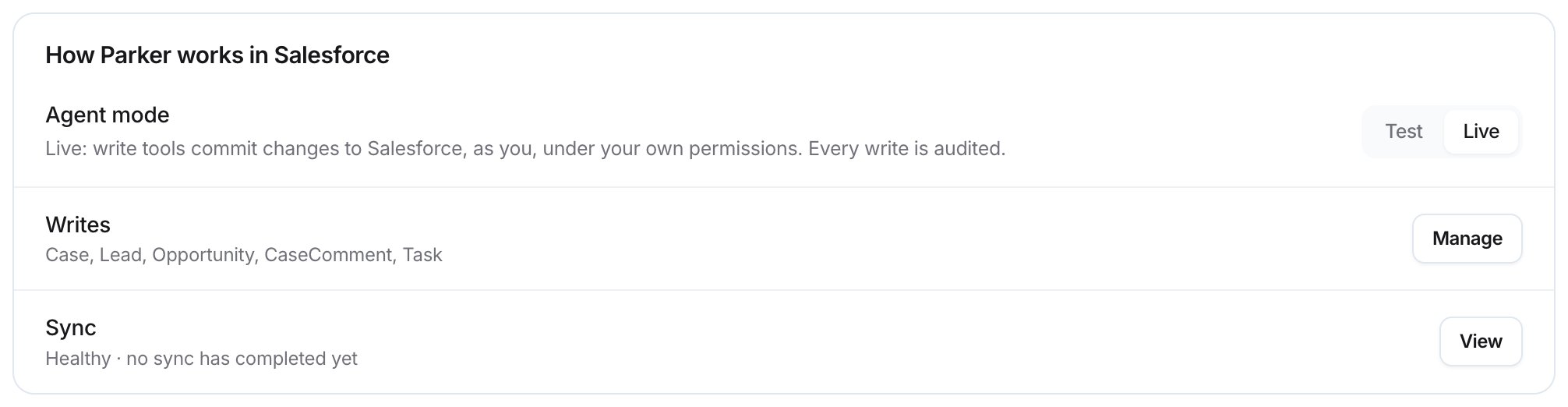
How Parker works in Salesforce
Test and Live mode
Under How Parker works in Salesforce, each person chooses an Agent mode: Test or Live. In Live, write tools commit changes to Salesforce, as you, under your own permissions. Every write is audited.Bulk updates
On the Writes row, select Manage. Choose which objects allow bulk updates, and set Approval required above (rows). Above that row count, a bulk change needs a second person’s approval. A blank threshold means no threshold. Select Save writes to keep your changes.Admin controls
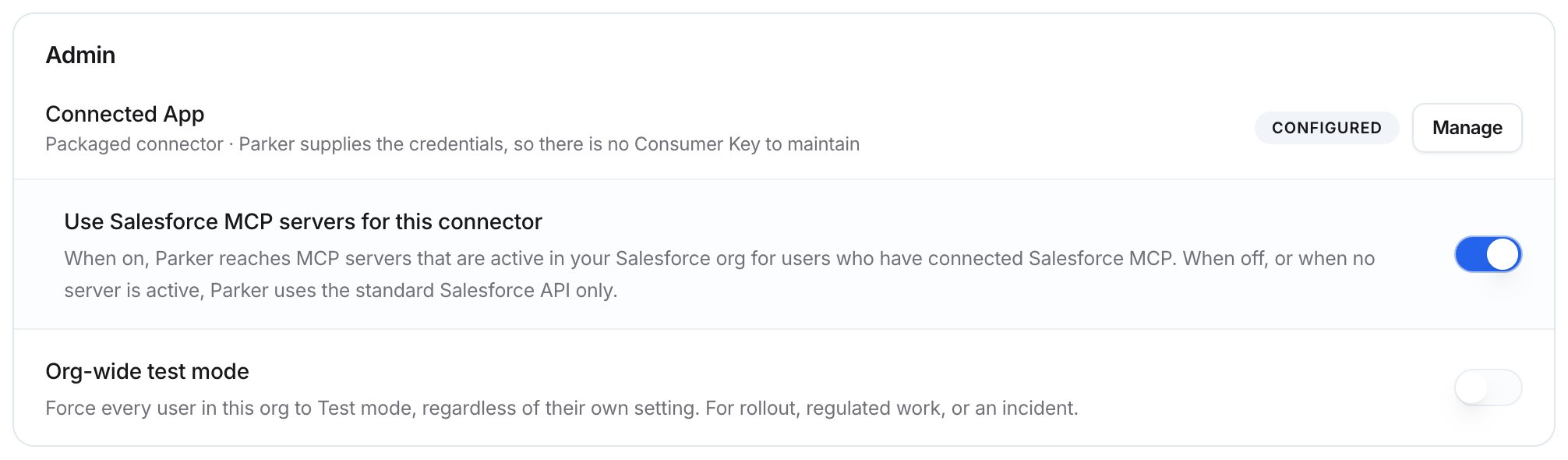
The Admin card, visible to admins only
- Connected App: shows Packaged connector when Parker supplies the credentials, so there’s no Consumer Key to maintain. Select Manage to see the connection details. There you can also enter an Experience Cloud site URL so community users can connect through your site’s own login.
- Use Salesforce MCP servers for this connector: when on, Parker reaches MCP servers that are active in your Salesforce org, for people who’ve connected Salesforce MCP. When off, Parker uses the standard Salesforce API only.
- Org-wide test mode: forces everyone in your org into Test mode, whatever their own setting. Use it for rollout, regulated work, or an incident.
What’s under Advanced?
Select Advanced for profiles, org limits, schema cache, API governance, tuning, and audit logs. For example:- Schema cache: select Refresh schema after a Salesforce admin adds, renames, or removes fields.
- Schema change review queue: Salesforce metadata changes that might affect your reports. Select Open to accept or dismiss them.
- Org limits: how much of your daily API requests and data storage is used.
- Recent Salesforce writes: the newest write events from your org. Field names are recorded; values aren’t.
Troubleshooting
Parker's changes aren't reaching Salesforce
Parker's changes aren't reaching Salesforce
Check that person’s Agent mode, and whether an admin turned on Org-wide test mode. Only Live commits changes to Salesforce.
Parker can't see a record or field
Parker can't see a record or field
Parker sees what the asking person sees. Check that person’s access in Salesforce.
Parker doesn't know about a new field
Parker doesn't know about a new field
Go to Advanced and select Refresh schema.
Related
Connections and apps
Everything else Parker connects to.
Ask about Salesforce data
What your team can ask once connected.
Update records
How Parker changes Salesforce, and how you confirm.
Troubleshooting
More fixes.