

Admins only. Only workspace admins can change these settings. If you’re not an admin, you can still see them, but you can’t edit them.
Which outputs use my brand?
To make or export a report, see Reports and documents.
How do I set report defaults?
Report defaults sets the cover and logo for every report exported from chat in your workspace.- Under Cover, select Navy (for screen) or White (for print).
- Turn Workspace logo on the cover on or off.
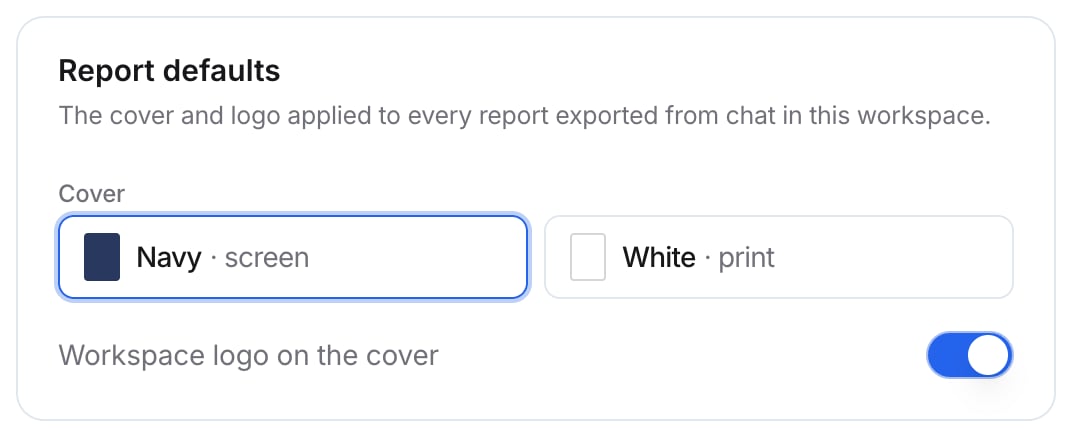
Report defaults
How do I create a brand preset?
A preset is one saved brand kit. If your workspace runs more than one brand, save a preset for each. One preset is the default, marked Default.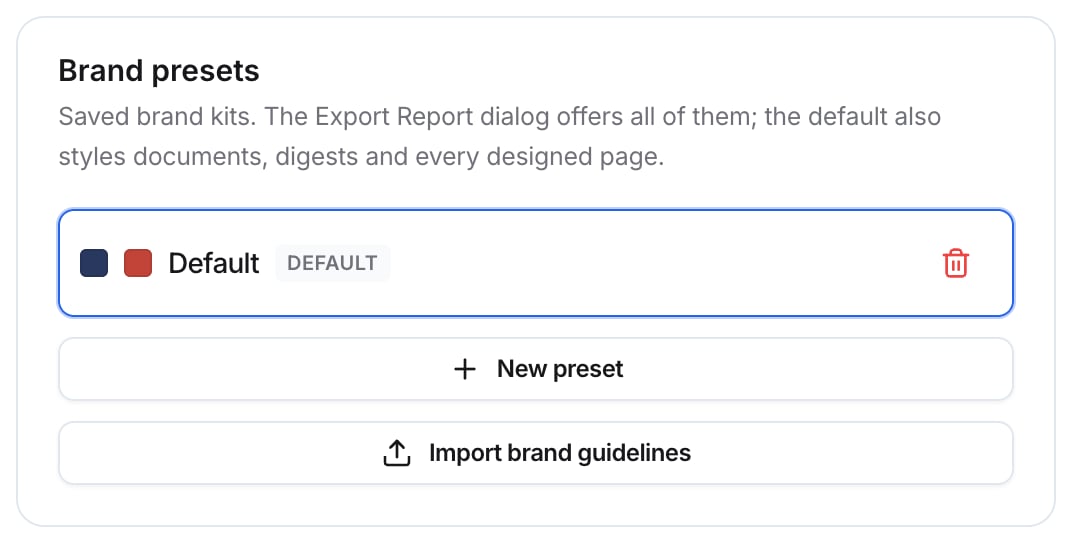
Brand presets
1
Start a preset
Go to Settings > Branding. In Brand presets, select New preset.
2
Name it
Enter a Preset name, such as “Northwind Supply”, and the Brand name on reports. Add a Cover tagline if you want one under the brand name on Word and PDF covers.
3
Set your colors
Set Ink color for the cover, headings, and structure. Set Accent color for citations, key figures, and the main action.
4
Fill in the brand kit (optional)
Under Brand kit, set Success, Warning, and Danger colors, the Chart series colors, and a Corners style for designed pages. Blanks use Parker’s defaults.
5
Describe the brand (optional)
Under Brand guide, describe your brand’s voice, personality, audiences, and visual direction. Add a Named palette if you have one. This makes designed pages feel like yours, not just recolored.
6
Add your logos
Upload a Logo for dark covers, a light or white version for the navy cover. Upload a Logo for light covers, a dark version for the white cover.
7
Choose typography and footer
Pick a font pair under Typography. Enter any Footer text.
8
Save
Select Create preset.
Check it worked
Use Live preview to see the brand in use. Select Report to see the reference report, rendered the same way as your PDFs, or Page to see a designed page.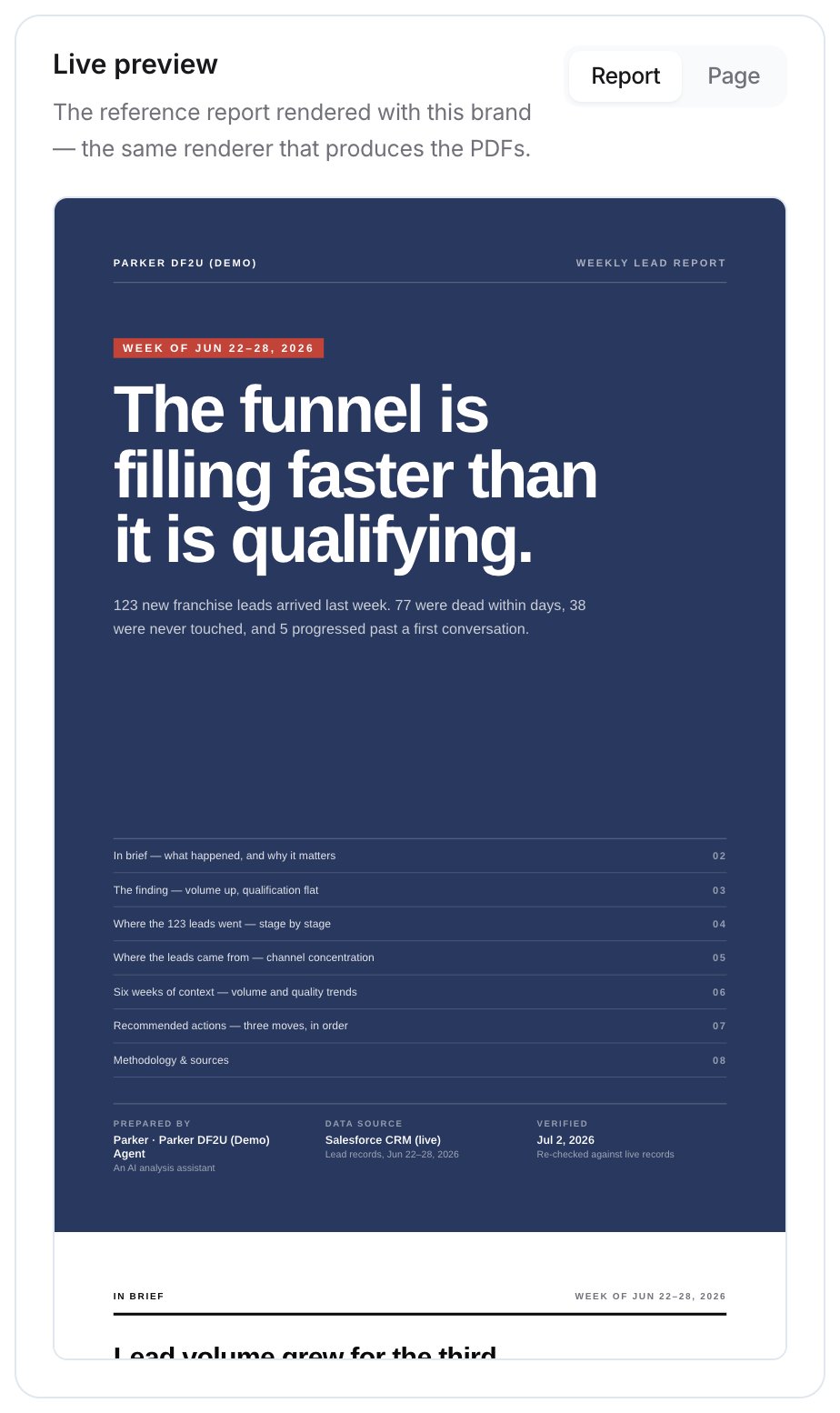
Live preview
The typography you choose applies to documents, digests, and designed pages. Exported reports keep a fixed typeface by design.
Import brand guidelines Beta
In Brand presets, select Import brand guidelines. Drop in a brand book, deck, or token file: PDF, Word, PowerPoint, image, markdown, or tokens.json, up to 25 MB. Parker reads the file, measures its colors and fonts, and drafts the brand guide. You review everything before it’s saved.Troubleshooting
My color didn't stick
My color didn't stick
Colors are checked for readability. A color that fails falls back to Parker’s default, and the save message says which. Choose a darker ink or a stronger accent.
Related
Reports and documents
Create reports and documents in chat.
Pages
Save designed pages from chat.
Charts, maps, and diagrams
Ask for visuals in chat.