> ## Documentation Index
> Fetch the complete documentation index at: https://support.parker.work/llms.txt
> Use this file to discover all available pages before exploring further.
# Use Parker from your phone
> Talk to Parker from Messages, WhatsApp, or Microsoft Teams, with the same knowledge, memories, and rules you have in the web app.
**Beta.** This feature is being rolled out gradually, so it may not be turned on for your workspace yet, and details may change. To request access, ask your Parker admin or contact support.
You can talk to Parker outside the web app, from your phone's messaging apps or from Microsoft Teams. Each of these is called a channel. As **Settings** > **Channels** puts it, Parker works there "with the same knowledge, memories and rules."
## Which channels can I use?
| Channel | Works on | How you link it |
| - | - | - |
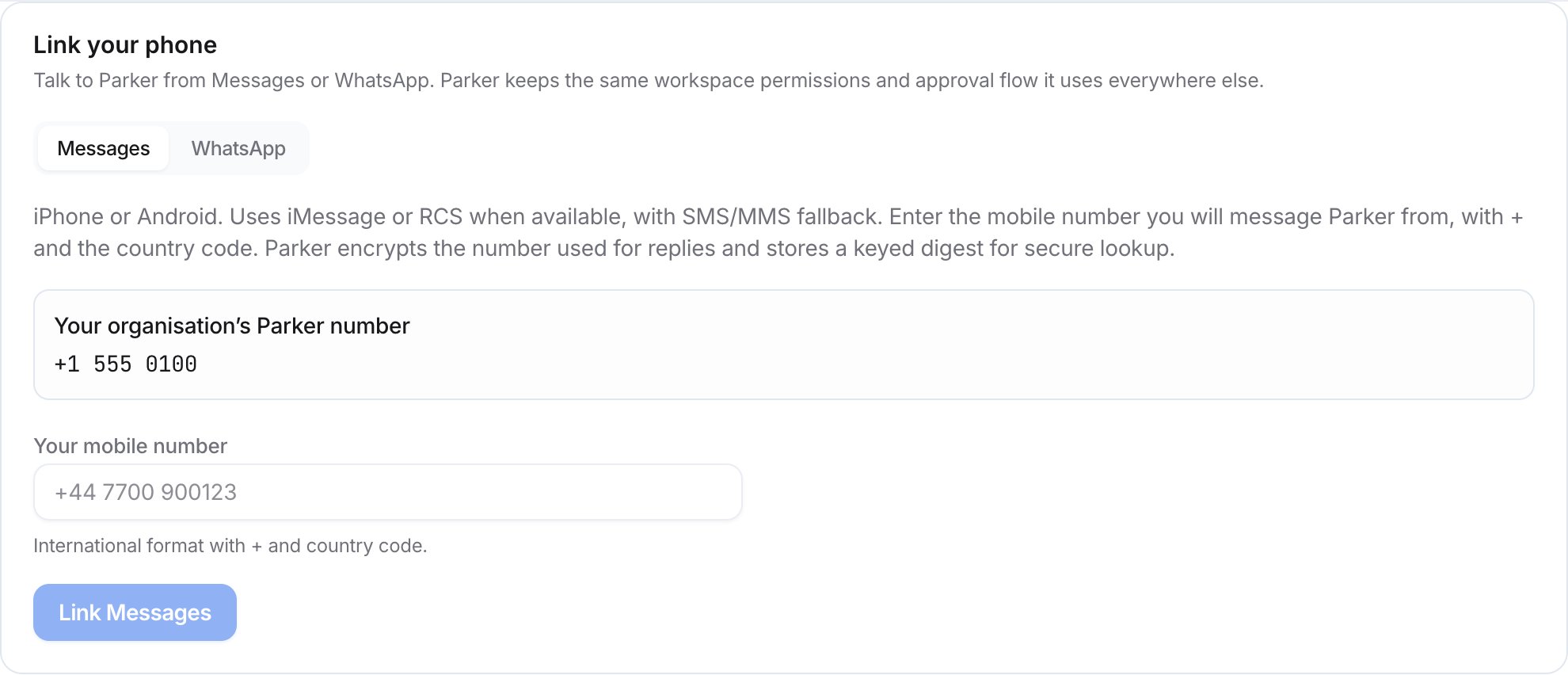
| [Messages](/mobile/imessage-and-sms) | iPhone or Android. Uses iMessage or RCS when available, with SMS/MMS fallback. | Your mobile number, in the **Link your phone** card |
| [WhatsApp](/mobile/whatsapp) | Any phone with WhatsApp | Your mobile number, in the **Link your phone** card |
| [Microsoft Teams](/mobile/teams) | Teams | Your admin connects your organisation's Teams first |
## What's the same as the web app?
Parker keeps the same workspace permissions and approval flow it uses everywhere else. In Teams, it follows your workspace rules and asks for approval when an action needs it.
## How do I link my phone?
Go to **Settings** > **Channels**. Use the **Link your phone** card for Messages or WhatsApp. See each channel's page for the steps.
 ## Related
Text Parker from your phone's messaging app.
Message Parker on WhatsApp.
Chat with Parker in Teams.
How admins turn on channels for the workspace.
This documentation is built and hosted on [Mintlify](https://mintlify.com), a developer documentation platform.
## Related
Text Parker from your phone's messaging app.
Message Parker on WhatsApp.
Chat with Parker in Teams.
How admins turn on channels for the workspace.
This documentation is built and hosted on [Mintlify](https://mintlify.com), a developer documentation platform.