> ## Documentation Index
> Fetch the complete documentation index at: https://support.parker.work/llms.txt
> Use this file to discover all available pages before exploring further.
# Find and share your pages
> Open the designed pages and reports Parker saved from your chats, refresh them with live data, keep them updated, share them, download them, or delete them.
**Pages** holds the reports, dashboards, and plans Parker built for you, and pages shared with you.
## Before you begin
Pages are made in chat. To create one, ask Parker for a designed page or report, or select **New page with Parker** on the **Pages** list. See [Reports and documents](/chat/reports-and-documents).
## What's on the Pages list?
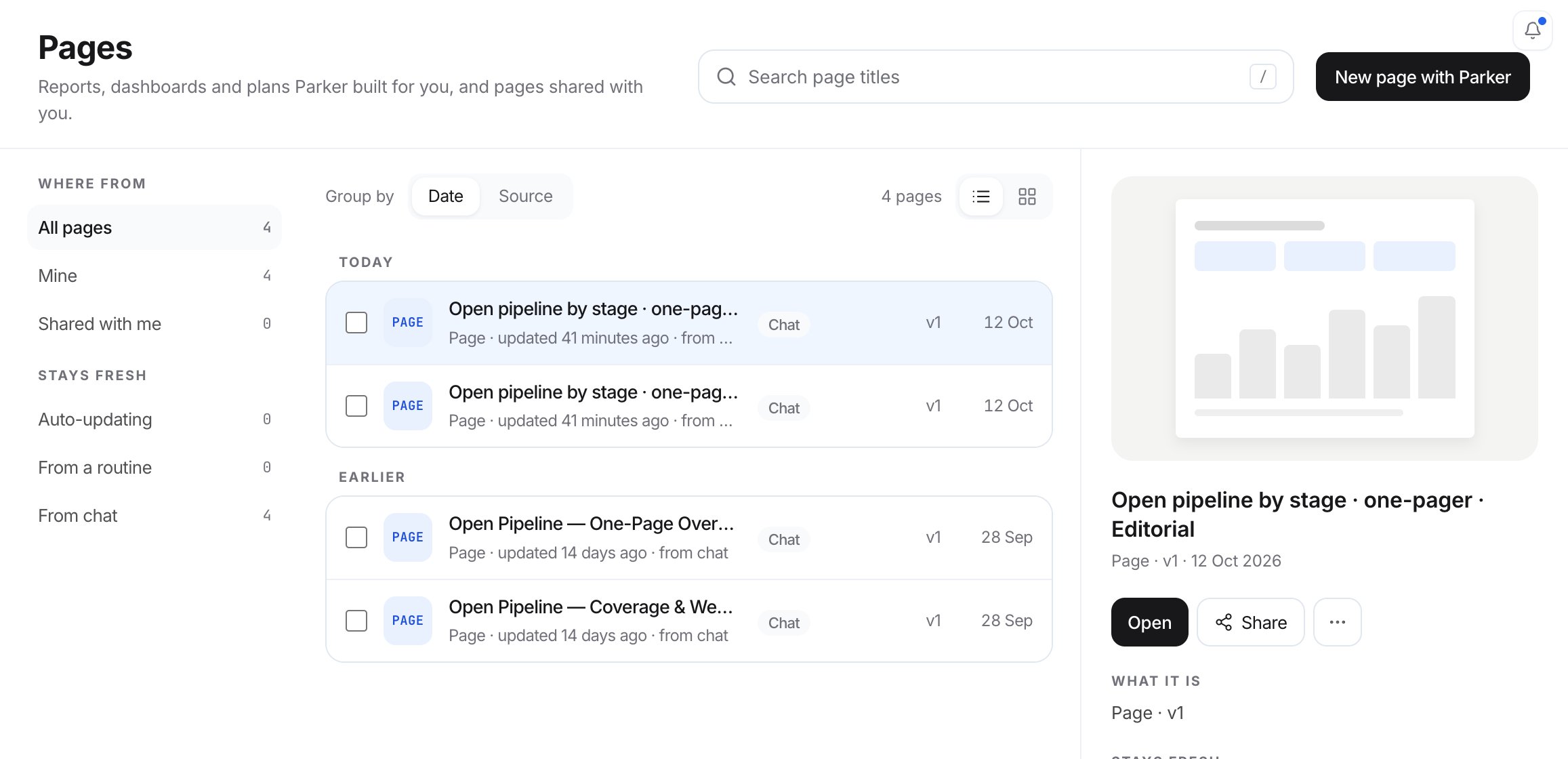
Go to **Pages** in the sidebar. Filter the list under **Where from** (**All pages**, **Mine**, **Shared with me**) and **Stays fresh** (**Auto-updating**, **From a routine**, **From chat**). Use **Search page titles** to find one by name, and **Group by** **Date** or **Source**.
Each row shows where the page came from, its version, and when it last changed. Select a row to see a preview, with **Open**, **Share**, and **More** (**…**).
 ## Open a page
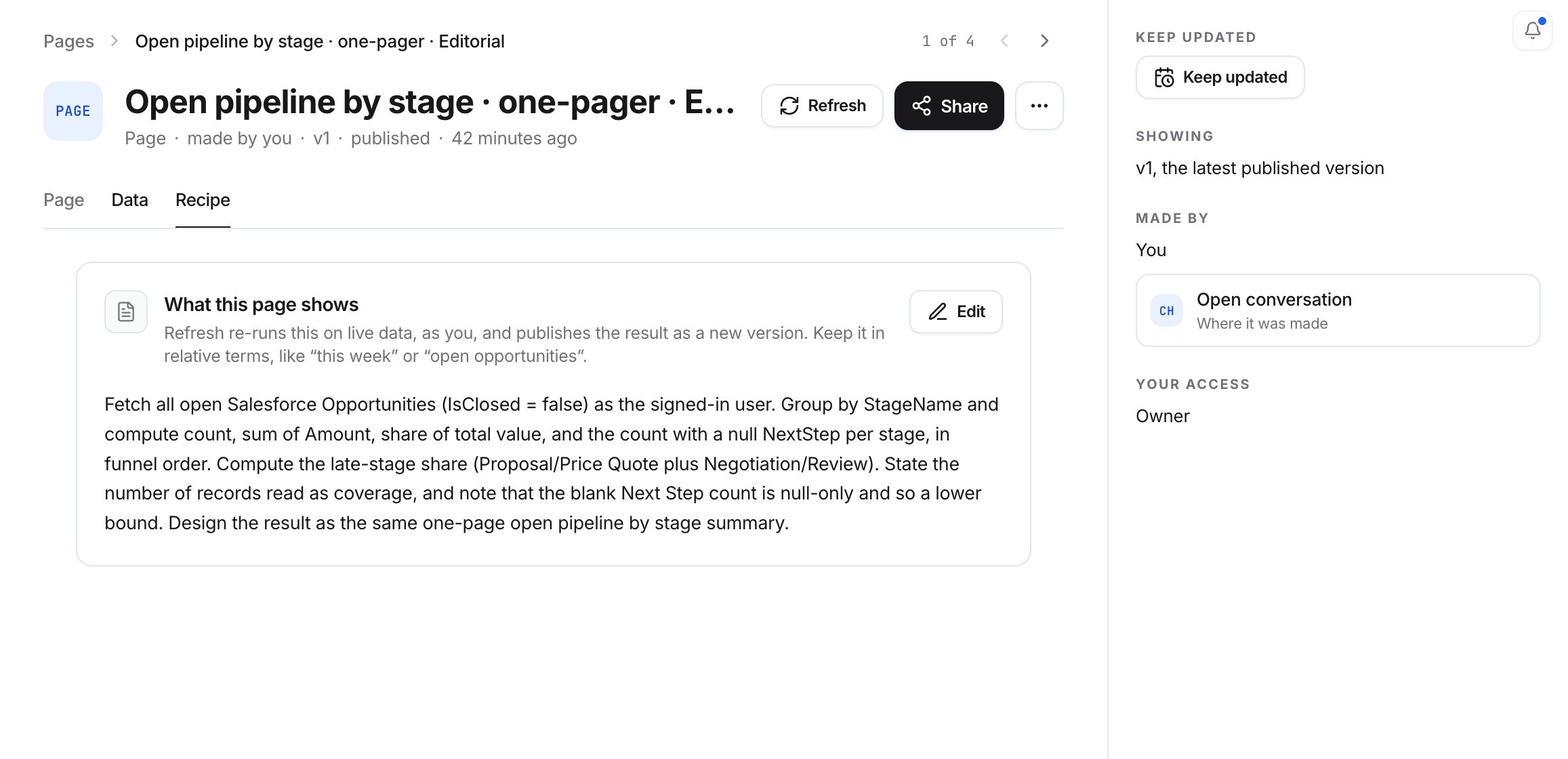
Select **Open**. The page opens with its title, who made it, its version, and when it was published. It has three tabs:
* **Page**: the designed page itself.
* **Data**: connected Salesforce data. Select **Connect record** to connect a Salesforce record "to review and update it from this Page."
* **Recipe**: **What this page shows**, in words. "Refresh re-runs this on live data, as you, and publishes the result as a new version." Select **Edit** to change it.
To go back to the chat the page was made in, select **Open conversation**.
## Open a page
Select **Open**. The page opens with its title, who made it, its version, and when it was published. It has three tabs:
* **Page**: the designed page itself.
* **Data**: connected Salesforce data. Select **Connect record** to connect a Salesforce record "to review and update it from this Page."
* **Recipe**: **What this page shows**, in words. "Refresh re-runs this on live data, as you, and publishes the result as a new version." Select **Edit** to change it.
To go back to the chat the page was made in, select **Open conversation**.
 ## Refresh a page with live data
Each refresh publishes a new version.
* **To refresh it now**, select **Refresh**.
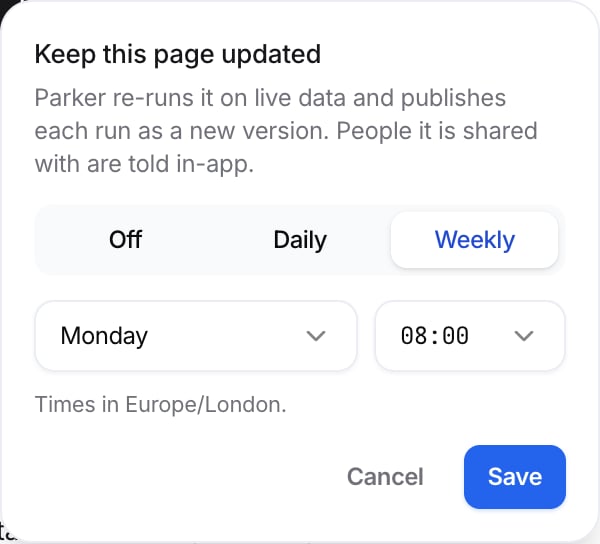
* **To refresh it on a schedule**, select **Keep updated**. Choose **Daily** or **Weekly**, set the day and time, and select **Save**. To stop, choose **Off**.
As the dialog says, people the page is shared with are told in-app.
## Refresh a page with live data
Each refresh publishes a new version.
* **To refresh it now**, select **Refresh**.
* **To refresh it on a schedule**, select **Keep updated**. Choose **Daily** or **Weekly**, set the day and time, and select **Save**. To stop, choose **Off**.
As the dialog says, people the page is shared with are told in-app.
 ## Share a page
Open the page and select **Share**. In **Share this Page**, search by name or email for teammates. They'll see every version, including ones you publish later. Nothing runs as you.
## Download or delete a page
Open the **More actions** (**…**) menu:
* **Download HTML** downloads the page as an HTML file.
* **Full screen** shows the page full screen.
* **Delete** deletes the page.
## Example prompts
Design a one-pager summarising my open pipeline by stage.
## Related
Ask Parker for a designed page or report.
Find files you uploaded and exports Parker made.
Get a fresh report on a schedule.
This documentation is built and hosted on [Mintlify](https://mintlify.com), a developer documentation platform.
## Share a page
Open the page and select **Share**. In **Share this Page**, search by name or email for teammates. They'll see every version, including ones you publish later. Nothing runs as you.
## Download or delete a page
Open the **More actions** (**…**) menu:
* **Download HTML** downloads the page as an HTML file.
* **Full screen** shows the page full screen.
* **Delete** deletes the page.
## Example prompts
Design a one-pager summarising my open pipeline by stage.
## Related
Ask Parker for a designed page or report.
Find files you uploaded and exports Parker made.
Get a fresh report on a schedule.
This documentation is built and hosted on [Mintlify](https://mintlify.com), a developer documentation platform.