> ## Documentation Index
> Fetch the complete documentation index at: https://support.parker.work/llms.txt
> Use this file to discover all available pages before exploring further.
# Connect your mailbox and calendar
> Connect Outlook (Microsoft 365) or Gmail, and a Google or Outlook calendar, so Parker can search your mail and draft and send email as you.
Connect your own mailbox and calendar so Parker can search your mail, and draft and send email from your address.
## Before you begin
* You need the sign-in details for your Microsoft 365 or Google account.
* If your company restricts which apps can connect to Microsoft 365 or Google, your IT team may need to approve Parker first.
## Which email and calendar providers work?
| You use | Mail | Calendar |
| - | - | - |
| Microsoft 365 / Outlook | **Microsoft 365** (Outlook) | **Connect Calendar** on the Microsoft 365 card, or **Connect Microsoft Outlook** |
| Google Workspace / Gmail | **Connect Gmail** | **Connect Google Calendar** |
## Connect Microsoft 365 (Outlook mail and calendar)
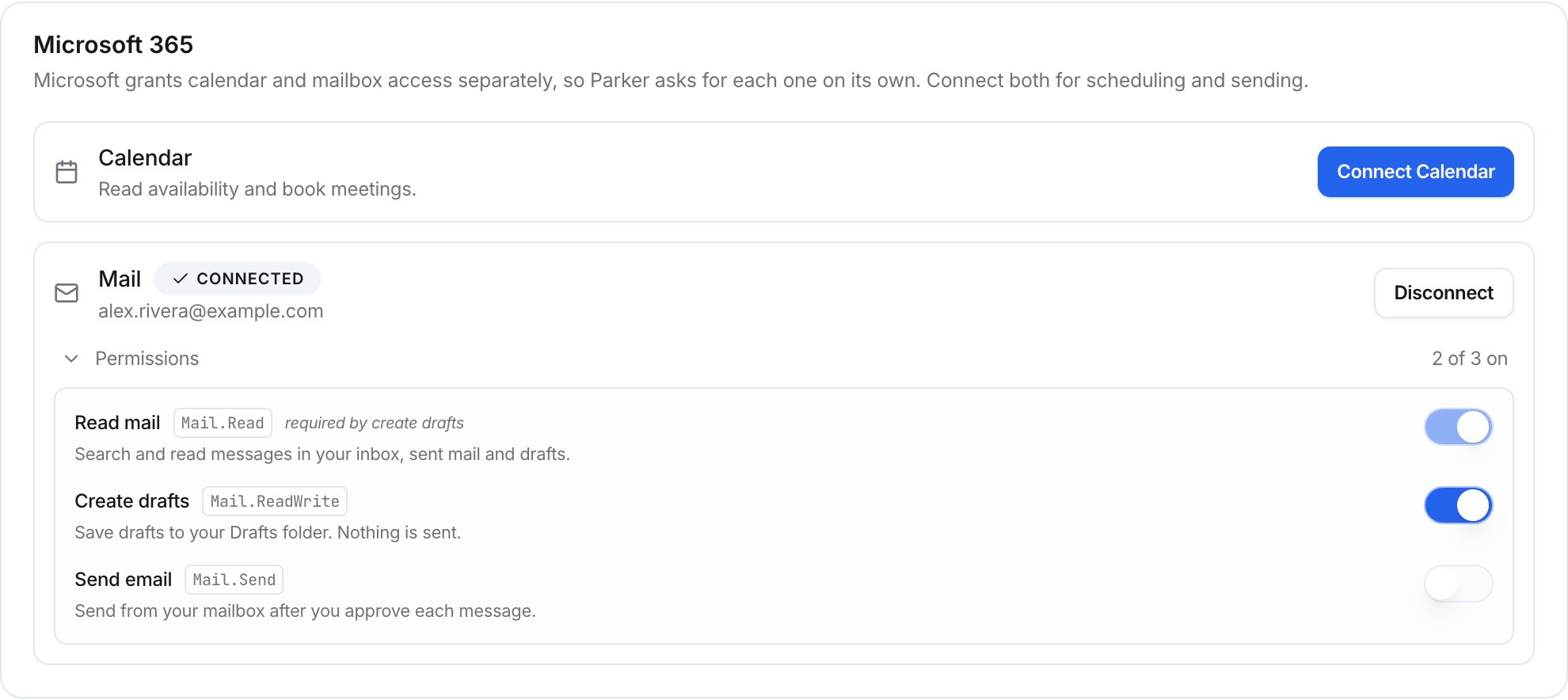
As the card explains, "Microsoft grants calendar and mailbox access separately, so Parker asks for each one on its own. Connect both for scheduling and sending."
Go to **Settings** > **Connections**. If you're not sure how to open Settings, see [Your settings](/account/settings).
Select the **Microsoft 365** row. The **Email** page opens. Its **Microsoft 365** card has a **Calendar** row and a **Mail** row.
In the **Mail** row, start the connection. Sign in to Microsoft and approve the request.
In the **Calendar** row, select **Connect Calendar**. Sign in to Microsoft and approve the second request.
When a row is connected, it shows **Connected**, your address, and **Disconnect**. In **Settings** > **Connections**, the **Microsoft 365** row shows **Partly connected** until both are connected.
 ### Choose what Parker can do with your mail
Under the connected **Mail** row, open **Permissions** to see what Parker can do. Turn each one on or off.
| Permission | What it allows |
| - | - |
| **Read mail** | Search and read messages in your inbox, sent mail and drafts. |
| **Create drafts** | Save drafts to your Drafts folder. Nothing is sent. |
| **Send email** | Send from your mailbox after you approve each message. |
**Read mail** is required by **Create drafts**, so it stays on while drafts are on. The **Permissions** row shows how many are on, such as **2 of 3 on**.
## Connect Gmail
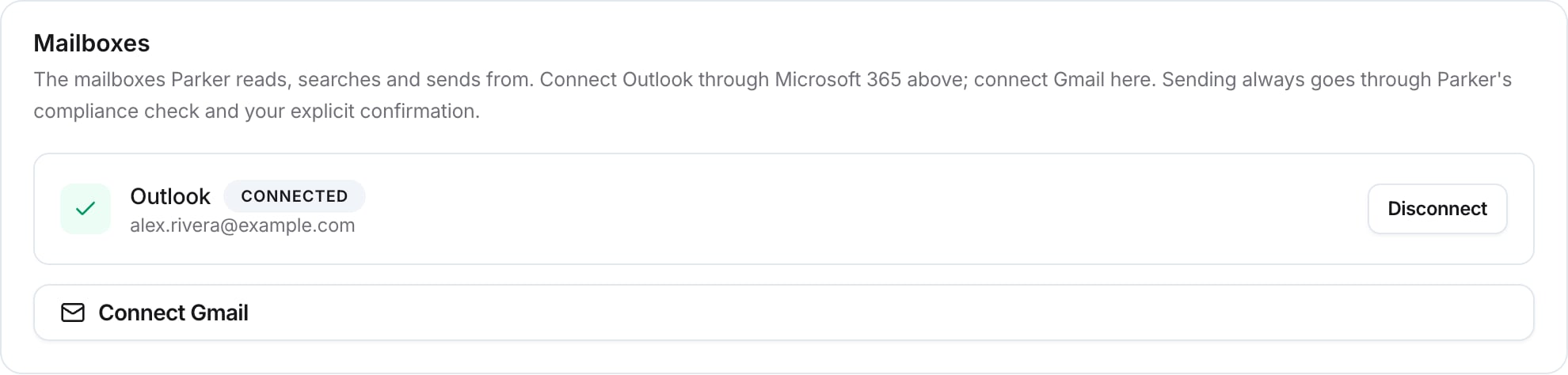
Go to **Settings** > **Connections** and select the **Microsoft 365** row. The **Email** page opens. Its **Mailboxes** card also holds Gmail.
In the **Mailboxes** card, select **Connect Gmail**. Sign in to Google and approve the request.
The **Mailboxes** card lists each mailbox Parker reads, searches, and sends from. As it says, "Sending always goes through Parker's compliance check and your explicit confirmation."
### Choose what Parker can do with your mail
Under the connected **Mail** row, open **Permissions** to see what Parker can do. Turn each one on or off.
| Permission | What it allows |
| - | - |
| **Read mail** | Search and read messages in your inbox, sent mail and drafts. |
| **Create drafts** | Save drafts to your Drafts folder. Nothing is sent. |
| **Send email** | Send from your mailbox after you approve each message. |
**Read mail** is required by **Create drafts**, so it stays on while drafts are on. The **Permissions** row shows how many are on, such as **2 of 3 on**.
## Connect Gmail
Go to **Settings** > **Connections** and select the **Microsoft 365** row. The **Email** page opens. Its **Mailboxes** card also holds Gmail.
In the **Mailboxes** card, select **Connect Gmail**. Sign in to Google and approve the request.
The **Mailboxes** card lists each mailbox Parker reads, searches, and sends from. As it says, "Sending always goes through Parker's compliance check and your explicit confirmation."
 ## Connect a calendar
Go to **Settings** > **Connections**, select **Browse**, and select the **Google Calendar** row. You can also select **Add connector** > **Calendar**.
In the **Calendar Connection** card, select **Connect Google Calendar** or **Connect Microsoft Outlook**. Sign in and approve the request.
The **Calendar** page also has your scheduling defaults. See [Calendar and meetings](/email/calendar-and-meetings).
## Check it worked
* In **Settings** > **Connections**, the row for your provider shows **Connected**.
* In chat, ask Parker something only your mailbox can answer.
Show me the three most recent emails in my inbox. Just list sender, subject and date.
## Disconnect
To disconnect, open the **Email** page and select **Disconnect** next to the connection.
## Related
Search your mail and write emails and replies in chat.
Connect a calendar and set your scheduling defaults.
Teach Parker how you write from your sent mail.
How admins set up connections for the workspace.
This documentation is built and hosted on [Mintlify](https://mintlify.com), a developer documentation platform.
## Connect a calendar
Go to **Settings** > **Connections**, select **Browse**, and select the **Google Calendar** row. You can also select **Add connector** > **Calendar**.
In the **Calendar Connection** card, select **Connect Google Calendar** or **Connect Microsoft Outlook**. Sign in and approve the request.
The **Calendar** page also has your scheduling defaults. See [Calendar and meetings](/email/calendar-and-meetings).
## Check it worked
* In **Settings** > **Connections**, the row for your provider shows **Connected**.
* In chat, ask Parker something only your mailbox can answer.
Show me the three most recent emails in my inbox. Just list sender, subject and date.
## Disconnect
To disconnect, open the **Email** page and select **Disconnect** next to the connection.
## Related
Search your mail and write emails and replies in chat.
Connect a calendar and set your scheduling defaults.
Teach Parker how you write from your sent mail.
How admins set up connections for the workspace.
This documentation is built and hosted on [Mintlify](https://mintlify.com), a developer documentation platform.