> ## Documentation Index
> Fetch the complete documentation index at: https://support.parker.work/llms.txt
> Use this file to discover all available pages before exploring further.
# Connect your calendar and set scheduling defaults
> Connect a Google or Outlook calendar to Parker and set the meeting length, notice, buffer, working hours, and proposal settings it uses for scheduling.
Connect your work calendar so Parker can read your availability, and set the defaults it uses when it suggests meeting times.
## Before you begin
You need the sign-in details for your Google or Microsoft 365 account.
## Connect your calendar
Go to **Settings** > **Connections**, select **Browse**, and select the **Google Calendar** row. You can also select **Add connector** > **Calendar**.
In the **Calendar Connection** card, select **Connect Google Calendar** or **Connect Microsoft Outlook**. Sign in and approve the request.
 If you use Microsoft 365, you can also select **Connect Calendar** on the **Microsoft 365** card. See [Connect your mailbox](/email/connect-mailbox#connect-microsoft-365-outlook-mail-and-calendar).
## Set your scheduling defaults
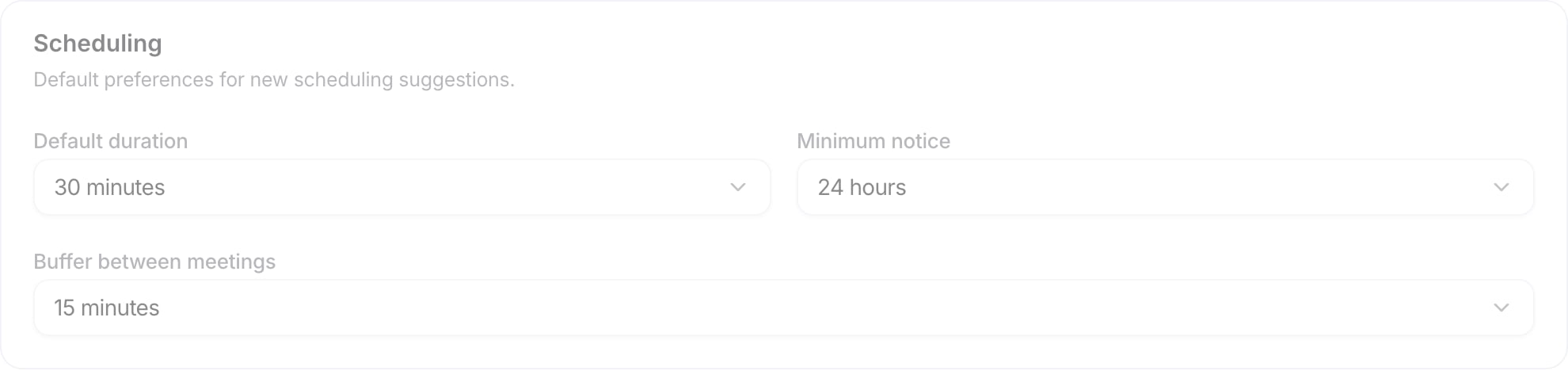
The **Calendar** page also holds your defaults for new scheduling suggestions.
| Setting | Options |
| - | - |
| **Default duration** | 15, 30, 45, or 60 minutes |
| **Minimum notice** | 1, 2, 4, 12, 24, or 48 hours |
| **Buffer between meetings** | **No buffer**, or 5, 10, 15, or 30 minutes |
| **Working Hours** > **Timezone** | The time zone used "for scheduling proposals and availability display" |
| **Advanced** > **Max times to propose** | 2, 3, 4, or 5 |
| **Advanced** > **Proposal expiry** | 24, 48, 72, or 96 hours, or **1 week** |
**Working Hours** shows your working days and hours. As the page says, "Parker reads your availability from the active calendar."
If you use Microsoft 365, you can also select **Connect Calendar** on the **Microsoft 365** card. See [Connect your mailbox](/email/connect-mailbox#connect-microsoft-365-outlook-mail-and-calendar).
## Set your scheduling defaults
The **Calendar** page also holds your defaults for new scheduling suggestions.
| Setting | Options |
| - | - |
| **Default duration** | 15, 30, 45, or 60 minutes |
| **Minimum notice** | 1, 2, 4, 12, 24, or 48 hours |
| **Buffer between meetings** | **No buffer**, or 5, 10, 15, or 30 minutes |
| **Working Hours** > **Timezone** | The time zone used "for scheduling proposals and availability display" |
| **Advanced** > **Max times to propose** | 2, 3, 4, or 5 |
| **Advanced** > **Proposal expiry** | 24, 48, 72, or 96 hours, or **1 week** |
**Working Hours** shows your working days and hours. As the page says, "Parker reads your availability from the active calendar."
 ## Check it worked
In **Settings** > **Connections**, your calendar row shows **Connected**. For Microsoft 365, the **Calendar** row on the **Microsoft 365** card shows **Connected**.
## Related
Connect Outlook or Gmail.
Write and send emails from chat.
This documentation is built and hosted on [Mintlify](https://mintlify.com), a developer documentation platform.
## Check it worked
In **Settings** > **Connections**, your calendar row shows **Connected**. For Microsoft 365, the **Calendar** row on the **Microsoft 365** card shows **Connected**.
## Related
Connect Outlook or Gmail.
Write and send emails from chat.
This documentation is built and hosted on [Mintlify](https://mintlify.com), a developer documentation platform.