> ## Documentation Index
> Fetch the complete documentation index at: https://support.parker.work/llms.txt
> Use this file to discover all available pages before exploring further.
# Create and update Salesforce records
> Ask Parker to create or update Salesforce records in plain words. Creating asks you to confirm first. Updating a record happens straight away in Live mode.
Tell Parker what to change in Salesforce in plain words. Parker makes the change as you, under your own Salesforce permissions.
## Before you begin
* Connect your own Salesforce account in **Settings** > **Connections**. See [Quickstart](/quickstart).
* Check your **Agent mode**. In **Test** mode, changes are only simulated. In **Live** mode, they're written to Salesforce. See [Choose Test or Live mode](#choose-test-or-live-mode).
* Parker can only change what your own Salesforce user can change.
**Check before Parker changes Salesforce.**
* **Creating** a record shows a card with **Confirm** and **Reject**. Nothing is written until you select **Confirm**.
* **Updating** an existing record has no card. If you've told Parker exactly what to change, it makes the change straight away in **Live** mode.
See [How Parker acts on your behalf](/get-started/how-parker-acts).
## What happens for each kind of change?
| Ask Parker to… | What happens |
| - | - |
| Create a record, such as a task | Parker shows the change with **Confirm** and **Reject**. Nothing is written until you select **Confirm**. |
| Update fields on an existing record, such as the next step | No card. In **Live** mode, Parker writes the change straight away and shows a receipt. |
To see which Salesforce objects Parker can write to, go to **Settings** > **Connections** > **Salesforce** and check the **Writes** row.
## Create a record
Say what to create and give the details you know. For example, "Create a task on the Wollongong Coastal Eatery opportunity: Call to book site visit, due this Friday."
Parker lists the details, and then a line describing the exact change, such as "Create Task in Salesforce", with the field values. Read it carefully.
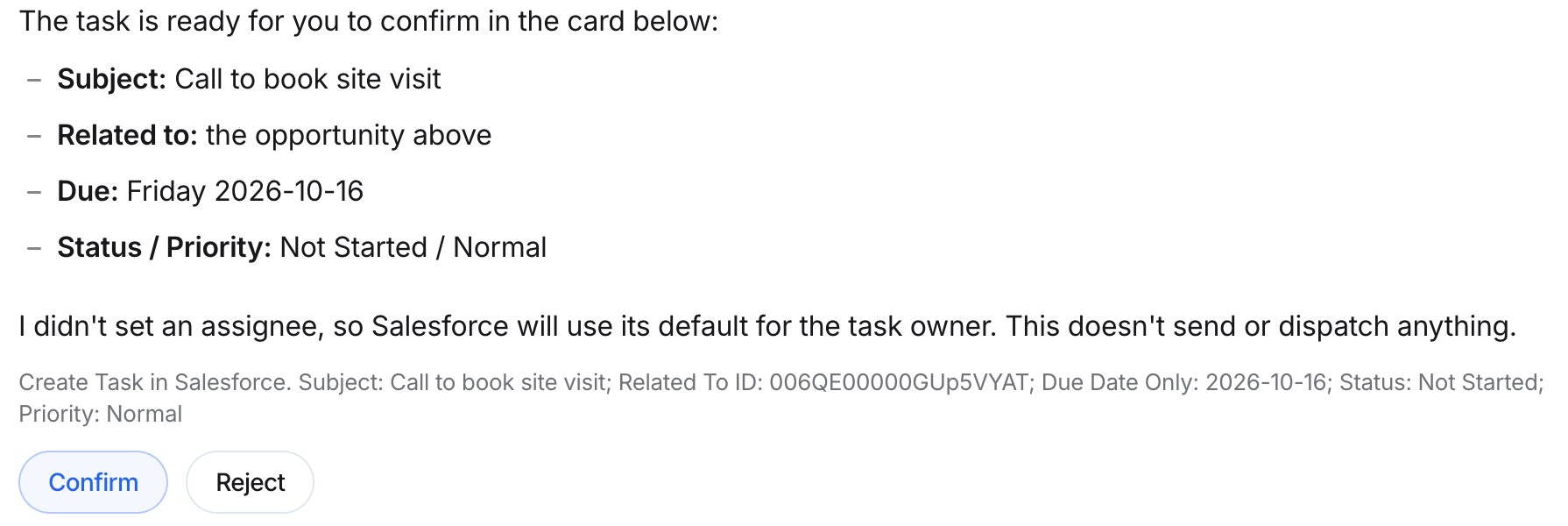 Select **Confirm** to create the record, or **Reject** to cancel. To change something first, select **Reject** and tell Parker what to fix.
### Check it worked
The buttons are replaced by a single line that describes the change. If you selected **Reject**, the line starts with **Cancelled**, and nothing is written.
Select **Confirm** to create the record, or **Reject** to cancel. To change something first, select **Reject** and tell Parker what to fix.
### Check it worked
The buttons are replaced by a single line that describes the change. If you selected **Reject**, the line starts with **Cancelled**, and nothing is written.
 ## Update a record
Updates to an existing record don't show a **Confirm** card. In **Live** mode, Parker makes the change as soon as you ask.
Name the record, the field, and the new value in your request. Parker doesn't ask again before it writes the update.
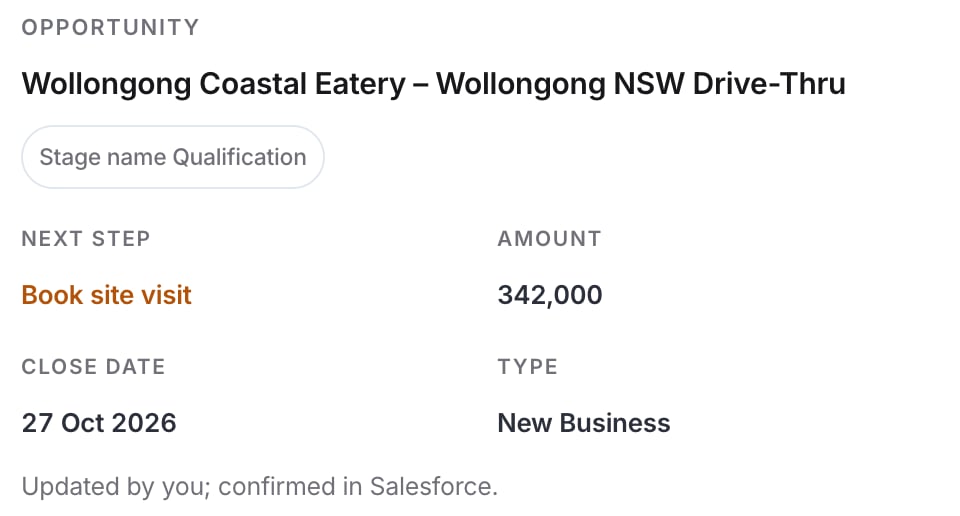
Name the record and the change. For example, "Update the Next Step on the Wollongong Coastal Eatery opportunity to 'Book site visit'."
Parker shows the record with the changed field highlighted. It tells you what the field held before the change.
### Check it worked
The record card ends with **Updated by you; confirmed in Salesforce.**
## Update a record
Updates to an existing record don't show a **Confirm** card. In **Live** mode, Parker makes the change as soon as you ask.
Name the record, the field, and the new value in your request. Parker doesn't ask again before it writes the update.
Name the record and the change. For example, "Update the Next Step on the Wollongong Coastal Eatery opportunity to 'Book site visit'."
Parker shows the record with the changed field highlighted. It tells you what the field held before the change.
### Check it worked
The record card ends with **Updated by you; confirmed in Salesforce.**
 If the change was wrong, ask Parker to change the field back, or edit the record in Salesforce.
## Choose Test or Live mode
Go to **Settings** > **Connections**, and then select **Salesforce**.
Under **How Parker works in Salesforce**, set **Agent mode** to **Test** or **Live**.
In **Live** mode, write tools commit changes to Salesforce, as you, under your own permissions. Every write is audited. An admin can turn on **Org-wide test mode**, which forces everyone to **Test** mode. See [How Parker acts on your behalf](/get-started/how-parker-acts).
## Example prompts
Create a task on the Northwind Supply opportunity: Call to book a site visit, due this Friday.
Update the Next Step on the Northwind Supply renewal to "Send revised quote".
## Troubleshooting
Field updates go straight through in **Live** mode. Ask Parker to set the field back to its old value, which it shows on the receipt, or fix it in Salesforce. Next time, name the record and field exactly.
Parker makes changes as you, so Salesforce applies your own permissions. Ask your Salesforce admin for access to that object, field, or record.
Check **Agent mode** in **Settings** > **Connections** > **Salesforce**. In **Test** mode, changes are only simulated.
## Related
What Parker confirms with you, and what it doesn't.
Find records before you change them.
How admins set up Salesforce.
Fixes for common problems.
This documentation is built and hosted on [Mintlify](https://mintlify.com), a developer documentation platform.
If the change was wrong, ask Parker to change the field back, or edit the record in Salesforce.
## Choose Test or Live mode
Go to **Settings** > **Connections**, and then select **Salesforce**.
Under **How Parker works in Salesforce**, set **Agent mode** to **Test** or **Live**.
In **Live** mode, write tools commit changes to Salesforce, as you, under your own permissions. Every write is audited. An admin can turn on **Org-wide test mode**, which forces everyone to **Test** mode. See [How Parker acts on your behalf](/get-started/how-parker-acts).
## Example prompts
Create a task on the Northwind Supply opportunity: Call to book a site visit, due this Friday.
Update the Next Step on the Northwind Supply renewal to "Send revised quote".
## Troubleshooting
Field updates go straight through in **Live** mode. Ask Parker to set the field back to its old value, which it shows on the receipt, or fix it in Salesforce. Next time, name the record and field exactly.
Parker makes changes as you, so Salesforce applies your own permissions. Ask your Salesforce admin for access to that object, field, or record.
Check **Agent mode** in **Settings** > **Connections** > **Salesforce**. In **Test** mode, changes are only simulated.
## Related
What Parker confirms with you, and what it doesn't.
Find records before you change them.
How admins set up Salesforce.
Fixes for common problems.
This documentation is built and hosted on [Mintlify](https://mintlify.com), a developer documentation platform.