> ## Documentation Index
> Fetch the complete documentation index at: https://support.parker.work/llms.txt
> Use this file to discover all available pages before exploring further.
# Find, organise, and share chats
> Find past chats in the sidebar or with search, pin, rename, export, and delete them, and share a chat with teammates in your workspace.
Every chat you have with Parker is saved. You can find it again, keep it handy, or share it with a teammate.
## Where are my past chats?
Your chats are in the sidebar, in these sections:
| Section | What's in it |
| - | - |
| **Shared with me** | Chats that teammates have shared with you. |
| **Pinned** | Chats you've pinned. |
| **Recents** | Your recent chats. |
| **Older** | Everything earlier, grouped by month. The number next to **Older** is how many chats it holds. Select **Older** to open it. |
To start a new chat, select **New chat** in the sidebar, or press **⌘⇧O** on a Mac or **Ctrl+Shift+O** on Windows.
## Pin, rename, export, or delete a chat
You can manage a chat from the sidebar or from inside the chat.
1. Hover over the chat in the sidebar and open its **Thread actions** (**…**) menu.
2. Select **Pin**, **Rename**, or **Delete**.
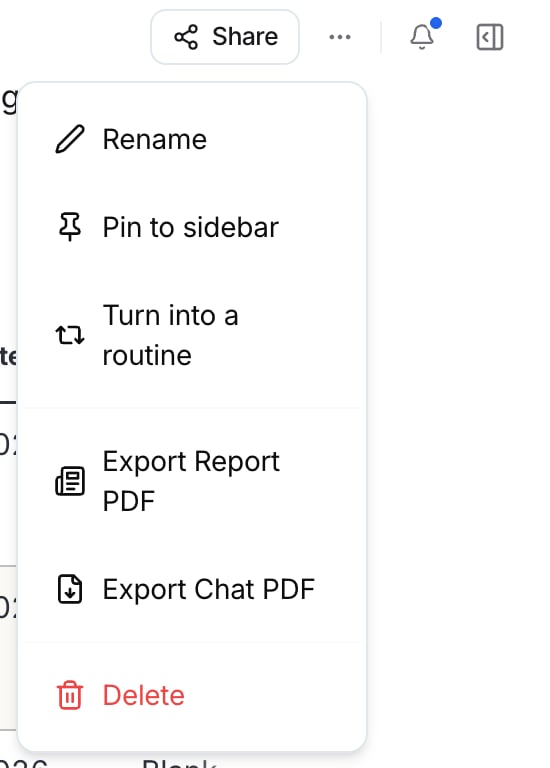
1. Open the chat and select **More actions** (**…**) in the chat header.
2. Select **Rename**, **Pin to sidebar**, **Turn into a routine**, **Export Report PDF**, **Export Chat PDF**, or **Delete**.
 When you delete a chat, Parker asks you to confirm in a **Delete conversation** dialog. Deleting permanently removes the chat and all its messages, and can't be undone. Select **Delete** to remove it, or **Cancel** to keep it.
If the chat has files in your [Files](/library/files), the dialog also asks whether to **Keep it in Files** or **Delete it too**.
For exports, see [Reports and documents](/chat/reports-and-documents).
## Search your chats
Press **⌘K** on a Mac or **Ctrl+K** on Windows, or select **Search & commands** at the top of the sidebar.
The search box says **Search chats and pages, or ask Parker…**. Parker matches chat titles and message text. It also shows **Related, by meaning**: chats about the same thing in different words.
Before you type, select a filter: **Chats**, **Pages**, **Pinned**, **From Parker**, **From me**, or **Past 7 days**.
Use **↑** and **↓** to move, and then press **Enter** to open a result. Press **→** to see the matching messages in a chat. To ask Parker your search as a new question instead, press **⌘↵** on a Mac or **Ctrl+Enter** on Windows.
You can also type these in the search box to narrow results:
| Type | To find |
| - | - |
| `from:parker` or `from:me` | Messages from Parker, or from you |
| `is:pinned` | Pinned chats |
| `date:today`, `date:yesterday`, `date:week`, or `date:month` | Chats from that period |
| `after:2026-09-01` or `before:` a date | Chats after or before a date |
| `in:app`, `in:teams`, `in:imessage`, or `in:whatsapp` | Chats from one channel |
| `"exact phrase"` | Messages with those words in that order |
The same search box also takes you to other places. Type a destination, such as **Routines**, and select it under **Go to**.
To find a word inside the chat you're reading, press **⌘F** on a Mac or **Ctrl+F** on Windows. Use **Previous match** and **Next match** to move between results, and **Close search** when you're done.
## Share a chat
Share a chat to show a teammate what you found. You can share only with members of your workspace.
Open the chat and select **Share** in the chat header.
In **Share conversation**, search by name or email, and then select the people you want to share with. The dialog lists your workspace's **Team members**.
### What does the person I share with see?
* The chat appears in their sidebar under **Shared with me**.
* They see the answers already in the chat.
* Anything new runs on **their own** access to Salesforce and other connections, not yours.
## Troubleshooting
Select **Older** in the sidebar, or press **⌘K** or **Ctrl+K** and search for a word you remember from the chat.
You can share only with members of your workspace. Ask your admin to add them. See [Members](/admin/members).
That's expected. New answers in a shared chat run on each person's own access, so they see only the Salesforce data they're allowed to see.
## Related
How the chat screen works.
What Parker remembers.
Every shortcut in one place.
Share a designed report instead.
This documentation is built and hosted on [Mintlify](https://mintlify.com), a developer documentation platform.
When you delete a chat, Parker asks you to confirm in a **Delete conversation** dialog. Deleting permanently removes the chat and all its messages, and can't be undone. Select **Delete** to remove it, or **Cancel** to keep it.
If the chat has files in your [Files](/library/files), the dialog also asks whether to **Keep it in Files** or **Delete it too**.
For exports, see [Reports and documents](/chat/reports-and-documents).
## Search your chats
Press **⌘K** on a Mac or **Ctrl+K** on Windows, or select **Search & commands** at the top of the sidebar.
The search box says **Search chats and pages, or ask Parker…**. Parker matches chat titles and message text. It also shows **Related, by meaning**: chats about the same thing in different words.
Before you type, select a filter: **Chats**, **Pages**, **Pinned**, **From Parker**, **From me**, or **Past 7 days**.
Use **↑** and **↓** to move, and then press **Enter** to open a result. Press **→** to see the matching messages in a chat. To ask Parker your search as a new question instead, press **⌘↵** on a Mac or **Ctrl+Enter** on Windows.
You can also type these in the search box to narrow results:
| Type | To find |
| - | - |
| `from:parker` or `from:me` | Messages from Parker, or from you |
| `is:pinned` | Pinned chats |
| `date:today`, `date:yesterday`, `date:week`, or `date:month` | Chats from that period |
| `after:2026-09-01` or `before:` a date | Chats after or before a date |
| `in:app`, `in:teams`, `in:imessage`, or `in:whatsapp` | Chats from one channel |
| `"exact phrase"` | Messages with those words in that order |
The same search box also takes you to other places. Type a destination, such as **Routines**, and select it under **Go to**.
To find a word inside the chat you're reading, press **⌘F** on a Mac or **Ctrl+F** on Windows. Use **Previous match** and **Next match** to move between results, and **Close search** when you're done.
## Share a chat
Share a chat to show a teammate what you found. You can share only with members of your workspace.
Open the chat and select **Share** in the chat header.
In **Share conversation**, search by name or email, and then select the people you want to share with. The dialog lists your workspace's **Team members**.
### What does the person I share with see?
* The chat appears in their sidebar under **Shared with me**.
* They see the answers already in the chat.
* Anything new runs on **their own** access to Salesforce and other connections, not yours.
## Troubleshooting
Select **Older** in the sidebar, or press **⌘K** or **Ctrl+K** and search for a word you remember from the chat.
You can share only with members of your workspace. Ask your admin to add them. See [Members](/admin/members).
That's expected. New answers in a shared chat run on each person's own access, so they see only the Salesforce data they're allowed to see.
## Related
How the chat screen works.
What Parker remembers.
Every shortcut in one place.
Share a designed report instead.
This documentation is built and hosted on [Mintlify](https://mintlify.com), a developer documentation platform.