> ## Documentation Index
> Fetch the complete documentation index at: https://support.parker.work/llms.txt
> Use this file to discover all available pages before exploring further.
# Ask about your Salesforce data
> Ask Parker about your Salesforce records in plain words: find records, count and compare them, check where an answer came from, and open a record without leaving the chat.
Ask Parker about your accounts, leads, contacts, opportunities, and cases the way you'd ask a colleague. Parker looks up the answer in Salesforce while you wait.
## Before you begin
* Your admin has set up Salesforce for your workspace. See [Connect Salesforce](/admin/connect-salesforce).
* You've connected your own Salesforce account in **Settings** > **Connections**. See [Quickstart](/quickstart).
## What can I ask about?
| You want to… | Ask something like |
| - | - |
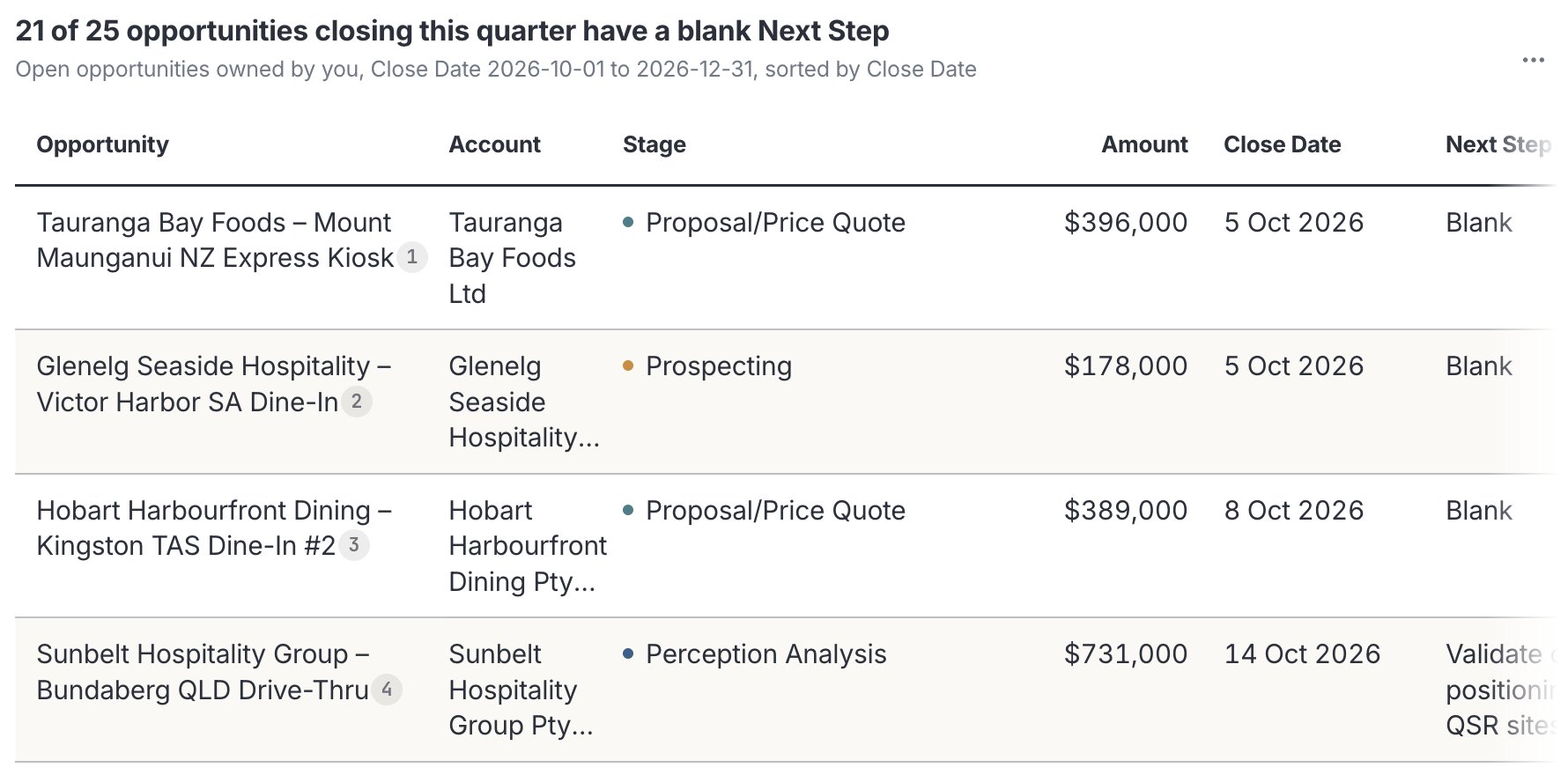
| List records that match | "Which of my open opportunities close this quarter? Show them in a table." |
| Count or total | "How many open opportunities do I have in each stage?" |
| Find what needs attention | "Which of my open opportunities over \$50k have no Next Step?" |
| Catch up on one record | "What's the latest on the Northwind Supply opportunity?" |
| See it as a chart | "Chart my open pipeline by stage." |
Parker reads Salesforce live, so answers reflect what's in Salesforce now.
Parker's answers come from your live data and can vary from one run to the next. Check important figures against Salesforce before acting on them, and use the sources Parker shows to see where an answer came from.
## What data can Parker see?
Parker sees exactly what **you** can see in Salesforce, and no more. It uses your own Salesforce login, so your permissions, field-level security, and sharing rules all apply.
Parker often starts its answer by saying what it read. For example, how many records it queried, which fields it used, and whether any records were excluded by sharing or field-level security.
That means two people can ask the same question and get different answers. If a record or field is missing from Parker's answer, check whether you can see it in Salesforce.
## Ask a Salesforce question
Select **New chat** in the sidebar.
Type your question in plain words and send it. Name the record, time period, or filter if you know it.
Records in the answer carry numbered source markers. Hover over one to see the record, or select it to open the record.
Keep going in the same chat. Parker remembers what you've already asked in the conversation, so "now only the ones in Texas" works.
 ### Check it worked
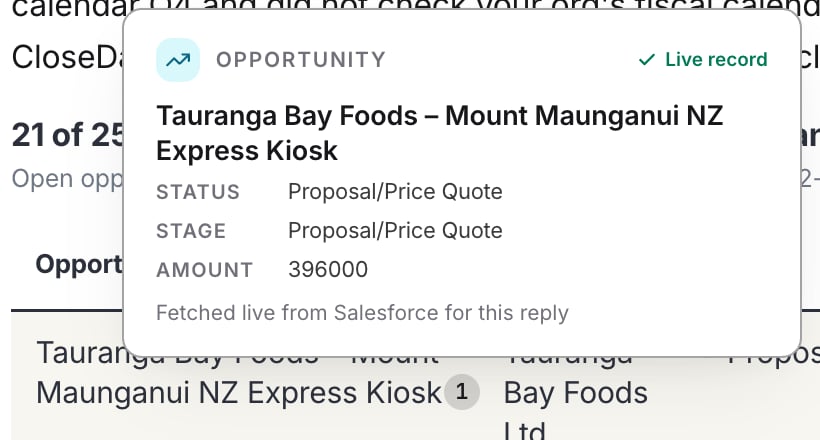
Hover over a source marker. A card shows the record's key fields and **Fetched live from Salesforce for this reply**.
### Check it worked
Hover over a source marker. A card shows the record's key fields and **Fetched live from Salesforce for this reply**.
 ## Open a record without leaving the chat
Select a record's source marker to open it beside the chat. You see:
* The record's type and name, and for an opportunity, its stage and the next stage, such as **Step 7 of 9**.
* Its key fields, then **Other fields**.
* **Show N empty fields**, to see fields with no value, and **System Information**.
* **Related**, with the record's related lists.
* **Open in Salesforce**, to open the record in Salesforce itself. The footer reads **Live from Salesforce, with your access**.
## Open a record without leaving the chat
Select a record's source marker to open it beside the chat. You see:
* The record's type and name, and for an opportunity, its stage and the next stage, such as **Step 7 of 9**.
* Its key fields, then **Other fields**.
* **Show N empty fields**, to see fields with no value, and **System Information**.
* **Related**, with the record's related lists.
* **Open in Salesforce**, to open the record in Salesforce itself. The footer reads **Live from Salesforce, with your access**.
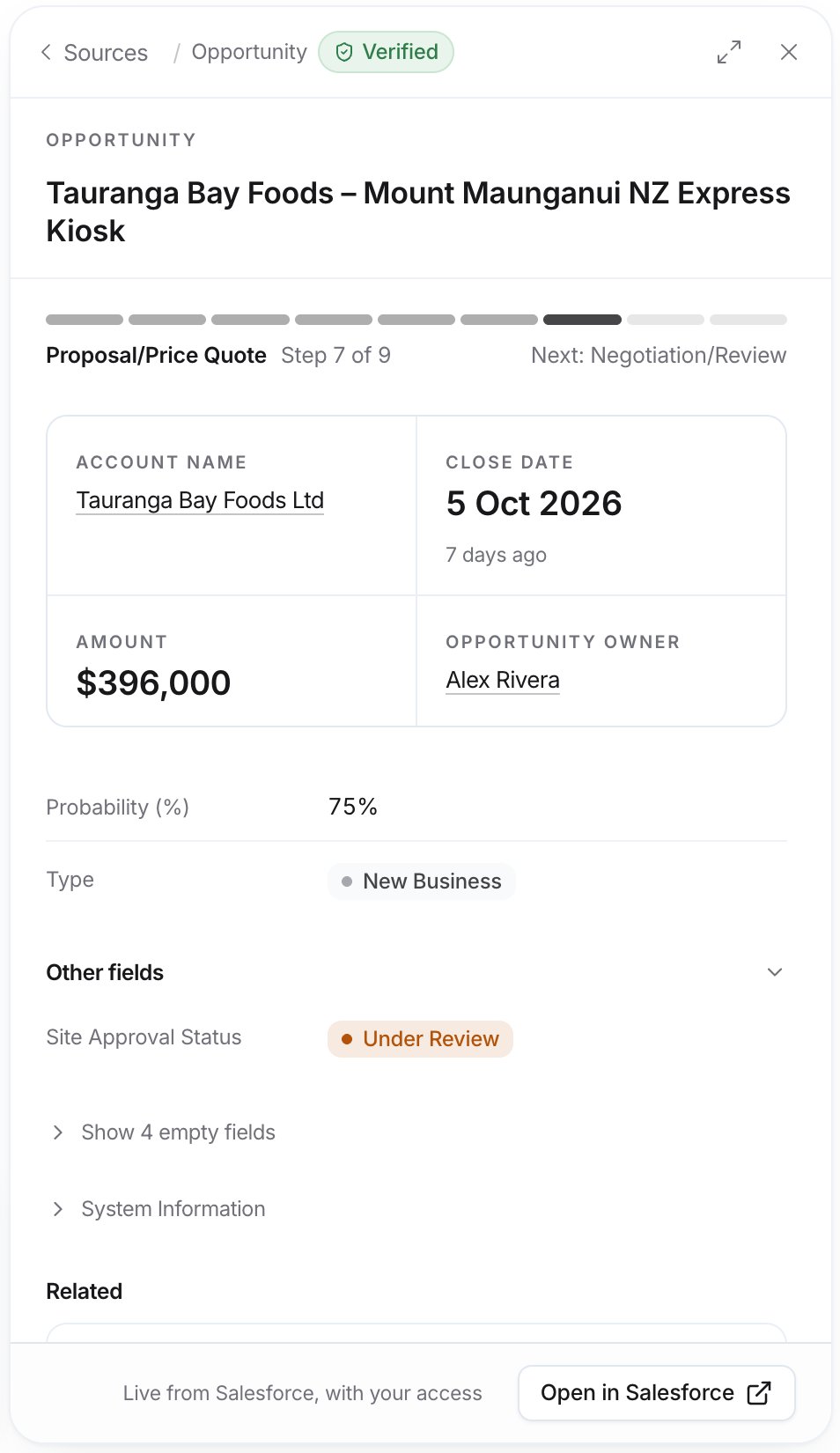 While the record is open, the message box shows **Asking about** followed by the record's name, so your next question is about that record. Select **Sources** at the top of the panel to go back to the list of sources.
## Example prompts
Which of my open opportunities over \$50k have no Next Step?
How many open opportunities do I have in each stage?
What's the latest on the Northwind Supply opportunity?
## Troubleshooting
Parker sees only what your Salesforce user can see. Check that you can open the record in Salesforce. If you can, try the record's exact name.
A **Stale** note under **Notes on this reply** means the records haven't been edited in Salesforce for a while. The data is still read live, but it may be out of date in Salesforce itself.
## Related
Make changes in Salesforce from chat.
See your data as a chart.
Read records and tables beside the chat.
Get better answers.
This documentation is built and hosted on [Mintlify](https://mintlify.com), a developer documentation platform.
While the record is open, the message box shows **Asking about** followed by the record's name, so your next question is about that record. Select **Sources** at the top of the panel to go back to the list of sources.
## Example prompts
Which of my open opportunities over \$50k have no Next Step?
How many open opportunities do I have in each stage?
What's the latest on the Northwind Supply opportunity?
## Troubleshooting
Parker sees only what your Salesforce user can see. Check that you can open the record in Salesforce. If you can, try the record's exact name.
A **Stale** note under **Notes on this reply** means the records haven't been edited in Salesforce for a while. The data is still read live, but it may be out of date in Salesforce itself.
## Related
Make changes in Salesforce from chat.
See your data as a chart.
Read records and tables beside the chat.
Get better answers.
This documentation is built and hosted on [Mintlify](https://mintlify.com), a developer documentation platform.