> ## Documentation Index
> Fetch the complete documentation index at: https://support.parker.work/llms.txt
> Use this file to discover all available pages before exploring further.
# How chat works
> Learn your way around the chat screen: start a chat, send a message, follow what Parker did, check its sources, and stop, queue, or retry an answer.
Chat is where you ask Parker questions and give it work. This page walks through the chat screen from your first message to a finished answer.
## Start a new chat
Select **New chat** in the sidebar, or press **⌘⇧O** on a Mac or **Ctrl+Shift+O** on Windows. The arrow next to **New chat** also offers **New Automation** and **New Routine**.
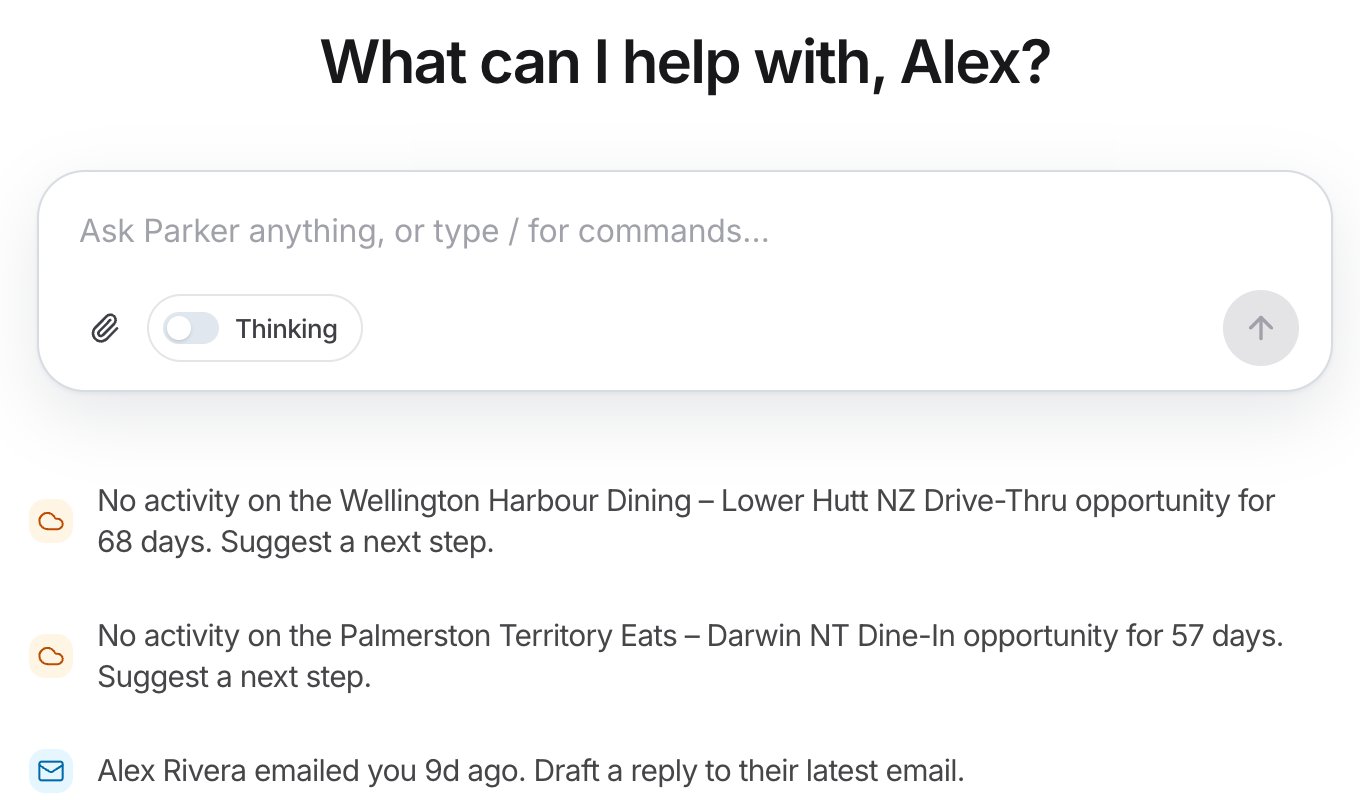
A new chat asks **What can I help with,** followed by your first name, and shows the message box. Under the message box, Parker may suggest next steps based on your Salesforce data and email. Select one to ask Parker about it, or select **Not now** to hide it.
 ## Send a message
Select the message box, which says **Ask Parker anything, or type / for commands...**, and type in plain words.
Select **Attach** (the paperclip) to add files. See [Files and attachments](/chat/files-and-attachments).
Turn on **Thinking** for a harder question. Parker reasons more carefully, but takes longer.
Press **Enter**, or select **Send message**. To start a new line without sending, press **Shift+Enter**.
### Use commands
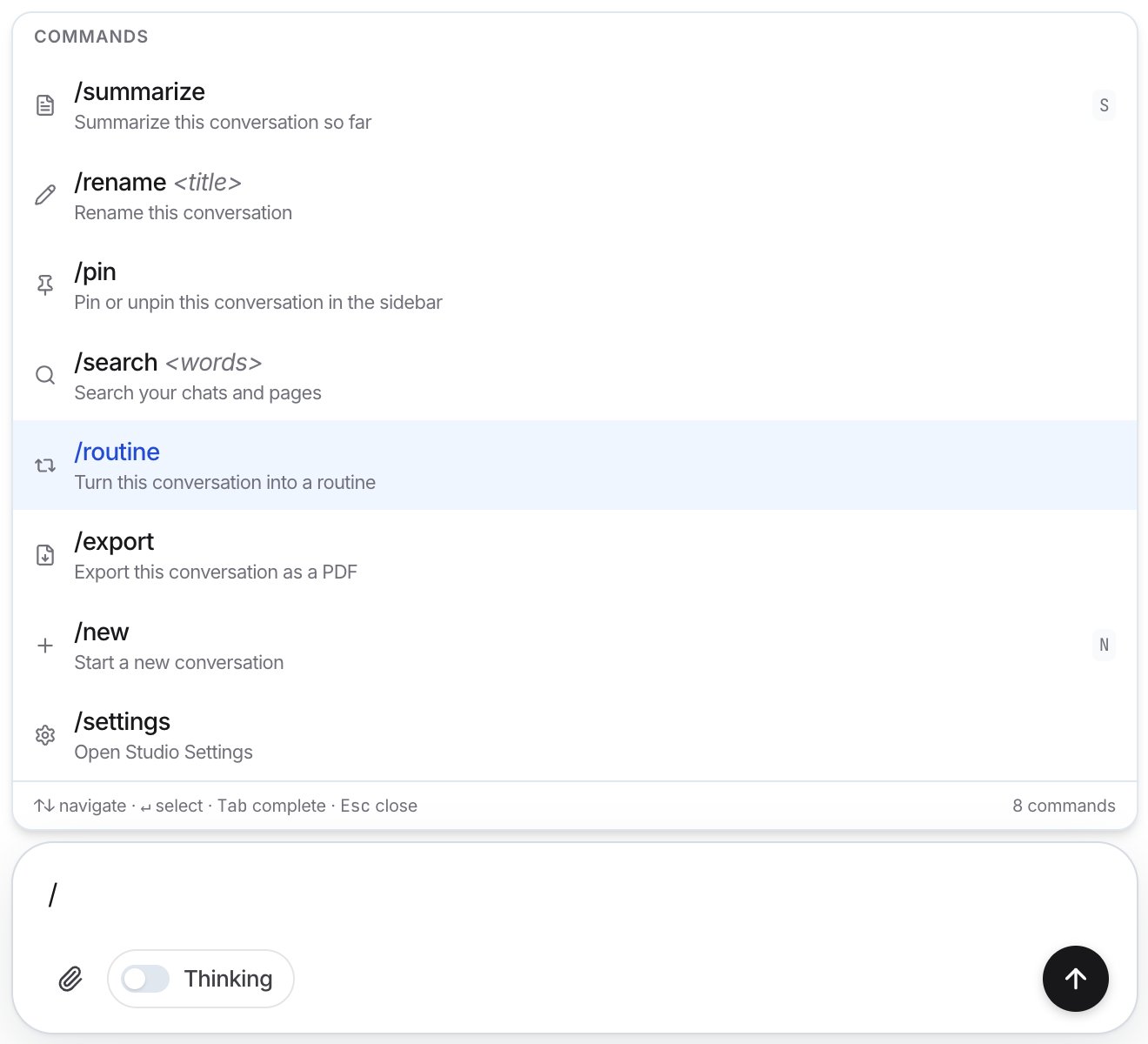
Type **/** in the message box to see the commands. Use **↑** and **↓** to move, **Enter** to select, **Tab** to complete, and **Esc** to close.
| Command | What it does |
| - | - |
| `/summarize` | Summarize this conversation so far |
| `/rename` | Rename this conversation |
| `/pin` | Pin or unpin this conversation in the sidebar |
| `/search` | Search your chats and pages |
| `/routine` | Turn this conversation into a [routine](/automate/routines) |
| `/export` | Export this conversation as a PDF |
| `/new` | Start a new conversation |
| `/settings` | Open Settings |
## Send a message
Select the message box, which says **Ask Parker anything, or type / for commands...**, and type in plain words.
Select **Attach** (the paperclip) to add files. See [Files and attachments](/chat/files-and-attachments).
Turn on **Thinking** for a harder question. Parker reasons more carefully, but takes longer.
Press **Enter**, or select **Send message**. To start a new line without sending, press **Shift+Enter**.
### Use commands
Type **/** in the message box to see the commands. Use **↑** and **↓** to move, **Enter** to select, **Tab** to complete, and **Esc** to close.
| Command | What it does |
| - | - |
| `/summarize` | Summarize this conversation so far |
| `/rename` | Rename this conversation |
| `/pin` | Pin or unpin this conversation in the sidebar |
| `/search` | Search your chats and pages |
| `/routine` | Turn this conversation into a [routine](/automate/routines) |
| `/export` | Export this conversation as a PDF |
| `/new` | Start a new conversation |
| `/settings` | Open Settings |
 ## How does an answer appear?
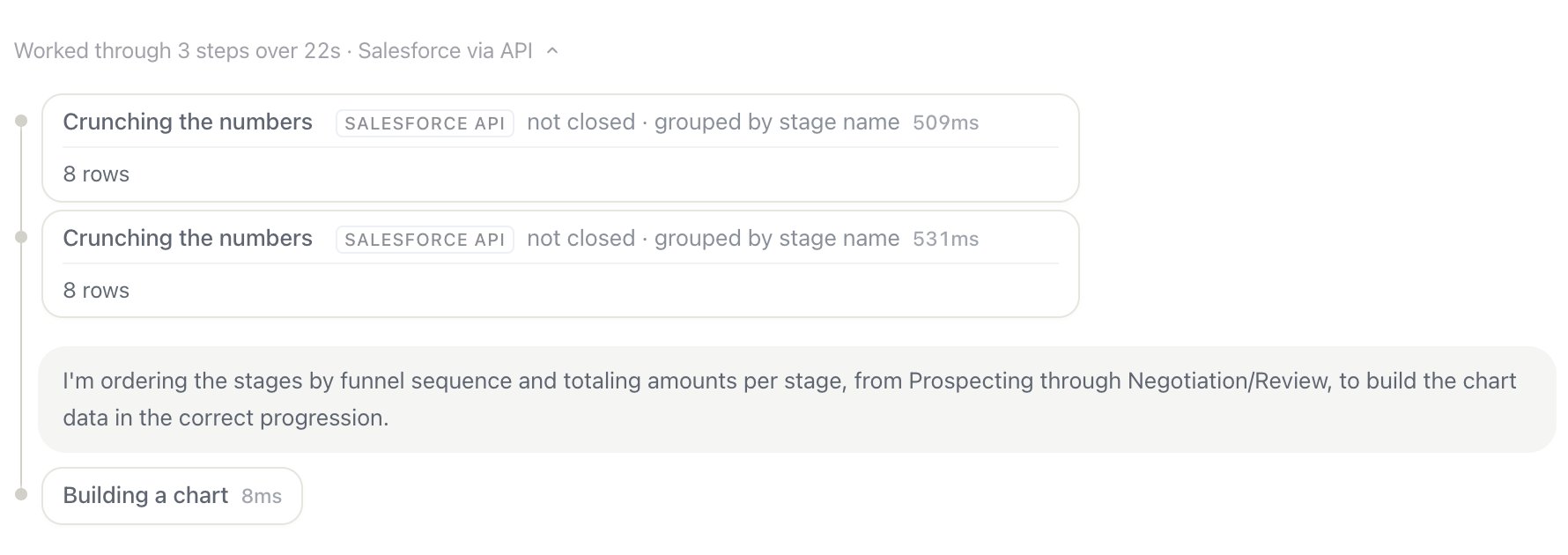
While Parker works, the answer shows **Generating response** with a timer, and each step as Parker takes it, such as **Crunching the numbers** or **Checking your profile**. Then Parker writes the answer.
When the answer is done, the steps fold into a single line, such as **Worked through 3 steps over 22s · Salesforce via API**. Select it to see each step again, including the Salesforce queries Parker ran and how many rows came back.
## How does an answer appear?
While Parker works, the answer shows **Generating response** with a timer, and each step as Parker takes it, such as **Crunching the numbers** or **Checking your profile**. Then Parker writes the answer.
When the answer is done, the steps fold into a single line, such as **Worked through 3 steps over 22s · Salesforce via API**. Select it to see each step again, including the Salesforce queries Parker ran and how many rows came back.
 Parker's answers come from your live data and can vary from one run to the next. Check important figures against Salesforce before acting on them, and use the sources Parker shows to see where an answer came from.
### What can an answer include?
Besides text, an answer can include:
* **Tables.** Long tables show the first rows, with **Show N more rows** and a count such as **Showing 8 of 25**. See [Ask about your Salesforce data](/chat/salesforce-questions).
* **Charts.** See [Charts and diagrams](/chat/charts-maps-diagrams).
* **Salesforce records**, such as the receipt after an update. See [Create and update records](/chat/updating-records).
* **Email drafts** to review before sending. See [Draft and send email](/email/drafting-email).
* **Confirm** and **Reject** buttons when Parker wants to create a record. See [Create and update records](/chat/updating-records).
* **Notes on this reply**, such as a **Stale** note when the records Parker read haven't been edited for a while.
Parker's answers come from your live data and can vary from one run to the next. Check important figures against Salesforce before acting on them, and use the sources Parker shows to see where an answer came from.
### What can an answer include?
Besides text, an answer can include:
* **Tables.** Long tables show the first rows, with **Show N more rows** and a count such as **Showing 8 of 25**. See [Ask about your Salesforce data](/chat/salesforce-questions).
* **Charts.** See [Charts and diagrams](/chat/charts-maps-diagrams).
* **Salesforce records**, such as the receipt after an update. See [Create and update records](/chat/updating-records).
* **Email drafts** to review before sending. See [Draft and send email](/email/drafting-email).
* **Confirm** and **Reject** buttons when Parker wants to create a record. See [Create and update records](/chat/updating-records).
* **Notes on this reply**, such as a **Stale** note when the records Parker read haven't been edited for a while.
 ## Where did this answer come from?
Parker marks records and facts in its answer with small numbered source markers.
* Hover over a marker to see the source, such as a Salesforce record, with **Fetched live from Salesforce for this reply**.
* Select a marker to open the record beside the chat.
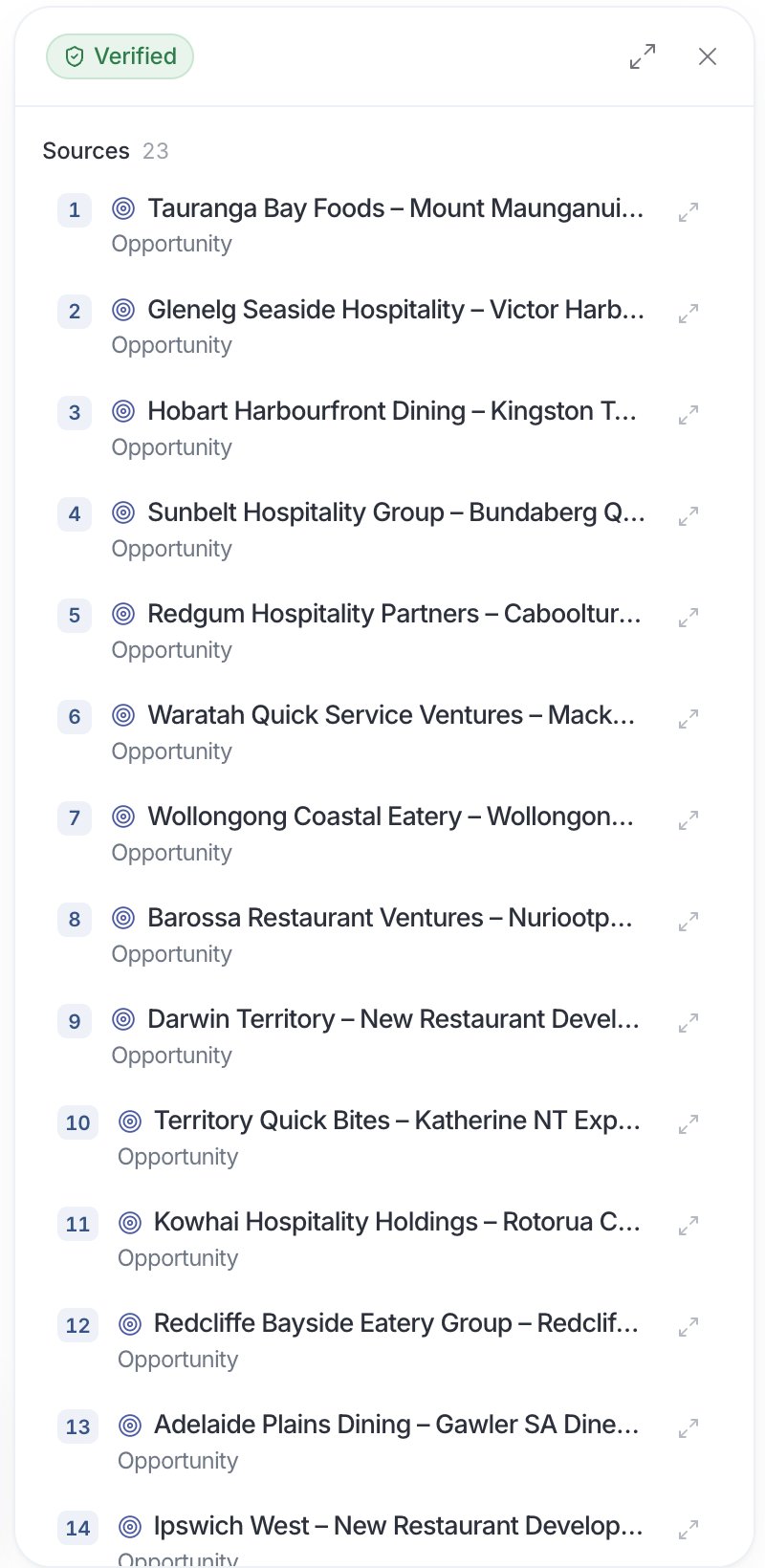
* Select **Sources** in the chat header to see every source in the chat. A badge at the top, such as **Verified**, shows whether Parker's figures were checked against their sources.
## Where did this answer come from?
Parker marks records and facts in its answer with small numbered source markers.
* Hover over a marker to see the source, such as a Salesforce record, with **Fetched live from Salesforce for this reply**.
* Select a marker to open the record beside the chat.
* Select **Sources** in the chat header to see every source in the chat. A badge at the top, such as **Verified**, shows whether Parker's figures were checked against their sources.
 ## Ask a follow-up
Keep typing in the same chat. Parker remembers the whole conversation, so you can say "now only the ones in Texas" or "turn that into a chart".
### Ask about part of an answer
Select some text inside one of Parker's answers. A small toolbar appears:
* **Ask Parker** pins the passage to the message box so you can ask about it.
* **Explain** asks Parker to explain it in more detail.
* **Show records** asks Parker for the records behind it.
## Stop, queue, or retry
* **Stop an answer:** select **Stop generating**.
* **Send another message while Parker is answering:** type it and select **Queue message**. It sends when the answer finishes.
* **Get a new answer:** under Parker's answer, select **Regenerate response**.
* **Change your question:** on your message, select **Edit message**.
## Give feedback
Under each answer you'll find these actions:
* **Copy output** copies the answer.
* **Good response** or **Bad response** tells Parker how it did.
* **Save a memory** teaches Parker something to use next time. See [Memory](/chat/memory-and-private-chats).
## Example prompts
In three short paragraphs, what can you help me with?
What needs my attention this week?
Turn that into a table with the account owner and close date.
## Troubleshooting
Watch the steps under **Generating response** to see what Parker is doing. Questions that cover a lot of data, or that use **Thinking**, take longer. To stop, select **Stop generating**.
Open **Sources** and check the badge at the top. Hover over a source marker to see the record Parker used, and select **Open in Salesforce** to check it there.
## Related
Get better answers.
Questions about records.
Find and share chats.
Open sources and tables beside the chat.
This documentation is built and hosted on [Mintlify](https://mintlify.com), a developer documentation platform.
## Ask a follow-up
Keep typing in the same chat. Parker remembers the whole conversation, so you can say "now only the ones in Texas" or "turn that into a chart".
### Ask about part of an answer
Select some text inside one of Parker's answers. A small toolbar appears:
* **Ask Parker** pins the passage to the message box so you can ask about it.
* **Explain** asks Parker to explain it in more detail.
* **Show records** asks Parker for the records behind it.
## Stop, queue, or retry
* **Stop an answer:** select **Stop generating**.
* **Send another message while Parker is answering:** type it and select **Queue message**. It sends when the answer finishes.
* **Get a new answer:** under Parker's answer, select **Regenerate response**.
* **Change your question:** on your message, select **Edit message**.
## Give feedback
Under each answer you'll find these actions:
* **Copy output** copies the answer.
* **Good response** or **Bad response** tells Parker how it did.
* **Save a memory** teaches Parker something to use next time. See [Memory](/chat/memory-and-private-chats).
## Example prompts
In three short paragraphs, what can you help me with?
What needs my attention this week?
Turn that into a table with the account owner and close date.
## Troubleshooting
Watch the steps under **Generating response** to see what Parker is doing. Questions that cover a lot of data, or that use **Thinking**, take longer. To stop, select **Stop generating**.
Open **Sources** and check the badge at the top. Hover over a source marker to see the record Parker used, and select **Open in Salesforce** to check it there.
## Related
Get better answers.
Questions about records.
Find and share chats.
Open sources and tables beside the chat.
This documentation is built and hosted on [Mintlify](https://mintlify.com), a developer documentation platform.