> ## Documentation Index
> Fetch the complete documentation index at: https://support.parker.work/llms.txt
> Use this file to discover all available pages before exploring further.
# Get charts, tables, and diagrams
> Ask Parker to show your data as a chart, table, or diagram, and copy, export, or open what it makes beside the chat.
Ask Parker to show an answer visually. Name the kind of visual you want, or let Parker pick one that fits.
## Before you begin
* Connect the data you want to show, such as Salesforce.
Parker's answers come from your live data and can vary from one run to the next. Check important figures against Salesforce before acting on them, and use the sources Parker shows to see where an answer came from.
## Charts
Ask for a chart and say what to measure and how to split it, for example "Chart my open pipeline by stage."
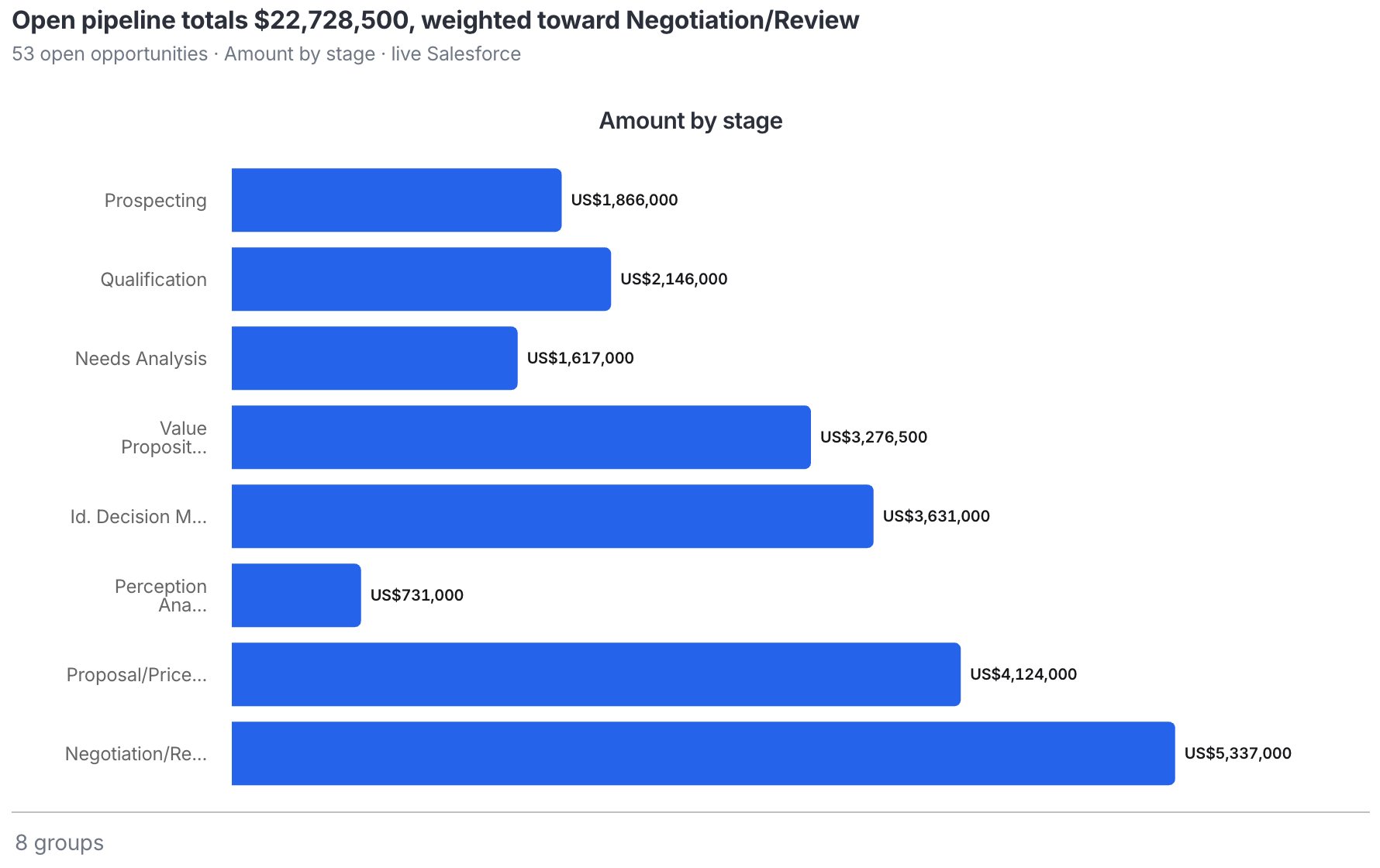 Above the chart, Parker sums up what it shows, with a line saying where the data came from, such as **live Salesforce**.
### Work with a chart
* **See exact values:** select a bar, or use the arrow keys. Press **Esc** to clear.
* **Open it larger:** select **Open in panel** to see the chart beside the chat. See [Work panel](/chat/work-panel) Beta.
## Tables
Parker shows lists of records and figures as tables. Long tables show the first rows, with **Show N more rows**.
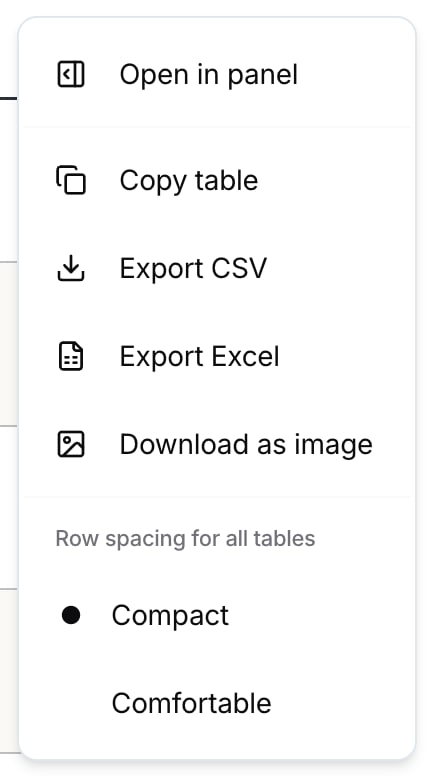
Open the table's **Table actions** (**…**) menu to:
* **Open in panel**, to read the table beside the chat.
* **Copy table**, to paste into an email or spreadsheet.
* **Export CSV** or **Export Excel**.
* **Download as image**.
* Set **Row spacing for all tables** to **Compact** or **Comfortable**.
Above the chart, Parker sums up what it shows, with a line saying where the data came from, such as **live Salesforce**.
### Work with a chart
* **See exact values:** select a bar, or use the arrow keys. Press **Esc** to clear.
* **Open it larger:** select **Open in panel** to see the chart beside the chat. See [Work panel](/chat/work-panel) Beta.
## Tables
Parker shows lists of records and figures as tables. Long tables show the first rows, with **Show N more rows**.
Open the table's **Table actions** (**…**) menu to:
* **Open in panel**, to read the table beside the chat.
* **Copy table**, to paste into an email or spreadsheet.
* **Export CSV** or **Export Excel**.
* **Download as image**.
* Set **Row spacing for all tables** to **Compact** or **Comfortable**.
 ## Diagrams
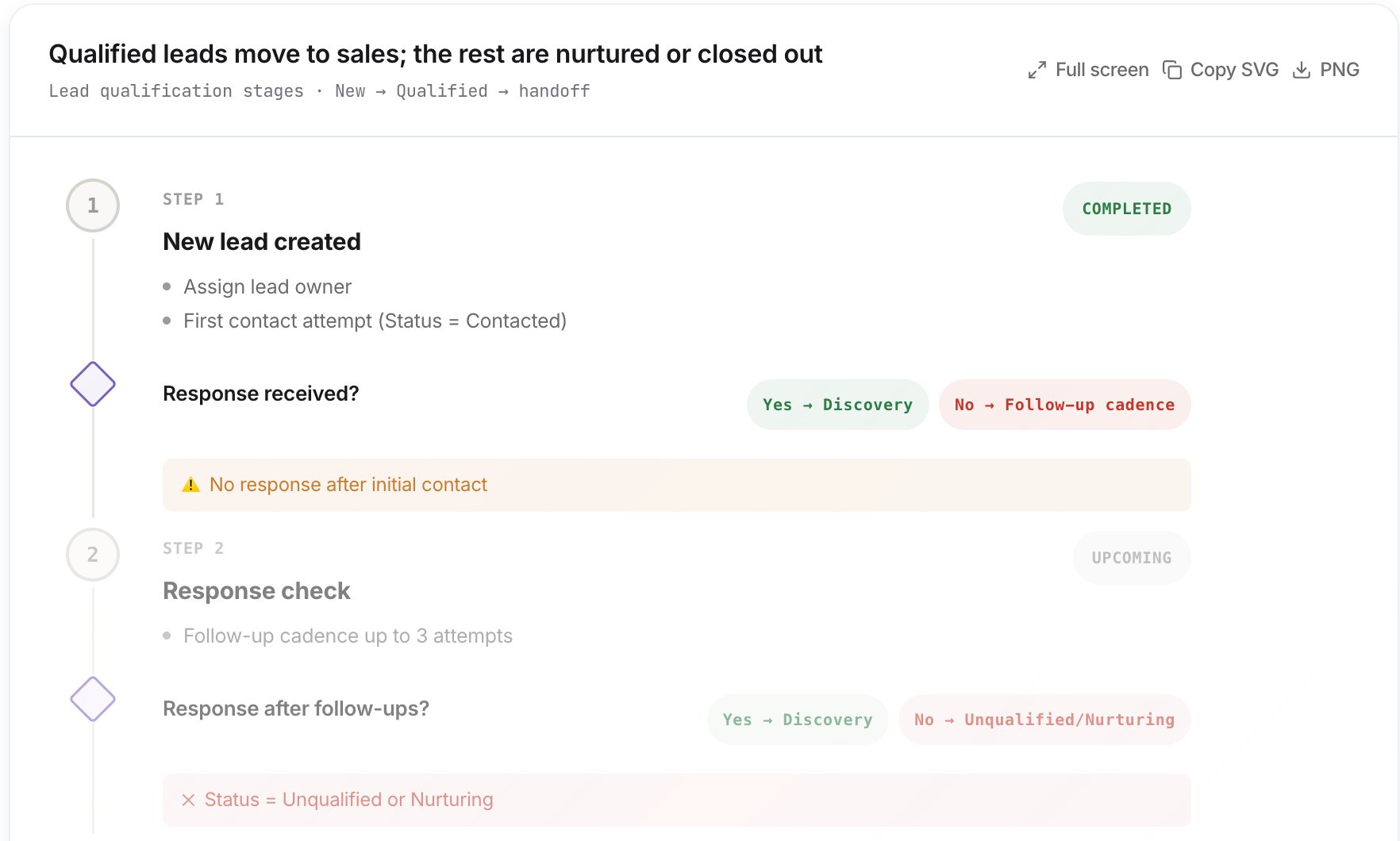
Ask Parker to draw a process or plan, such as a flowchart of how your team qualifies leads. Parker lays out each step, the decisions between steps, and where the process can end.
On a diagram, select **Full screen** to see it larger, **Copy SVG** to copy it as an image you can resize, or **PNG** to download it.
## Diagrams
Ask Parker to draw a process or plan, such as a flowchart of how your team qualifies leads. Parker lays out each step, the decisions between steps, and where the process can end.
On a diagram, select **Full screen** to see it larger, **Copy SVG** to copy it as an image you can resize, or **PNG** to download it.
 ## Example prompts
Chart my open pipeline by stage.
Which of my open opportunities close this quarter? Show them in a table.
Draw a flowchart of a simple lead qualification process, from new lead to handoff to sales.
## Troubleshooting
Ask again and say exactly what to chart, for example "a bar chart of amount by stage".
Parker needs an address or coordinates on the record. If those fields are blank, or you can't see them in Salesforce, Parker shows a table of what it found instead and tells you which fields are missing. For location questions, see [Find records near a place](/maps/overview).
## Related
Get the data behind a chart.
Export a chat or design a page.
Ranked tables and maps for location questions.
Open charts and tables beside the chat.
This documentation is built and hosted on [Mintlify](https://mintlify.com), a developer documentation platform.
## Example prompts
Chart my open pipeline by stage.
Which of my open opportunities close this quarter? Show them in a table.
Draw a flowchart of a simple lead qualification process, from new lead to handoff to sales.
## Troubleshooting
Ask again and say exactly what to chart, for example "a bar chart of amount by stage".
Parker needs an address or coordinates on the record. If those fields are blank, or you can't see them in Salesforce, Parker shows a table of what it found instead and tells you which fields are missing. For location questions, see [Find records near a place](/maps/overview).
## Related
Get the data behind a chart.
Export a chat or design a page.
Ranked tables and maps for location questions.
Open charts and tables beside the chat.
This documentation is built and hosted on [Mintlify](https://mintlify.com), a developer documentation platform.