> ## Documentation Index
> Fetch the complete documentation index at: https://support.parker.work/llms.txt
> Use this file to discover all available pages before exploring further.
# Schedule a routine
> Have Parker answer a saved prompt on a schedule, such as a Monday pipeline summary, and send the result to you or your teammates by email or in Parker.
Routines are questions Parker answers for you on a schedule. For example, a pipeline summary every Monday morning, or a check on overdue cases each day.
## What is a routine?
A routine is a saved prompt with a schedule. Each time it runs, Parker answers the prompt and delivers the result, called a brief. Tools stay read-only when a routine runs.
A routine is different from an [automation](/automate/automations). An automation reacts to new email. A routine runs at set times and reports back.
 ## Create a routine
Go to **Routines** in the sidebar and select **New routine**.
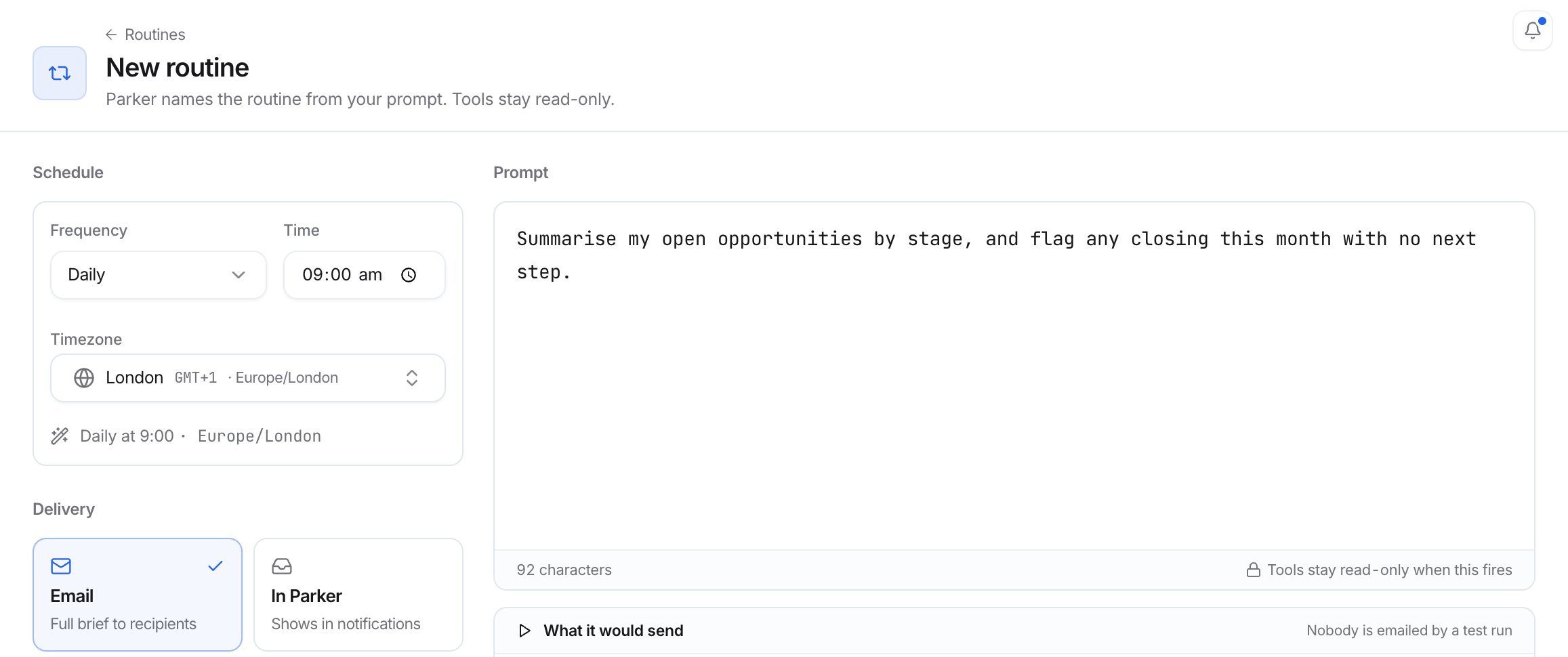
Under **Prompt**, describe what Parker should do every run, or pick one of the **Suggested for you** prompts. Parker names the routine from your prompt.
Under **Schedule**, choose a **Frequency**: **Every hour**, **Daily**, **Weekdays (Mon–Fri)**, **Weekends (Sat + Sun)**, **Weekly**, or **Monthly**. Set the **Time** and **Timezone**.
Under **Delivery**, select **Email** (full brief to recipients), **In Parker** (shows in notifications), or both. A routine has to deliver somewhere, so the last channel stays on.
Under **Recipients**, select **Add teammate**. Recipients get the brief, and each run's conversation opens for them in Parker.
Select **Try it once**. Parker runs the routine now and shows **What it would send**. Nobody is emailed by a test run. Change the prompt and select **Run it again** until you're happy.
Select **Schedule it**, or **Create routine** if you didn't try it first. **Enabled on create** is on by default.
## Create a routine
Go to **Routines** in the sidebar and select **New routine**.
Under **Prompt**, describe what Parker should do every run, or pick one of the **Suggested for you** prompts. Parker names the routine from your prompt.
Under **Schedule**, choose a **Frequency**: **Every hour**, **Daily**, **Weekdays (Mon–Fri)**, **Weekends (Sat + Sun)**, **Weekly**, or **Monthly**. Set the **Time** and **Timezone**.
Under **Delivery**, select **Email** (full brief to recipients), **In Parker** (shows in notifications), or both. A routine has to deliver somewhere, so the last channel stays on.
Under **Recipients**, select **Add teammate**. Recipients get the brief, and each run's conversation opens for them in Parker.
Select **Try it once**. Parker runs the routine now and shows **What it would send**. Nobody is emailed by a test run. Change the prompt and select **Run it again** until you're happy.
Select **Schedule it**, or **Create routine** if you didn't try it first. **Enabled on create** is on by default.
 To throw away a routine you tried but didn't schedule, select **Discard**.
Summarise my open opportunities by stage, and flag any closing this month with no next step.
## Check it worked
* The routine's page shows its schedule and timezone.
* After it runs, the **Runs** tab lists each run with its **Status**, **Trigger**, **Started**, **Duration**, and **Delivered**. Select **View thread** to open that run's conversation.
## Edit a routine
Open the routine from the **Routines** page, then select **Open full view**. You can change the prompt, **Schedule**, **Delivery**, and **Recipients**. To rename it, select **Rename routine** next to its name.
The **Prompt** tab shows the current version of the prompt, such as **v1 Current**.
## Pause, run, copy, or delete a routine
* **To turn it on or pause it**, use the **Enabled** switch on the routine's page. When it's off, the header says "Paused, so it won't fire on schedule." On the **Routines** page, you can also select **Turn on**.
* **To run it now**, select **Run now**. It shows in **Runs** as a **Manual run**.
* **To copy it**, select it on the **Routines** page and select **Duplicate**.
* **To delete it**, select **Delete** (the bin) on the routine's page.
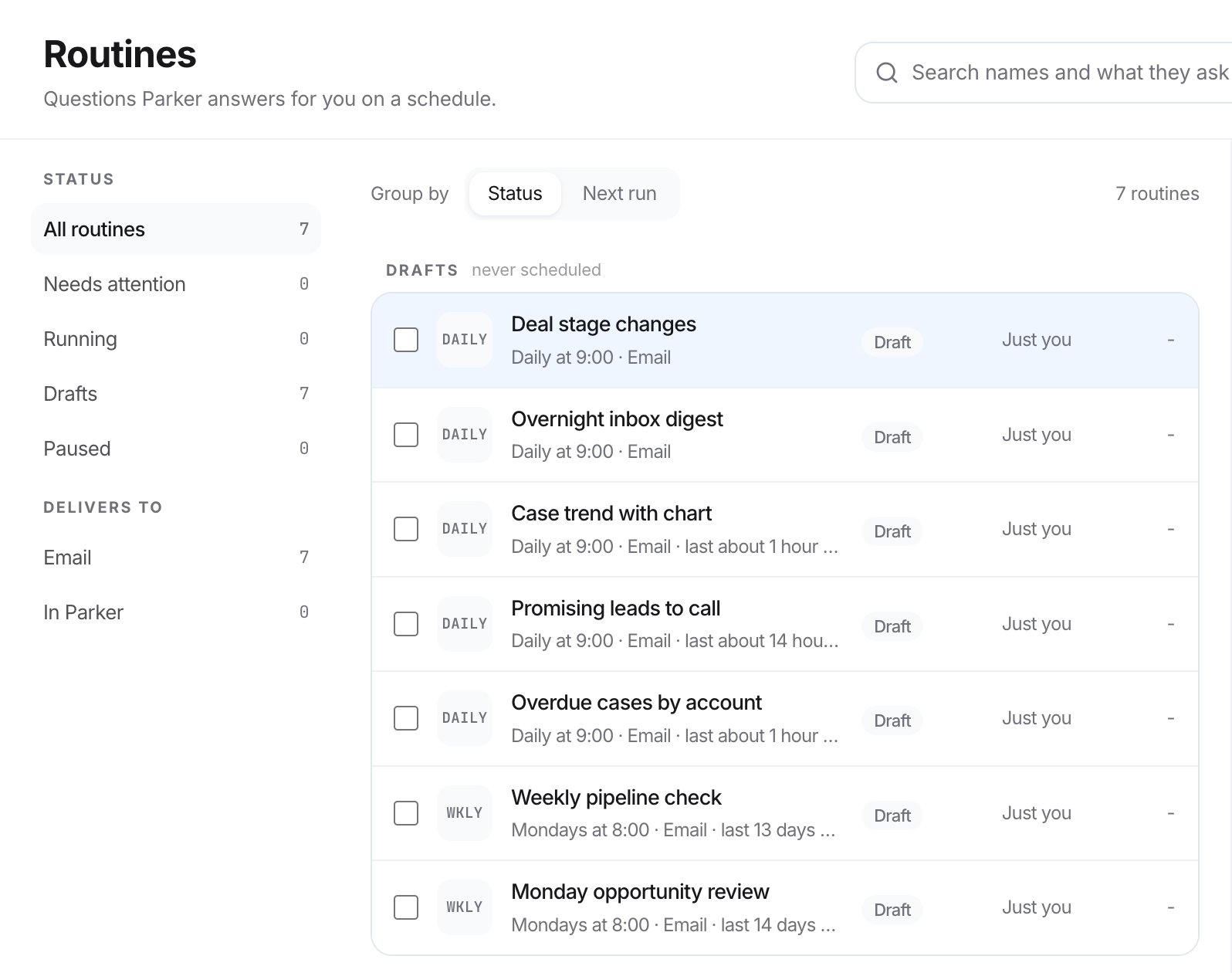
The **Routines** page groups routines by status, such as **Running**, **Drafts** (never scheduled), and **Paused**.
## Related
Have Parker draft replies to new email.
Find designed reports Parker saved for you.
Write prompts that get good answers.
This documentation is built and hosted on [Mintlify](https://mintlify.com), a developer documentation platform.
To throw away a routine you tried but didn't schedule, select **Discard**.
Summarise my open opportunities by stage, and flag any closing this month with no next step.
## Check it worked
* The routine's page shows its schedule and timezone.
* After it runs, the **Runs** tab lists each run with its **Status**, **Trigger**, **Started**, **Duration**, and **Delivered**. Select **View thread** to open that run's conversation.
## Edit a routine
Open the routine from the **Routines** page, then select **Open full view**. You can change the prompt, **Schedule**, **Delivery**, and **Recipients**. To rename it, select **Rename routine** next to its name.
The **Prompt** tab shows the current version of the prompt, such as **v1 Current**.
## Pause, run, copy, or delete a routine
* **To turn it on or pause it**, use the **Enabled** switch on the routine's page. When it's off, the header says "Paused, so it won't fire on schedule." On the **Routines** page, you can also select **Turn on**.
* **To run it now**, select **Run now**. It shows in **Runs** as a **Manual run**.
* **To copy it**, select it on the **Routines** page and select **Duplicate**.
* **To delete it**, select **Delete** (the bin) on the routine's page.
The **Routines** page groups routines by status, such as **Running**, **Drafts** (never scheduled), and **Paused**.
## Related
Have Parker draft replies to new email.
Find designed reports Parker saved for you.
Write prompts that get good answers.
This documentation is built and hosted on [Mintlify](https://mintlify.com), a developer documentation platform.