> ## Documentation Index
> Fetch the complete documentation index at: https://support.parker.work/llms.txt
> Use this file to discover all available pages before exploring further.
# Review drafts and runs
> Find the drafts your automations wrote, then send, revise, or discard them, and check which emails Parker passed over and why.
Check what your automations drafted, decide what goes out, and see what each check did.
## Before you begin
You need at least one automation that drafts replies. See [Set up an automation](/automate/automations).
## Where do I find drafts to review?
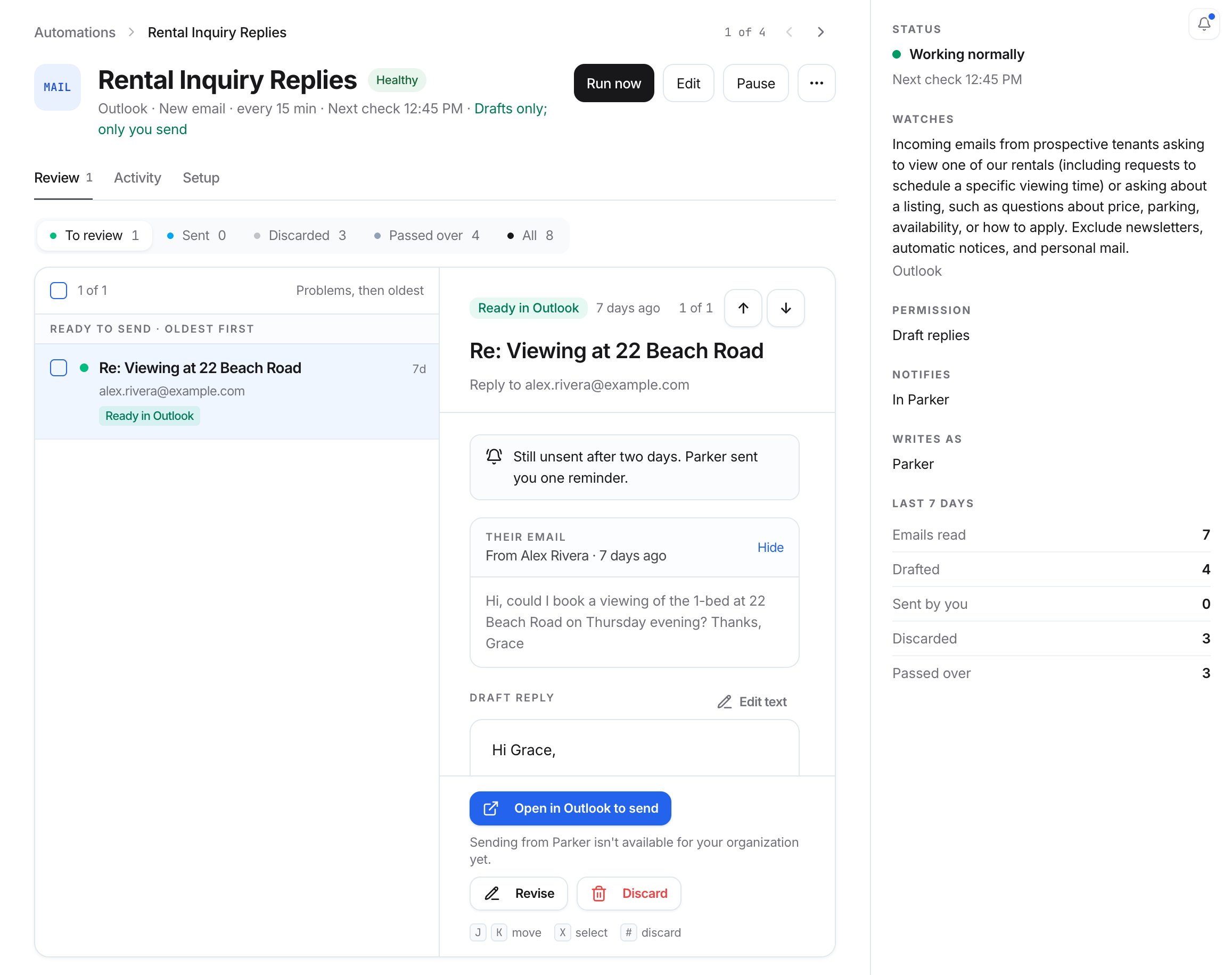
The **Automations** link in the sidebar shows a count when drafts are waiting. On the **Automations** page, automations with drafts are listed under **Needs you**, with a count such as **1 draft to review**. Select the automation, then select **Review 1 draft →**, or open it and go to the **Review** tab.
## Review a draft
The **Review** tab lists drafts on one side and the selected draft on the other. Filter the list with **To review**, **Sent**, **Discarded**, **Passed over**, or **All**.
Select a draft to see **Their email** and Parker's **Draft reply**. Under the draft, Parker notes whether it **Passed your rules** and what it was grounded in. Then choose what to do with it.
 ### Send a draft
Select **Open in Outlook to send**, or send the draft from your **Drafts** folder as usual. If your workspace doesn't allow sending from Parker, the card says "Sending from Parker isn't available for your organization yet."
### Edit the text yourself
Select **Edit text** and make your changes.
### Revise a draft
Ask Parker to rewrite the draft for you.
Select **Revise**.
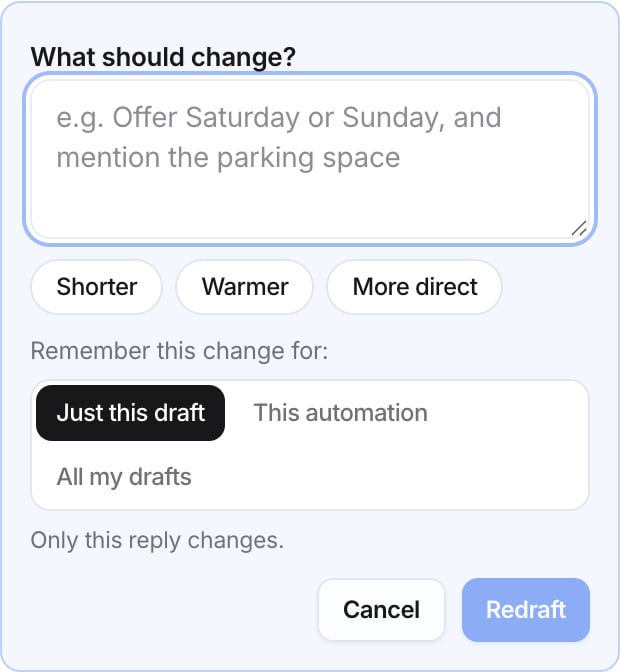
In **What should change?**, describe the change, such as "Offer Saturday or Sunday, and mention the parking space." You can also select **Shorter**, **Warmer**, or **More direct**.
Under **Remember this change for**, choose:
* **Just this draft**: only this reply changes.
* **This automation**: added to this automation's **What to do**, as a new version you can undo in **Setup**.
* **All my drafts**: kept in **Settings** > **Writing style**, so every draft written as you follows it.
Select **Redraft**.
### Send a draft
Select **Open in Outlook to send**, or send the draft from your **Drafts** folder as usual. If your workspace doesn't allow sending from Parker, the card says "Sending from Parker isn't available for your organization yet."
### Edit the text yourself
Select **Edit text** and make your changes.
### Revise a draft
Ask Parker to rewrite the draft for you.
Select **Revise**.
In **What should change?**, describe the change, such as "Offer Saturday or Sunday, and mention the parking space." You can also select **Shorter**, **Warmer**, or **More direct**.
Under **Remember this change for**, choose:
* **Just this draft**: only this reply changes.
* **This automation**: added to this automation's **What to do**, as a new version you can undo in **Setup**.
* **All my drafts**: kept in **Settings** > **Writing style**, so every draft written as you follows it.
Select **Redraft**.
 ### Discard a draft
Select **Discard**.
### Keyboard shortcuts
| Key | Action |
| - | - |
| J / K | Move between items |
| X | Select the item |
| # | Discard |
## What does "Still unsent after two days" mean?
The draft hasn't been sent yet, and Parker sent you one reminder about it.
## Check emails Parker passed over
Filter by **Passed over** to see emails the automation decided not to answer. Select one to see **Why Parker passed over it**, next to your setup's **Which emails** wording.
If it got it wrong:
* **Draft a reply** writes one for this email only.
* **Should have drafted** means Parker will answer emails like this one, in this automation only.
Nothing is sent from here.
## Check what each run did
Open an automation and select the **Activity** tab. Each check is listed by day, newest first, such as **No new email to check**. Select **Earlier days** to see more.
The panel beside the list shows the automation's status, such as **Working normally**, the next check time, and counts for the **Last 7 days**: **Emails read**, **Drafted**, **Sent by you**, **Discarded**, and **Passed over**.
## Related
Create, edit, pause, or delete an automation.
Change how every draft sounds.
When Parker asks before it acts.
This documentation is built and hosted on [Mintlify](https://mintlify.com), a developer documentation platform.
### Discard a draft
Select **Discard**.
### Keyboard shortcuts
| Key | Action |
| - | - |
| J / K | Move between items |
| X | Select the item |
| # | Discard |
## What does "Still unsent after two days" mean?
The draft hasn't been sent yet, and Parker sent you one reminder about it.
## Check emails Parker passed over
Filter by **Passed over** to see emails the automation decided not to answer. Select one to see **Why Parker passed over it**, next to your setup's **Which emails** wording.
If it got it wrong:
* **Draft a reply** writes one for this email only.
* **Should have drafted** means Parker will answer emails like this one, in this automation only.
Nothing is sent from here.
## Check what each run did
Open an automation and select the **Activity** tab. Each check is listed by day, newest first, such as **No new email to check**. Select **Earlier days** to see more.
The panel beside the list shows the automation's status, such as **Working normally**, the next check time, and counts for the **Last 7 days**: **Emails read**, **Drafted**, **Sent by you**, **Discarded**, and **Passed over**.
## Related
Create, edit, pause, or delete an automation.
Change how every draft sounds.
When Parker asks before it acts.
This documentation is built and hosted on [Mintlify](https://mintlify.com), a developer documentation platform.