> ## Documentation Index
> Fetch the complete documentation index at: https://support.parker.work/llms.txt
> Use this file to discover all available pages before exploring further.
# Connections and apps
> See everything Parker connects to, find apps such as Linear, Notion, and Asana, add a server by URL, and understand each connection status.
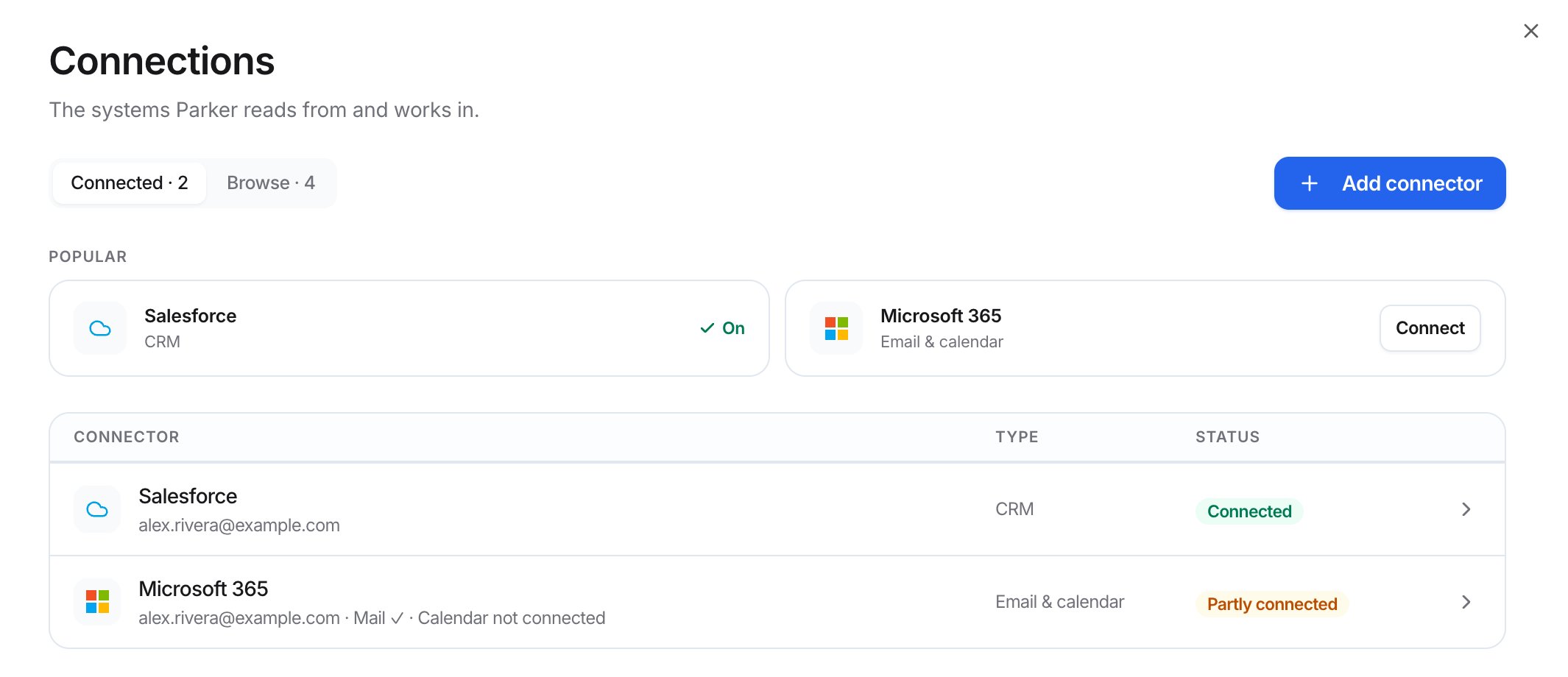
**Settings** > **Connections** lists the systems Parker reads from and works in. Salesforce, your mailbox, and your calendar are personal: each person connects their own account.
## How is the Connections page laid out?
* **Connected** and **Browse** tabs. **Connected** shows what you've connected. **Browse** shows what you can still add.
* **Popular** cards for Salesforce and Microsoft 365. If you aren't connected, the card shows **Connect**.
* A table of connectors with **Type** and **Status** columns. Select a row to open it.
* **Add connector**, a menu with **Salesforce**, **CSV / spreadsheet (in Knowledge)**, **Microsoft 365 email**, **Calendar**, and **Add a server by URL**.
 ## Which connections are personal?
| Connection | What it's for | Where to learn more |
| - | - | - |
| **Salesforce** | Your CRM records. | [Connect Salesforce](/admin/connect-salesforce) |
| **Microsoft 365** | Outlook mail and calendar. Microsoft grants mail and calendar access separately, so the row can say **Partly connected**. | [Connect your mailbox](/email/connect-mailbox) |
| **Gmail** | Gmail mail. Open the **Microsoft 365** row, then select **Connect Gmail** under **Mailboxes**. | [Connect your mailbox](/email/connect-mailbox) |
| **Google Calendar** | Scheduling. Connect Google or Outlook to enable it. | [Calendar and meetings](/email/calendar-and-meetings) |
CSV and spreadsheet datasets live in **Settings** > **Knowledge**, not here. See [Add knowledge](/admin/knowledge).
## Which apps can I add?
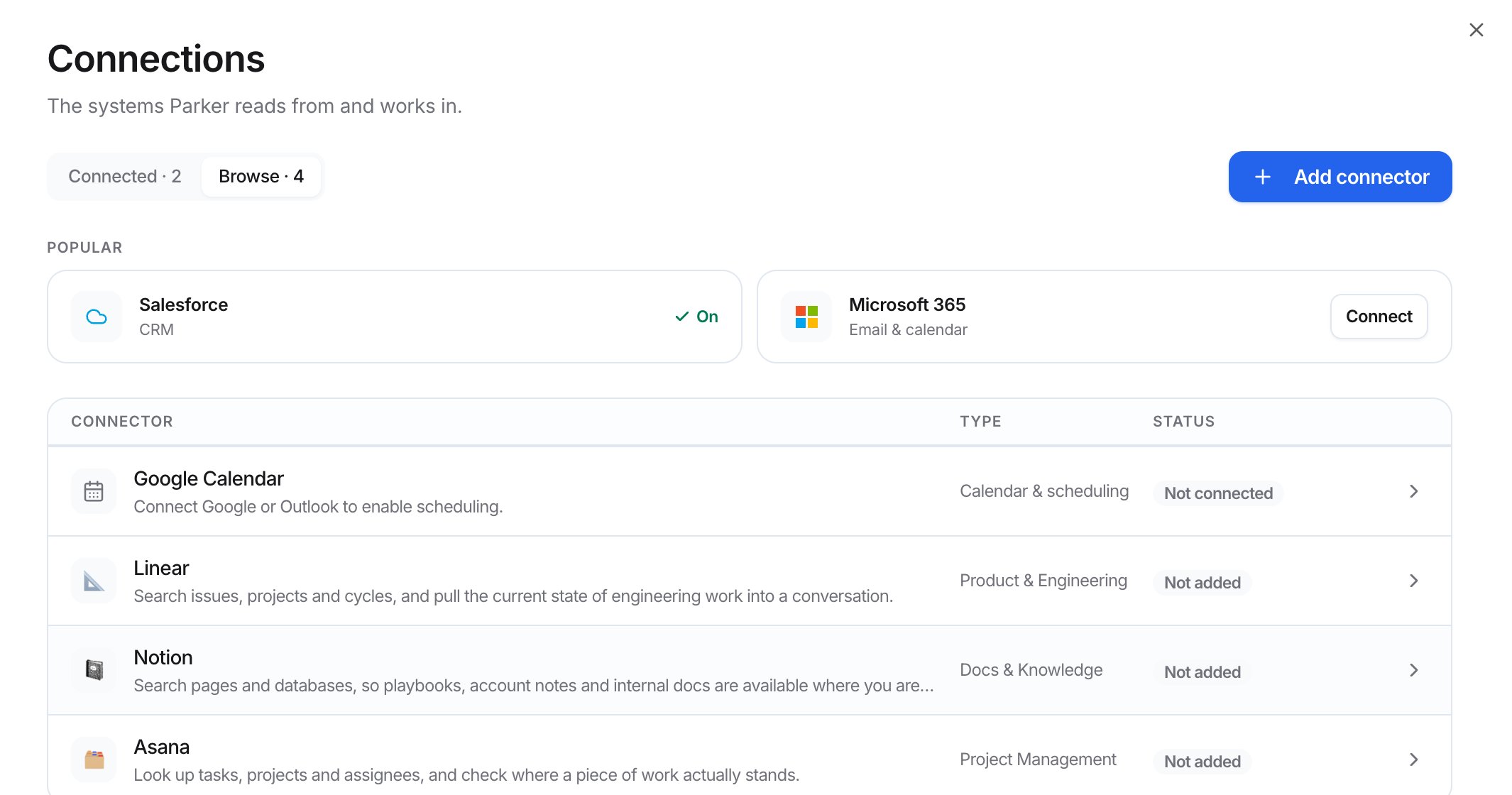
The **Browse** tab lists three apps your workspace can add:
* **Linear**: search issues, projects, and cycles.
* **Notion**: search pages and databases, such as playbooks and account notes.
* **Asana**: look up tasks, projects, and assignees.
An app your workspace hasn't added shows **Not added**. Select its row to open it.
## Which connections are personal?
| Connection | What it's for | Where to learn more |
| - | - | - |
| **Salesforce** | Your CRM records. | [Connect Salesforce](/admin/connect-salesforce) |
| **Microsoft 365** | Outlook mail and calendar. Microsoft grants mail and calendar access separately, so the row can say **Partly connected**. | [Connect your mailbox](/email/connect-mailbox) |
| **Gmail** | Gmail mail. Open the **Microsoft 365** row, then select **Connect Gmail** under **Mailboxes**. | [Connect your mailbox](/email/connect-mailbox) |
| **Google Calendar** | Scheduling. Connect Google or Outlook to enable it. | [Calendar and meetings](/email/calendar-and-meetings) |
CSV and spreadsheet datasets live in **Settings** > **Knowledge**, not here. See [Add knowledge](/admin/knowledge).
## Which apps can I add?
The **Browse** tab lists three apps your workspace can add:
* **Linear**: search issues, projects, and cycles.
* **Notion**: search pages and databases, such as playbooks and account notes.
* **Asana**: look up tasks, projects, and assignees.
An app your workspace hasn't added shows **Not added**. Select its row to open it.
 ## Add an app Parker doesn't list
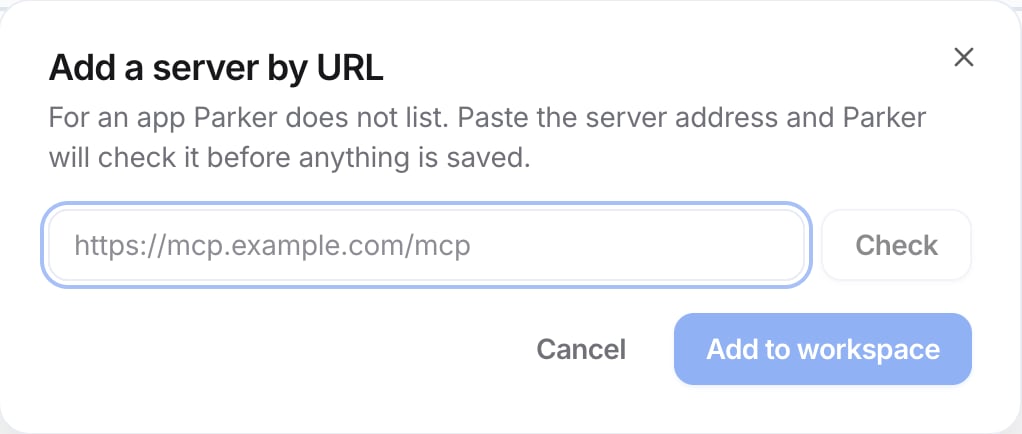
If an app offers an MCP server, you can add it by its address.
Select **Add connector** > **Add a server by URL**.
Paste the server address, for example `https://mcp.example.com/mcp`, then select **Check**. Parker checks it before anything is saved.
Select **Add to workspace**.
## Add an app Parker doesn't list
If an app offers an MCP server, you can add it by its address.
Select **Add connector** > **Add a server by URL**.
Paste the server address, for example `https://mcp.example.com/mcp`, then select **Check**. Parker checks it before anything is saved.
Select **Add to workspace**.
 Only add servers you trust. Data your team asks about is sent to the server's address.
## What do the statuses mean?
| Status | What it means |
| - | - |
| **Connected** | Working. |
| **Partly connected** | Microsoft 365 only: mail or calendar is connected, but not both. |
| **Not connected** | You haven't connected your own account yet. |
| **Not added** | Your workspace hasn't added this app. |
## Related
Your Salesforce login and admin controls.
Gmail and Outlook.
Teams, Messages, and WhatsApp.
Manage the tools Parker can use.
This documentation is built and hosted on [Mintlify](https://mintlify.com), a developer documentation platform.
Only add servers you trust. Data your team asks about is sent to the server's address.
## What do the statuses mean?
| Status | What it means |
| - | - |
| **Connected** | Working. |
| **Partly connected** | Microsoft 365 only: mail or calendar is connected, but not both. |
| **Not connected** | You haven't connected your own account yet. |
| **Not added** | Your workspace hasn't added this app. |
## Related
Your Salesforce login and admin controls.
Gmail and Outlook.
Teams, Messages, and WhatsApp.
Manage the tools Parker can use.
This documentation is built and hosted on [Mintlify](https://mintlify.com), a developer documentation platform.